Up next in 10


Transform & Annotate Your Comments with Better Comments VS Code Extension!
Show More Show Less View Video Transcript
0:00
uh hello guys welcome to this video so
0:02
in this video I will talk about a vs
0:05
code extension which is useful to
0:08
highlight comments while you program so
0:13
there are different kinds of comments
0:14
which are supported by this extension
0:16
you can just see on your screen so you
0:18
can even customize the color combination
0:21
of these comments you can underline them
0:23
you can strike through them so different
0:25
shades of comments are there so the
0:28
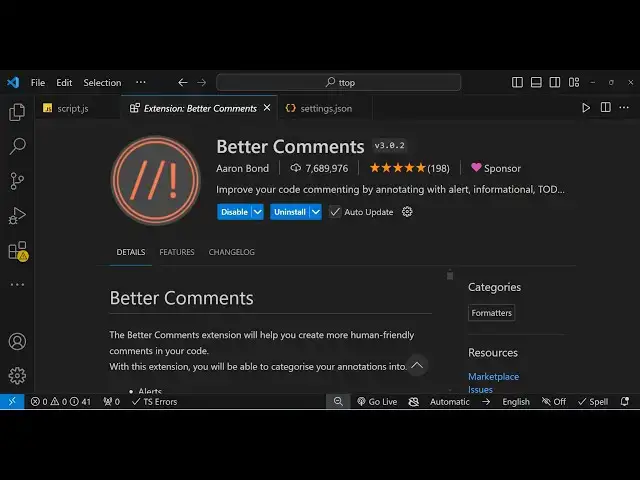
extension name is better comments so if
0:31
you go to the extensions Tab and just
0:33
search for this extension which is
0:35
better comments so if you just write
0:38
this the very first ex extension which
0:41
comes this is actually the extension
0:43
right here 7.6 million downloads so this
0:49
is actually the extension and it is
0:52
developed by Aon Bond and you just need
0:54
to click the install button to actually
0:57
install this extension so once it is
0:59
installed it will be globally installed
1:01
inside vs code so now to get started you
1:04
can be inside any file any programming
1:07
file so what you need to do let's
1:10
suppose I written some kind of code
1:12
right
1:15
here so we Define a JavaScript function
1:18
which adds two numbers so now we need to
1:21
add some comments to this code so we can
1:24
do right here like
1:27
this this is actually a basic comment
1:30
that you have inside programming in
1:33
JavaScript it is highlighted by green
1:36
color but using this extension better
1:39
comments it do offers different kinds of
1:42
comments so one such comment is uh the
1:46
question mark if you do this the color
1:50
will change right
1:51
here to blue color so based
1:57
upon this is actually called a in for
2:00
comment this is a blue comment and now
2:03
if you want to highlight
2:05
something using a alert statement so you
2:09
can have a this comment right
2:12
here which is exclanation Mark and now
2:16
this is the color is changed to red
2:19
color so this is you can
2:23
be adding two
2:27
numbers so this is all comment
2:30
it is just the color has been changed so
2:33
all these are comments right
2:45
here so this is the alert comment this
2:48
is the info comment and the third one is
2:53
actually if I Define let's suppose
2:56
another function which actually does the
3:00
subtraction and return a minus B and if
3:05
I want to highlight this there is a
3:06
third type of comment which
3:08
is the strike through comment so four
3:13
slashes and then this will change you
3:16
will see a line will be
3:22
drawn so this comment is actually if you
3:26
want to hide something inside your code
3:29
this comment can be
3:32
used so you will actually
3:36
see a strike through line has been made
3:40
and so if you just want to hide
3:42
something inside the code then you can
3:44
use this kind of comment So based upon
3:47
your
3:48
need you need to select which kind of
3:50
comment and the fourth type of comment
3:53
is this one underline comment so if you
3:58
want to underline something in while
4:00
commenting
4:02
out you can use this underline you can
4:06
even customize the colors as well I will
4:09
show you later on how to customize the
4:12
colors you can choose your own favorite
4:14
color just provide the hexa decimal
4:17
code and then the Fifth Fifth type is
4:20
this one
4:23
star this is actually the green
4:27
comment so you can see five types of
4:30
comments are there this is the first one
4:33
second one third one fourth one fifth
4:36
one and now you can actually change the
4:40
settings as well so here you have a
4:42
shortcut here Control Alt control shift
4:46
p if you just type this combination on
4:48
the keyboard This preferences menu will
4:51
open and here you can select open user
4:54
settings Json file and here you can
4:57
control the settings about this plugin
5:01
so I have given the code here uh in the
5:03
video description so you just need to
5:05
paste this
5:06
code so once you paste this
5:09
code like
5:11
this so you will be having these uh
5:15
properties here uh this is the better
5:17
comments tags here so for each tag here
5:20
for each comment we Define this
5:23
uh which tag you want to use you can
5:26
even customize this as well so here we
5:29
are using this uh actual tag here for
5:32
the particular comment that you want to
5:34
use then we Define the color of the
5:36
comment so here I already told you you
5:39
can customize it by changing the hexad
5:42
decimal color of the
5:44
comment and then there are various
5:47
properties here if you want to underline
5:49
change the background color as
5:51
well so if you do want to provide a
5:54
background color let's suppose I want to
5:57
provide black color as the background so
6:00
I will say 0 0
6:03
0 so once you make the change right here
6:07
if you
6:15
now so after you make the change here
6:18
you do need to
6:22
restart vs code so what you need to do
6:33
so after you make the change simply
6:35
close it and reopen the V vs
6:53
code so after you restart your vs code
6:57
it will restart activate the extensions
7:01
and now you will actually see the black
7:04
background has been added you can see
7:06
that so this is a great extension uh you
7:09
can customize the look and feel of the
7:11
comments right here you can change these
7:13
properties strike through underline you
7:16
can customize background color you can
7:18
make your comments bold there's a italic
7:22
property as well so by default it is set
7:26
to false you can even change true it if
7:29
you want to bold your comments you can
7:32
make it
7:38
true so I have given this code uh in the
7:41
description of this video you can find
7:44
those and if you want to basically make
7:47
a new comment you can just uh copy this
7:52
paste it and here you need to change the
7:55
tag here so which tag you want to use
7:58
while making the comment so let's
8:00
suppose I
8:02
provide k key here K
8:09
tag so again if you make the change you
8:11
need do need to
8:23
restart so when you restart it usually
8:26
takes some
8:28
time about 5 to 6
8:33
seconds so you can now see all the
8:35
comments are being uh bold so it is
8:40
actually highlighted properly right
8:44
here so I personally use this extension
8:47
for the comments it actually highlights
8:50
your code better and you can uh
8:53
customize the look and feel of the
8:55
comments as
8:56
well by having this background color
8:59
inside the comment it usually makes the
9:03
code more readable so I think it's a
9:07
must extension in vs code you should
9:10
definitely install it the again the let
9:13
me show you the extension right here
9:14
better comments this is actually the
9:17
extension so just install
9:22
this this is actually the extension 7
9:25
million downloads are there so
9:30
you can customize you can see I
9:37
just so this was the
9:40
extension so thank you very much for
9:42
watching this video and do check out my
9:45
website as well free mediat tools.com so
9:48
this actually contains thousands of free
9:51
tools related to image video and audio
9:55
so do check this as well and I will be
9:57
seeing you in the next video
#Programming
#Software