Up next in 10

This VSCode Extension Integrates Canva Image Editor to Make Flowcharts Diagrams and Image Files
Jan 9, 2025

Hi Join the official discord server to resolve doubts here:
https://discord.gg/cRnjhk6nzW
Visit my Online Free Media Tool Website
https://freemediatools.com/
Buy Premium Scripts and Apps Here:
https://procodestore.com/
Show More Show Less View Video Transcript
0:00
uh hello guys welcome to this video so
0:02
in this video I will show you a visual
0:04
studio code extension which allows you
0:07
to actually make these colorful
0:09
flowchart
0:10
diagrams and you can even make YouTube
0:13
video
0:14
thumbnails uh you can export them to
0:17
svgs or PNG anything and this is a fully
0:21
fleshed editor which comes in visual
0:23
studio and this extension allows you to
0:25
do this so the extension name is draw
0:28
IOU this is actually if I show you you
0:32
need to go to extensions and the name of
0:34
this extension is draw simply need to
0:37
type
0:38
draw do iio
0:41
integration so this is a very famous
0:43
website which is draw IO which is lets
0:46
you uh actually draw flowchart diagrams
0:50
so they have their integration extension
0:53
right in the vs code this is the name of
0:55
the extension and this is unofficial
0:59
integration which integrates draw IO
1:01
into V vs code it has almost 2 million
1:04
weekly downloads so
1:08
simply if I start from scratch we need
1:10
to go to EXT
1:13
uh right in the extensions Tab and just
1:16
type here draw
1:19
IO integration so just type this the
1:23
very first link which comes in simply
1:25
click on enable so once you enable this
1:28
extension it uh you you can actually
1:30
reload your vs code simply restart it
1:34
and just uh restart
1:36
it so after you restart you just need to
1:41
make a simple file called as text do
1:46
draw IO this is the name of the
1:49
extension we need to give so this will
1:51
be the file name and this is actually
1:53
the extension you need to give draw IO
1:56
so this will change to this uh icon
1:58
right here and now you can
2:00
actually have let me just zoom out so
2:03
that you can clearly see so you will
2:05
have a fully fleshed editor where you
2:08
can actually draw any sort of shapes you
2:10
can import these ovals rectangles
2:13
triangles
2:15
everything you can see that so you can
2:17
zoom in basically you can adjust the
2:20
size anything you can change the color
2:24
of it let's
2:25
suppose in the right hand center you can
2:28
change the properties right here
2:31
and you can change the color accordingly
2:33
pick your favorite color you can even
2:35
choose gradient as well so you can pick
2:38
any from the Color Picker so it has all
2:40
the options available so you don't need
2:42
to go to any can work loan Editor to
2:45
actually make your graphics and images
2:46
you can just use this extension in vs
2:49
code it's good for programmers because
2:51
many of times we need to build out
2:53
Graphics so we don't need to go to third
2:57
party websites you can directly use
2:58
split uh vs code so here you can write
3:01
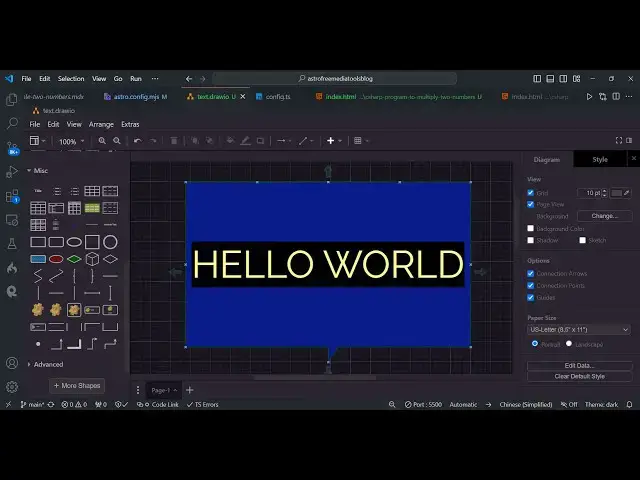
your just choose your text uh font so
3:05
you can just write any text let's
3:08
suppose I write this
3:10
so I can adjust the size so here you can
3:14
change manually provide the size
3:17
here just inside this tab you can
3:20
increase the size of
3:27
it so now you will basically see you can
3:31
also manually do this by increasing
3:35
it so after you are done with it you
3:39
will see that you can even import any
3:42
fonts from Google fonts as well so let's
3:46
suppose you want to import a custom font
3:48
you can import web fonts as well import
3:51
Google fonts as well you just need to
3:54
give the name of the Google
3:56
font so if you visit Google fonts you
3:58
can actually use any fonts of your
4:00
choice you just need to give the name of
4:02
the
4:03
font so here you can actually if you
4:07
want to give this
4:09
uh latto you can see this is the font
4:12
name we just need to provide the name
4:14
right
4:15
here so just provide the
4:18
name click on apply so now it will apply
4:21
this font right here you'll see that so
4:24
this font is added right here in the
4:26
editor itself so you can pick the
4:29
built-in folds as well so you can pick
4:32
your custom phone that you select so
4:35
after you do this uh there is option
4:39
right here in the file menu you can
4:41
import export and you can export this to
4:44
a SVG file or PNG file or Draw IO file
4:48
so this is actually a diagram file so if
4:51
I want to export this into a PNG file so
4:54
what I can do I
4:58
can let me now show you this is actually
5:02
the image file which is saved right here
5:04
very simple you can make complex
5:06
flowchart diagrams as well inside this
5:09
it has all the extensions available you
5:11
can increase the size decrease it
5:13
accordingly if you're making it for
5:15
Instagram YouTube so totally depend upon
5:18
you can choose the size so it has all
5:22
the options so in this short little
5:24
video I can't show you all the options
5:26
but you can see it has a fully flesh
5:28
editor
5:29
built inside vs code so you can also
5:33
choose the background color as well so
5:36
you can also provide any background
5:38
color that you
5:43
want so you can see that the background
5:45
color is changed right here so I can
5:48
just select the black one which is
5:50
looking good so
5:55
here for this font color you can change
5:59
it to any color let's suppose you want
6:01
to change it to Yellow you can see that
6:04
so everything is customizable in
6:09
this this is you can change the
6:12
background color to
6:13
anything can see that so all these
6:17
shapes are available this is the oval
6:18
shape that you can see if you want to
6:20
remove element you can right click these
6:23
all options give you can just make it to
6:26
front to back bring forward bring
6:28
backward and you can delete this any
6:31
individual element you want to delete
6:33
you can simply click delete and let's
6:35
suppose you accidentally deleted element
6:37
you have the option of redo as well you
6:40
can see that redo undo all these options
6:43
are available you can individually
6:46
select elims and click the dpin icon to
6:48
remove it and uh everything is lined up
6:51
guys you can uh save it as a SVG as well
6:55
so there is an SVG option as well you
6:57
can save it as a SV file as well so all
7:01
the files are available so this opens it
7:04
in the browser you'll see that
7:07
so it's a fully fleshed editor guys you
7:10
can draw complex flowchart
7:14
diagrams so I don't have experience in
7:17
using it but uh I just telling you
7:20
you'll see it has pre-built components
7:22
icons you will see that this is the
7:26
icon this is a you can see it's a table
7:30
structure you can addit values right
7:32
here you can provide
7:44
values so this is the cool little
7:47
extension guys uh and uh you can see
7:51
that so please hit that like button
7:54
subscribe the channel as well you can
7:55
change the portrait and landscape mode
7:58
as well so all these things are given so
8:01
please hit that like button subscribe
8:03
the channel as well and I will be seeing
8:05
you in the next video
#Visual Art & Design
#Programming
#Multimedia Software
#Family-Oriented Games & Activities
#Drawing & Coloring
#Clip Art & Animated GIFs
#Visual Arts & Design Education