Up next in 10


Buy the full source code of application here:
Show More Show Less View Video Transcript
0:00
uh hello guys welcome to this video so
0:02
in this video I will show you a react
0:06
library for displaying the tabular data
0:08
so if you have a table of data that you
0:10
want to display inside your react CH
0:12
application so we have a specific
0:15
package available inside react CH so you
0:17
can see on your screen we are displaying
0:19
some tabular data which contains three
0:21
columns and three rows of data and it's
0:24
kind of a data table uh we have this
0:28
kind of data displaying so we also have
0:31
sorting as well you will see sorting
0:33
controls we can sort by ascending order
0:36
by names you can put all these things so
0:39
the name of the package is if you go to
0:42
npmjs.com just search for this package
0:46
react Das data-grid this is actually the
0:51
package here it's a customizable
0:54
component specifically designed for
0:56
react CH applications so this is
0:58
actually the command here I've already
1:00
already installed it so almost 164,000
1:03
weekly downloads are there so it's a
1:05
pretty popular package so now to get
1:08
started I will just show you a very
1:11
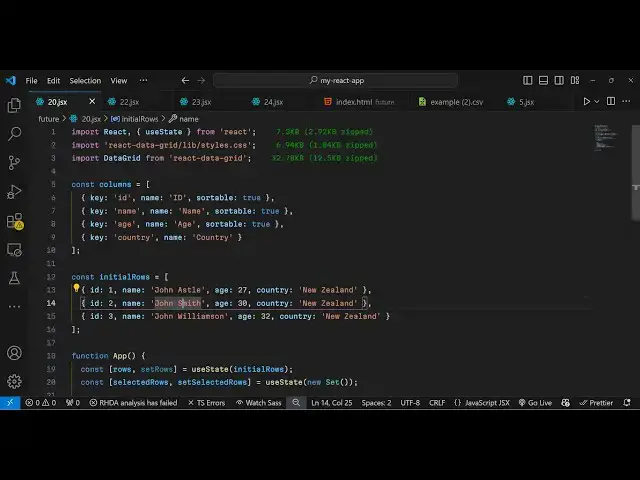
basic example so we just first of all
1:14
need to import the
1:15
package and we also need to import the
1:19
specific CSS file for this package so it
1:22
is located in the lip folder which will
1:24
be styles. CSS and then we have this
1:28
component data grid
1:30
which will be coming
1:33
from react data-grid so in this way you
1:38
can import the package here we imported
1:40
the CSS file as well as the actual
1:43
package so now we need to have some data
1:46
that we need to display so we'll
1:48
actually create an array of object so
1:52
here you specify what columns name what
1:56
data that you want to display so you
1:57
have an ID here and you can have this
2:00
property of
2:02
sortable which typically means that you
2:04
want to sort this data using this
2:08
column so in this
2:11
way we can have an array of objects here
2:14
where you can specify the column names
2:17
by the key
2:19
property so we will have the name as
2:22
well so I will say sortable to
2:27
true and similarly we will have the
2:29
column names for age and Country so in
2:32
this way you can
2:34
specify how many columns that you are
2:36
specifying right here using this
2:42
object so in Array of objects here we
2:44
have declared this
2:46
columns and now you can provide some
2:48
data some dummy data which you want to
2:53
display so this data can be coming from
2:55
an API or database as well so I'm just
2:57
hardcoding it
3:00
so we have these three rows of data
3:02
right here so we have three columns ID
3:05
name Age Country and we have provided
3:07
some dummy data right here if you see so
3:11
now to display this data it's very
3:13
simple
3:15
uh so what we can do is that we can
3:18
declare it globally so I can shift this
3:21
outside
3:23
this functional component
3:28
so so now the
3:30
jsx now to display this data first of
3:33
all we do need to declare some State
3:37
variables which will be keeping track of
3:40
how many rows that you're display so for
3:43
this we will be using the U State
3:48
hook and we'll be passing this initial
3:52
rows variable that we have declared so
3:54
we are just passing it right
3:58
here and now to display this it's very
4:01
simple we use the component data grid
4:03
which is available and it actually takes
4:06
the actual props which is the actual
4:08
column names that you want to
4:10
display and the actual rows of data
4:13
which will be located in the rows
4:15
variable so if you refresh and go to the
4:18
browser you will see the table will
4:20
display right here this is your data
4:22
table widget which is displaying the TBL
4:25
data right here we have four columns
4:27
right here you will see that this is ID
4:29
name a Age Country and we have three
4:31
rows of data
4:33
displaying so in this way you can
4:35
display as many rows of data that you
4:37
want to display and then we also have
4:41
sorting capabilities as well so there is
4:43
an attribute right here that you can
4:45
pass if you want to specifically sort
4:48
the data based on my specific column
4:50
name so what I will do I will sort the
4:53
names in the ascending order so here we
4:56
specify the key name which is the name
4:58
right here name column and we want to
5:00
sort this data by the ascending order so
5:03
what it will do it will basically
5:05
alphabetically sort this data like
5:09
this we can even do this descending
5:12
order as well so you just need to change
5:14
it for descending order so now it will
5:17
change for descending
5:21
order so if you want to specifically
5:26
select get the data which the user
5:28
selects you can bind these attributes
5:30
row getter set selected rows on selected
5:33
rows
5:34
change so we just need to specify the
5:37
call back
5:39
functions so when when you select a
5:41
specific row of data then it will
5:43
display the actual row of data that you
5:49
selected so all the source code will be
5:51
given in the description so this was a
5:53
complete example of showing a data table
5:55
widget inside your react CH application
5:58
using the specific Li Library which is
6:00
react data grid so thank you very much
6:03
for watching this video and I will be
6:06
seeing you in the next video and also
6:08
check out my website as well free mediat
6:10
tools.com which contains thousands of
6:13
tools regarding audio video and MH and I
6:16
will be seeing you in the next video