Up next in 10

PHP FFMPEG Script to Compress Video & Change Bitrate,Resolution of Video Using HTML5 Form in Browser
Dec 21, 2025

Buy the full source code of the application here:
https://procodestore.com/index.php/product/php-ffmpeg-script-to-compress-video-change-bitrateresolution-of-video-using-html5-form-in-browser/
Show More Show Less View Video Transcript
0:05
Uh hello guys. Today in this tutorial I
0:07
will basically show you how to build a
0:09
video compressor and how to change the
0:11
bit rate all the functionalities of a
0:15
video in PHP using ffmpg. So we have
0:19
this interface out there which we
0:20
developed in browser using bootstrap. So
0:23
we have a choose file button where we
0:25
can select our video files and let me
0:29
select this file guys which is you can
0:31
see the size of this file. Video file is
0:34
29.5 mgabytes. It is almost 3 minutes
0:38
long video. You can take any any much
0:41
long video guys. So it can you can also
0:44
take 500 mgabytes video as well. It will
0:47
take a long long time
0:50
but this software this script will
0:53
reduce the size without compromising the
0:55
quality. And let me select this video
0:57
file and we have some options out there
1:00
default bit rate. It will al
1:02
automatically detect the bit rate, max
1:04
rate, buffer size and resolution. You
1:07
can even change the resolution of the
1:09
video 4K, 8K, full HD. You can play with
1:13
these options. Let me select full HD and
1:16
uh let me stick to the default options
1:18
and click on compress video. So original
1:21
size was 20 29 MB. Now if I basically
1:25
click this. So B it will run the FMPG
1:28
command in the background guys. So it
1:30
will take a some time. You need to wait
1:33
for the command to finish. As soon as
1:35
the command finishes your video file
1:37
will be downloaded as an attachment. So
1:40
just wait. It is just uh doing its uh
1:45
in the background it is doing its job
1:47
for compressing the video. So [snorts]
1:51
it's a fullyfledged video compressor
1:53
guys. You can deploy this application in
1:56
your own hosting. You can earn a lot of
1:58
money as well by doing this. I will be
2:02
showing you step by step how to build
2:04
this. Now you can see that guys the
2:06
video has been compressed and it has
2:08
been downloaded. 9.2 2 mgabytes. So it
2:12
basically we reduce the size from 29
2:15
mgabytes to 9 mgabytes. Almost 20
2:18
mgabytes of space saved. So if I
2:21
basically play this video now, now you
2:23
can see the same video
2:25
>> properties.
2:26
>> It's playing here.
2:28
>> You can't see any reduced in quality
2:30
because it is full HD video and uh we
2:34
saved 20 mgabytes still.
2:38
So it's very useful guys whenever you
2:40
want to save space because uh also your
2:43
internet speed is not good. It's very
2:45
much good that you compress your videos
2:47
if you want to send the video to any
2:49
location for email as well. And uh you
2:53
can also change the quality. Let's
2:55
suppose I want to change it to 240p.
2:58
So now the quality will be reduced. So
3:01
if I basically now click the compress
3:03
video option the quality of the video
3:06
will be reduced. So once again it will
3:09
run this PHP script. So all the source
3:12
code guys the PHP script is given in the
3:15
description. You can purchase it from
3:16
stripe.com
3:18
and after you purchase it you will get
3:20
this directory structure and uh in the
3:24
output folder you will get your output
3:26
files and uploads folder whichever files
3:30
that you upload right here it will be
3:32
stored right here and uh then guys in
3:35
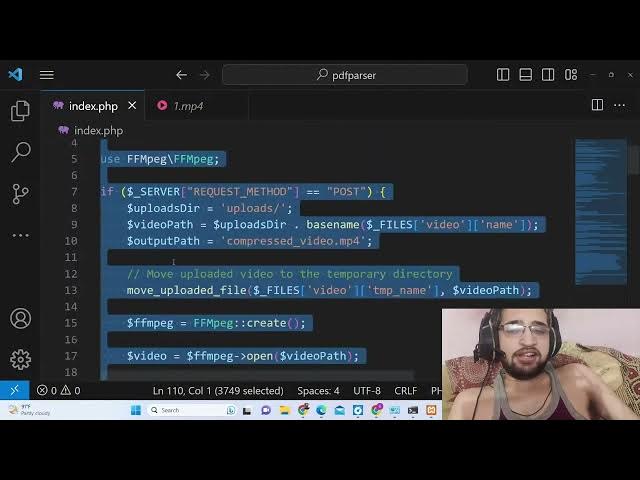
the index dot php this is a single file
3:38
and uh you can see we are requesting the
3:40
ffmppg library here and uh we are
3:44
basically getting all these things here.
3:46
The bit rate, max rate, buffer size,
3:48
resolution.
3:51
[snorts] So now if I check now the
3:54
quality will be reduced. You will see
3:56
that guys. So if at all that you want to
3:59
change your video to 240p, you can also
4:01
change the resolutions as well. So this
4:03
also has your option right here. If you
4:06
want to change the quality of your
4:08
video, you can change the resolution by
4:10
selecting 4K as well.
4:14
So it totally depends upon you how you
4:17
want to do it. You can change to any
4:19
quality of your choice 4K, full HD,
4:22
240p.
4:23
So these are the resolutions. So if you
4:26
are viewing this live stream also in
4:29
YouTube also you have seen resolution
4:31
you can view. If your internet
4:33
connection is not good, if your speed is
4:34
not good, YouTube will redirect to you
4:37
240p, 360p, 480p, full HD, 4K, 8K. So
4:42
these are the resolutions out there
4:44
which basically compresses your video
4:46
automatically. So we have these options.
4:49
You can basically change the bit rate if
4:51
you want to change your bit rate. So you
4:54
can change it to any value. If you
4:56
change it to 500, you can play with this
4:58
max rate as well. Buffer size as well.
5:02
So the command that we are executing is
5:05
this ffmpg command guys. You will see
5:07
that we are providing the video path and
5:09
then we are using our Nvidia encoder and
5:13
this is G uh GPU graphical processing
5:16
unit. I have this uh Nvidia
5:19
uh GPU running in my systems. That's why
5:22
I'm taking an advantage because if you
5:25
don't use this your FFMPG commands will
5:27
take a lot of time. So if you have a
5:29
built-in GPU use that. So we are
5:32
including it using this command. Then we
5:34
are passing the bit rate.
5:37
We are passing the max rate, buffer size
5:39
and also we are scaling the video to
5:41
that resolution by using video filter.
5:44
And then we are overwriting the output
5:46
file. So
5:48
that's all we are basically executing
5:51
the ffmpg command and downloading the
5:53
file as an attachment by attaching these
5:55
headers. That's all guys. This is there
5:57
and uh in the PHP script. So depending
6:01
upon which res resolution you select
6:03
guys, it may take a lot of time as well
6:06
as you selected 4K
6:11
and in the 4K video if you want to
6:13
change the size the video size will be
6:16
pretty larger because in 4K video your
6:20
size will also get large.
6:26
You can see it is still processing.
6:29
It is moving 12 MB. So if you basically
6:32
want this video compressor guys, you can
6:36
go to the link and purchase the full
6:38
source code. And if you have any doubt
6:41
related, you can see that it has
6:42
compressed it.
6:45
Uh hello.
6:46
So now you can see it is uh resolution
6:49
of the video is now 4K. You can now see
6:52
resolution has been changed to 4K and
6:54
still the size is reduced. If you see
6:57
the original size of the video, it was
6:59
round about 29
7:02
mgabytes [snorts] and 4K video, it it
7:06
size is
7:08
14 mgabytes. So
7:10
you can even change this bit rate value,
7:12
max rate value as well. [snorts] So this
7:15
was the tutorial guys. If you need this
7:17
script, you can go to the description
7:18
and purchase it. Thank you very much for
7:20
watching