live_tv
Livestream Starting Soon
00
Hours
:
00
Minutes
:
00
Seconds
Up next in 10

PHP 8 Project to Build HTML & CSS Template to PDF Converter Web App in Browser Using DOMPDF & JS
Jan 9, 2025

Buy the full source code of application here:
https://procodestore.com/index.php/product/php-7-project-to-build-html-to-pdf-converter-web-app-in-browser-using-dompdf-javascript/
Show More Show Less View Video Transcript
0:00
uh hello guys welcome to this video so
0:02
in this video we will actually be
0:04
constructing a html2 PDF web application
0:09
inside PHP and uh you can see in on your
0:13
screen this is actually the demo of the
0:14
application and I deployed this uh tool
0:18
here on my website freem mediat
0:20
tools.com html2pdf you can visit this
0:24
URL and simply try this tool let me show
0:26
you a nice little demo right here if you
0:29
choose any sort of HTML template let's
0:32
suppose if you choose this
0:35
template if I just open this
0:38
file it looks something like this you
0:41
can see it contains an HTML table right
0:43
here which contains some records name
0:45
email age and Country if I need to now
0:47
convert this into PDF so I will simply
0:51
select this click on download PDF file
0:54
so you will basically see it will
0:56
convert this HTML table HTML template
1:00
full and you can just see it actually
1:03
converted this to a PDF file and you can
1:07
just see in the HTML we are applied
1:10
custom CSS so if you see we can even be
1:13
applying custom CSS as well so this is
1:17
the HTML file that I'm using right here
1:20
you'll see we have an table tag right
1:23
here so we have this custom CSS as well
1:26
so if you want to change any sort of
1:30
uh if I make any sort of change right
1:33
here background color if I change to
1:35
this
1:38
one if I add this style and again if I
1:42
refresh uh let's suppose again if I
1:44
select the same file so now if you see
1:48
uh your the custom CSS will be changed
1:51
because we changed the CSS part right
1:53
here that's why uh you can just see it
1:57
has converted everything HTML Plus the
2:00
custom CSS as well to PDF documents so
2:03
for this we are using a PHP Library
2:06
called as Dom PDF Dom PDF is an open
2:09
source HTML to PDF uh converter so this
2:12
is their GitHub repo uh you can just see
2:15
it's a free open source library and
2:17
we'll be using this library inside this
2:20
video to actually convert the HTML
2:23
template to PDF with CSS so if you need
2:25
the full source code guys of this tool
2:27
that I deployed right here
2:30
you can actually go to the description
2:32
link and purchase the full source code
2:35
uh the link is given in the description
2:37
of this video so you will get a zip file
2:39
after you purchase it from you will be
2:41
redirected to Google Drive where you
2:43
will actually get the full zip which
2:45
will contain the full directory
2:47
structure so now let's get started by
2:49
building this application so the very
2:51
first thing we need to do uh you need to
2:54
have exam control panel installed inside
2:57
your system so it's a Apache control
3:00
panel which comes with the Apache HTTP
3:03
server so if you don't have this you can
3:06
simply say exam control panel download
3:10
so the very first link which comes right
3:11
here it's a crossplatform software it
3:13
available for Windows Linux Mac so you
3:16
can download for respective operating
3:18
system so once you install it simply
3:21
start this Apache
3:23
server so now it is running so now we
3:26
can simply
3:29
so first of all what I need to do uh you
3:32
need to go to your C directory where the
3:35
exam directory is present need to go to
3:37
this folder HT docs and just create a
3:40
new directory I will say that html2 PDF
3:46
app I will see you into this app and
3:49
open it
3:51
inside you will see uh currently the
3:54
directory is empty so now we will
3:56
initialize our composer composer is
3:59
dependency manager for PHP for
4:01
installing third party packages so we
4:04
need to install the Dom PDF package so
4:07
it will simply say composer c m p o
4:12
r composer and it hasn't got install
4:15
command to actually install a third
4:17
party package this will be Dom
4:21
PDF if you want to see the command which
4:25
is there you can simply see in the
4:27
GitHub repo they have provided the
4:28
command which is composer require Dom
4:32
PDF sorry this is actual command so I
4:35
will simply copy this command and paste
4:40
it so what you will see uh it will
4:43
actually create a composer. Json
4:46
file it will install the latest version
4:49
and it will create this vendor folder
4:51
which will actually contain the files of
4:53
that actual Library so this is actually
4:57
the autoload.php file which will
4:59
actually link the plugin inside of
5:03
project now we need to Simply
5:06
create the index. HTML file which will
5:09
be having the
5:12
template you will simply here say HTML
5:15
to PDF
5:19
converter and for this we will also be
5:22
using some bootstrap so simply after the
5:25
title we need to paste the CDN of
5:27
bootstrap and then we need to Simply
5:29
write basic
5:31
HTML container mt5 these are all
5:34
bootstrap classes we will give it an
5:36
heading in the center position which is
5:39
html2 PDF
5:46
converter after this we will be having a
5:49
form tab so this will be going to the
5:54
upload upload.php script that we will be
5:57
writing and the method here will be post
6:00
encoding typee will be multiart form
6:05
data so right here uh we will be having
6:10
a div tag which will have the class of
6:12
form
6:13
group and
6:16
label here we will be having a label
6:20
for this will be file upload and uh here
6:23
will be simply be saying that select
6:25
HTML file so the user will select
6:31
the HTML files input type will be file
6:34
and here class will be bootstrap class
6:37
of form control and it should be
6:39
required the user must submit this file
6:42
before submitting the form so required
6:44
attribute we giving a name attribute as
6:47
well which is very useful we'll give it
6:49
a name attribute of file this is really
6:52
important attribute because in PHP we
6:55
use this name attribute to actually see
6:58
in the in the script when we write
7:00
upload.php so just give it a name
7:03
attribute and that's
7:06
all so just rename this to
7:12
index okay this is index. HTML that's
7:15
all so after this uh if you now need to
7:19
open this you can simply go to the
7:21
browser simply type Local Host HTML to
7:25
PDF app and you will actually see your
7:28
heading and this this is your select
7:30
file so here you will be selecting the
7:33
HTML file so after this we will be
7:36
having a simple button so just be having
7:38
a simple button it will be saying that
7:41
download PDF file and we will be giving
7:45
a class to it of BTN BTN danger BTN
7:49
block so it will actually add a full
7:52
style button right here if you see so
7:54
after this we also need to say button
7:56
type submit
8:00
and that's
8:01
all just give it a name attribute as
8:03
well of
8:07
submit so now we need to write this
8:10
upload.php script so when we submit this
8:13
form uh if you try to submit if you
8:15
select the HTML file click on download
8:18
so you will actually see this upload.php
8:21
script is not found we do need to create
8:23
this file so right in the root directory
8:26
just create upload.php and also for
8:29
storing the input file we just need to
8:32
create a public and inside this create
8:34
uploads directory so here inside these
8:37
directory public SL uploads all your
8:39
input files will be stored in using PHP
8:43
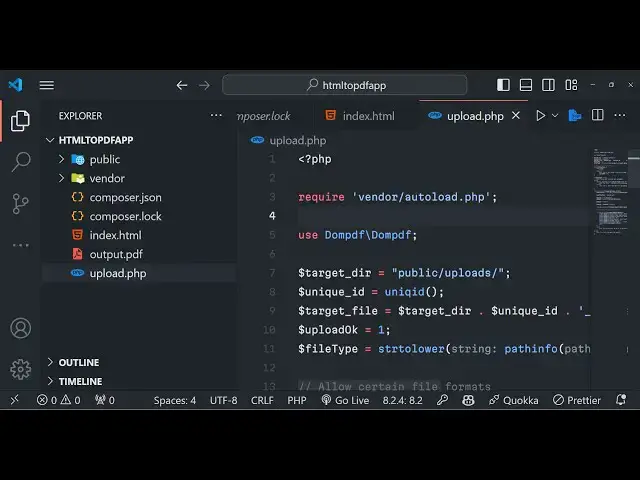
so now inside upload.php we need
8:47
to write the PHP script for processing
8:51
that HTML form so when we submit that
8:53
form this script will be called so right
8:56
here at the very top we need to require
8:58
the library
9:00
autoload file autoload.php so this will
9:03
actually link the third party library
9:06
that we have
9:07
installed so if you don't write this
9:09
line the application will not work so
9:12
simply require that vendor autoload.php
9:15
now we need to use that Dom PDF
9:19
class so it's you can see it has got
9:22
various classes we need to use the base
9:24
class which is Dom PDF and here we need
9:28
to specify the Target directory in which
9:31
directory you will be storing all the
9:33
uploaded files so we will be providing
9:34
this directory so public SL uploads so
9:38
here we will be storing all the
9:40
files and then now we need to give it a
9:43
unique name for
9:45
the every file that will be uploaded so
9:49
for this we will be using a buil-in PHP
9:51
function which is unique ID so this will
9:53
give a unique name every time whenever
9:56
we upload
9:57
files so after after this we just need
10:00
to build out the full name of the file
10:05
we'll be creating a new variable for
10:07
this target
10:08
file and here we'll be saying Target
10:11
directory and we'll be concatenating by
10:14
dot symbol in PHP with the unique name
10:17
that we got using this unique ID so this
10:22
will be the complete path which is
10:24
Target
10:26
file so after this we will be using the
10:29
B base name function of PHP to
10:32
actually
10:35
uh get the actual file so here we need
10:39
to give the name
10:41
parameter so whatever name parameter
10:43
that you have given so in my HTML if you
10:47
see we have given the name attribute to
10:49
be filed this needs to be matching right
10:51
here so whatever name attribute that you
10:53
have given in HTML you need to mention
10:55
here and this will actually fetch the
10:59
actual file that we are submitting in
11:01
this case we are submitting the HTML
11:03
file so it will capture that file this
11:06
base name
11:07
function and then we need to declare a
11:10
variable called as upload
11:12
okay to just store this value
11:17
one and then you'll be simply be
11:20
checking if the user has submitted the
11:22
correct file by using this function
11:24
string to
11:26
lower path info extension so this
11:30
here we'll be specifying uh each switch
11:35
statement and we'll be providing file
11:38
type this will actually contain the
11:40
extension right here so in this case we
11:42
will be storing HTML so here using the
11:46
switch statement we will
11:48
be only be allowing user to upload HTML
11:51
files if they select any other file they
11:54
will get error so you can specify some
11:57
cases right here in case of HTML file
12:01
you need to
12:03
break and here the default one you'll be
12:06
simply be saying a message to the user
12:08
that sorry only HTML files are
12:13
allowed this is not mandatory but it's a
12:16
good practice to actually show errors
12:19
when users upload un incorrect files
12:23
so now if you see if I test this
12:27
application let's suppose if I upload
12:29
HTML file this will
12:32
upload okay sorry only HTML files are
12:36
allowed K
12:44
HTML let me copy this code right here I
12:47
think I made some kind of mistake in
12:59
if I paste
13:08
it if I submit
13:11
now you will basically see it is saying
13:14
that incorrect key name we need to
13:16
replace the same
13:18
key so we need to mention right here
13:21
whenever we are getting the
13:24
file this needs to be filed
13:31
so now if you see we have selected the
13:33
HTML file so no error has taken place so
13:36
now if I change if I select the image
13:39
file instead of HTML
13:45
file so you'll see this error that sorry
13:49
only HTML files are allowed so in this
13:52
way you can do this in
13:56
PHP and then after this
14:00
you will make this variable upload okay
14:02
to be zero because upload okay is
14:05
defined to be one so if they upload
14:08
incorrect files then we will change this
14:10
value from 1 to zero so after this if
14:14
the file is correctly selected then we
14:17
will be Simply Be uploading the file so
14:19
now to upload the file in PHP we need
14:25
to first of all check that if the Target
14:29
file already
14:31
exist in this if condition so it will
14:34
return either true or false depending
14:37
upon the value if that returns uh true
14:41
in that case we will be converting that
14:45
file to HTML sorry PDF first of all
14:48
we'll be getting the content of the file
14:51
by using the get
14:53
content file get contents methods of PHP
14:57
it's a buil-in method to actually read
14:59
the content of any file so here
15:02
providing the path of the file Target
15:03
file to this function as an
15:06
argument so it will store it will read
15:10
the HTML file which the user submits it
15:13
will read everything and store the
15:16
content in this variable which is HTML
15:18
content after doing this we need to
15:21
convert this into PHP sorry PDF you will
15:25
be constructing that path so this will
15:28
be out put PDF which will
15:30
be
15:33
constructed and now to actually do the
15:35
conversion we will be using the Dom PDF
15:38
Library so we'll be instantiating a new
15:40
Constructor of this third party Library
15:43
like this after this we have a method
15:47
right here inside this Library which is
15:49
load HTML so load HTML what it will do
15:52
it will load the input file we need to
15:55
pass the HTML
15:57
content like this
15:59
so after that it contains a method
16:02
called as
16:04
render which will actually render out
16:07
this HTML file and it will render it to
16:10
PDF now we need to save this file so for
16:13
saving it we also have a method in this
16:17
Library which is
16:21
output so let me explain you first of
16:25
all we load the HTML file by using this
16:27
load HTML function
16:29
and then we render it out to PDF and
16:32
then for saving it we are using the
16:34
output method so you can see we are
16:36
using three methods load HTML render and
16:39
output so after this we need to allow
16:42
the user to download the file as an
16:44
attachment when they press the button so
16:46
for doing it we will be using file put
16:49
contents methods of PHP once again
16:54
providing the path of the output file
16:57
and the second argument will be the
16:58
actual
17:01
output so it will actually create this
17:04
output PDF file in the root directory so
17:07
now we need to actually download the
17:10
this file in the
17:12
browser so how to do this it's very
17:15
simple you'll have a if condition again
17:19
if file
17:21
exist in that case only and you need to
17:24
add some headers let me explain you each
17:27
header in detail what it does so the
17:30
first header is
17:32
content description which actually
17:35
specifies your transfering files in the
17:37
browser so this is actually the value
17:40
the second
17:41
header is for specifying the content
17:48
type so here it will be having the
17:51
extension which is application SL PDF
17:55
because it's a PDF file and then we have
17:59
the content disposition header which is
18:02
set to attachment file name is the full
18:05
file
18:08
name the next
18:11
header so let me just write all these
18:14
headers all the source code will be
18:17
present in the
18:21
description so you can see these are all
18:23
the headers that you need to so if you
18:26
download anything in PHP as an
18:28
attachment you need to specify these
18:30
headers this tells you about the file
18:33
that the user will be downloading in
18:35
this case it's a p PDF file that's why
18:38
we need to add these headers to actually
18:41
convey to the browser that it's a PDF
18:43
file that the user is downloading if you
18:46
don't add these headers the file will
18:47
not get downloaded so these are
18:51
mandatory so if the file is not present
18:53
in that case you'll be simply saying to
18:55
the user that uh
19:00
sorry there was an
19:03
error in generating the
19:17
PDF so this also if you see it's also
19:22
this if condition right here which is
19:24
ending right here you have this if
19:27
condition that if the file EX
19:30
exist so if the file doesn't exist we
19:32
will be having this else block we saying
19:35
to the user that the HTML
19:39
file does not
19:51
exist uh
19:56
I so we have written this functionality
20:00
but if you now refresh the application
20:04
still the application will not not work
20:06
if you select
20:08
your file which is
20:11
index.html if you click this you will
20:13
actually see this error that the HTML
20:15
file doesn't exist we need do need to
20:17
upload the file as well if you see in
20:19
the public SL uploads directory nothing
20:21
is present so for uploading the file in
20:24
PHP we have to write the code for this
20:29
so we will just have this code right
20:32
here which is if this value of upload
20:38
okay is equal to zero in that case we
20:41
will say that sorry your
20:46
file was not uploaded because you
20:49
specified a wrong
20:50
file only HTML files are allowed so if
20:54
this value is one in that case in the
20:56
else block we will use this uh move
21:00
uncore uploaded file built-in function
21:03
of
21:04
PHP so here we need to specify the
21:07
actual
21:08
files
21:10
array this will be the again the name
21:13
parameter and the temporary
21:17
name so this code is really common if
21:20
you need to upload any file in PHP we'll
21:23
use the built-in function of move uncore
21:25
uploaded file here we get the temporary
21:28
path PA of the file and this needs to be
21:31
the name parameter that you have given
21:32
in the index. HTML so again we have
21:35
given file right here this needs to
21:37
match so this is really simple function
21:41
and after this you need to specify what
21:44
file that you are uploading so the
21:46
second argument will be Target file so
21:49
inside this function if the function is
21:51
successful in that case we will
21:57
simply print out a
22:02
message like this the file has been
22:10
uploaded in the else case we will
22:14
basically
22:17
say sorry there was an error uploading
22:19
your file so if you just add this code
22:23
now if you go to your application simply
22:25
select your HTML file click on download
22:28
p PDF and now if you see your PDF file
22:31
has been successfully downloaded and if
22:33
you open it you will actually
22:36
see the output PDF file contains two
22:39
pages so whatever is was present in the
22:41
HTML file plus with custom CSS as well
22:44
you can see it has converted that to the
22:47
PDF
22:48
file
22:51
so so this template can have anything it
22:55
can even have images as well let's
22:57
suppose if you want to embed any sort of
23:00
third party image from a website this
23:04
template can be anything it can contain
23:06
tables
23:08
images so let's suppose if I want
23:12
to copy the image address if I change
23:15
this template just add a image tag as
23:19
well paste this address so now it if
23:27
I select
23:34
so the the image is not converted guys
23:36
uh
23:37
so only tables and the actual text you
23:42
can actually try this because this is
23:44
coming from a third party website that's
23:46
why you can't display third party images
23:49
inside your HTML so I've deployed this
23:52
tool on my website so you can actually
23:55
test it out before purchasing it so as
23:58
HML to PDF you can go to
24:00
this just check out this tool this is
24:04
the address so the purchase link is
24:06
given in the description if you want to
24:09
purchase this source
24:10
code the link is given so it's a simple
24:14
application which uses Dom PDF to
24:16
actually carry out this conversion thank
24:18
you very much for watching this video
24:20
and I will be seeing you in the next one