live_tv
Livestream Starting Soon
00
Hours
:
00
Minutes
:
00
Seconds
Up next in 10

Node.js Express Project to Convert Excel File XLSX to JSON Using SheetJS and Download it in Browser
Jan 9, 2025

Buy the full source code of application here:
https://procodestore.com/index.php/product/node-js-express-project-to-convert-excel-file-xlsx-to-json-using-sheetjs-and-download-it-in-browser/
Official Website:
https://freemediatools.com
Show More Show Less View Video Transcript
0:00
uh hello guys welcome to this video so
0:02
in this video we will look at a tool
0:05
that I developed Excel file to Json so
0:08
in this tutorial we will look at how to
0:10
build this tool in nodejs Express and uh
0:14
we will be using an package in nodejs
0:17
XLS to actually work with Excel file to
0:20
actually convert the data which is
0:21
present inside Excel file to Json this
0:24
is actually a tool that I developed on
0:25
my free media tools website the link is
0:28
given in the description you can check
0:29
out the live demo so this tool allows
0:32
you to actually upload your Excel file
0:35
so whatever data is present inside your
0:37
Excel file it will actually convert that
0:39
data into Json so if I open this Excel
0:43
file you will see all this data will be
0:45
there in this tler format we have these
0:47
headers we have rows columns so all
0:50
these data that if you want to convert
0:52
this into Json format you simp simply
0:54
need to select this file after you
0:56
select it click on download Json file so
0:58
as you click the download button your
1:00
Json file will get downloaded and if I
1:03
open this Excel this Json file you will
1:06
basically see it will actually convert
1:08
this into an array of object each object
1:11
representing one record so this is
1:13
actually segment you can see that
1:15
country product discount band this is a
1:17
second row data this is a third data
1:21
like this you can see that it has
1:22
converted this into a array of objects
1:25
adjacent file right here so we will be
1:27
looking at how to develop this
1:29
application in nodejs Express I will
1:31
show you step by step and for building
1:33
this application I used a package if you
1:37
just search for this package which is
1:39
XLS it's called as
1:42
sheetjs and sheetjs it's Library name
1:47
you can even work it in the browser side
1:49
as well 2 million downloads are there
1:51
you will see that very simple command
1:53
npmi XLS so simply you need to install
1:56
it and I'm also running this server on
1:59
Local Host as as well so if I just show
2:01
you Local Host 3000 I developed this
2:03
locally as well now you can upload the
2:06
same file right here also if I upload
2:09
this file click on convert and download
2:11
Json and now you can see that again
2:14
output. Json will get created and the
2:16
same file will get created so I will now
2:18
show you guys how to build this
2:20
application it's very easy we need to
2:23
install Express EGS monter and XLS so
2:28
these are the four packages which are
2:30
needed Express will be the backend
2:31
server EGS will be the template engine
2:34
molor will be used to actually upload
2:35
files to your server and XLS will be the
2:38
actual Library which will convert the
2:40
Excel file into Json so just install all
2:42
these four packages by using this
2:44
command and after there just make a
2:46
index.js file inside your root directory
2:49
so I will simply delete everything and
2:51
start from scratch just make index.js
2:55
file guys right here inside
3:01
so now to build this application I will
3:04
simply show you step by step how I want
3:07
to develop
3:08
this so the very first thing guys we
3:10
need to do we will delete everything
3:13
from here and start our nodon index.js
3:17
so we have started this file right here
3:20
so for for the very first time here we
3:22
need to Simply make our Express server
3:25
we need to instantiate require it at the
3:28
very top and just make a new Express
3:32
app like
3:37
this so we making a new app and the app
3:41
will listen on port number 5,000 and the
3:45
console log you can simply write a
3:47
message that app is
3:49
listening on Port
3:52
5000 and after this guys we just need to
3:55
Simply set the view engine that we
3:57
installed which is EGS
4:00
so in the next argument EGS so here we
4:03
need to Simply make a views directory
4:05
inside our root directory and inside
4:07
this we need to make a index. ejs
4:11
file not Jes but ejs so let me just
4:15
correct
4:18
that
4:19
index.js it's a simple file HTML file
4:23
right here and you'll give it a title
4:25
which is Excel to Json
4:30
so this will actually be making a simple
4:32
post request guys so right here we can
4:35
simply show this file to the user so
4:38
whenever someone goes to the Home Route
4:40
we can simply show this file to the
4:42
user response.
4:45
uh render index we don't need to write
4:49
the extension so it will someone goes to
4:51
the
4:52
homepage we need to Simply have a simple
4:55
form right here we will give it Excel to
4:58
Json and we simply make a post request
5:01
method post and right here you'll give
5:03
it a label uh we'll simply say ex upload
5:08
Excel
5:10
file so here you will be asking the user
5:13
to Simply upload input type file and you
5:17
will only be accepting Excel file so LX
5:21
XLS and it should be required
5:25
and that's all so we also need to give
5:28
it a name p parameter right here so
5:30
we'll say
5:33
file and then after this we will simply
5:36
have a
5:41
button to
5:43
convert to
5:46
xer convert to Json sorry convert to
5:48
Json so we are making a simple post
5:51
request and also we need to write here
5:53
in coding type multiart form data
5:55
because we are uploading file so this is
5:57
actually a form that you will see if you
5:59
go to the the homepage Local Host
6:02
3,000 okay I think I'm running this on
6:05
Local Host 5,000 I need to change the
6:07
address you will see that you will
6:10
actually see a form right here upload
6:13
Excel file we have a simple form we
6:15
choose file button where we can select
6:17
all Excel file and then we have a button
6:21
right here so we need to Simply make
6:23
this post request from Excel to Json so
6:26
inside our index.js file so right here
6:35
Excel to
6:39
Json so inside this file guys we need
6:44
to make a post request so what I will do
6:48
is that uh we also need to write
6:52
here uh require malor library because we
6:57
do need to upload the file first of all
6:59
before we process it and we also need to
7:03
import this XLS package as well so
7:05
require that also we also need the
7:08
built-in file system module so just
7:10
require it and also the path module as
7:13
well so also requir this also so after
7:17
this guys what we need to do we need to
7:19
set the molter engine so we need to
7:22
Simply say molter is a Constructor and
7:25
here you will be passing the destination
7:27
so where you need to save your file
7:29
after you you upload it we need to store
7:30
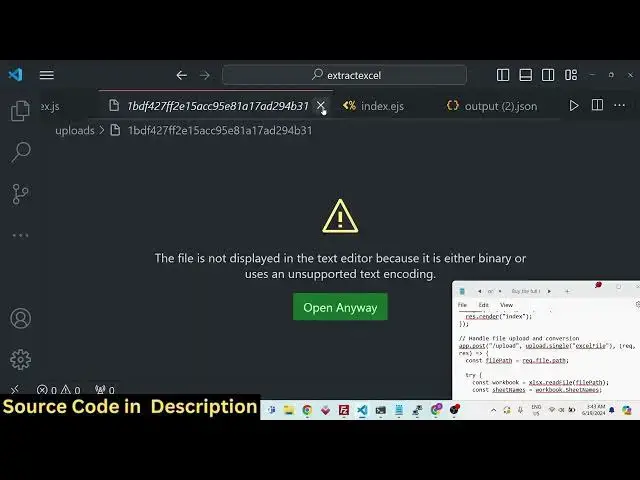
it in the uploads directory so this
7:32
directory will automatically get created
7:35
after you upload the file so you don't
7:37
need to manually create this you will
7:40
see automatically it get created we
7:42
haven't created this as I mentioned this
7:44
code right here it automatically got
7:46
created destination after you do this we
7:50
now inside the app. post request we do
7:53
need to say here we need to pass this
7:55
middleware we will be uploading a single
7:57
file
7:59
and we are passing this as a middleware
8:02
if you see we have right written this
8:04
middleware right here M middleware so
8:07
whenever someone makes a post request
8:09
first of all the file will be uploaded
8:11
so here you need to give the same name
8:14
attribute that you have given so we have
8:16
given the name attribute as file so we
8:18
are replacing the same name attribute
8:21
like this and after that request
8:24
response and then we can simply say
8:28
console log request. file path so this
8:31
will actually contain the path of the
8:34
uploaded file so if I just show
8:38
you if I select the file right here
8:41
click on convert to Json so what you
8:43
will see in the command line it has
8:45
printed out the path temporary path that
8:47
it has uploaded this file this is actual
8:50
path that we got right
8:52
here you will see that the file is
8:54
uploaded if you see that the file is
8:57
uploaded so now we need to to process
9:00
this file so what I can do is that we
9:02
can simply have a try catch
9:07
block if I have any sort of error we can
9:10
console log it so in the try catch blog
9:12
guys what we need to do we need to get
9:14
access to the
9:16
workbook XLS and it contains a method of
9:19
read file we'll basically read the whole
9:21
file by using the file
9:24
path that we got so we need to pass
9:27
request. file. paath and then we need to
9:30
get the current sheet number so we can
9:32
do this using workbook do sheet names so
9:36
it will actually contained a array so we
9:38
need to get all the data which is there
9:40
in the Excel file so we can say sheet
9:42
names. reduce it's a array method and
9:46
their sheet
9:49
name it will be Arrow function and right
9:53
here inside this function we need to get
9:55
access to the current worksheet number
9:58
so worksheet
10:00
you can say workbook do sheets again
10:04
this time we can actually pass a sheet
10:06
number so here in square bracket we can
10:08
simply pass the current sheet name that
10:11
we have we are getting this like this so
10:15
here we need to replace this sheet name
10:17
that we are getting and then we need to
10:19
convert this data into Json so we can
10:21
simply say here XLS contains this
10:25
package that we are importing it it
10:27
contains a u and it contains this method
10:31
sheet uncore
10:34
2core Json you can see you can convert
10:37
this into CSV HTML Json all the Texs you
10:41
need to convert this into Json so you
10:42
can simply pass the worksheet like this
10:45
and then sheet name is equal to Json
10:51
data and then after that we just need to
10:53
return ACC right here from it and also
10:56
in the second argument we need to write
10:58
here empty object we need to pass this
11:01
is all that we need to do right here and
11:03
after this we just need to get this Json
11:06
content in a store it in a variable and
11:09
use Json stringy file to actually
11:12
convert this data to a Json object so
11:14
all data null and two that's all it will
11:20
convert all this data which is coming
11:22
right here guys to a Json object because
11:24
we are using json. stringy file so after
11:27
you do this you just need to download
11:30
this file as an attachment so we can
11:32
simply say output path path. jooin in
11:35
the current directory just make this
11:36
fold in the uploads
11:39
directory and we call this as output.
11:42
Json that's all and now to basically
11:45
save this file you can say F FS system
11:48
file system we have this method to
11:50
actually save this at this current
11:52
location with that Json content like
11:56
this and the encoding type is a third
11:59
parameter utf-8 encoding type so we have
12:02
successfully saved
12:04
this after saving it we need to download
12:07
this file so now to download this we can
12:10
say response. download download this
12:13
output path file name will be output.
12:16
Json if any sort of error take place
12:19
this will be the call back
12:20
function if any sort of error take place
12:23
we
12:24
can console log
12:26
it if no error take place then we can
12:29
simply download the
12:30
file we can remove this
12:33
file from the file path after it has
12:36
been
12:37
downloaded so we need to remove this
12:40
file request file. paath and also remove
12:42
this output file as well that's all
12:47
so that's completes the application guys
12:50
and I think I can now go to the
12:53
application Local Host 5,000 if I upload
12:56
a Excel file click on this button you
12:59
will basically see it will download this
13:01
output. Json file and if you
13:04
see uh if I just show you output.
13:11
Json
13:14
uh in the root directory we
13:18
basically so this is actually the
13:20
output. Json file guys we got right here
13:23
and you can see it contains array of
13:25
objects the current sheet number because
13:27
we only have one sheet right right here
13:30
if you see that we only have one sheet
13:32
right here sheet one so it basically
13:34
contains sheet one data it contains
13:36
array of objects right here you can see
13:38
that so each object has a different
13:41
object right here each data has a
13:43
different object so it has converted
13:46
this Excel file to a Json object so in
13:49
this way you can do this and you can
13:50
also try out my free media tools live
13:53
demo as well I deploy this website Excel
13:56
to Json so the link is given in the
13:58
descript deson and if you want the full
14:01
source code you can directly purchase it
14:03
from my website as well all the links
14:05
are given in the description you can
14:07
check out and thank you very much guys
14:09
for watching this video and I will be
14:11
seeing you in the next live stream