Up next in 10

Javascript Clipboard API Example to Copy Text to Clipboard in Browser Using HTML5
Jan 9, 2025

Buy the full source code of application here:
Show More Show Less View Video Transcript
0:00
uh hello guys welcome to this video so
0:02
in this video I will actually talk about
0:05
the JavaScript clipboard API which is
0:09
available to every browser Chrome
0:11
Firefox Safari Internet Explorer so it's
0:14
a buil-in API for browsers for
0:16
applications to actually copy the data
0:19
to clipboard
0:21
so so we have this example right here so
0:25
this is actually a paragraph which is
0:26
written so if I click this button of
0:29
copy paragraph so what it will do it
0:31
will actually show me this copy to
0:33
clipboard message that the paragraph is
0:35
successfully copied so now I can paste
0:38
this paragraph right here you can see
0:40
that the paragraph has been copied to
0:41
clipboard and we simply pasted it so now
0:45
if you if you write something right here
0:48
in this input
0:50
feed so if you want to copy this
0:55
data we click this button copy input
0:58
value so now this notification happens
1:01
copied to clipboard so now this data is
1:03
successfully copied so now we can
1:06
directly go to anywhere and paste this
1:08
you will see that so this is actually
1:11
the copy to clipboard operation and we
1:13
will be looking at step by step how to
1:15
implement this inside the browser using
1:17
simple example in HTML and JavaScript
1:20
you can even copy custom text as well so
1:22
if you click copy Customs text so now
1:25
this is successfully copied you'll see
1:28
and copy with tool tip tool tip
1:30
basically it's a notification message
1:32
that you're seeing right here as I click
1:34
it this message SS so this is all so now
1:39
let's get started and we are actually
1:41
using Tailwind CSS for styling this so
1:43
let's get start so what I will do I will
1:47
delete everything so the source code is
1:50
given in the description you can check
1:52
out the source
1:54
code so I just included the Tailwind CSS
1:58
CDN right here if you see that
2:00
and we have applied this BG gray 100
2:03
which is a background color if you make
2:05
you can even change to red as
2:09
well so this is just the tail bin
2:14
classes so after this inside the body
2:17
what we will have a div
2:21
element this is not necessary for this
2:24
application I just want to make this
2:26
interface first of all
2:34
so right inside this we will actually
2:37
have a simple div inside this uh we will
2:42
actually be having a simple
2:47
paragraph which will have an ID of
2:50
paragraph you can see we have given an
2:53
ID to this paragraph So This is a simple
2:57
paragraph you can have any text right
3:06
here so if you just refresh you will see
3:10
the paragraph is written right in the
3:12
center of the screen so now we will
3:14
allow the
3:16
user we will have a simple button to
3:20
actually copy the text to clipboard so
3:23
we will have a button right here which
3:24
will simply say copy paragraph So what
3:28
this button will do it will actually
3:30
have an ID right here we will simply say
3:34
copy so now in the JavaScript if you
3:37
want to initialize
3:40
your the JavaScript clipboard API in
3:44
order to use this uh implement this copy
3:46
to clipboard operation it's very easy
3:49
first of all you uh need to get the
3:52
reference of the
3:53
button so we have given the button an ID
3:57
so you can simply say copy we have given
4:00
this ID if you see we are just getting
4:03
the reference of
4:06
it and after getting the reference we
4:08
can simply bind a event handler to this
4:11
so when we click this copy
4:14
button we will actually have a call back
4:18
function which will run so let me just
4:21
say
4:23
alert just to cross check if it is
4:25
working so we have this button if I
4:28
click it you will see High Vol is
4:30
putting let me just attach some classes
4:33
of Tailwind which is
4:37
uh to this button so
4:41
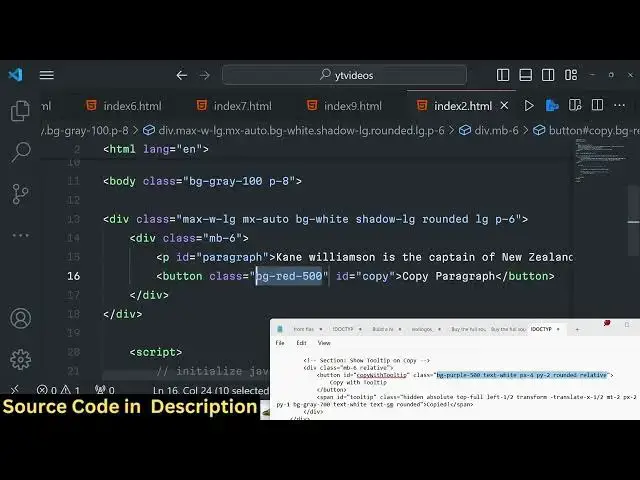
BG red 500
4:59
so these are all the classes you need to
5:04
attach these are all Tailwind classes
5:06
guys so you don't need to worry about
5:09
Tailwind it is not about Tailwind so we
5:12
have this button right here it is
5:13
rounded so when we click this button uh
5:16
instead of high World message we need to
5:18
copy the paragraph text to clipboard so
5:22
now we will actually be calling a
5:25
function simple function copy to
5:29
clipboard
5:36
so write just right here we can make
5:39
this function Asing
5:45
function so inside this function
5:51
uh we will actually be
5:54
getting the data text passed as an
5:57
argument so while we are calling this
5:59
function we need to actually pass
6:02
whatever is the data which is located in
6:05
the paragraph So we have given the
6:08
paragraph element as well an
6:10
ID so paragraph if you see in the HTML
6:14
we have given this ID of paragraph We
6:17
will get all the text content by using
6:20
dot text content and then we will pass
6:23
this to this function so now we are
6:26
getting it as an argument right here and
6:28
uh
6:30
now there is an actually a function we
6:33
can use TR catch block
6:47
here so inside this JavaScript clipboard
6:51
API we have this function await
6:54
Navigator apis have all these apis built
6:57
in inside browser and Navigator do
7:00
clipboard do write text this is actually
7:05
the function which actually allows you
7:07
to copy the any text to clipboard now
7:11
we'll simply pass the text right here so
7:16
if you just write this you can also have
7:18
a console log
7:20
message copied to
7:26
clipboard so if you now run this
7:28
application and and inspect element go
7:31
to console and click this button you
7:33
will actually see this copy to
7:36
clipboard so now this paragraph is
7:39
copied you can now paste this you will
7:42
see so in this way this is a built-in
7:45
functionality which is available in
7:47
every browser you need to no don't need
7:49
to use any third party
7:50
dependency this clipboard API is
7:54
available so now we need to show a small
7:58
little notification such that uh when we
8:02
copy text we need to show that
8:04
notification to the user that the text
8:07
has been successfully copied so for
8:09
doing
8:13
that we will actually be declaring a
8:17
tool
8:19
tip just right here we will
8:23
say tool
8:28
tip document do getet element by ID tool
8:32
tip so right here in the HTML we do need
8:35
to declare a simple
8:39
element just after this button we can do
8:42
a span element right
8:47
here and we can give it an ID to it of
8:50
tool tip and uh this basically by
8:53
default it will be hidden it will not be
8:56
shown and these are different different
8:59
Tailwind classes are there built in
9:02
absolute top
9:05
full
9:08
left 1X
9:12
two
9:15
transform and we are adding some
9:17
animation to it in the X Direction
9:19
whenever it appears it appears in an
9:21
animated way margin top to
9:25
px2 you can even do it in plain
9:28
JavaScript as well but it will take some
9:30
time but uh buil uh Tailwind CSS has
9:33
built-in features which allows you to do
9:36
animations as well and the color of the
9:39
text will be white and it will be small
9:42
text small and it will be rounded and
9:45
the value of this span element will be
9:48
copied you can say copy to
9:52
clipboard so by default if you now
9:55
refresh your application this tool tip
9:57
will not be shown if you refresh nothing
9:59
will be shown so as I click this button
10:02
I need to show this notification to the
10:05
user
10:09
so right here after we get the reference
10:12
of the tool tip we can simply say tool
10:15
tip. class.
10:18
add we will be adding this uh tool
10:25
tip class that we have uh
10:31
sorry we need to remove this class which
10:34
we have added which is the hidden
10:37
class we need to remove this class of
10:40
hidden so now it will be shown and now
10:42
we only need to show it for 2 seconds so
10:44
we'll use the set time mode function
10:47
which is available inside
10:53
JavaScript so this will be a simple
10:57
arrow function and it will on only be
10:59
showing the tool tip for 2 seconds so we
11:03
will again add this hidden
11:05
class put a comma and this is actually
11:08
takes the value in millisecond so 2,000
11:11
millisecond this simply means that the
11:12
tool tip will show for 2 seconds and
11:14
after that it will be hidden so if you
11:16
refresh your application click this
11:20
button uh click board sorry this is not
11:24
showing I think I made some kind of
11:27
mistake in the HTML
11:30
let me add this once again
11:59
let me just copy all this the all the
12:02
source code is given guys in the
12:03
description no no need to worry about it
12:11
so I just need to shift this code right
12:14
here whenever we write this code
12:19
so in this function right
12:23
here so for every copy to clipboard
12:26
operation the notification will show you
12:28
will see copied
12:29
copied copied you can just change this
12:32
notification let's suppose you don't
12:34
want to have copied you can simply
12:38
say copy to
12:41
clipboard you can customize the color
12:44
size everything you will see copy to
12:47
clipboard you can even change the color
12:49
as well so by default it shows in great
12:53
you can change it to Red these are
12:55
Tailwind classes we can customize
12:57
everything you'll see that
12:59
it appears for 2 seconds and it goes
13:02
away and if you click this your
13:05
paragraph is copied you can now paste
13:07
this paragraph if you input any anything
13:10
inside this input field click on this
13:12
copy to clipboard now everything in this
13:14
input field is copied you can paste it
13:17
this is the overall example guys the
13:19
main function to actually Navigator do
13:22
clipboard. WR text this is actual main
13:24
function of the JavaScript clipboard API
13:27
which is essentially built in in every
13:28
browser
13:29
if you need to read more about it you
13:31
can visit the Mozilla website and it
13:34
reads more about it the clipboard API it
13:37
also uh support operations of cut and
13:39
paste as well apart from copy so these
13:43
is the it is compatible with all the
13:45
versions of every browser so thank you
13:48
very much for watching this video and I
13:50
will be seeing you in the next one
#Programming
#Clip Art & Animated GIFs
#Other
#Other