Up next in 10


Hi Join the official discord server to resolve doubts here:
https://discord.gg/cRnjhk6nzW
Visit my Online Free Media Tool Website
https://freemediatools.com/
Buy Premium Scripts and Apps Here:
https://procodestore.com/
Show More Show Less View Video Transcript
0:00
uh hello guys welcome to this video so
0:02
in this video I will actually talk about
0:04
that how you can
0:07
actually uh integrate the Tailwind CSS
0:10
autoc completion or
0:12
intelligence something like that so as
0:14
you just tried the classes let me just
0:16
show
0:17
you you will actually see these
0:19
suggestions of Tailwind classes in vs
0:22
code so it makes it very much easy to
0:24
write Tailwind CSS you don't need to
0:26
remember classes so all these classes
0:29
will be available as drop down you will
0:32
see that so as you are making the
0:33
application the UI you will be able to
0:36
select these classes and developed your
0:39
application so I will show you how to
0:41
set up vs code for Tailwind CSS so if
0:45
you're developing reactjs VJs or vanilla
0:47
JavaScript project so I will show you
0:50
how to do this step by step in this
0:52
video so just make
0:55
sure I am in the new project so what I
0:58
will do
1:00
I will simply make a new directory I
1:03
will call this as Tailwind
1:06
project I will CD into
1:09
this and open it inside vs code so you
1:12
can see currently it is empty the
1:14
extension that we need to install is
1:17
simply click on the settings option go
1:20
to extensions and just search for this
1:22
Tailwind CSS intelligence so this is the
1:27
extension I'm talking about and it is
1:29
offered by by the official developers of
1:31
Tailwind CSS Tailwind Labs so it has got
1:35
almost I see I already installed
1:38
it so if I uninstall it you will
1:41
basically see it has got almost 7
1:43
million downloads so you need to Simply
1:46
install this extension so after you
1:49
install it it makes it very much easy
1:52
now we need to set up Tailwind CSS so we
1:55
can simply create a package.json file so
1:58
npm init file this will create a empty
2:02
package.json file then we need to
2:04
install Tailwind CSS as a Dev dependency
2:08
so Tailwind
2:09
CSS and uh post CSS Auto prefixer so
2:14
these are the three modules you need to
2:17
install it as a Dev dependency so just
2:20
see npmi Tailwind CSS post CSS and auto
2:25
prefixer and we need to add this as a
2:27
Dev dependency so it will be a Dev
2:29
dependency so simply enter it and it
2:32
will install these modules locally for
2:35
your development experience so this is
2:38
really mandatory you need to install
2:40
these modules if you don't do this uh
2:43
your intelligence and autoc completion
2:45
will not work you can't directly include
2:48
Tailwind CSS by CDN you need to include
2:51
it by installing it as a dep dependency
2:53
that I'm doing it by creating
2:55
package.json so once it is installed we
2:59
can actually make make any react Chase
3:01
project or you can make vanilla
3:03
JavaScript
3:04
project so now we need to create a
3:08
Tailwind config JS file for creating it
3:11
programmatically we can call this
3:12
command npx
3:16
Tailwind CSS in it this is actually the
3:19
command and uh we need to
3:22
Simply npx Tailwind CSS in it so this
3:27
will create a Tailwind config that TS or
3:31
JS file at the left hand side you will
3:34
see it has created this Tailwind CSS
3:37
config file and uh if you're making it
3:40
as a vanilla JavaScript project if you
3:43
are just writing this code in the
3:44
index.html file just go to it and in the
3:48
content property right here in this
3:50
content property just make sure that you
3:52
provide the path of your index. HTML
3:54
file so it basically tells tement CSS
3:58
where to actually load that intelligence
4:01
or Auto completion so we only need to
4:03
apply it inside this index. HTML file
4:06
that we are creating it so right here we
4:08
can simply change the title right
4:11
here Tailwind CSS
4:15
intelligence or autoc
4:19
complete and uh just make sure that
4:24
you include the base CSS file uh this is
4:29
you may call this
4:31
anything so here you need to basically
4:35
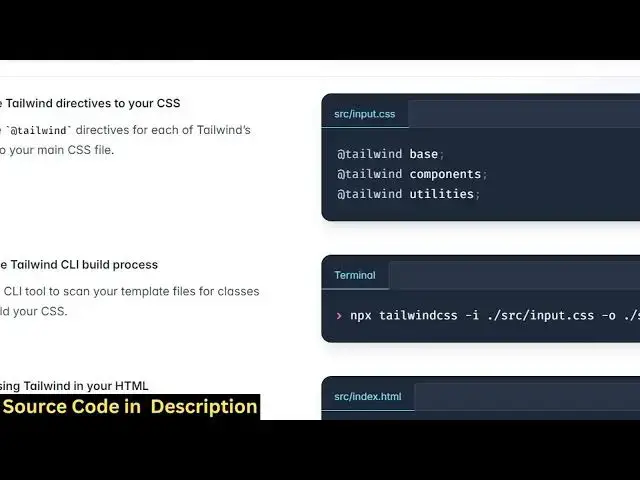
paste these Styles right
4:39
here so whenever you want to see it has
4:43
all the instructions given on their
4:45
website you need to basically make this
4:47
and include these base tiles which is
4:49
offered by tailin CSS simply paste it
4:53
now we are successfully including this
4:55
base. CSS now if you type right here
4:58
inside your just give it a
5:01
class and as you just
5:04
type you will now see the auto
5:07
completion will show right here you will
5:09
see
5:10
that you can change the body background
5:13
color to red color so if you now
5:15
navigate to your web
5:20
application so it is I think BG red 5
5:31
BG
5:49
R can give it a heading right here hello
5:56
world you'll see the hello world is
5:59
there here uh we can give it a class of
6:01
Tailwind CSS
6:22
text so in this way guys you can include
6:25
the Tailwind CSS uh I
6:30
let me just open it right
6:36
here this is very simple process how we
6:39
can do this
6:44
uh there is also an extension which lets
6:47
you see the result right in vs code if
6:51
you see Show
6:53
preview it will let you show the preview
6:55
right here so
7:01
so as you just have the
7:10
classes so what I will also do if uh for
7:14
some reason your application is not
7:16
working in that case what you can say
7:19
uh you can even include the CDN
7:23
sometimes uh CDN is
7:27
required so just include the CDN as well
7:31
just make sure that you include the CDN
7:33
as
7:38
well so now you can see it is now
7:40
working
7:42
so so the auto complete will also work
7:45
right here uh you can
7:47
just if you want to attach a
7:50
class BG
7:54
uh you can choose any color you'll see
7:57
that so
7:59
then we can have a
8:01
heading so we can give it a class here
8:04
text to
8:12
XEL so you'll see that auto completion
8:14
is working guys and uh you can change it
8:17
to any color this makes it very much
8:19
easy to actually develop uh uis in
8:22
Tailwind CSS with their support for
8:25
intelligence and autoc completion in vs
8:28
code you can develop react JS project in
8:31
the same manner you need to just make
8:33
this Tailwind config JS file and it's
8:37
done it works for everything so just
8:41
activate that
8:42
extension it is required that
8:49
extension and then you can actually
8:55
make so as you just type right here
8:58
basically it will give you this uh this
9:01
is for the padding right here if you see
9:03
this is for the margin maximum fth all
9:08
Max 2
9:12
Xcel we will see that you can change the
9:14
size
9:17
here 6X
9:28
it so you can see
9:30
that so this is the auto completion guys
9:34
that I showed you in this
9:41
tutorial you can align the text so all
9:44
these alignment classes are also
9:48
there so it is appearing in the center
9:51
position similarly if you want
9:55
to apply it on the right hand side this
9:59
is on the right side
10:02
so in this way you don't need to
10:04
memorize or learn all the Tailwind
10:06
classes but as you just type
10:09
intelligence will show you the classes
10:12
and uh this is really handy extension
10:14
you should have inside your vs code if
10:17
you're working with Tailwind CSS so
10:20
thank you very much guys for watching
10:21
this video and please hit that like
10:23
button subscribe the channel as well and
10:26
I will be seeing you in the next video
#Programming
#Web Design & Development
#Development Tools