Up next in 10

How to Download and Install Node.js and Setup Project & Run it in Visual Studio Code For Beginners
Feb 12, 2025

Get the full source code of application here:
Hi Join the official discord server to resolve doubts here:
https://discord.gg/cRnjhk6nzW
Visit my Online Free Media Tool Website
https://freemediatools.com/
Buy Premium Scripts and Apps Here:
https://procodestore.com/
Show More Show Less View Video Transcript
0:00
uh Hello friends welcome to this video
0:02
so in this video I will show you how to
0:04
install nodejs inside your Visual Studio
0:07
code and I will show you how to run a
0:09
simple program so it is this video is
0:11
totally for beginners if you are new to
0:13
programming and want to install nodejs
0:15
for the very first time inside your
0:16
computer so this video will be for you
0:19
so if I open command line here just type
0:21
node and just see I'm starting from
0:25
scratch so nodejs is not installed on my
0:27
machine so you can see so now to get
0:32
started here for totally beginner you
0:34
will simply type node download on Google
0:38
if you want to download for your
0:39
operating system just type note download
0:41
the very first website which comes right
0:44
here simply click on that and uh the
0:46
latest version of this is you will see
0:50
you will see this download button if you
0:52
are on Windows you will get this Windows
0:56
installer you can just select your
1:00
architecture it's a 64bit or 86 bit mine
1:04
is 64bit so it automatically detects and
1:07
then operate based upon your operating
1:09
system so if you on Windows Mac or Linux
1:12
select your operating system so as I
1:15
click this MSI file here you will see
1:18
the download will start it's just 29
1:21
megabytes exe file so
1:24
click Start download so the download
1:28
will be complete here and
1:30
now just open the setup file and this
1:33
setup visard will follow the
1:35
step-by-step instruction here welcome to
1:37
the nodejs setup visit so click on next
1:41
and then you need to accept the terms
1:43
and condition simply check this checkbox
1:46
and then you see this next button simply
1:48
click on that and this is actually the
1:51
default location where nodejs would be
1:53
installed on your machine so C program
1:55
files and nodejs if you want to change
1:58
it you can change it but I will
2:00
recommend that stick to this default
2:02
location and then click on next and then
2:05
it will tell you it will install this
2:09
things inside your system nodejs runtime
2:12
core pack manager npm as well which is a
2:15
package manage manager for
2:18
nodejs and it will automatically add
2:20
this to the path variable as
2:22
well so click on
2:26
next so then if you also want to install
2:31
the necessary tools this will also
2:34
install chocol this script will pop up
2:36
in a new window after the installation
2:38
complete so I will say that also take
2:41
tick mark this option as well if you
2:43
don't have chocolate installed chocolate
2:45
is again a dependency
2:47
manager so if you already have chocy
2:50
installed don't check this Mark
2:53
so in my system if you see if I CH choc
2:58
if I type this command I don't have
3:00
chocolate installed so that's why I will
3:02
take mark this
3:04
option and click on install so the
3:06
installation will start here and it will
3:09
hardly
3:10
take 15 to 20
3:13
seconds and then it will pop this just
3:17
accept it and then the installation
3:20
will be there it is installing the files
3:25
here so once the setup is complete you
3:29
will see this program files
3:36
folder so it will take almost 15 to 20
3:39
seconds for the installation to complete
3:41
so just
3:42
wait so now you will see this message uh
3:46
nodejs has been successfully installed
3:49
and then you need to click on the Finish
3:51
button and you'll see this window will
3:54
appear
3:55
here it is saying that tools for nodejs
3:58
Native modules in installation script so
4:01
this script will install Python and the
4:03
visual studio build tools necessary to
4:05
compile
4:06
nodejs and uh this will require almost
4:10
three gigabyt of free disk space so just
4:13
click or press any key to
4:17
continue so again it will tell you this
4:19
choc script we are installing it so just
4:23
accept and uh
4:30
so it is saying python is not installed
4:32
so installing so it will install
4:34
automatically all the P packages which
4:36
are needed automatically choc python as
4:44
well so you can see it is downloading
4:47
python here so it is complete video for
4:49
beginners guys if you don't have
4:51
anything installed that's why I built
4:53
this video for you I'm just starting it
4:55
from scratch here and installing nodejs
4:58
Python and chocol as well from scratch
5:02
and at the end I will show you how to
5:03
run a very simple program in nodejs
5:06
inside Visual Studio as well so just
5:09
wait for the installation to
5:28
complete so now it is downloading the
5:31
choc if you see python has been
5:33
installed so now it is downloading and
5:35
installing so it is automatically
5:37
happening in the windows
5:39
Powershell
5:45
so so just watch the entire video don't
5:48
skip any op uh step here
6:05
so you can even uh open the command
6:08
prompt here and just type node DV so it
6:11
will exactly tell you the nodejs version
6:14
installed on your machine which is 22.
6:17
13.1 so this is the nodejs version which
6:20
is
6:25
installed so nodejs also comes with npm
6:28
which is node package manager if you
6:30
just type npm DV so it will tell you the
6:33
exact version which is installed
6:36
[Music]
6:42
10.9.2 so let me just run a very simple
6:46
program in vs code in
6:49
the it is just installing it in the
6:51
background so just open a simple
6:54
directory project
6:57
directory and just make a simple folder
7:10
here just open it inside vs code
7:14
uh so now to initialize a very basic
7:17
nodejs project you need a package.json
7:20
file which you can directly initialize
7:22
it by this command npm init Dy so this
7:26
will create this package.json file so
7:28
inside this file you will install any
7:31
package that you want to install for
7:34
nodejs so this package can be anything
7:37
so one search package is Express which
7:40
is a dependency which is used to build
7:43
out web
7:45
applications so it will create this node
7:48
modules folder that you see right here
7:50
so inside node modules all the packages
7:53
that you installed for Express is stored
7:55
inside these files so now if you see in
7:58
the dependency section you have
7:59
installed the latest version of Express
8:02
so now to create the starting point of a
8:04
nodejs app we create this index.js file
8:08
so here you will start your nodejs app
8:11
so first of all we will require this
8:13
package by simply writing require
8:17
Express and we will start a very basic
8:20
Express server by this code
8:24
here we start a very basic server
8:35
so this is actually the code here and
8:38
you can make a simple get request so
8:40
when someone goes to the homepage we
8:42
simply show a simple HTML file so we can
8:48
bind using this function send file
8:55
so so we are simply telling if someone
8:58
goes to the homepage just show this
8:59
index.html file so you can create this
9:02
in the home directory index.html
9:15
file so if you want to now run this
9:17
application nodejs application it's very
9:19
simple you type node and then the F
9:22
followed by the file name which is node
9:25
index.js so in this way you can run your
9:27
nodejs application so it is now telling
9:29
you that your app is listening on Port
9:32
5000 so if you go to your browser just
9:34
type this command Local Host 5,000 so
9:39
you will see this hello world message
9:41
which is present in this index.html file
9:43
so in this way you can make a very
9:45
simple web application in nodejs and
9:48
Express in vs
9:50
code
9:54
so in this video I showed you how to
9:57
step by step install nodejs
10:02
and uh in vs code so in this way you can
10:05
do this and one other where I will tell
10:08
you how to install nodejs in the command
10:11
line so there is a NVM which is called
10:15
nod node version manager so this is a
10:18
very handy software you can install on
10:21
your machine on the command line so this
10:24
lets you install multiple versions of
10:27
nodejs at the same time concurrently
10:30
so you can manage multiple versions so
10:33
if you want a older version you can
10:35
install it using in com command line so
10:39
just type NVM and uh go to their GitHub
10:42
page and simply download the EXC file
10:45
inside your machine
10:48
so you can just say NVM download Windows
10:54
so it basically comes with this mvf
10:57
Windows here
11:03
so click the download now button so to
11:06
install this inside your machine so it
11:09
comes with this exe file I've already
11:12
installed it so if you go to the command
11:23
line so just
11:33
so just type here NVM so as you type
11:36
this command
11:37
NVM the command will run and now to
11:40
actually see
11:41
[Music]
11:43
the total nodejs versions installed on
11:46
your machine so no installations
11:48
recognized so now to install a
11:51
particular version of nodejs you simply
11:53
write this command NVM install node 16
11:59
so whatever version that you want to
12:02
install of nodejs you write this command
12:04
NVM install node 16 so you will now see
12:08
it will install this nodejs version 23.7
12:13
point0 which is the latest version
12:17
64bit so it will install it in the
12:21
background it's that easy if you don't
12:23
want to go to the website and download
12:26
the XC file you can do it from your
12:28
command line as well
12:29
you provide the version number which
12:31
version number you want to
12:38
install can even
12:42
install the old versions as
12:48
well so yeah
12:50
so whatever version that you want to
12:52
install so let's suppose I want to
12:54
install the note 16 version so I write
12:57
this command NVM install 16
12:59
so now what will it will do it will
13:01
download that nodejs version
13:04
16 all in the background so it is
13:08
installing it extracting the content and
13:10
then installing node and npm so now you
13:13
will see the installation complete and
13:15
if you want to use this version type NVM
13:18
use so now if you see the version that
13:22
is installed right here which is 22.13
13:25
one but if you
13:27
check there are two versions which is
13:29
the latest
13:31
version plus this 16.20
13:35
point2 so if you want to switch to this
13:37
version you simply write here NVM use
13:40
16.20
13:42
point2
13:46
so so now your version nodejs version is
13:49
changed from 23.7 point0 to 16.20 point2
13:54
so in this way you can install multiple
13:57
versions of node G concurrently using
14:00
this tool which is NVM node version
14:03
manager so it's a tool for intermediate
14:06
developers so if you want to manage
14:08
multiple versions of nodejs right from
14:10
your command line you can install this
14:13
tool and
14:15
uh so I've showed you step by step guys
14:18
in this video how to get started in
14:20
nodejs if you are a complete beginner
14:23
and you also need to install one more
14:26
tool if you want to run your not JS
14:30
applications very efficiently because
14:33
every time if you make a change you need
14:35
to restart your application for fixing
14:38
that error so let's suppose I want to
14:42
run this application so we are running
14:43
this application and let's suppose I
14:45
make a change
14:47
here to the code here every time I make
14:51
a change I need to
14:57
restart so for for restarting it there
15:00
is a tool that you can install which is
15:03
node modon so you can install it
15:05
globally by providing this- G
15:09
flag so npmi - G node Bond
15:14
so if you now type nodemon you will
15:18
see app is listening on Port 5000 you
15:22
can give it a file name as
15:24
well by default if you write node one it
15:27
will start but you can even provide the
15:29
file name as well which is index.js so
15:31
now if you make any sort of change right
15:33
here it will automatically detect the
15:35
changes and restart your application so
15:38
this will save you a lot of time you can
15:41
see it will tell you that app is not
15:43
defined so if you make the change it
15:47
will restart your application
15:49
so so this is again a very handy tool if
15:53
you are working with
15:54
nodejs you should have this Library
15:58
installed it
15:59
it will be very beneficial and save a
16:02
lot of
16:04
time and if you're working with vs code
16:07
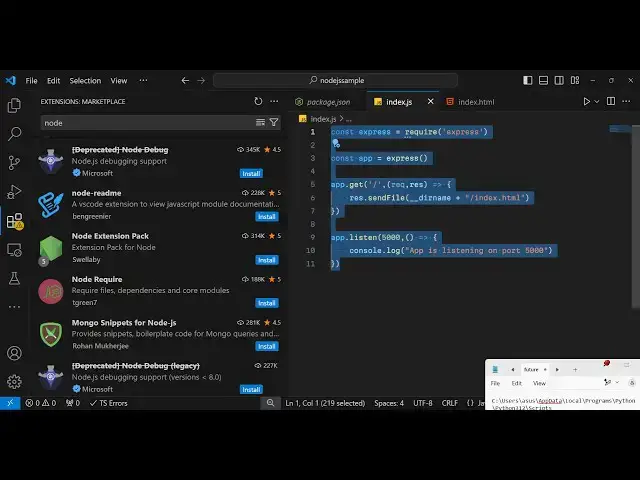
there are some extensions that you want
16:09
to install so go to the extensions Tab
16:12
and just write here a
16:16
node
16:21
so you can have all these extensions if
16:24
you want to have not
16:27
Snippets there is also this extension
16:30
which lets you search the node modules
16:32
folder right from your vs
16:35
code and one website you will definitely
16:38
want
16:39
to go to Every time whenever you want
16:42
the third party package is npmjs.com so
16:45
npmjs.com guys is a website where
16:48
millions of developers have built their
16:50
thirdparty packages you can search for
16:53
third party packages so in this we have
16:57
installed the Express package
16:59
so here you can find open-source free
17:02
packages developed by other Developers
17:04
for nodejs and use it inside your
17:07
application
17:08
so so this is a very good handy
17:12
website you will be coming across a lot
17:14
of time so here it actually tells you
17:17
how many weekly downloads are there and
17:20
actual command and the documentation
17:22
about that third party package so in
17:24
this
17:25
way there are millions of packages
17:27
available here where you can find them
17:30
the website name is npmjs.com
17:35
so so this was a complete beginner video
17:38
for nodejs how to set up nodejs in vs
17:41
code and run a very simple program I
17:43
showed you also very handy
17:46
libraries if you want to get started in
17:50
nodejs and thank you very much for
17:52
watching this video and uh also check
17:54
out my website as well free mediat
17:58
tools.com
17:59
uh which contains thousands of tools
18:02
regarding audio video and image and I
18:05
will be seeing you in the next video
#Programming