Up next in 10

Build a Vue.js QRCode Generator From Text With Logo & Watermark Using vue-qrcode in TS
Jan 13, 2025

Get the full source code of application here:
https://codingshiksha.com/vue/build-a-vue-js-qrcode-generator-from-text-with-logo-watermark-using-vue-qrcode-in-ts/
Show More Show Less View Video Transcript
0:00
uh hello guys welcome to this video so
0:03
in this video I will show you a vuejs 3
0:05
package which allows you to generate uh
0:08
QR codes and also add images on top of
0:12
the QR code you will see as a logo or a
0:14
watermark we have this nice little
0:16
Watermark appearing this can be your
0:18
company logo or anything your own image
0:21
as well so this is a simple QR code
0:23
generator app where you can add your
0:25
logo or Watermark as well so in VJs 3 so
0:29
I will show you this package so just go
0:31
to npmjs.com
0:34
so obviously this QR code is generated
0:37
from text or in any number as well so if
0:42
you go to npmjs.com just search for this
0:45
package I have given all the source code
0:48
in the description of this video so this
0:50
is actually the name of the package
0:52
simply search
0:55
it and uh it's a QR code component QR
0:59
code generator so command is simple so
1:02
just install this I've already installed
1:05
it so it's almost having 23,000 weekly
1:08
downloads so now to get started first of
1:10
all we just need to register this
1:12
plug-in inside your main.ts file inside
1:16
typescript just open this file so we'll
1:19
register it as a component so first of
1:22
all we will import this package by using
1:25
the import statement so we simply say
1:27
view uh QR code
1:31
and it will be coming from this package
1:34
and then we need to register it by
1:36
simply using ab. component and here we
1:39
need to specify the name of the
1:41
component so this will
1:44
be view QR
1:47
code and then we need to
1:50
pass so that's all that we need to do in
1:53
this file so just add these two lines of
1:55
code so now after that
1:59
just close it just come to your app. viw
2:02
file so here I will show you step by
2:05
step so inside your template you'll be
2:08
writing the HTML
2:10
code and then inside
2:12
your you'll write the typescript code
2:15
script tag so here first of all we need
2:18
to export default we need to export the
2:23
component and here it'll be defining all
2:25
the
2:27
methods which will be responsible well
2:30
so now we go to the template and now to
2:32
render out the QR code it's very simple
2:35
we use this component view QR
2:39
code and essentially here it takes some
2:42
options first of all whichever
2:46
value it can be either text URL number
2:49
so I just putting a simple URL on my
2:52
website so whenever you scan this QR
2:54
code the user will be redirected to
2:56
https free mediat tools.com so this is a
3:00
URL and then it takes a options object
3:04
right here so we can directly assign
3:06
this series of options such
3:09
as the error correction level so you
3:14
know in QR code there is a correction
3:15
level so you can directly attach this as
3:18
an option the second option it takes is
3:21
the width of the QR code so I will
3:23
attach 200
3:24
100 so that's all so if you try to
3:27
refresh it the application you will see
3:30
this QR code will be generated and it's
3:32
almost 200 width so I can increase this
3:36
width let's suppose I change to
3:39
500 so now it will be bigger so in this
3:42
case you can control the sizing of this
3:44
by providing this property of width and
3:47
we can even change the color as well so
3:50
there is also this property which is
3:52
available so here you can change the
3:54
color of that QR code as well so by
3:58
providing a dark and a light
4:00
variation so this will be your hexad
4:02
decimal code so whichever colors you
4:04
want to choose you can provide this
4:07
using this color
4:09
object so if you just refresh now you
4:12
will see the color will also
4:16
change so in this
4:21
way you can see so in this you can
4:24
change the color as well and then it
4:26
actually contains an call back function
4:30
where when the QR code is ready then
4:33
this function will fire so we'll be
4:35
binding this on ready function a custom
4:38
function so when the QR code is
4:40
generated this function will execute so
4:43
now we just need to Define this function
4:45
in the methods corner so we Define this
4:48
on ready
4:49
function so inside this we will have
4:52
this canvas available to us so right
4:54
here we need to get the context using
4:58
this
5:00
canvas use the 2D context and right here
5:03
if you want to draw a image in the
5:06
center of this QR code add a watermark
5:09
or logo so that's why we are getting the
5:12
context from the canvas and now we need
5:15
to draw the image so this can be any
5:18
local image or this image can be coming
5:20
from a URL as well so in this example
5:23
I'm fetching this image from this URL
5:26
public URL this Public Image so we
5:29
simply fetching this image from this
5:31
URL and then we are simply adding it as
5:35
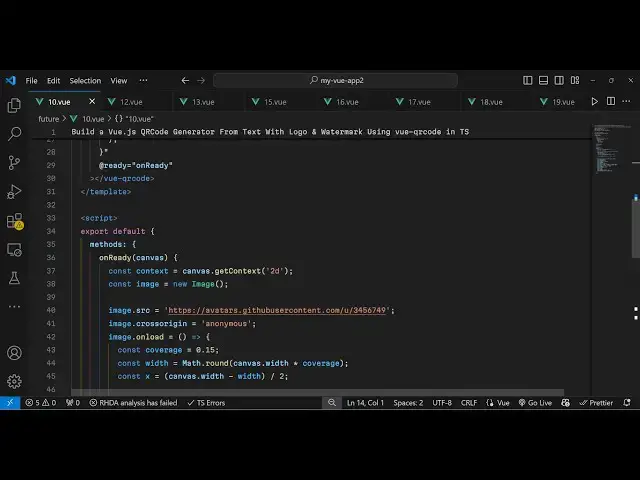
a watermark to QR code so image cross
5:39
Orion will be
5:45
anonymous and then when the image loads
5:49
successfully then in that case we need
5:51
to add this image on top of the QR code
5:54
for doing this this is actually the code
5:57
here in this first of all
6:00
we need to set the coverage
6:03
0.15 then we need to calculate the width
6:06
so we can easily calculate by using
6:08
math. round canvas width multiplied by
6:12
this
6:13
coverage
6:15
parameter and now we need to calculate
6:17
the x coordinate which will be simply
6:21
canvas. width minus width you just need
6:25
to copy this code it just centering this
6:27
image so that's why this mathematical
6:30
formula then lastly we use this function
6:32
draw image to draw the image on top of
6:35
the QR code in the center position so we
6:39
pass the context the actual image and
6:42
the X and
6:44
the width and the
6:49
height so if you try to refresh
6:54
now so we do need to call this function
6:57
as well I think we do need to make this
7:00
function so which is this draw image
7:03
function so this is a custom function so
7:06
we just need to make this function draw
7:08
image which takes the context the actual
7:11
image the x coordinate y coordinate
7:14
width height and the radius as well
7:17
which will be the default value which
7:19
will be
7:21
four so let me just copy this it's a
7:25
little bit complicated but I will
7:26
explain you if you just execute this the
7:29
Watermark will get added you have seen
7:31
these QR codes especially individual or
7:35
companies who who want to accept
7:38
payments they put their logo or
7:39
Watermark at the center of the QR code
7:41
so that's exactly the functionality that
7:43
we have done in this video so now coming
7:46
back to the function which is draw image
7:48
essentially in this function we are
7:50
drawing the image and we are having this
7:52
Shadow color which is a black color and
7:56
then you can go to the description you
7:59
don't to understand this code this is
8:01
just a little bit of maths mathematical
8:03
formula I also pasted this from chat GPT
8:06
it automatically generated this code for
8:09
me so you can go to the description and
8:11
then get
8:12
it and you can do this generate awesome
8:17
QR codes with this package in v js3 and
8:20
also add Watermark and logos as well so
8:24
thank you very much for watching this
8:25
video and do check out my website as
8:28
well uh free media tools.com uh which
8:31
contains thousands of tools regarding
8:33
audio video and image and I will be
8:36
seeing you guys in the next video
#Programming
#Software
#Web Services