Up next in 10

Build a Vue.js 3 vue-pdf Example to Build PDF Viewer & Renderer in Browser Using TS
Jan 13, 2025

Get the full source code of application here:
https://codingshiksha.com/vue/build-a-vue-js-3-vue-pdf-example-to-build-pdf-viewer-renderer-in-browser-using-ts/
Show More Show Less View Video Transcript
0:00
uh hello guys welcome to this video so
0:03
in this video I will show you a another
0:05
VJs package for rendering PDF documents
0:08
in the browser so we can view PDF
0:11
documents from a URL using this package
0:13
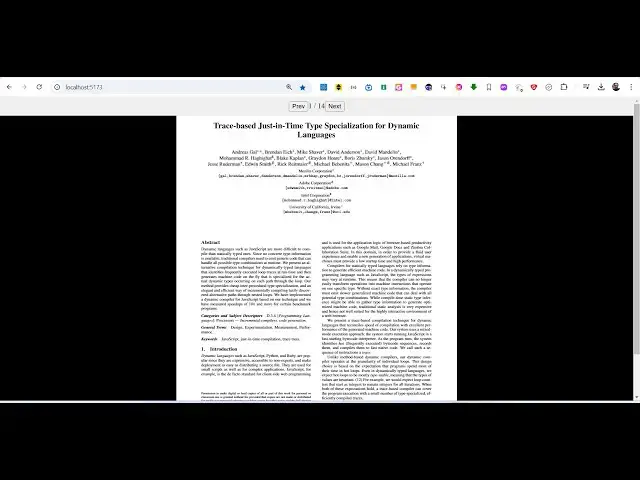
so you can see on your screen we are
0:14
loading a PDF document and simply
0:16
viewing it with all these Advanced
0:19
controls available to us we can go to
0:21
the previous page so we are on the first
0:23
page we can navigate and then you can
0:26
see we can read
0:28
this we can Zoom it as well you can see
0:32
so we are on the third page we can
0:34
navigate so there is this package
0:36
available for only VJs 3 applications
0:38
it's compatible with the latest version
0:42
so in this way full screen PDF viewer so
0:46
if you go to npmjs.com uh just need to
0:49
search for this package view- PDF it's a
0:53
very popular package if you just search
0:58
it uh so it's compati
1:01
for latest version so they do offer a
1:03
nice little documentation as well on
1:06
their official website it's a open
1:08
source library for rendering PDF pages
1:11
on your website so easy to use component
1:14
so so great documentation they have so I
1:17
have given all the source code of this
1:18
application in the description of this
1:20
video so now to get started you come to
1:23
your app. viw file of your project we
1:27
are just editing this file so we write
1:30
the typescript code in the script tag so
1:34
first of all we require the necessary
1:36
packages so we import the reference from
1:39
The View and then we import the actual
1:42
Library view
1:44
PDF and use PDF which is a hook which is
1:47
available from this
1:50
package so we require this package using
1:53
this import statement so once you
1:56
require this we do need to declare some
1:58
variables so such as the page number you
2:01
will be on the first page when you load
2:03
the page in the
2:06
PDF and now we need to load the PDF
2:09
document for loading it we will load
2:12
these two properties the PDF and the
2:15
pages so this Hook is available use PDF
2:19
and here you provide the URL of the PDF
2:22
document that you want to load so in
2:24
this case we are simply loading this
2:27
Mozilla github.io
2:30
PDF
2:33
JS so here you just need to mention the
2:36
full URL of the uh PDF document that you
2:40
are loading so in this case I will just
2:43
paste the
2:45
address so after pasting it that's all
2:48
that we need to do in the typescript
2:50
code now we come to the template where
2:53
we need to display this in the
2:56
HTML so I will just give it an ID to it
3:00
and inside this we will have another div
3:03
which will hold the controls for
3:05
us such as going to the previous page
3:08
and the next page so for this first of
3:11
all uh
3:12
after we display the file here PDF
3:17
file just give it an ID here of viewer
3:20
and inside this we use this directive
3:24
view
3:25
PDF and it actually takes two options
3:28
first of all the input file which is
3:29
located in the PDF variable and then the
3:33
page number so which is the current page
3:35
number so we just use these two
3:38
variables the current page number and
3:40
the
3:42
PDF so we just passing these two
3:46
parameters that's all that we need to do
3:48
if you refresh uh you will see you will
3:51
load this PDF document so we are on the
3:54
first page
3:55
only so if you want to show these
3:58
controls we come to the controls section
4:00
and we will have these two
4:02
buttons this button will be responsible
4:04
for going to the previous page and there
4:07
will be a second
4:08
button which will go to the next page
4:11
and we'll just bind on click listeners
4:13
so whenever you click these
4:17
buttons just
4:19
increment or decrement the page
4:25
here just add aary condition that uh
4:32
so these two buttons will be there this
4:36
is just for the navigation for previous
4:38
and next page you just add these two
4:41
buttons available so now what happens if
4:43
you
4:45
see so we are on the first page so total
4:49
pages are shown which is 14 pages and
4:52
you can navigate you can see that so as
4:54
I click next previous you will see that
4:56
it will perfectly work and you can read
4:59
your PDF document right in the browser
5:01
itself so now we can even style this as
5:04
well I have given all this source code
5:06
in the description guys so so once you
5:09
paste all the CSS code you will get the
5:13
design something like this so it's
5:15
looking perfectly nice so we can
5:19
navigate you can even zoom in by your
5:21
keyboard shortcut if you want to zoom
5:24
in so this is actually the package guys
5:27
in UJS you can per perfectly read your
5:30
PDF documents so thank you very much for
5:32
watching this video and do check out my
5:35
website as well guys free mediat
5:37
tools.com uh which contains thousands of
5:40
tools regarding audio video and image
5:43
and I will be seeing you guys in the
5:45
next video
#Programming
#Other
#Open Source