Up next in 10

Build a Vue.js 3 Video.js Video Player & Editor With Advanced Controls in Browser Using TS
Jan 13, 2025

Get the full source code of application here:
https://codingshiksha.com/vue/build-a-vue-js-3-videojs-video-viewer-editor-with-advanced-controls-in-browser-using-ts/
Show More Show Less View Video Transcript
0:00
uh hello guys welcome to this video so
0:02
in this video we will look at an vuejs
0:06
Library which allows you to render
0:08
videos from a particular URL and it's a
0:12
fully fleshed video editor and let me
0:15
show you the demo
0:18
so the video looks like this and you see
0:21
the thumbnail as well so you can change
0:24
this thumbnail with I am just using my
0:27
own image if you see you have this image
0:30
Custom Image as a thumbnail of the video
0:32
and we show this play button as well so
0:34
when you click on that button now the
0:37
video will play if you see we have we
0:40
have all these controls out there we can
0:42
navigate to any portion of this video we
0:46
have the play button then we also have
0:47
the pause
0:49
button so in this way the video plays in
0:53
a video player you can also make it full
0:56
screen and you can also make it penny
0:59
player as well in playing it in the
1:03
background so we are using this package
1:06
videojs if you know videojs is a very
1:09
popular
1:11
open-source Library which allows you to
1:15
view your videos in a nice little video
1:17
player we're using this package it's
1:19
open- Source Library specifically we are
1:22
using it for VJs so there is a package
1:25
here which we are using here let me show
1:28
you the package if you go to npmjs.com
1:31
just search for this at theate videojs
1:34
/vw so it's specifically made for VJs so
1:39
if you go to search just search for this
1:45
package so this is actually the package
1:50
here and the command is very simple uh
1:52
you install this by executing this
1:55
command and it's got almost
1:58
11,646 six downloads so I've given all
2:02
the source code in the description so if
2:04
you need the full source code you can go
2:06
to the description so now to get started
2:08
you need to edit your app. view file
2:11
which is there of your project now we'll
2:14
be writing the actual template which is
2:16
your HTML code followed by the types
2:19
script code we will write it in the
2:20
script
2:22
tag so first of all we need to import
2:25
the necessary packages so using the
2:27
import statement so we say import
2:31
and we will be importing the defined
2:33
component which will be coming from the
2:35
base VJs package and also we'll be
2:39
importing this video
2:41
player from this package at the
2:45
rate videojs player View and for this we
2:49
also need to import it CSS file as well
2:53
for styling purposes so we need the CSS
2:55
file
3:00
so in this way uh we first of all import
3:03
this package then we import this CSS
3:06
file that's all that we need to do and
3:09
after this we need to
3:13
export this component we need to write
3:17
this line Define component and here we
3:18
need to provide the name of the
3:20
component this can be anything you can
3:23
give the name to your component let me
3:25
say custom video player and then the
3:28
components that you want to use so you
3:31
have this components array here you need
3:34
to
3:35
provide we are using this
3:38
uh component right here we are
3:40
mentioning it in this array so after you
3:43
do this now we need to provide the
3:45
actual data that we'll be using it
3:47
inside our view template so here you
3:50
will actually provide any variable that
3:52
you want to declare so I will be having
3:55
this current time variable which will
3:56
set to zero and a Boolean parameter is
4:00
plain which will be initial value will
4:02
be false so we have these two variables
4:04
in the state current time which will be
4:07
zero and is playing is false so the
4:09
video is not playing whenever you load
4:11
the page that's why is set to false so
4:14
now coming back to the method section so
4:19
here you will Define all your methods
4:21
which will be needed inside your
4:23
application
4:25
so first of all we will be as soon as as
4:30
the video as soon as the application
4:32
starts this call back function on
4:34
mounted it's a vuejs life cycle method
4:37
it executes automatically as soon as the
4:40
video application loads so here we will
4:43
loading the
4:44
player and we will simply console log a
4:47
simple message that video player mounted
4:51
or loaded so this function will
4:53
automatically execute and inside this as
4:57
soon as you require this package the
4:59
video player will load so if you try to
5:01
refresh your browser just go to Local
5:03
Host
5:05
5173 just check your
5:10
console and for this you do need to
5:13
actually import
5:15
that write your mention the package in
5:19
the template so we need do need to
5:21
render this video player for rendering
5:24
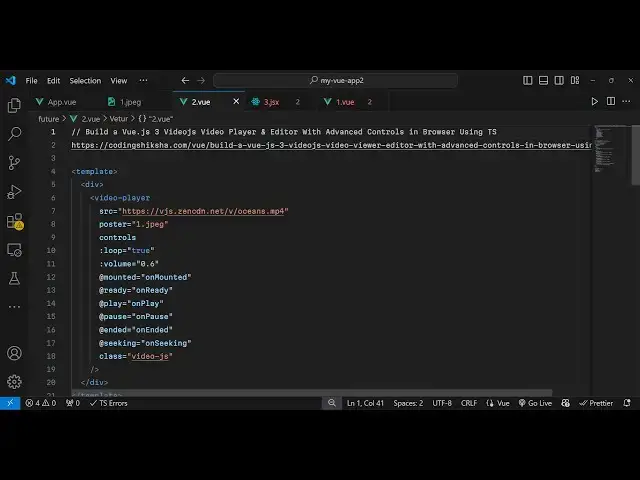
it inside your div section you can
5:26
simply say video player
5:30
and inside this we will provide the
5:32
source here so here you can load any
5:35
video on the
5:37
internet that video needs to be
5:40
public so I'm just loading this Source
5:44
here so just need to mention the source
5:48
parameter then whatever is the thumbnail
5:51
that you want to use so my is present in
5:54
my public directory if you see I have
5:57
this image in the public directory so I
5:59
can can directly access this attaching
6:02
it 1.mpg and if you want the controls
6:05
you will see controls so if you try to
6:12
refresh fail to resolve component video
6:15
player if this is a native custom AR
6:18
make sure to exclude it for component
6:22
resolution so just make sure that you
6:25
mention the same component here that you
6:29
mentioned
6:32
so so I think we mentioned custom video
6:35
players so what I will
6:39
do custom video
6:47
play and also for one thing I was
6:51
missing I need to add The Styling here
6:55
so that the video will be displayed so
6:58
just manipulate
7:00
you can give it a width of
7:08
100% so I've given all the source code
7:10
in the description so I just need to
7:13
paste these
7:16
Styles so just given a width maximum
7:19
width and margin so if you
7:26
refresh I think I'm making a some kind
7:29
kind of typo mistake so so now if you
7:32
see the video loads so I think you can
7:35
go to the description guys uh you can
7:37
get the full source code so let me
7:39
explain all the options right here one
7:41
by one so you give the source
7:43
parameter and then you give the poster
7:45
which is actually the thumbnail so now
7:48
what happens if you refresh it you will
7:50
see only the thumbnail will show the
7:53
controls will not
7:55
show you can't play the video so now for
7:58
showing those control controls we add
8:00
this option of controls so as soon as
8:02
you add this option you will see the
8:04
play option available to you so all
8:06
these controls happens you will see that
8:10
controls now if you want to loop loop
8:12
the
8:13
video you can put this option to
8:17
true then there is a volume option you
8:20
can control the volume of the video
8:22
Let's suppose
8:23
0.6 and then we have some live cycle
8:26
methods such as mounted so the video is
8:29
mounted successfully be calling this
8:31
function and if the video player is
8:34
ready then this call back function will
8:36
be there you need to Define this on
8:39
ready and similarly when the video is
8:42
playing then on
8:45
play and when the video is
8:48
paused then this function which is on
8:54
pause so we have all these life cycle
8:57
methods of this video player and and
8:59
when the video ended then also it
9:01
provides you with this call back
9:03
function you can directly attach some
9:05
kind of a function and seeking as well
9:09
so whenever you
9:11
are going to a particular location in
9:13
the video then this function will
9:15
execute and then we can even attach a
9:17
custom uh class as well to your videojs
9:23
element so we have attached all these
9:26
functions on mounted when the video
9:28
player loads
9:29
on ready when the video player is ready
9:32
and on play then we'll just make this
9:35
display to true so as soon as you click
9:38
the start button the video will start
9:39
playing and as soon as you click the
9:41
pause button the video will get paused
9:44
so here we are making this variable from
9:46
True to false and when the video ends we
9:49
just console log a message that video
9:51
has ended and on seeking seeking video
9:55
it will show the current time and then
10:00
if you just console log the messages you
10:02
will understand what I'm talking about
10:04
so as soon as you
10:07
refresh you will see video player
10:09
mounted ready as soon as I click the
10:12
play button so you can see video is
10:15
playing and as soon as I pause the video
10:17
video is paused so let's suppose the
10:21
video has been ended
10:28
[Applause]
10:32
so in this
10:38
way these console log messages will come
10:42
here so in this way guys you can play
10:45
any video in this video player you we
10:48
are using this open source package
10:50
videojs all the source code is given in
10:52
the description of this video so thank
10:56
you very much for watching this video
10:58
and do check out my website as well free
11:01
mediat tools.com uh which contains
11:03
thousands of tools regarding audio video
11:06
and image and I will be seeing you guys
11:09
in the next video
#Flash-Based Entertainment
#TV & Video
#Online Video
#Multimedia Software
#Virtual Reality Devices
#Video Sharing