Up next in 10



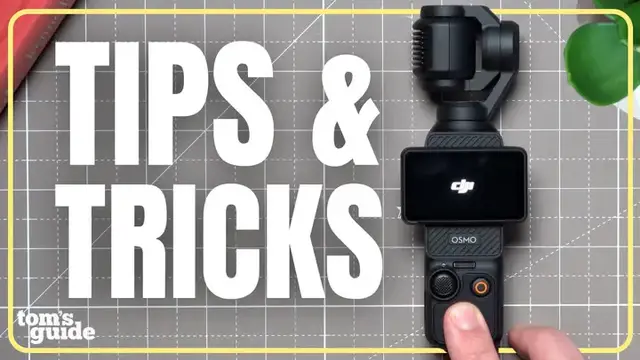
@Paul Antill shares the most important DJI Osmo Pocket 3 settings and features that you should know for quickly getting set up and started with this pocket camera. In this DJI Osmo Pocket 3 beginners guide, Paul walks you through the DJI Osmo Pocket 3 creator combo, including gimbal modes, stabilization, recording settings, and face tracking. He also demonstrates the DJI Wireless Mic 3’s and checks in on the rumors for the DJI Osmo Pocket 4.
Show More Show Less View Video Transcript
0:00
Hey, in this episode of Setup Essentials, I'm taking you through everything that you need to
0:03
know about the DJI Osmo Pocket 3. This video is for anyone who just picked up an Osmo Pocket 3
0:09
or has had one, but still wants to get a little bit more out of it. I'll be covering a lot from
0:13
the settings that you should change first to must-have accessories. Everything is chapterized
0:17
in this video so that you can jump around more easily, so let's get into it. Let's start with
0:22
what you get with the Osmo Pocket 3 when you buy one. There are a few different kits for sale
0:27
but the two most popular ones are the standard package and the Creator Combo
0:31
The standard package includes the hard case, the handle accessory with a quarter inch thread at the bottom
0:36
a USB-C charging cable, and a wrist strap. The Creator Combo includes all of that
0:42
plus a soft carrying case that holds the extended battery handle, the mini tripod, the wide angle lens
0:48
and the DJI Wireless Mic 2 transmitter, along with a dead cat
0:52
These kits were originally priced at $519 and $669, but between tariffs and its popularity, pricing has not been consistent
1:02
So, if you can find the Creator Combo still for like $900 or less, I think it's worth picking up since it gives you everything that you need to start shooting right away
1:12
If not, the extended battery handle and the DJI Mic 2 or the newer Mic 3
1:17
are the two accessories that I would buy separately for all-day battery life
1:21
and the best audio experience with this camera, so I'll link the best deals for those down below
1:26
There are two ways to turn on the DJI Osmo Pocket 3. Rotate the screen clockwise into its landscape position or press the shutter button
1:35
To turn the Osmo Pocket 3 off, you can hold the shutter button or twist the screen back to its vertical position
1:42
You can also set the camera to auto power off between 30 seconds or 30 minutes of being idle
1:47
and I'll show you how to do that in just a second. By default, flipping the screen into its landscape sets the recording aspect ratio to landscape
1:55
while turning the camera on with its screen still in its vertical orientation will set the camera to recording in its vertical mode
2:01
And this makes it a quick way to switch between your different aspect ratios without digging into your settings
2:07
I'm guilty of not always putting this camera back in its case, But whichever way you decide to turn the camera off, always rotate the screen back to its vertical position and make sure you let the gimbal return to its storage position before putting it away to keep things a little bit more protected
2:22
Now, let's take a closer look at the camera's specs. This is the one-inch camera sensor, which gives it really nice depth of field and solid low-light performance, especially for a camera this size
2:33
This is the three-axis gimbal that handles pan, tilt, and roll and gives you that stabilized cinematic look
2:40
There are three built-in microphones, two on each side of the screen and one on the back
2:46
So if you're not using a wireless mic when you're holding the camera, try not to block these microphones for the best audio quality
2:52
Below the screen is the multi-function joystick. You can use it to control the gimbal manually or as a digital zoom
2:59
The shutter and record button is right next to it On the left side of the camera we find our micro SD card slot Press it in to insert a card or release it from the body
3:12
On the right hand side of the body is the lanyard hole, and I highly recommend attaching the included strap
3:20
These two cutouts at the bottom are the quick release slots where accessories like the extended battery handle or the quarter inch grip attach
3:27
They snap in securely and release by pressing their front button. And at the very bottom as well is where we find the USB-C port for charging, data transfer, or for using your phone as a display
3:39
You'll need to install the DJI Mimo app, which is available for both Android and iOS
3:45
With your camera turned on and your phone nearby with its Bluetooth and Wi-Fi on, you should see the camera icon on the home screen page allowing you to connect to the camera
3:55
The entire process shouldn't take more than a couple minutes, and this is how you'll then be able to update the camera firmware
4:00
see a live view from your camera on your phone, as well as download the Pocket 3 recordings and save them directly on your phone as well
4:09
Now that we have the camera synced to your phone, how do we actually use it
4:13
You could just start filming with the default settings by hitting the shutter button, but I definitely suggest familiarizing yourself with the different icons and options available
4:22
Top left shows the remaining recording time based on your current resolution, frame rate, and card size
4:28
Top right shows the battery life. The middle left is a shortcut drawer for special modes, including face auto detect
4:34
where the camera will automatically find a face and start framing around it. Dynamic framing, which lets you lock yourself into a specific area of the frame
4:42
Spin shot, which automatically performs a smooth 180 degree barrel roll. On the bottom left, this switches your recording mode between panorama, photo, video, low light, slow-mo, and time-lapse
4:55
The bottom middle icon shows your current video or photo format. Right next to that are two arrows, which are part of a relatively new update
5:02
which let you do a digital lossless two times mid-telephoto zoom, which is approximately 40mm
5:08
This gives the camera a little bit more reach and versatility without taking a hit to video quality
5:13
On the bottom right, this switches between your front and selfie camera orientation
5:18
and you can also do this by triple tapping on the joystick. Tapping on the right middle icon changes how the joystick behaves
5:25
You can set it to physically move the gimbal or act as a digital zoom rocker
5:30
Sliding left on the screen opens your video settings menu. The main part of this menu lets you toggle between glamour effects
5:37
as well as adjust the image sharpness and noise reduction levels. But if you click on Pro, this unlocks more advanced controls, which includes exposure
5:46
And by setting your ISO, you can change how bright or dark your image is. Auto works pretty well in most cases, but locking it down prevents brightness shifts mid-shot
5:56
For your color profiles, you can choose between Normal, which looks pretty good at a camera with no color grading required
6:01
D-Log M flattens the image for color grading in the edit, which is great for pros who want the maximum flexibility and control over the final look of their video There are also three focus modes that you can choose from Single AF locks the focus once you tap on the screen Continuous AF keeps refocusing as your subject moves closer
6:21
or further away from the camera. Product Showcase refocuses a little bit more quickly
6:25
when you bring an object closer to the lens and prioritizes that instead of face detection
6:30
This is perfect when I'm showing off gadgets to the camera and I don't want the camera to refocus on my face constantly
6:35
Without this feature, normally what you'd have to do is trick the camera and kind of hide your face
6:41
so that it would refocus on the subject, in this case, my phone. But right now with product showcase
6:46
all I have to do is just have it a little bit closer in the foreground and it's intelligently detecting that
6:51
and focusing on that instead of my face. Like I've already shown by default, the screen orientation is what determines
6:56
if you're gonna be shooting in landscape or portrait mode. But swiping up on the screen
7:01
opens up your resolution, aspect ratios, and frame rate settings. In landscape, you can select between 16x9 or 1x1
7:11
In vertical, you can select 9x16 or 1x1 as well. I recently discovered that recording in 1x1 is actually really useful
7:19
because it captures that same amount of vertical information that you get from a vertical recording
7:25
but it also gives you a little bit more width compared to the standard 9x16 aspect ratio
7:29
The Osmo Pocket 3 can record in slow motion. You can access this from the main screen by tapping on the bottom left mode icon
7:36
You can select slow motion and choose up to 4K 120 FPS for 4x slow motion or 1080p 240 FPS for 8x slow motion
7:47
You can quickly view what you've previously recorded on the Osmo Pocket 3 by swiping right from the live preview screen
7:54
Here you can scroll through any of your past recordings on the inserted SD card
7:58
heart your favorite ones, change the playback volume for videos, or switch to the tile view
8:04
in order to view multiple recordings at once, as well as open the selector, which lets you choose
8:09
multiple recordings to heart or delete at the same time. Back on our live preview screen
8:15
swiping down opens the quick settings menu. The first icon, which looks like a person
8:20
is where you can create and edit your custom profiles, which saves all of your camera's
8:25
current settings so that you can access them again more quickly without having to reapply
8:29
everything from scratch. The second icon changes what happens when you rotate the screen. Screen
8:36
Rotate and Capture allows you to auto start a recording as soon as you rotate the screen
8:40
clockwise from its off-state power position. From this menu, you can choose what type of recording
8:45
you'd like to pick, or you can also select one of the custom presets you just made
8:50
The fourth icon is for FT or face tracking selfie. This feature will automatically track a person's face when the camera is in selfie mode
8:59
The fifth icon, which looks like a gear, opens additional settings and includes some very important features
9:05
Seeing your connected wireless mics or pairing new ones. Changing if rotating the screen back to vertical orientation will auto power off the camera
9:15
Calibrating the gimbal and joystick speed adding a grid reference line on your live preview auto screen and power off
9:25
and lots of other settings that you should definitely take the time to look over
9:30
The next icon lets us switch from auto resolution rotation to manually selecting between vertical or horizontal
9:38
The full body looking icon lets us change the gimbal rotation speed between slow
9:43
default, or fast. Finally, the Osmo Pocket icon lets us cycle between the gimbal modes
9:49
Follow mode keeps the camera locked onto whatever you pointed at. The gimbal will pan and tilt
9:54
smoothly as you move, which is great for most shooting situations. Tilt lock keeps the horizon
9:59
perfectly level. The camera can still pan left and right, but it won't tilt up and down
10:04
But as I've already shown quite a bit, one of my favorite features is subject detection, not just
10:09
on me so the camera continues to follow around me but if I switch this gimbal around
10:14
and double click on Clayton I now have a green tracking box around him and very easily I can
10:22
just now do a 360 walk around him the camera and the gimbal are pretty much handling all the heavy
10:29
work here keeping him perfectly in center and I can't stress enough how much this camera makes it
10:35
feel like it's your own personal videographer. The wide angle lens, which is included with a
10:40
creator combo, attaches magnetically to the front of the camera. Really the benefit with the ultra
10:45
wide lens attachment is when you're filming yourself, you can see how much more of my scene
10:51
I now get without actually having to extend my arm further out. It makes vlogging a lot easier
10:56
using this attachment. Here's where things get a little bit more interesting. Rumors are suggesting
11:02
that the DJI Osmo Pocket 4 is in the works, potentially featuring a dual camera system
11:07
with a main one-inch sensor and a secondary 50 megapixel sensor for optical quality zooming
11:14
Other rumored upgrades include improved ActiveTrack 7.0 stabilization, a larger 2.5-inch rotatable screen
11:22
enhanced battery life, and potentially 8K recording. Those rumored specs look pretty sweet
11:27
but one of the real questions that I'm most interested in is whether or not this camera will be released in the US
11:34
If you're unfamiliar, DJI technically has not been directly selling any of their recent products in the US for almost a year now
11:41
due to pushback from the government. But let me know what you think about all these rumors
11:45
and how much you think the Pocket 4 will go for or how much you'd actually be willing to spend on one
11:51
All right, so that should be everything that you need to know to get your DJI Awesome Pocket 3 set up
11:56
and the most important settings and tips to keep in mind for the best results
12:00
The price hikes have made this a little bit tougher to recommend as an absolute beginner camera
12:05
but if you can find it for a reasonable price, I still think this is one of the easiest ways to get great video quality
12:10
without carrying around a full camera rake. If this video has helped you out, make sure to subscribe for more setup essentials
12:16
and you can follow me to see what other cool tech I'm reviewing. And until the next one, I'll catch you later
#Online Video
#Computers & Electronics
#Camera & Photo Equipment