Up next in 10

Build a Vue.js 3 Google Maps Autocomplete API to Find Places Addresses & Photos Using Places API
Jan 17, 2025

Get the full source code of application here:
https://codingshiksha.com/vue/build-a-vue-js-3-google-maps-autocomplete-api-to-find-places-addresses-photos-using-places-api/
Hi Join the official discord server to resolve doubts here:
https://discord.gg/cRnjhk6nzW
Visit my Online Free Media Tool Website
https://freemediatools.com/
Buy Premium Scripts and Apps Here:
https://procodestore.com/
Show More Show Less View Video Transcript
0:00
uh Hello friends welcome to this video
0:02
so in this video I will show you how to
0:04
make use of Google Places autocomplete
0:06
API inside vuejs 3 to make this awesome
0:09
little application which uh you see can
0:12
you have this input field where we'll
0:14
enter a address and automatically as you
0:17
enter the address it will autocomplete
0:19
this so as I write address let's suppose
0:21
a particular location so I search for
0:24
Sydney which is in Australia so you can
0:26
see it is giving me suggestions so
0:28
Sydney you can see all these suggestions
0:30
will come
0:31
in and as you type the location you will
0:34
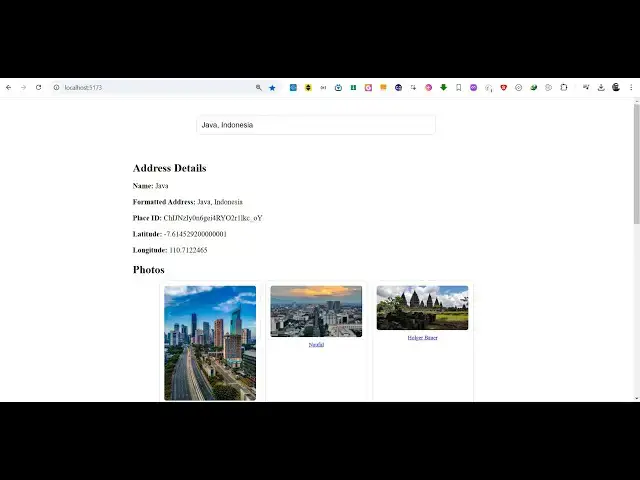
see the details address details will
0:36
come up the name of the place the
0:39
formatted address the full address the
0:41
place ID latitude longitude and then the
0:43
photographs of that place so all this
0:46
data is returning through Google Places
0:48
API and Google Maps autocomplete API so
0:51
you can search for this place and this
0:53
will open this more information about
0:56
that place specific place so hyperlinks
0:58
are there so it will building this
1:00
complete application I will show you a
1:02
package in VJs 3 which lets you do uh
1:05
build this fetch this
1:08
data and uh display this data so you can
1:12
do it as you change the address you will
1:14
see that you can pick any address and
1:17
then it you see it is communicating with
1:20
that places API and then it is returning
1:22
you the full
1:24
address the latitude longitude the
1:26
photographs of that place
1:28
so the top 10 photographs will be
1:32
returned here and displayed right here
1:33
so all the source code I have given in
1:35
the description of this video so now
1:38
let's get started by building this so
1:40
first of all you need to uh install a
1:43
package so just go to your npmjs.com
1:46
website and install this package so
1:49
which is
1:51
view3 view3 Google
1:56
address autoc complete so this is
1:59
actually the package here uh which
2:01
specifically is made for the latest
2:03
version of view which is view3 the
2:05
command is very simple you install it
2:07
npmi view3 Google address autocomplete
2:10
I've already installed it it's almost
2:12
got 605 weekly downloads so it's a
2:15
fairly new package but it's really
2:17
powerful so now to get started you will
2:20
edit your app. viw file so directly go
2:23
to this file and now I
2:27
will write this application so what you
2:30
need to
2:32
do
2:34
so first of all we'll be writing the
2:36
template here and then we will also be
2:40
writing the typescript code in the
2:42
script tag
2:43
so so the first thing we need to do we
2:46
need to require this package and the
2:48
necessary packages so import reference
2:51
and this will be coming from the base
2:53
view package and then we'll be importing
2:55
this uh Google
2:58
address Auto
3:01
complete this will be coming from this
3:03
package which is view3 Google address
3:06
autoc complete so in this way you first
3:08
of all require this package using the
3:10
import statement and then we need to
3:12
declare some
3:14
variables address variable so this will
3:17
be we storing address in this variable
3:20
so just add this
3:22
setup attribute so just it's very
3:25
important you need to add the
3:28
setup so after this we will also be
3:30
having a variable where we'll be storing
3:32
the places this will be a
3:34
null and
3:36
then now we need to
3:39
display the actual template go to the
3:42
template section and right here we will
3:44
give it a diff and just give it a class
3:47
of
3:49
autocomplete container and inside this
3:51
you will embed the component here which
3:54
will be Google address autoc complete
3:58
and this actually takes some parameters
4:00
this component the very first parameter
4:02
is take is the API key so API key uh it
4:07
will be coming from Google Cloud console
4:09
you need to create a project here and
4:12
then V model which is
4:15
actually the address we will be binding
4:17
so this is actually the variable that we
4:19
declared so we are directly binding it
4:21
to this V model next we need to bind a
4:25
call back function as well so as soon as
4:27
you write something in this input field
4:29
field this call back function will
4:31
execute so now we just need to Define
4:34
this call back function in our Javas
4:36
sorry typescript so we just bind this
4:39
function so call back
4:42
function so whatever place that you
4:44
write this place we need to fetch more
4:47
information about this place first of
4:49
all we will console lck this selected
4:52
place and the next parameter it takes
4:56
this one is the class we can directly
4:58
attach a CSS class you can style this
5:00
input field so I will just give it a
5:03
class here autocomplete input and then
5:05
the placeholder so just letting know
5:08
user you need to enter an address here
5:10
so these are all the parameters it takes
5:13
so here this API key I need to register
5:16
a new project here I've already created
5:18
one and first of all you need to enable
5:22
your API so just search for Google
5:24
Places API and Ive already enabled this
5:27
API you need to click the en enable
5:30
buttton uh then we also need to enable
5:34
that Google Maps API as well so just
5:37
search for map
5:40
static so this is actually the API you
5:43
need to enable Maps static API I enable
5:47
both these
5:48
apis so just enable this as
5:53
well I think this is not the API let me
5:56
show you this is actually Maps
5:58
JavaScript API you need to enable this
6:01
one so a lot of versions are there so
6:03
these two apis you need to enable then
6:05
you need to go to apis and services and
6:08
go to credentials and then you need to
6:11
create your own API key right here so
6:14
just create an API key uh this will be
6:18
different for you so don't copy my API
6:20
key so once you get your API key just
6:23
copy this and inside your component just
6:28
paste it
6:31
so now what happens if you run this
6:32
application
6:34
now if I just run
6:37
this so you will see this input field
6:39
appearing uh just need to add the
6:43
necessary Styles here so what I will do
6:45
I will paste it you will get all this
6:46
source code in the description of this
6:49
video so just it's it's done for just a
6:52
styling purpose I will just paste
6:56
it so if you go to your application
7:00
it will be now centered right here so as
7:03
soon as you write something right here
7:04
you will see the suggestions coming so
7:06
these are all the
7:07
suggestions as soon as you pick a place
7:11
this object will be returned to you the
7:14
name here if you see is you can see it's
7:18
a selected
7:21
place so now we need to get information
7:24
about that place so we go to our
7:27
function right here which is this call
7:28
back function so where we have console
7:32
logging it so after this we say place.
7:35
value is equal to the selected
7:40
place
7:44
so now to display the actual information
7:47
about that place we go to our template
7:51
just after that you display we will have
7:54
a diff tag and just we will bind this V
7:57
if condition that if the place is there
8:00
then we need to give it a class here
8:02
Place
8:06
info and I think as I run this uh you
8:11
will see it is
8:15
working can
8:17
select just refresh
8:23
it you will see all this information
8:25
will be returned to you you can see
8:27
address component addresses for address
8:30
this is contained inside this Json
8:32
response which will be returning from
8:33
the places API now we need to display
8:36
all this information so what we are
8:37
doing right here we are simply
8:39
displaying
8:41
it inside our
8:43
template
8:46
so so we are on inside our template so
8:49
we are displaying this
8:51
information
8:53
so first of all we will display the
8:56
address so address
8:58
details and inside the
9:00
paragraph the strong tag we will display
9:04
the name of the place which will be
9:06
inside Double C bracket place. name
9:10
property and after this we will be
9:13
displaying the
9:19
formatted address so this will be
9:26
your place. formatted
9:32
address so after this we will display
9:36
the other information which will be the
9:39
place
9:40
ID so every place in Google places have
9:44
a particular place ID attached to it so
9:46
to display that we simply say Place
9:49
dolore
9:52
ID then uh for showing the latitude and
9:56
longitude
10:01
so it's very simple uh as you can see we
10:05
are just parsing the Json response and
10:08
just showing it Place dot geometry do
10:12
location do latitude this is actually a
10:16
function so we just need to wrap
10:18
everything in double
10:23
quotes similarly we display the
10:26
longitude as well so this will be
10:30
instead of latitude we are returning
10:32
longitude so replace
10:46
here so last but not least we will
10:49
display the photographs of the places
10:52
that the user has selected so we will
10:54
Loop through all the photographs so
10:56
inside this div tag we'll give it a
10:58
class of photos
11:00
and then inside this we will run a
11:03
simple V for
11:04
directive so for each photo
11:08
inside this place
11:12
photos so it's a array here we looping
11:15
through each photograph so we are giving
11:17
a index variable index and a class of
11:20
photo and inside this we will
11:24
display the image so we'll simply image
11:28
The Source will be equal
11:31
to give the get the URL for photo. get
11:35
URL so we get the URL of the
11:38
photograph and
11:42
uh apart from that we will also show a
11:50
simple will simply uh what we will
11:54
do we will make sure that it is
11:57
hyperlink
12:00
so when you click on that image you will
12:02
be redirected to
12:05
more so that's all that we need to
12:09
do if you refresh your
12:17
application think I made typo mistakes
12:19
so all the source code will be given in
12:21
the description guys
12:26
so if you enter the address
12:33
so you can see that so as soon as you
12:34
write this you will see all these
12:36
details appearing name address Place ID
12:38
latitude longitude and then the
12:40
photographs if you click any of the
12:42
photographs you will be redirected to
12:44
the actual photo so in this way you can
12:46
develop this nice little places
12:48
autocomplete application so thank you
12:51
very much for watching this video and
12:53
also check out my website as well free
12:55
mediat tools.com uh which contains
12:58
thousands of tools regarding audio video
13:01
and image and I will be seeing you guys
13:03
in the next video
#Programming
#Software
#Web Services