0:10
are you on a home edition of windows yet
0:12
want the convenience of the group policy
0:14
editor well in this video we will show
0:17
you how to do just that
0:20
for a more in-depth look at the topic be
0:22
sure to check out the article in the
0:26
the first thing we will look at is a
0:28
free open source tool that makes it
0:30
possible to edit local group policy on a
0:33
home edition of windows it is called
0:38
the tool is in compliance with licensing
0:40
and you're free to use it without
0:42
violating any microsoft terms
0:49
download it from the github link
1:05
and follow any of the instructions
1:11
while that's downloading some of the
1:13
administrative templates are available
1:14
in home edition and as you see here you
1:17
need to download the rest of them from
1:19
the internet policy plus comes with un
1:22
inbuilt functionality to download the
1:24
latest package of these files from
1:27
all you need to do is run the tool
1:31
and this will download the full set of
1:33
policy definitions from microsoft
1:44
once downloaded tell it to open them
1:49
policy plus is similar in setup to the
1:52
group policy so experienced users should
1:54
have no problem navigating around
1:57
all the available policies are displayed
2:01
you can navigate through the tree and
2:03
find a suitable entry that you want to
2:07
this tool can easily view and edit
2:09
registry based policies and local gpos
2:12
per user gpo's individual plo files
2:15
offline registry user hives and the live
2:19
you can also use the search
2:22
functionality to find a specific policy
2:24
you can search by id by text by registry
2:28
and editing a policy is simple you need
2:30
to just click open the policy
2:37
make the desired change similar to the
2:40
native group policy editor policy
2:42
plus also displays the policy
2:44
description and lets you make comments
2:48
once you've made the changes to group
2:50
policy object you'll need to restart
2:52
your computer for the changes to take
2:56
now features in a nutshell it runs and
2:58
works on all windows edition not just
3:01
pro and enterprise it complies fully
3:03
with licensing i.e it's transplant no
3:06
components across winsor installation
3:09
you can view and edit registry based
3:11
policies and local gpos per user gpo's
3:14
individual pol files offline registry
3:17
user hives and the live registry
3:20
you can navigate the policies by id text
3:23
or affected registry entries and you can
3:26
show additional technical information
3:29
about objects the policies the
3:31
categories the products
3:33
and provide convenient ways to share and
3:40
the refresh policy x function does not
3:43
work on the home edition so you have to
3:46
restart your computer in order to
3:51
you can create an edit per user group
3:54
policies but their settings are ignored
3:56
by windows so you'll need to edit the
3:58
register yourself for those changes to
4:05
if you do not want to download
4:07
third-party software microsoft offers an
4:10
undocumented way to enable gp edit in
4:13
the windows home editions
4:17
now before we begin you have to make
4:19
sure that you are signed into an admin
4:21
account and that you have an active
4:27
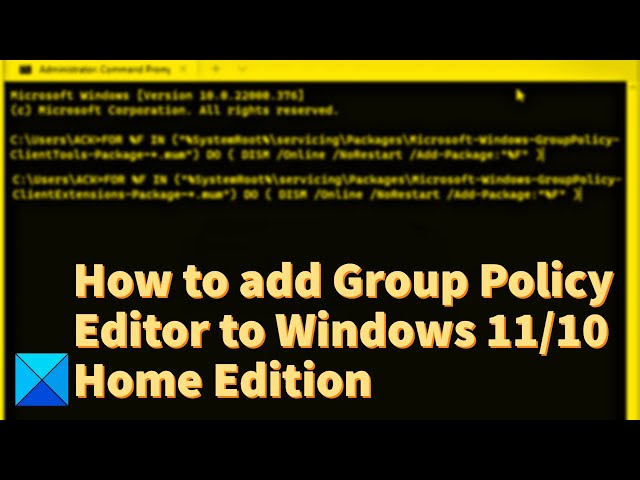
open the command prompt as an
4:33
and you can either type in these
4:34
commands or you can just copy paste them
4:38
we are just going to copy paste
4:51
we will copy paste the other one
4:58
then paste the other one
5:06
after this you will need to restart your
5:08
system and after you've restarted try
5:11
using the gp edit msc command then
5:20
now some administrative templates may be
5:27
go to the article we have a link
5:37
click on the red download button
5:54
are available on the home edition for
5:56
instance multiple loop local group
6:00
are not supported on windows home you
6:02
should also note that windows home users
6:05
restart their computer to apply any of
6:09
for more helpful articles to help you
6:11
maximize your windows experience go to
6:13
our website thewindowsclub.com
6:16
do not forget to give this video a
6:18
thumbs up and subscribe to our channel
6:20
where we are always adding new content
6:23
aimed at making you the master of your
6:25
digital house thanks for watching and