live_tv
Livestream Starting Soon
00
Hours
:
00
Minutes
:
00
Seconds
Up next in 10

Build a React.js PDF Editor to Split,Merge,Delete & Export Pages to Image Using PDF-LIB in Browser
Jan 9, 2025

Buy the full source code of application here:
https://procodestore.com/index.php/product/build-a-react-js-ultimate-pdf-editor-to-splitmergedelete-export-pages-to-image-in-browser-using-ts/
Hi Join the official discord server to resolve doubts here:
https://discord.gg/cRnjhk6nzW
Visit my Online Free Media Tool Website
https://freemediatools.com/
Buy Premium Scripts and Apps Here:
https://procodestore.com/
Show More Show Less View Video Transcript
0:00
to this video so in this video I
0:02
actually show you a free tool that I
0:06
developed and deployed it on my website
0:08
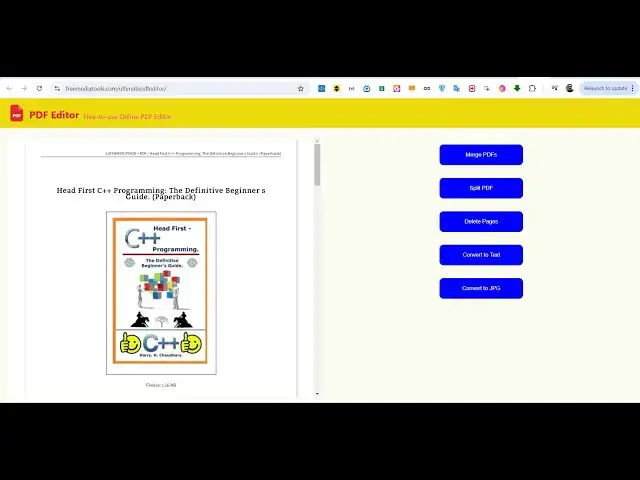
freem mediat tools.com so this tool is
0:10
Ultimate PDF editor uh if you just let
0:14
me show you the landing page of the tool
0:16
so free media tools if you go to the
0:18
website at the very bottom this is a
0:21
tool ultimate PDF editor it is coded
0:24
inside react chers and it uses PDF lib
0:27
library and if you go to it this will be
0:29
the landing page that you will see it's
0:31
a ultimate PDF editor you can basically
0:34
merge your PDF documents but multiple
0:36
PDF documents you can split PDF document
0:39
into multiple Pages then you can also
0:41
convert your pages into images as well
0:44
individual Pages then you can delete
0:46
pages you can convert your PDF file to
0:48
text file so drag and drop feature is
0:50
there you need to Simply drag and drop
0:52
your actual PDF file select your PDF
0:55
file and then the live preview will be
0:57
seen by you you can see that on the left
0:59
hand side so you can navigate to any
1:01
page in the PDF document using this nice
1:04
little PDF preview live preview that you
1:06
will see and based upon this we have
1:09
different options you can merge PDF we
1:11
can split this PDF into multiple pages
1:14
and we can delete pages in this PDF
1:16
document or we can convert this into
1:18
text file if you want to convert this
1:22
page into a image let's suppose I click
1:25
this button convert to jpg so you will
1:27
see all these pages one by one one will
1:30
be converted and you can see that so one
1:33
by one all these pages will be converted
1:35
you will see
1:37
that you can see that if you see all
1:40
these Pages if you can open one page
1:46
so it has various pages so one by one
1:49
you will see all these pages will be
1:51
converted so you just need to refresh so
1:55
if you just open this individual
1:58
page you can see that the page was
2:01
converted to P image so it totally
2:04
depends upon how many pages are there
2:06
inside so if I select it's a 32
2:10
megabytes file
2:11
so if you click this all these pages
2:14
will be converted so you just need to
2:15
wait for the pages to complete so then
2:18
we have the functionality for deleting
2:20
pages so if you click this delete pages
2:23
you will actually get a file let me take
2:26
a example which contains less Pages let
2:28
me take an
2:30
example of this so now you can see it
2:33
contains the first page second page
2:35
third page so total pages in this will
2:38
be I think is four pages of there in the
2:41
PDF document so if I want to convert
2:43
this into PDF text file so all the text
2:47
which is written right here in this PDF
2:48
is converted into a text file if you try
2:51
to open this you will actually see all
2:53
the text that you see is now being
2:55
converted to actual text file so in this
2:59
way you can do it and now if you want to
3:01
actually split this file you can
3:04
actually put a comma you can see the
3:06
format 1 by3 you need to page enter page
3:10
ranges let's suppose I want to split
3:12
this one to three
3:14
[Music]
3:16
1-3 so what does mean it will actually
3:19
create a new PDF document which will
3:21
contains these three pages so if you
3:22
click okay you need to give the page
3:25
name you can see click on okay now if
3:27
you if you three it has splitted by PDF
3:31
document if I open this now you will see
3:34
this will contain the first page second
3:36
page third page so total Pages as three
3:38
pages so in this way you can split pages
3:42
in The PDF document let's suppose now if
3:44
you want
3:45
to create multiple PDF based upon the
3:49
pages click on split PDF so now what we
3:52
need to do we need to create two PDF
3:54
documents which will contain the pages 1
3:56
to two and you need to put a comma if
3:59
you want want to generate multiples so 1
4:01
to two and then we need the pages from 3
4:05
to 4 so what this mean guys basically it
4:08
will split the pages into two parts
4:12
first part will contain the first and
4:13
the second page and the third second
4:15
part will contain the pages from third
4:17
to fourth so now if you click okay this
4:20
will be the two page two PDF files will
4:23
be generated you can see that this is a
4:25
split
4:26
one split two so if you open this now
4:31
this will contain two pages and the next
4:34
one will contain the next two pages so
4:36
it will now contain two PDF documents
4:39
which will contain splitted the pages
4:41
into two documents similarly if you
4:43
click the delete pages button you again
4:45
need to mention the range so you can you
4:49
can actually but just uh delete pages
4:52
from the PDF document so you can say one
4:55
I don't want the first page put a comma
4:58
and I don't want the Third page so this
5:01
is a format 1 comma 3 so it will
5:03
actually remove these pages from this
5:05
PDF document edited.
5:09
PDF so now a PDF file will be downloaded
5:13
but it will not contain those pages so
5:15
it will only contain two pages the first
5:17
and the third Pages has been removed so
5:19
in this case you can actually remove
5:22
pages from the PDF document very easily
5:25
and now lastly if you want to actually
5:27
merge multiple PDF documents and you
5:29
need to select multiple documents so
5:32
what we can
5:34
do we can
5:38
select multiple documents these two
5:41
documents that we select so we have
5:42
selected the two documents we can simply
5:45
say merge PDF so it will say enter the
5:49
order of PDF to merge by their numbers
5:52
so one two the order is really important
5:55
if you say 2 comma 1 then the second PDF
5:58
document will actually come first so
6:01
click on okay now the two PDF documents
6:04
will be successfully merged this is you
6:06
can see the two documents are
6:08
successfully merged with one another so
6:10
the resultant PDF document will contain
6:12
five pages so in this case you can take
6:16
as many PDF documents then you can merge
6:18
it split it delete pages convert to PDF
6:21
and also click on convert to
6:25
jpg so as you click it you will
6:27
basically see
6:30
all these pages will be converted to a
6:33
image file you can see that so this is a
6:36
PNG image file so the page has been
6:38
successfully converted and actually I
6:41
coded this inside react CHS which is
6:43
actually a framework of JavaScript we
6:46
have this file app.js and if I show you
6:49
the package.json file we are actually
6:51
using this PDF lip package if you need
6:54
this full ultimate PDF editor source
6:56
code guys the link is given in the
6:57
description you can go to my website Pro
6:59
cod.com you can purchase the full source
7:01
code the link is given in the
7:03
description at the checkout page I have
7:05
given the link of my tool here you can
7:08
directly check out this tool before
7:10
purchasing it you can use this tool if
7:12
you are happy then you can purchase the
7:14
full source code and you will get a zip
7:17
file from Google Drive after you make
7:19
the payment from my website you will be
7:22
automatically redirected to after you
7:24
after you make the payment to Google
7:26
Drive where you can actually download
7:27
the full source code so once once you
7:29
download guys you need to open this
7:31
folder and simply type npmi so this
7:34
command will allow you to install all
7:37
the modules which are there in the P
7:39
package.json file so after this there
7:42
are two commands if you want to run this
7:44
project locally inside your machine then
7:46
you can type a command called as npm run
7:50
Dev so this will run the development
7:52
server and run your application Lo sorry
7:55
npm Run start sorry npm Run start this
8:00
will start your application locally on
8:02
port number 3,000 so it will start the
8:05
development server you will see that
8:07
local was 3,000 now you can repeat the
8:10
same
8:11
process you can see
8:14
that click on convert to jpg so multiple
8:17
pages will be multiple images will be
8:19
created each page it will take the
8:21
screenshot it will convert your page
8:23
into the image file you can split the
8:25
PDF document 1 to 3
8:29
you can see
8:33
that you can delete the individual Pages
8:36
1 3
8:39
five sorry the pages you just need to
8:43
make sure how many pages are there in
8:45
the PDF document so I think there are
8:47
only four pages so you just need to
8:49
mention the pages that you don't want 1
8:51
comma 2 and now the result in PDF will
8:55
only contain two pages so the two pages
8:57
have been successfully removed so in
8:59
this case guys you can see that all the
9:01
operations are working you can try out
9:02
the full demo the link is Will given at
9:05
the checkout page you can try the demo
9:06
before purchasing it and these are the
9:09
app.css
9:10
app.js so in the package.json we are
9:13
actually using the PDF lib Library if
9:16
you don't know about PDF lip is actually
9:18
a open-source JavaScript library for
9:22
manipulating PDF documents to actually
9:24
carry out these conversions so for
9:26
splitting for deleting Pages for merging
9:29
PDF documents so this is a very good
9:31
library in the client side using
9:33
JavaScript you can also uh run it on the
9:37
server side as well using nodejs but uh
9:40
specifically it's used on the client
9:42
side it's a great alternative to JS PDF
9:44
so we are using this library inside of a
9:46
react Chas project so you can even build
9:50
this application there is a build
9:52
command if you want to deploy this
9:53
application you can simply type the
9:55
command npm run buil and on the left
9:58
hand side a dis folder will be created
10:01
if you want to purchase a domain name
10:02
and then you need to Simply deploy this
10:04
code onto your hosting plan so this will
10:07
work with any hosting any client side
10:09
hosting that you purchase on digital
10:10
Ocean or hostinger any ordinary hosting
10:13
it will work and you can use this tool
10:16
you can if you're applying for a job if
10:18
you are a student this will be very
10:20
helpful for you so you will be able to
10:22
learn step by step how I develop this
10:24
project you can also modify this project
10:26
as well and you can earn a lot of
10:28
Revenue as as well from Google and ISO
10:30
by placing advertisements as well it's a
10:33
great opportunity guys the link is given
10:35
in the description you can go to my
10:36
website and purchase the full source
10:38
code you'll see that it has created the
10:40
build folder and it contains it is
10:42
index. HTML file the minifi code right
10:46
here this is actually the minified is JS
10:50
and minified JavaScript so here you can
10:52
deploy this code so this is PDF JS
10:55
workup code right
10:57
here so this was the overall project
11:00
guys if you are interested the link is
11:02
given in the description and please hit
11:04
that like put And subscribe the channel
11:06
as well and I will be seeing you guys in
11:09
the next video Until then thank you very
11:12
much
#Business & Productivity Software
#Multimedia Software