Up next in 10

Build a React.js PDF Editor to Add Text & Images in Browser Using react-pdf Library in Javascript
Jan 9, 2025

Get the full source code of application here:
https://gist.github.com/gauti123456/7821d1d70017484c982771dcf134004d
Show More Show Less View Video Transcript
0:00
uh hello guys welcome to this video so in this video we will look at how to build out a complete PDF editor where
0:07
you can actually add text images inside react CH so you can see
0:14
the application that we will be building in this video on your screen this is the final demo so we have actually this uh
0:22
drop down either we can add text to the PDF or we can add images so we have two
0:28
options right here so depending upon which option you select so if you select the text option you will see this text
0:36
area appearing right here so here you can simply add any
0:43
text so let's suppose if I paste a paragraph from the Wikipedia
0:49
and I paste this paragraph and we have this text area out there if I paste this paragraph and we get this download PDF
0:56
button right here at the bottom side corner if I click this button you will actually see a PDF file will get
1:03
downloaded and it will actually depending upon how much text
1:09
that you pasted it will calculate the total number of pages that is required for inserting that text automatically
1:16
the formatting will automatically be handled by this library and you can just see right
1:22
here so if I increase the text right here if I paste more
1:28
text so now what you will see it the pages will increase because the text has
1:34
been increased and now you see it has splitted across four pages so multiple
1:40
Pages this is the first page this is the second page this is the third page this is the fourth page so you can just see
1:45
the spacing of the text between the text between the lines are full taken care by
1:50
the library that we are using right here in react CHS and now we have the second option as well if you now want to
1:57
convert a series of images that you want to add to the PDF you can select your
2:05
images let me select these four Images you will see the live preview of
2:12
all these images one by one so four Images are selected and we have the download PDF button so if you click that
2:18
button you will see the PDF file will get downloaded and we will have all of these four Images appearing in a
2:25
separate page so this is the first page second page third P page and fourth page so this is a complete PDF editor we
2:33
will be building in this video and uh for this we are specifically using a
2:39
library which is react PDF dorg this is
2:44
actually the library which is entirely built for react CH applications if you want to build a PDF editor specifically
2:52
for react you can use this Library it is useful for rendering the PDF documents
2:57
and adding text images all that stuff so the command is really simple you just need to npmi at theate react PDF
3:05
renderer save so to install this so just copy this command and go to your command
3:12
line and just initialize a very basic react Chase project I already done that so install this module by invoking this
3:20
command so I've already installed it and we also need to install react bootstrap
3:27
as well which is a boot bootstrap module for integrating bootstrap inside your react CH applications and also we do
3:34
need to install the base bootstrap package as well so react bootstrap and bootstrap so install these two packages
3:41
as well alongside with that main package so after installing all three packages
3:48
start your development server so we will start it from scratch so now to get started just
3:55
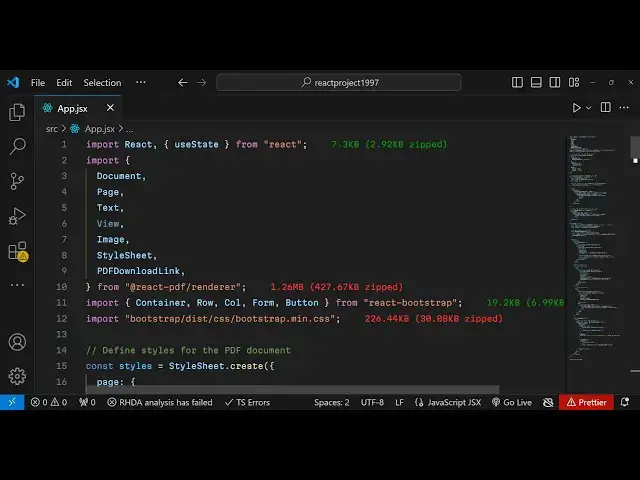
create a app jsx file and
4:01
this is a structure of the react Chase project I have very basic react Chase project so I will create a functional
4:07
component if I refresh you will see it auto
4:13
reloads so now the first thing we do we need to do here right here we need to
4:20
declare some State variables for this
4:25
application so we need three state variables first will be
4:30
for selecting the mode so either you can add text or images so that mode initial value will
4:38
be we'll be using the U State hook initial value will be
4:44
text and then we will have the text input there is a way by which we will
4:51
track what text that the user has written so again you'll be using the UST
4:56
State hook initial value will be nothing and for the images we will have a array
5:02
images set images and again use the UST State hook initial value will be empty
5:08
array so now we have these three UST State hooks variables first for the choice either text or image second is
5:14
the input text field where we allow the user to paste the text that needs to be
5:20
inserted in PDF and third is the actual images that the user will select initial
5:25
value is empty array so these three state variables we have declared and now we need to paste the
5:32
jsx which will be required for building this application
5:37
and so for this we need to import some bootstrap so what I will
5:44
do I will import the bootstrap CSS file bootstrap dis CSS bootstrap m. CSS we
5:54
just uh importing the base CSS file for bootstrap and also we need to uh
6:02
in import the different modules which are there the
6:11
document so this I will import as we use it so the very first thing we need to
6:17
import is the container class of bootstrap so all these tacks are built
6:24
in so as you will see you need to import this this will automatically be imported
6:30
from react bootstrap that we installed it's a particular tag this container
6:35
it's a bootstrap tag and inside this we have the row tag as well which will be
6:42
imported we just need to give it a bootstrap class
6:48
of this and then you have the call these stands for
6:53
column this is just used for Designing the user interface
6:59
text image to PDF converter and then we'll have the form
7:05
controls or bootstrap form
7:18
group and inside this we will have the form label
7:29
so all these things will be imported here if you see the form
7:44
label so all these things we are just importing right
7:53
here so this can be here form group and this is part of theb uh form
8:00
object so what we can do we can simply write here form label form.
8:07
label and for the label here we will simply say uh select the
8:12
mode so if you refresh here you will actually
8:22
see it is saying that the column is not defined because I think we haven't
8:28
imported that just import that and then import the form as
8:37
well so now if you see you will see this uh label appearing right
8:43
here and after this label we need to have
8:48
a select field for this we will have the form
8:54
form. control so we don't don't need the
8:59
ending tag for this so we can simply
9:15
say and for this we will have a type parameter set it to file and we will
9:21
allow the user to upload multiple files so like multiple files so M attribute
9:26
and we will only be accepting the image file so image/
9:32
star so if you see you will have this choose file button
9:38
appearing and basically you'll b a onchange event handler so when we select
9:44
the files we will execute this function which is handle image upload so now we just need to Define this function uh
9:51
right here so e parameter will be
9:57
automatically be passed which is the event parameter inside this function so
10:02
when you select the image files we need to read the
10:10
files so for reading the files we need to first of all use array from and then whatever the
10:17
file selected e. target. files and then the image URLs so we'll
10:24
use the map operator and for each file we need to create a URL so url. create
10:30
object URL and here you need to pass the actual file which is selected and we'll use this hook
10:37
function set images if you see we have declared this hook function we are using it to set the URLs of the
10:45
images so in this way you can read all the image file which is selected by the user when
10:51
they use this form control so just format this it will look like this
11:00
so after this we can even show the live preview
11:06
as well of all the images selected by the user after this in a
11:14
row so we can actually use curly bracket some write some jsx we use the map
11:20
operator again and for each image index variable and we actually have this
11:29
display in a call structure and we'll be binding the key
11:34
parameter which will be index and the X spacing will be uh
11:44
six on medium devices it will be
11:49
three giving a class name to it of uh
11:55
mb3 and inside this you will actually bind the image tag image source
12:02
attribute will be the actual
12:07
image and here we need just need to specify the width of the image so 100% is the width so if you just try to
12:14
refresh the application and try to select a number of images if I select these images you will
12:21
see the live preview of all these images one by one side by side so this is the first image second image third image so
12:27
now in this way you can show the live preview before the user actually click
12:33
the export to PDF button so now after
12:38
this basically we are using this jsx expression if you
12:49
see so after this Loop right here if you it is ending right here
13:07
so we have this if you
13:17
see so we basically what we need to do here we need to have a dropdown so we
13:25
will allow the user to Simply select which option they want to select either they want to add text or image for that
13:31
we need to have a drop down and uh for the drop
13:39
down just after this heading we will have an
13:49
option uh for the mode option I I think we need to declare uh after
13:57
this okay this is is the actual mode
14:02
i instead of this image input we can replace it by a drop- down control so
14:09
form control so here it will be as a select
14:17
field and uh the value will be actually the mode variable whatever is the mode that
14:24
you selected and also here we'll be binding a on change as well so whenever you
14:29
change the value of the dropdown so we will set this mode to whatever is the e.
14:35
target. value so if you see we have a drop down
14:40
here but we haven't we are not seeing the choices so now for the choices for the different options right
14:48
here so just inside this we will have the different
14:54
options so we will have two options First Option will be for for convert
15:00
text to PDF and the second option will be for
15:06
uh this value will be images so convert images to
15:12
PDF this one will be value
15:21
text so just format the document it will look so we have two options uh in the
15:27
dropdown convert text convert images so by default if you see in the US St hook
15:34
we actually set this option to text so whenever you load the application for the very first time this text will be
15:40
selected by default the user can change this value and now if I change this to
15:45
images we just need to show the toggle this in between so if the user select
15:51
text then we need to show the XT area if the user select the images option then we need to show the images input field
15:58
for for that we need to Simply modify the code
16:03
here if you just see after this uh drop
16:14
down uh we need to conditionally render the HTML for
16:21
that just after this let me
16:42
so let me paste
16:51
this all the source code will be given in the description of this video so now we act as actually you can see that we
16:59
only have the drop down here and if you refresh the page you will see the drop down we have two choices convert text
17:05
convert images so now based upon the condition right here
17:11
uh this variable that you see mode variable we will write the jsx
17:16
expression right here just after this in side Cy bracket we will compare the
17:23
value of mode so if the value is equal triple equal to text
17:29
then in that case using this Turner operator we will show this
17:39
text if the value is equal to image if the value of this variable is image then
17:45
in that case we will show the image input so for doing
17:53
that right here we will have this row input
18:00
inside column we will have the form
18:12
group so here we will be having the text area where we allow the user
18:19
to so it give it a control ID to this so which will be text input we're just
18:25
giving an ID so that we can Target in JavaScript
18:33
so inside this we will have the form
18:38
label we will say enter text so here the user will enter the text so for this we
18:44
will have a text area so form control this time this will be a text
18:52
area so as will be text area and number of rows will be 10
18:59
and the value will be the actual text
19:04
input and we will basically give a placeholder as well just to let user
19:10
know what to type here so type or paste your text
19:15
here and we also will give a onchange event handler so when the value is pasted in this text area we need to bind
19:23
a on change event handler so we need to set the text input whatever is the value
19:29
e. target. value so if you refresh your page uh we
19:35
do need to write the lse condition as well so if the value is the image so
19:42
here we need to show the image input so what I will do I will simply paste
19:54
this so now if you see as
19:59
if you refresh the page as the application loads for the very first time uh this is selected so now the text
20:06
area will show if you change this now the images are input field are showing
20:12
so basically we have designed an interface where we allow the user to Simply select which option they want to
20:19
choose depending upon that we are changing the controls so now we just want to insert
20:27
the text first of all we tackle the text area part so when the user paste the
20:32
text in the text area we need to actually create a PDF document and
20:39
insert that text for
20:44
that we also need a button as well so just after this is ending we need to
20:52
have to show the so once the user paste the text right here as they start typ
20:58
type uh pasting some text that download button should show at the
21:03
bottom and for that we need to write some jsx right here so
21:09
row column and here we'll be comparing inside C bracket if the value of
21:17
mode again is equal to text and the text
21:25
input or we will have or oper in either of these cases if the mode is equal to
21:35
images and the images length is uh greater than zero in either of these
21:43
cases we again we'll use the Turner operator we will basically show the download
21:51
button and for this we do need to make a component for this which I will call at
21:57
PDF down download link so
22:03
just PDF download
22:08
link this component will actually take two properties first is the document and
22:15
that second will be the content so we do need to make this
22:22
component right here so right at the top
22:31
okay this PDF download link is built in component PDF download link it's part of
22:40
the library if you see react PDF renderer so which we are using it for
22:46
building this application so this is actually a component so it will be
22:51
imported from That Base Library so we are just using that and
22:57
this takes actually this download button takes two arguments that we need to pass
23:04
first is actually the actual document so the actual document here we
23:11
need to specify the
23:18
mode so the mode is equal to text in that case we need to say we need to load
23:27
this is this will be the custom component that we will create and this time we need to give it
23:33
the content as a prop to this component so it'll be giving the text
23:40
input in the else if the mode is not text in that
23:45
case we need to load another custom component this time this will be image
23:51
document I will make both these components this component will take images as prop and we'll be passing the
23:59
images these are two different components custom component that we need to create text document and image
24:05
document let me create these two custom components right at the
24:12
top so we can create this first will be
24:19
the text component sorry text
24:27
document it will take the content as prop and inside this here we can set
24:32
properties about the text lines per page I will set it to 40 and
24:39
then we will split the lines which are coming using the split
24:44
function and we'll be splitting it new line corrector like this and total
24:50
number of pages this will be empty and we'll be simply be using the for Loop and we will be looping through each line
24:58
lines. length I ++ plus is equal to lines per
25:17
page and inside this for Loop basically what we will do inside the pages we will
25:25
push lines. slide I and then
25:33
the i+ whatever the lines per page variable
25:39
that you set and whatever you will be returning
25:44
from this component it will be returning the actual
25:53
document which is actually part of react PDF if you see this part we are
25:58
returning a new PDF document it's a method inside react PDF in order to
26:04
create a new PDF document so in the document you Loop through each page
26:10
pages. map so page lines
26:16
index and we'll create a new page again this is part of the react PDF in order
26:22
to create a new page in PDF document and this page
26:29
take some properties first is the key parameter which will be index size property so here we need to set the size
26:37
A4 size and we need to set the style parameter as well which will be setting
26:43
styles.
26:56
page so these Ty that we are setting we need we can declare it globally right at
27:02
the top which will be defining the styles for the PDF document you can set
27:08
a object right here we can do this using stylesheet which is actually a part of
27:15
react PDF it will be imported if you see react PDF renderer so here with the help
27:21
of this it contains a create function and inside this we can provide options for the pages Global options such as SP
27:28
padding you can control which I can set it to 30 whatever is the background color of the
27:34
page that you want to set so you can set any background color just provide the
27:40
hexadecimal code F4 sorry
27:45
f8 F9 f8 this is a whitish color I will
27:50
provide and then the actual properties about the text so text options you can
27:55
set the phone size the phont family I can set the phone size to be 12 the
28:01
margin bottom uh in this way you can set properties about the page and the text
28:08
in this object and then the images image you can property you can simply set the width of the image 100%
28:17
in double quotes and then the height as well which is
28:23
100% so in this way you can set the global options for the images text and
28:29
the uh PDF page in the Styles object and now we can use this option we
28:36
can simply say
28:43
styles. Styles this is for the page property styles.
28:50
page so after you set
28:55
this what we can do we can uh have a ending tag as well for the page and
29:01
inside this we will have the text property and for the text property we
29:07
will have the key parameter which I will set it
29:13
to the line
29:21
index thing this okay for this uh inside
29:27
the page we also need to Loop through the page lines as well so page lines dot
29:35
map line line
29:41
index and here we need to do text the key parameter will be the line
29:49
index need to set the style parameter this is for the text styles.
29:56
text here we need to put the line actual line so in this way you can build your
30:04
PDF document from text so here you're providing all these options the size of the page the styles for the page styles
30:11
for the text these are looping through each line this is the text document component
30:19
is complete so here we are simply using it if you see
30:35
so we are simply using it and similarly we need to design the image document as well so this will be responsible for uh
30:44
the images so right here uh add this we can
30:49
Define it for images so we can say image document it
30:56
will actually be receiving a prop which is images
31:06
so uh from this we just need
31:14
to basically return a PDF document containing all
31:22
these images so we'll Loop through each image images. map
31:36
so you can directly like write like this we will Loop through each image and just returning it inside the PDF document
31:42
like this we are setting the page size once again A4 size and setting the styles for the page and the
31:50
image we simply using those styles that we declared early on and looping through
31:55
each image using the map operator so we have declared the image Styles 100%
32:00
width height so if you try to now refresh your application and try to paste text you
32:08
will not see the download PDF button appearing right here we do need to toggle the setting for the download
32:20
button if you see right here uh we are basically pasting it
32:34
after you close this uh yes yes right here you need to give the file name
32:41
property as well so what file name that you will be giving to your PDF document so this will be depending upon the mode
32:50
which mode is selected so if the text mode is selected in that case it will be
32:55
textor document. PDF and the second case if the image mode is selected in that
33:02
case it will be image document.pdf we again using this tary operator
33:08
depending upon this variable we are setting the file name two different file
33:15
names and after that we just need
33:22
to also have the loading button inside
33:39
we will have basically this loading parameter depending upon
33:45
whether we are preparing to
33:50
download preparing document and then if the loading is
33:58
finished in that case we can show the download button using this
34:09
button component and here we will be using the variant of uh
34:17
primary simply say Here download PDF
34:30
that's all it's there guys if you try to paste you will see this download PDF button appearing at the bottom if you
34:37
click
34:51
it uh I think what we are missing right here uh
35:02
I think there is some kind of typo mistake so what I will do I will simply paste all this code all the source code
35:09
will be given in the description
35:29
I think there is some type of typo mistake which is there if I refresh it
35:35
now if I paste the text right here click on download you will see the PDF file will get
35:41
downloaded you can paste the text right
35:49
here you can see that then we can change the toggle to convert images now we have
35:55
the total number of images we can select BNG or jpg can select multiple images
36:01
live preview click on download all these images are converted to PDF so in this way you can create a ultimate PDF editor
36:09
inside react chairs using this awesome library of react PDF and uh you can perform both these
36:17
operations simultaneously convert images convert text into PDF so if you like
36:23
this video then please hit that like button subscribe the channel and also do check out my website as well free mediat
36:28
tools.com which contains thousands of free tools regarding audio video and image and I will be seeing you in the
36:34
next video