Up next in 10

Build a React.js Canvas PDF Editor & Renderer in Browser Using PDF-LIB Library Using TypeScript
Jan 9, 2025

Buy the full source code of the application here:
https://procodestore.com/index.php/product/build-a-react-js-canvas-pdf-editor-renderer-in-browser-using-pdf-lib-library-using-typescript/
See the Live Demo of the tool here:
https://freemediatools.com/pdfeditor
Hi Join the official discord server to resolve doubts here:
https://discord.gg/cRnjhk6nzW
Visit my Online Free Media Tool Website
https://freemediatools.com/
Buy Premium Scripts and Apps Here:
https://procodestore.com/
Show More Show Less View Video Transcript
0:00
uh hello guys welcome to this video so
0:02
in this video I will talk about a PDF
0:05
editor and uh renderer viewer that I
0:08
developed inside the react Chas using
0:12
PDF Li Library so this is actually the
0:14
interface of the application that you're
0:15
seeing right here I also deployed this
0:19
uh application on my free media tools
0:21
website and you basically if you want to
0:24
see the live demo I have given the link
0:26
in the description of the video you can
0:27
check out the live demo here you can
0:30
select any PDF
0:32
document and uh let's suppose you
0:36
download any PDF document from the
0:38
internet sample PDF document let's
0:42
suppose we take this
0:44
one any document that you
0:47
take let's suppose uh we take this
0:51
document there is only a single page out
0:54
there if I basically download this and
0:57
now if I choose this document that I
1:00
docu that I
1:02
downloaded you will see the page will
1:04
load right here and various controls are
1:07
there you can basically zoom in zoom out
1:09
all the controls are basically there
1:11
zoom in zoom
1:12
out and this is the only page in the PDF
1:16
document so you will see the page one is
1:18
there and you can uh add text images you
1:22
can highlight text using different
1:24
colors out there basically the stroke
1:27
withd right here you can highlight this
1:29
text right here as you can see right
1:30
here with my pencil tool you can change
1:33
this color using Color Picker you can
1:34
change this color to red color
1:36
now so now it Chang to red color you can
1:39
basically highlight this text right here
1:41
just underline
1:46
that in this way you can basically
1:48
highlight the text right here and if you
1:52
are want to add some text as well there
1:54
is an option right here to actually add
1:56
a text so I can basically add increase
1:59
the phone size of this text so I will
2:03
say that
2:04
uh my channel name so as I'm writing
2:08
right here you will see it will
2:10
automatically update and if you increase
2:13
the phone size it will also increase
2:15
right here as you can see you can even
2:17
change the phone size as well sorry
2:19
phont different kinds of fonts are
2:21
supported so in this way you can also
2:24
add Watermark as well so right here at
2:26
the center of the page I can basically
2:29
add my water Mark so after you are done
2:33
you can basically save the changes
2:35
simply click the save button so it will
2:37
save the changes that you are done
2:39
inside the PDF document and now if you
2:41
want to basically download the PDF
2:43
document you can click the download
2:44
button and now if you open the PDF
2:46
document you will basically see all the
2:48
changes that you have done you can see
2:50
the text that you have written which is
2:52
coding sea it is highlighted and the
2:55
watermark has been successfully added so
2:58
in this way you can do do this and uh
3:02
now if you also want to add images you
3:05
can basically choose any image file that
3:07
you want to add in the PDF document so
3:09
as I select the image you will see the
3:12
image will get added and then you can
3:14
control basically the height of the
3:16
image the width of the image you can
3:19
provide the fixed value here 250 for the
3:21
width 250 for the height so in the real
3:24
time basically you will see the image
3:27
will be resized and you can just with
3:30
the help of the mouse you can place the
3:32
image accordingly where you want to
3:33
place this
3:35
image with the help of the
3:42
mouse you can control the sizing here
3:58
accordingly so you just need to click
4:00
save here after you make the changes and
4:02
then click download once again you will
4:04
see the image will also get added so
4:07
this is a fully fleshed PDF editor in
4:09
the browser and also it uh shows you the
4:13
pages on the PDF document so it's also
4:15
is a view PDF renderer PDF viewer or PDF
4:19
editor something like Adobe acrobats so
4:23
you don't need any external software you
4:25
it runs in the browser no server site
4:27
code is involved it is entirely going
4:29
coded in react chairs so this is
4:32
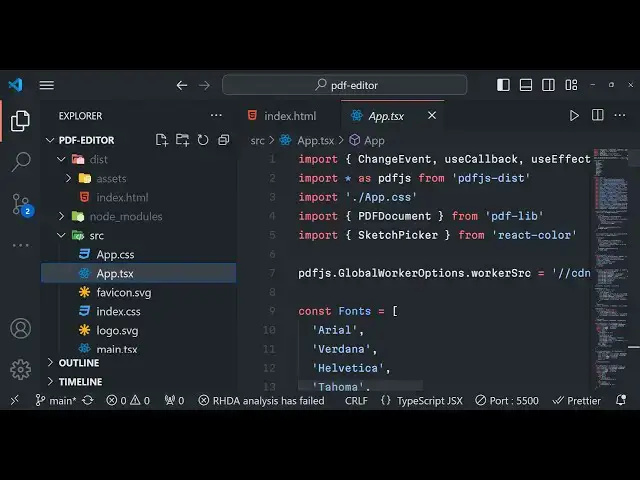
actually the code that is I'm using I
4:35
have given the code if you need to
4:37
purchase the full source code I have
4:39
given the link in the description of the
4:40
video after you make the payment you
4:42
will actually get a zip file from Google
4:44
Drive and after you extract all the
4:47
content you will actually get this
4:49
directory structure and if you see in
4:51
the dependency section we have actually
4:53
use this Library called as PDF lib
4:57
Library which is actually
5:00
the library which is required for
5:02
building this project so PDF lib if you
5:05
don't know is a actual open source
5:07
library for PDF processing if you want
5:10
to create PDF documents you can actually
5:13
use this
5:14
library and for displaying PDF document
5:17
we are using PDF JS disc it's a Mozilla
5:22
based PDF JS Library which allows you to
5:25
display PDF documents in the browser so
5:28
both these are nodejs modules and also
5:31
it can be used in the browser itself so
5:33
we are actually using this packages in
5:36
the browser to build this application in
5:38
react CH and uh after you you will
5:42
actually get this directory structure
5:43
after you extract the code from the zip
5:47
file after the payment so the both the
5:49
links are given the live demo is given
5:51
you can first of all check out the live
5:53
demo before purchasing the source code I
5:55
have I have deployed this website on my
5:58
free media tools website tool you can
6:01
choose
6:04
a you can see that all the pages will be
6:08
there so let's suppose I
6:12
take
6:14
a file which contains lots of pages
6:23
so so let me take a PDF file which
6:27
contains a lot of pages just to show you
6:29
the demo of if it you will see now it
6:32
contains 196 pages so I will simply save
6:36
this right here and uh now I can simply
6:41
load this file which I downloaded which
6:47
is so as you can see basically this is
6:49
actual first page we can navigate to the
6:52
second page third page so you can see
6:54
that we can navigate to any page
6:56
accordingly by these controls out there
6:59
and you can go to any specific page and
7:01
then you can basically zoom in zoom out
7:03
anything that you can do right here and
7:05
then you can
7:07
basically uh highlight any
7:18
section
7:19
so just need to click save and then you
7:22
need to go to the next page you will see
7:24
if you go to the this
7:28
page just need to highlight any section
7:31
that you
7:35
want you can add images you can add text
7:38
accordingly there is a text area will be
7:40
there so you can increase the phone size
7:44
you can control the
7:46
font color as well by using this Color
7:49
Picker so now this color will become red
7:54
color so just click save and download
7:57
and your save changes will be there
8:02
so this is the actual PDF editor guys
8:04
and
8:07
uh which is there you can check out the
8:10
live demo I have given the link and also
8:13
there
8:14
is you can draw as well basically you
8:17
can control the stroke
8:24
width so you can highlight any section
8:26
that you want to do inside PDF document
8:34
so if you go to that specific
8:44
page so this is actually the application
8:47
guys you can basically test out the
8:49
application with your own PDF
8:53
document you can see there is only a
8:55
single page we can actually highlight
8:58
any section
9:03
save the changes click
9:06
download you can see the changes have
9:09
been taken
9:17
place you can add your logo as
9:28
well
9:31
you can add your image as well any image
9:35
that you want to
9:41
add then you can basically increase the
9:58
width
10:04
so it's a full application guys and uh
10:08
the link is given in the description of
10:10
the video to purchase this so if you
10:14
want to deploy this inside your own
10:16
hosting plan what you need to do after
10:17
you get this source code you can simply
10:20
run a command right here which is npm
10:22
run built so this will actually build
10:25
out this application and it will
10:27
actually create a
10:30
disc directory which will actually
10:32
contain the minified
10:33
code which you can
10:38
actually host inside your you can see it
10:40
has actually created this code
10:44
index.html basically this is the actual
10:46
code and this contains the CSS and the
10:49
JavaScript code so you can build out
10:51
your application and then just Host this
10:55
inside your hosting plan just upload
10:58
these files inside
10:59
to actually Host this
11:02
application so the link is given guys if
11:05
you need to try you can go and uh please
11:09
hit that like button subscribe the
11:11
channel and I will be seeing you in the
11:12
next video
#Programming