Up next in 10

Build a Google Maps React App with Autocomplete, Markers, and Route Directions & Places API Tutorial
Jan 9, 2025

Get the full source code of application here:
https://gist.github.com/gauti123456/a5cf31a6c23c5a2f43cfd6b58e666316
Show More Show Less View Video Transcript
0:00
uh hello guys welcome to this video so
0:03
in this video I will show you how to use
0:05
the Google Maps API to actually add
0:09
markers inside your uh Google Map so
0:13
this will be developed inside react CH
0:15
we'll be also be seeing how to calculate
0:17
distance between two locations so you
0:19
can see this is actually the Google Map
0:21
that you can see I'm rendering out with
0:24
custom controls out there as well so you
0:26
can navigate through these controls
0:31
you can go to any location and then we
0:34
have two Fields out there from location
0:36
and to location you can enter any
0:39
location of your choice and calculate
0:42
the distance between two locations so
0:44
let me just open my zoom it tool so just
0:49
wait so now we have rendering this map
0:52
if you see and we are having these two
0:55
locations from location and to location
0:57
it will be you can actually enter
1:00
location so let's suppose if I enter
1:04
Delhi which is located in India so you
1:07
also see this autoc complete also doing
1:10
it in the address bar you can select
1:11
addresses very easily using this auto
1:14
complete if I want to if you want to
1:16
travel from Delhi to Kolkata which is
1:18
also in Delhi so we have given two
1:22
locations inside from and to and then as
1:26
I click the get route button so it will
1:28
actually get calculate the route and if
1:32
you see it has given me this route this
1:35
is a starting location and this is your
1:37
ending location you can do this for
1:40
anything it will actually calculate all
1:44
these the actual directions actual route
1:47
which is actually able to travel from
1:49
Delhi to Kolkata it will show you inside
1:52
this Google Map and uh for this we are
1:55
using uh the directions API the routes
1:58
API and I will show you step by step how
2:00
to construct this and also we can add
2:03
markers by clicking on the map so if you
2:05
want to add markers just click on the
2:07
map and it will add that red marker that
2:10
you can see on your
2:13
screen and it also shows you the
2:16
distance between these two locations
2:18
which is
2:20
1,569
2:21
kilm so it also calculate the distance
2:25
as well alongside with the actual it
2:28
draws out the route between these two
2:30
locations so we will try to build this
2:33
application and for building this uh I
2:36
I'm using a one package specifically
2:38
designed for reactjs applications so
2:41
just go to this website npmjs.com and
2:46
just search for this module at theate
2:49
react goog Maps
2:53
API so it's a reactj Google Maps API
2:56
integration module so it is almost
2:58
having 658 ,000 weekly downloads this is
3:02
actually the
3:03
command I've already installed it so
3:06
just pause the video install this and I
3:09
will now show you step by step so first
3:12
of all just make a simple functional
3:14
component and right at the very top we
3:17
just need
3:18
to import the actual package and
3:23
uh we will be importing the actual
3:26
Google Map which will be coming from
3:29
react Google Maps API so Google Map is
3:31
actually a component which we will
3:33
render it in the reactj application so
3:36
first of all we need to give some basic
3:39
styles to the
3:41
map so first of all I will just render
3:44
this component so it takes some options
3:47
as well so right in the jsx just go
3:51
right
3:55
here we will render out our Maps so
4:00
so to render out the map we'll be using
4:02
this component that we imported Google
4:04
map and it actually takes some
4:07
arguments uh it takes a map container
4:11
style if you want to style your map you
4:13
need to provide the basic
4:18
Styles and also you need to pass the API
4:21
key as well so it also takes the center
4:25
option as well but if you want to load
4:27
the Google Map but if you just just go
4:30
your application it will not show the
4:32
Google Map at all because this component
4:34
we do need
4:37
to first of all pass the API key as well
4:42
for initializing this API first of all
4:44
we need to
4:47
initialize right
4:49
here you need to initialize the Google
4:53
Maps SDK in react so here we will make a
4:58
variable right here is
5:02
loaded
5:05
and we will be using this uh hook which
5:08
is available in this package use JS API
5:11
loader this is also being imported from
5:14
this same package and this method allows
5:17
you to actually load the Google Maps SDK
5:21
and here you need to provide the Google
5:23
Maps API key which you will get from
5:26
your Google Cloud console and then you
5:28
need to provide the live that you are
5:30
loading and just for the autoc complete
5:33
it has all the apis if you see but we
5:35
only need the places API which allows us
5:38
to do the auto complete whenever you
5:40
search in the input field so right here
5:43
we need to paste the API key so just go
5:45
to your Google Cloud console and just
5:49
get that API key you need to create a
5:52
Google Cloud console account for using
5:55
any of the Google
5:56
API and just go to this section first of
5:59
all enable apis and
6:01
services and I already enabled all the
6:04
Google Maps apis which I want to enable
6:08
so so all these apis you need to enable
6:12
Maps SDK maps not this one Maps
6:15
JavaScript API places
6:18
API and one more API is this which is
6:21
the directions API so just search for
6:23
directions this API you also need to
6:26
enable so this will calculate the
6:28
distance between two
6:30
location so just enable this after you
6:33
enable all these apis now you can create
6:36
your API key so this is actually inside
6:43
your credential section so
6:50
right this section you need to go to
6:55
credentials and I already have a key
6:57
avable so don't copy my key I will
7:00
delete this key so just replace it this
7:03
key so after you do this now you can
7:16
easily so now you can easily load the
7:19
Google Map so after we loaded
7:27
this so here we can even have a if
7:30
condition so we will simply check if
7:33
the if this is not loaded in that case
7:36
just
7:37
show a loading screen so it will return
7:42
return either true or false so depending
7:43
upon if the API is not loading we are
7:45
just showing a loading
7:48
screen so if the API is loaded then in
7:51
that
7:52
case here at the bottom side we are
7:55
rendering this
7:57
component it also take the center
7:59
property as well center of the map
8:02
you'll provide this constant and a zoom
8:04
level so let me configure the zoom to be
8:07
10 hard code
8:09
this so we need to initialize all these
8:12
container style and the center position
8:13
so just make it Global variables right
8:15
at the very
8:18
top for the container style this is
8:21
actually an object which contains the
8:23
width of the map to be
8:25
100% And the height will be it will also
8:28
take the entire space so 100 vertical
8:32
height so we have width and height now
8:35
we can see the map and also for aligning
8:38
it in the center of the map you need to
8:41
provide the latitude and
8:43
longitude so you can provide any
8:46
latitude longitude these are just the
8:48
coordinates it will plot it inside the
8:50
map so we are just passing it to this
8:54
component so if you refresh your browser
8:56
you will actually
8:58
see the map map will be loaded and now
9:01
you can see your Google Map appearing on
9:03
the browser you can go to any location
9:06
just drag it with the your mouse you
9:09
will also see these controls available
9:11
for zooming in zooming out to a
9:13
particular location so in this way you
9:16
can render the Google Map very easily
9:18
this is a full screen mode so this is
9:21
actually this module very basic code so
9:24
this actually loads your Google Map now
9:27
we need to add the functionalities to
9:29
actually add a marker so when we click
9:32
on any of these locations I need to add
9:34
a red marker for adding the marker it's
9:37
very easy first of all I will declare a
9:39
state
9:41
variable and I will say marker set
9:45
markers it's simply will be a state
9:48
variable and I will be using the U State
9:52
hook U State hook coming from react and
9:56
the initial value will be empty array
9:59
so whenever you load your application so
10:02
now for adding the marker you will bind
10:04
an onclick listener to this Google Map
10:08
component so I will say on click so when
10:10
you click the map you will simply handle
10:13
map click this is actually a custom
10:16
function I will write right at this
10:21
top so right here we will simply say
10:24
handle map
10:27
click e parameter will Auto
10:29
automatically be passed and we'll add a
10:31
new marker and for adding that new
10:34
marker we will have an object we will
10:36
capture whatever latitude the user
10:40
has in this
10:43
way and same goes with the longitude as
10:46
well so this e parameter will capture it
10:50
once you click it inside the
10:53
map we have these methods available so
10:57
we can get the latitude longitude so
10:58
once you go the coordinates you can set
11:01
the marker very
11:04
easily we can use previous
11:08
markers we can add
11:13
this with the new
11:17
marker so I
11:23
think that's all that we need to do here
11:26
uh if you refresh
11:34
okay I think we do need to declare the
11:36
we need to
11:38
import the markers here I think we are
11:42
missing
11:51
it okay we do need to render out the
11:53
markers as well so using the components
11:56
right inside the map whenever it is end
12:00
just make it a closing tag so right here
12:02
in between these Google Maps we need to
12:04
render out the
12:05
markers so markers is an actually an
12:08
array we need to map it through so for
12:11
each marker we will have the index
12:14
variable as well so in this way we also
12:18
have the marker component as well so
12:21
marker will be imported if you see right
12:23
from the same
12:24
package so inside this marker component
12:28
we it will take two properties first is
12:30
the
12:31
key and the secondly is the position so
12:34
position is actually actually the marker
12:38
variable so in this way you can render
12:40
your markers so now if I click on any
12:45
location inside the
12:48
map so you'll see it will add these
12:52
markers whenever I click inside the maps
12:54
in this way you can add markers as well
12:58
using you can see that so in this
13:01
way you can use unlimited markers
13:04
Whenever Wherever You
13:05
click now I will show you how to add
13:09
these two input Fields where we can
13:12
provide the from address and two address
13:15
so right just before this
13:21
map
13:22
so for this we do need to declare some
13:25
State variables as well so right at this
13:29
this very top we will have
13:33
uh the from
13:36
reference you'll use the use reference
13:38
Hook from react CH initial value will be
13:42
null and similarly two
13:44
reference so he'll be giving these
13:46
references to the input Fields so we
13:48
have given two variables here from and
13:50
to initial value is both null and right
13:55
here we will have this autocomplete
13:57
fields
13:59
in the GSX right just before the map so
14:03
what I will do I will wrap everything
14:05
inside this
14:09
div so just wrap your Google Map inside
14:13
these
14:16
divs and I will just give it a simple
14:18
style
14:20
uh we'll give it a margin from the
14:23
bottom position is 10
14:25
pixel and then we will have this auto
14:28
complete component we'll be using it it
14:30
will be coming from the same
14:33
package and this autoc complete
14:42
field so here we will have one
14:46
field inside this we will have the input
14:49
type
14:50
text we will say placeholder will be
14:53
this one for the from
14:56
location and we will give it these
14:58
styles
14:59
styles are not important it's not about
15:01
CSS I will just copy paste
15:09
it so we have the first autocomplete
15:13
field right here and what I will do I
15:16
will bind an on
15:18
onload event handler so when the API is
15:21
loaded
15:23
successfully in that case what we need
15:25
to
15:27
do we will have this autoc complete
15:34
uh and we will simply attach this the
15:38
from reference do
15:40
current is equal to autoc
15:44
complete so it is simply telling that
15:46
when the autoc complete is loaded then
15:48
we simply need to attach to this
15:50
variable whatever is the address
15:53
selected so just format this
16:00
so if you see now you will actually
16:04
see we do need to Define I think this
16:07
method
16:09
uh onload is not a function it is saying
16:13
this. props do onload is not a
16:24
function think I made a typo mistake all
16:27
the source code will be given in the
16:29
description of this video so you will
16:31
see that it was just typo mistake and
16:33
now you will
16:34
see as you write the address you will
16:36
see these autocomplete suggestions
16:38
coming right here in this bottom s so
16:42
you can add just enter any
16:50
address so similarly we just need to
16:53
have another autocomplete
16:57
field so just add the from the two
17:03
location so I will simply paste it this
17:06
will be for the 2 one so we are just
17:09
attaching this to two reference. current
17:12
autocomplete so there will be this set
17:15
second field this is from location to
17:17
location and now we simply need a
17:20
button to calculate the distance between
17:23
these two locations so right after this
17:26
we will have a simple button
17:32
so background color of blue color all
17:35
these CSS so you will now see a simple
17:38
button
17:39
appearing and we just need to B
17:42
basically we binded this on click
17:43
listener so when we click the button we
17:45
do need to Define this function
17:47
calculate route so I just want to make
17:51
this function
17:53
calculate route
17:59
so if you see we have this button as
18:01
well so once we click this button we do
18:03
need to make a API call to the Google
18:05
directions
18:06
API so inside this function just make
18:10
this function as
18:12
async and right here we will first of
18:15
all
18:17
be saying that if either of these
18:20
locations is not entered in that
18:23
case we will not make the API request
18:29
we'll just return from it and now we'll
18:32
be storing
18:34
the addresses in these variables so
18:37
whatever address is selected we'll use
18:40
the get Place fun function using the
18:43
places API to actually convert the
18:45
address to a actual place same goes with
18:48
the two location as well so two
18:52
place and this will be for two
18:54
reference. current. getet place
18:59
after we converted these two
19:01
addresses we will just compare if these
19:04
addresses are not plottable then we
19:06
simply
19:08
return then we use the direction API to
19:11
calculate the distance between these two
19:13
addresses so we use
19:19
the we call this window.google do
19:23
maps. directions service use this and
19:27
then it also
19:29
tells you can use this function which is
19:33
Route it takes an object here first is
19:36
the origin so here we do need to
19:38
calculate the latitude and longitude of
19:42
the from and the two
19:45
destination so it actually takes the
19:47
origins and the destination this
19:50
method so in this way we can calculate
19:52
the latitude longitude of the from
19:54
address and the two address and then it
19:58
takes the travel mode as an argument so
20:00
how you want to travel between these two
20:02
D destinations so I want to travel it
20:05
through driving so it also supports more
20:08
options as well if you are traveling
20:10
through Aeroplane or so I'm just all
20:14
these options are available walking
20:16
distance Transit Driving bicycling so I
20:19
will be using the
20:22
driving and then it tells you the result
20:26
we can console log it as well and then
20:29
we can set the
20:32
directions so for this we do need to
20:34
declare a state variable just to show
20:36
the directions between these two
20:38
locations so right here at the state
20:41
variable I will have a variable for this
20:44
which is Direction
20:46
service and set Direction
20:52
service sub directions
20:55
response and U State again again initial
20:59
value will be null so we'll be using
21:01
this hook function to set the directions
21:04
which are coming right here set
21:06
directions response to be the result now
21:10
we just need to show these directions in
21:13
the
21:15
browser and also we need to show the
21:18
distance as well in kilometers so we can
21:21
calculate the distance coming from this
21:25
variable using this syntax and then for
21:29
distance as well we do need a v variable
21:33
State variable for showing the distance
21:35
in the jsx right here just declare a
21:40
state variable for distance set
21:44
distance and the initial
21:47
value again be using UST State hook
21:50
nothing so we will also be setting the
21:53
distance as well so using this hook
21:56
function set distance to be distance
22:02
text so that's complete the function now
22:07
we can actually
22:09
show the these two things so right in
22:13
between your map what you will
22:17
say after this button if the distance is
22:21
available in that case show the distance
22:24
just before the map in this diff in the
22:27
strong tag we can show the
22:32
distance you can render this distance
22:34
out in
22:36
kilometer and we can style
22:40
this margin bottom 10
22:47
pixel So you you're showing the distance
22:50
in kilometer right here in this using j6
22:53
and now for the directions just after
22:55
your markers we will use the directions
22:59
response if it is
23:16
available uh whatever is the variable
23:19
name that you have given uh sorry I have
23:22
given Direction service this needs to be
23:25
directions response
23:31
so if this variable is available in that
23:34
case we need to show the
23:36
directions using this component which is
23:39
available directions
23:41
renderer which will be imported from the
23:44
same module uh you will see that
23:47
directions renderer is imported now
23:50
inside this it takes uh I think two
23:54
options the first option is actual
23:56
directions so which is a available
23:59
inside the directions response I think
24:03
that's all it takes only the one prop
24:06
this component and now if you refresh
24:08
your application just give it a from
24:11
location let's suppose I want to travel
24:13
from Sydney which is located in
24:15
Australia and then Sydney to
24:19
Melbourne which is also located in
24:21
Australia so we have provided these from
24:24
and two locations click on the
24:26
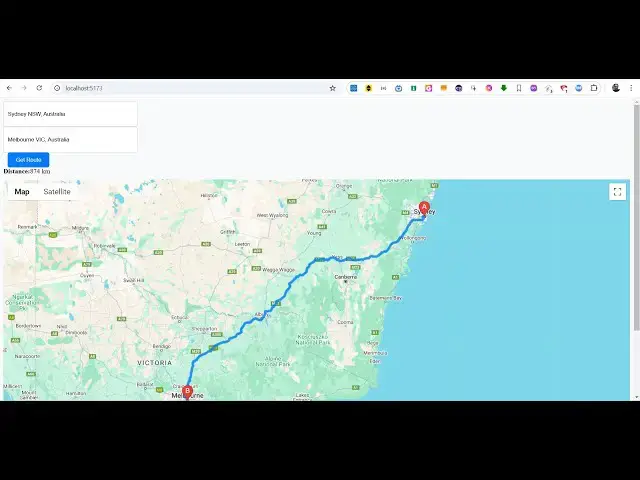
button so now if you see it has actually
24:31
calculated the
24:32
route between Sydney to Melbourne and
24:35
you can see the actual routes directions
24:37
given to you in the map and also it will
24:40
calculate the distance which is 8 874
24:44
kilometer so you can even cross check as
24:48
well so this data is coming from your
24:50
Google directions API and routes API and
24:54
Google Maps SDK so in this way guys you
24:56
can build out this application
24:59
and
25:00
uh you can build this thank you very
25:03
much for watching this video and if you
25:05
like this video then please hit that
25:07
like button and also go to my website as
25:10
well free mediat tools.com which
25:12
contains thousands of tools regarding
25:15
audio video and image and I will be
25:17
seeing you in the next video
#Programming
#Software
#Maps