live_tv
Livestream Starting Soon
00
Hours
:
00
Minutes
:
00
Seconds
Up next in 10

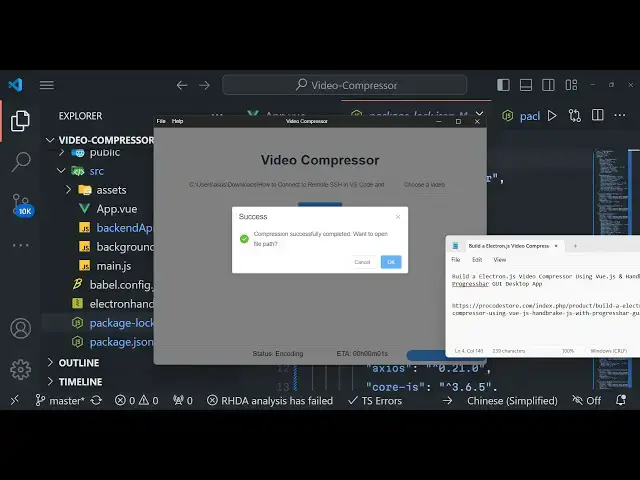
Build a Electron.js Video Compressor Using Vue.js & Handbrake.js With Progressbar GUI Desktop App
Jan 9, 2025

Buy the full source code of application here:
https://procodestore.com/index.php/product/build-a-electron-js-video-compressor-using-vue-js-handbrake-js-with-progressbar-gui-desktop-app/
Hi Join the official discord server to resolve doubts here:
https://discord.gg/cRnjhk6nzW
Visit my Online Free Media Tool Website
https://freemediatools.com/
Buy Premium Scripts and Apps Here:
https://procodestore.com/
Show More Show Less View Video Transcript
0:00
uh hello guys welcome to this video so
0:02
in this video I will actually show you a
0:06
electron desktop application that I
0:08
developed inside vuejs and handbreak JS
0:12
Library which is encoding Library
0:14
similar to fmpg it's a great alternative
0:17
if you don't want to use fmpg handbreak
0:21
DJs so this is a library we have used to
0:24
actually make this awesome little video
0:25
compressor desktop app inside electron
0:28
and vuejs and you can see this is a
0:31
front end that I coded inside vuejs the
0:33
interface of the application if you need
0:36
to start this application it's very
0:37
simple you need to install npm run
0:40
electron Das server this is a command of
0:42
this project which is mentioned inside
0:44
package.json we have various scripts out
0:46
there so we are ex executing the script
0:49
electron Dash Ser this will actually
0:52
start the view CLI and also it will
0:54
start the electron application so it is
0:57
compiling here you can see that so it
0:59
will start this electron app so it will
1:02
look something like this so you can see
1:05
that it runs with these it is built
1:08
using HTML CSS and JavaScript as you
1:11
know electronjs desktop app so it is
1:13
native app right here where you can
1:15
choose your video file from your local
1:17
file system whichever file that you need
1:19
to compress let's suppose if I choose
1:21
this file it is almost if I show you the
1:25
size of this
1:27
video almost 43 .4 megab so if I select
1:31
this file click on compress it also
1:34
comes with the the progress bar as well
1:36
so here you need to select the output
1:38
location where you need to save this so
1:41
I will be saving in this folder I will
1:43
name it as one so if I just see in the
1:47
notification area you will see it is
1:49
encoding the video and it is actually
1:52
showing this nice little progress bar
1:55
which is really useful for the user to
1:57
actually see how much time is remaining
1:59
so you can also see the time remaining
2:02
as well right
2:04
here 1 minute 10 second is estimated
2:07
time remaining so it also comes with the
2:11
progress bar as well so once it reaches
2:14
100% you will actually get a
2:16
notification that your video has been
2:18
successfully compressed and you will be
2:21
able to play the compressed video so
2:23
this is a complete project guys if you
2:25
are a beginner if you want to integrate
2:27
handbrake J inside your Ron app inside
2:30
VJs this is a complete project that I'm
2:33
giving you the link is given in the
2:35
description of this video you can
2:36
directly go to my website procore.com
2:39
and purchase this source code the link
2:42
is given in the description of the video
2:45
and uh you will get a zip file after you
2:47
make the payment from Google Drive
2:49
automatically you will be redirected to
2:51
it once you make the payment you will be
2:53
redirected to Google Drive where you
2:56
will get the zip file you just need to
2:58
extract the content of the zip zip file
3:00
and I will show you how to start this
3:03
project so once it reaches
3:06
100% it totally depends upon how much
3:09
long is your video and what is the size
3:12
so I'm just showing you the demo right
3:14
here so once it reaches you will see
3:16
compression successfully completed if
3:19
you want to open the file path I will
3:21
say okay so it will automatically open
3:24
the file path for me so now I can play
3:26
my compressed video you can just see the
3:29
quality of the video hasn't been reduced
3:32
and still the video size have been
3:34
reduced if I show you the size of the
3:36
video which is 5 megabytes so the size
3:39
was reduced from
3:41
43 to 5 so very significant reduction in
3:46
the size of the video but still if you
3:48
see the quality of the video it hasn't
3:50
been decreased the quality Remains the
3:52
Same but still the size have been
3:55
reduced the video size has been reduced
3:58
and this is a complete application that
4:00
I've given you guys electron application
4:03
so the interface of the application is
4:05
coded inside vuejs if you see this is
4:08
actually the interface the HTML code
4:11
this is actual JavaScript code and here
4:14
we have this backend API so this is here
4:16
we are writing our electron code so this
4:19
is a inter IPC communication going on
4:21
right here from electron if you see so
4:24
we are requiring this handbreak JS
4:27
module right here and we are
4:30
first of all the user choose the file
4:32
path and we are showing this open
4:34
dialogue to the user to actually get the
4:39
input file so we are selecting this MP4
4:42
mov WM so these are the expected
4:45
accepted extensions so then we have this
4:48
function compress video which is
4:50
responsible for compressing the video we
4:53
are actually showing the save dialogue
4:55
to actually save this video at a
4:57
particular location and then we are
4:59
executing
5:01
these uh handbreak function so like this
5:07
to actually show the progress part
5:09
handre has a buil-in function event.
5:11
reply to actually show the progress part
5:14
so here we are showing the progress pass
5:16
so this is actually the menu if you see
5:18
the file menu you can have the about
5:21
menu you'll see so it's very similar in
5:24
electron to actually create these it's
5:26
very simple menu buil from template so
5:29
we have have this template right here so
5:32
this is actually
5:34
the menu here and then we
5:36
are adding this to the application
5:40
so this is a background code here here
5:43
we are creating the window right here by
5:45
using the browser window providing a
5:47
width height frame title bar so it's a
5:50
normal electron stuff and then we are
5:52
using this element UI so it's coming
5:56
from this is element UI we using to as
5:59
design the interface of the desktop app
6:02
and uh if you're opening it for the very
6:04
first time you just need to first of all
6:07
install this by using npmi this will
6:09
install all the packages which I
6:11
mentioned in the package.json file so if
6:13
you're opening it for the very first
6:14
time after purchasing it so you just
6:17
need to execute this command and then
6:19
you just need to execute npm run
6:22
electron Das serve so this will start
6:24
your electron app and it will build this
6:27
UJS application first of all and then
6:30
start your electron app so very
6:34
simple so it will be a great project for
6:37
your beginner if you doesn't understand
6:40
electron or handbreak JS it's a great
6:43
project to actually modify the code as
6:45
well after you got this so you can see
6:49
that so video compressor you choose your
6:52
file whichever video that you need to
6:55
select let me select this click on
6:57
compress again you need to select the
6:59
location where you need to save
7:01
it then you will actually see this
7:04
progress bar at this notification area
7:08
very simple application and for building
7:11
this we have used handbreak dogs package
7:15
which is a built in encoding Library
7:19
similar to fmpg but it's not that
7:22
popular but still it's a very handy
7:24
library for working with videos and
7:25
audio media files so and handbrake if
7:30
you don't know it's a
7:32
software if you haven't used handbrake
7:35
it's a handbreak is a open source video
7:38
transcoder so it's a you can download
7:41
this inside your machine as well so it's
7:44
a thirdparty software developed by a
7:47
company and it offers it API as well to
7:50
actually similar to fmpg to actually
7:53
work with vdf files in the browse in the
7:56
desktop so
8:01
so this is
8:03
actually the application guys if you are
8:06
interested the link is given in the
8:09
description you can directly purchase it
8:12
from my website Pro Cod store.com I
8:15
showed you all the code right here uh so
8:17
this is the actual code that you will
8:19
get
8:24
the so these are different packages we
8:27
are using it View handbreak JS element
8:30
UI CJs xos libraries as
8:36
well so it totally depends upon the
8:39
length of the video and how much size is
8:42
there so it is just re-encoding the
8:44
video that's why it takes some time for
8:46
the process to
8:51
complete so once it complete it will
8:53
show you this notification that
8:56
compression successful so you can open
8:58
the video
9:00
so you can see the quality Remains the
9:02
Same but significantly the size has been
9:05
reduced which is 6
9:07
megabytes so that's all guys from this
9:10
video thank you very much for watching
9:12
this and I will be seeing you in the
9:13
next one
#Programming
#Multimedia Software
#Other