Up next in 10

Build a Angular QRCode Generator From Text and Export as PNG Image Using angularx-qrcode in TS
Feb 5, 2025

Get the full source code of application here:
https://codingshiksha.com/angular/build-a-angular-qrcode-generator-from-text-and-export-as-png-image-using-angularx-qrcode-in-ts/
Hi Join the official discord server to resolve doubts here:
https://discord.gg/cRnjhk6nzW
Visit my Online Free Media Tool Website
https://freemediatools.com/
Buy Premium Scripts and Apps Here:
https://procodestore.com/
Show More Show Less View Video Transcript
0:00
uh Hello friends welcome to this video
0:02
so in this video I will show you another
0:05
angular package which allows you to work
0:07
with QR codes and you'll be able to
0:09
generate Dynamic QR codes as you type
0:13
inside the input field so let's suppose
0:16
I show you the example so as I'm just
0:18
writing in this input field you will see
0:20
the QR code is keep on changing reacting
0:23
to the change that I'm doing in the
0:24
input field so it is making a new QR
0:26
code every time I make the change in the
0:29
input field so after you make the
0:31
changes now you can save this image as a
0:33
PNG image file so you will be exporting
0:36
your QR codes to a image file so the
0:38
name of the package is angular X QR code
0:42
so if you go to npmjs.com uh just search
0:45
for this package angular X QR code this
0:49
is actually the package name it's a
0:52
simple QR code generator library for
0:55
angular this is actually the command
0:57
I've already installed it and it's a
1:00
very famous Library almost 165,000
1:03
weekly downloads so I have written a
1:05
step-by-step blog post on my website
1:08
explaining you about this uh package how
1:11
to use this so all the source code is
1:13
given in the description of this video
1:15
so now to get started first of
1:18
all we need to make the change inside
1:21
your app. module. TS file so of your
1:24
angular project so just open this file
1:27
and just add this import statement
1:30
import QR code module from angular xqr
1:34
code just add this import line and then
1:37
move to your Imports are and then just
1:40
add
1:41
this QR code module so that's the only
1:46
configuration that you need to do so now
1:48
you can close this file and now move to
1:51
your app. component.ts
1:54
file and here we'll just need a simple
1:57
variable just declare a simple variable
2:00
just to hold whichever data that you
2:03
will write for generating the QR code so
2:05
we have a public variable of type string
2:08
QR data which is initially it is set to
2:10
null when you load the application now
2:13
we need to go to the app. component.
2:15
HTML file inside the template file of
2:18
your angular project so here I will
2:22
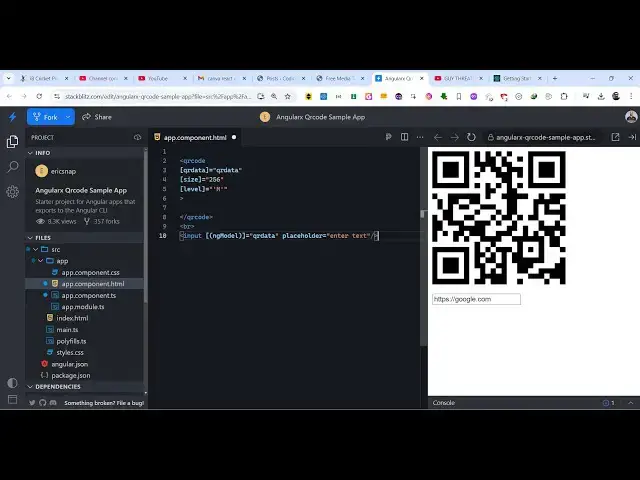
embed the QR code so for this we need to
2:25
use these opening and closing tag which
2:27
is QR code
2:30
so it has this is actually the directive
2:32
and then it takes some options First
2:35
Option it takes is the QR data which is
2:38
actually the variable that we declared
2:40
which is QR data secondly you can even
2:42
control the size of the QR code so we
2:45
can give
2:45
256 which actually controls the size of
2:49
the QR code then we have the third
2:51
option which is level you control the
2:54
level inside QR code which is a
2:56
correction level it is low medium high
3:00
so we are setting it to medium so which
3:02
is M so these three options it takes and
3:05
then you will see the QR code is
3:08
displaying and now we simply need a
3:10
input field where we allow the user to
3:13
Simply type the data that they want to
3:17
change so just find this NG model
3:20
directive and whatever variable that we
3:23
have declared which is QR
3:25
data and we give it a placeholder that
3:29
uh add enter
3:30
text so now what happens you see this
3:33
input field at the bottom side of the QR
3:35
code so as soon as you type in
3:38
this the QR code will change so as soon
3:41
as you make the change you will see
3:43
every time it will generate a new QR
3:44
code so after you make the changes you
3:47
can right click on save this image as
3:50
PNG image file so
3:51
your QR code has been successfully
3:54
exported to image so in this way you can
3:56
use this module in angular to generate
3:59
the QR code I shown you step by-step
4:01
instructions and still if you want the
4:03
full source code you can go to the
4:05
description of this video to get the
4:07
full source code of the example and also
4:10
check out my website as well free mediat
4:12
tools.com uh which contains thousands of
4:15
tools regarding audio video and image
4:17
and I will be seeing you guys in the
4:19
next video
#Programming
#Other