0:00
Uh hello guys in this video I'll show
0:01
you I built out a PDF editor which
0:04
actually in Angular the latest version
0:07
of Angular which can highlight annotate
0:09
your PDF document directly in the
0:14
This is actually a demo of the
0:15
application. We are running it on local
0:19
and let me show you the project. We are
0:21
using the latest version of Angular
0:27
and we are running this project on local
0:32
As you can see it's also very easy for
0:33
you to deploy this application as well.
0:43
we running this project local host.
0:46
So coming back to the application uh if
0:48
you need the source code the link is
0:50
given in the description you can
0:51
directly purchase it after purchasing it
0:54
you will get the source code from Google
0:59
and it's very easy for you to run this.
1:03
So now to run this first of all you need
1:04
to select a PDF file for actually
1:07
highlighting and annotating.
1:10
You can add watermark. You can do your
1:13
highlighting. Once you select a
1:15
basically you also have the option to
1:18
merged multiple PDF files as well. You
1:21
have this plus icon here. You can add
1:23
your another PDF file. So in the pencil
1:26
icon you basically see first of all your
1:29
dig. You can actually sign. Just pick
1:33
your color and digitally sign and then
1:36
you can place your signature
1:39
wherever you need to. And then for
1:42
annotating as well, we can also
1:45
highlight anything. As you can see, it's
1:47
very easy for you. Go to the next page
1:50
and it will save you a lot of time
1:52
because you don't require any third
1:54
party software rather than you can use
1:55
this project in Angular. And then for
1:58
adding watermark, it's very also very
2:01
simple. Just put your watermark in real
2:04
time. It's adding the watermark for you.
2:07
Select the color here of the watermark.
2:12
Adjust the size as well.
2:15
And automatically on both the pages the
2:18
watermark will be added. After that we
2:21
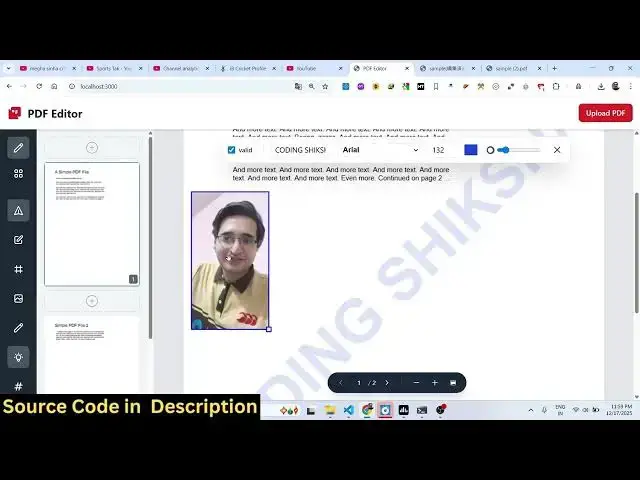
also have the support for adding images.
2:23
If you want to add a image, you can even
2:26
add that image. Just place it. Then we
2:29
also have the option to add text. Just
2:32
put the location wherever you need to
2:34
add the text. Just click.
2:37
So just input the text here and just
2:39
automatically it will be placed. After
2:42
that you simply click the download
2:47
So everything will be saved here. All
2:50
the modified changes that you have done
2:54
text images all the things are
2:56
automatically added. So if you are
2:58
looking forward for a readym made
2:59
project in angular guys some PDF editor
3:02
this will be the right project for you
3:05
definitely purchase it and for building
3:07
this we are actually you can see this is
3:10
the overall project. We are specifically
3:13
using two third party libraries which is
3:18
and PDF lip. So we included the CDN of
3:22
both these libraries. As you can just
3:24
see right here we also using Tailwind
3:26
CSS as well and we are using the latest
3:29
uh Angular 21 version. So if you're
3:33
looking forward for purchasing this, the
3:35
link is given in the description. You
3:37
can directly purchase it and if you face
3:39
any sort of problem after purchase,
3:43
uh I will definitely help you and you
3:47
can safely purchase it. The link is
3:49
given in the description.