Up next in 10



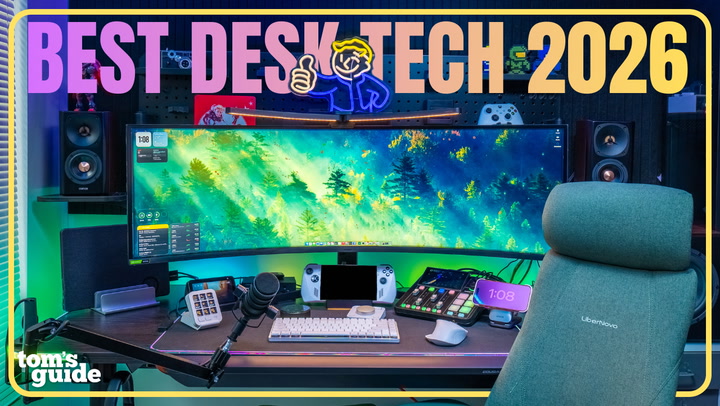
@PaulAntill shares his 2026 desk setup, built to balance productivity, content creation, and gaming. These are the best desk accessories he uses to edit videos, record audio, test new tech, and unwind with games after work.
This desk setup is designed around doing more with a single workspace. From the standing Cougar E-Odyssey electric desk with a pegboard, the 49” Samsung G9 Ultrawide monitor, the RODE Podcaster Duo and Mic for high-quality voiceovers, Govee and Razer lighting, and all the accessories between - every piece of tech here earned its place by improving workflow, comfort, or flexibility.
Whether you’re building a creator desk setup, a productivity-focused workspace, or a gaming desk that doesn’t scream RGB, this is how Paul has dialed uo his setup for 2026.
Show More Show Less View Video Transcript
0:00
Hey, welcome to my 2026 desk setup for content creation, productivity, and gaming
0:05
This is the desk where I film, edit my videos, record audio, test new tech
0:09
and still unwind with games at the end of the day. So whether you're starting fresh, upgrading an existing setup
0:16
if anything here gives you inspiration for your own desk setup, I've got everything linked down below
0:21
I've also chapterized this video so you can just quickly jump ahead to whatever piece of gear you care about most
0:26
okay so let's start with the backbone of this entire setup the desk this is the cougar e-odyssey
0:34
electric standing desk and despite costing about half the price of most other premium standing
0:39
desks it checks a lot of boxes for productivity and gaming this is a silent dual motor standing
0:45
desk that raises and lowers quickly even with all the weight that i've got here i love the built-in
0:50
pegboard on the back it gives me a place to show off a few of my favorite knickknacks and figures
0:54
without eating up valuable desk space. On both sides, we've got these shelves that are integrated
1:00
which I'm using to hold my Edifier S360 DB bookshelf speakers. And I've had these for over three years now
1:06
They still sound incredible and can absolutely shake the house when I want them to. Scorch the sky
1:14
Bye, Amore! On the bottom left are a pair of headphone hooks
1:18
so I can just grab my headphones really quickly. One feature that I didn't think I'd care about as much
1:23
What I really love right now is the slide-out drawer. It has this felt liner, and I use it to store smaller essentials like my SD cards, SSDs
1:31
guitar picks, and other really tiny things that would normally get lost on my desk
1:35
And also really cool, the desk drawer doubles as a wrist rest, which is one less accessory
1:39
I need to worry about, and it works surprisingly well. Now, what if your office or gaming chair could also massage and stretch out your back while
1:47
you were sitting? That's exactly what my new chair, the LiberNovo Omni, does
1:50
I had a ton of back pain before upgrading to this chair
1:55
And if you work from a desk for several hours a day like I do, trust me, proper lumbar support makes a huge difference
2:02
And unlike most other chairs that I've tested, they usually leave this huge gap between your lower back or your upper back
2:09
Instead, this is curved to follow the shape of my spine a lot better. On top of that, this combo comes in my favorite four screen color
2:15
So that was just another thing that convinced me to get this. But the really cool thing is that the Omni uses a rechargeable USB-C battery pack to power its adjustable lumbar system that lets me change its position up or down manually or turn on its massaging mode that will slowly roll it up and down, giving me that slight massage while also stretching out my back
2:34
Things get even more interesting when paired with its optional footrest, which if you didn't know, even that slight elevation and tilt for your feet keeps your back more upright and is better for leg circulation
2:45
And as someone who frequently moves around and fidgets in their seat this helps me change up my seating position without compromising healthy posture This combo also lets me take full advantage of the seat 160 degree lean and together I get a zero gravity mode which yes I have fallen asleep in
3:02
Look, I get that this chair is a very big investment, but if your current setup is doing more harm than good like mine was
3:09
I can't stress how important this kind of support is. You're back. Well, thank you
3:14
All right, so let's move on to the tech at my desk. First up is the massive display here
3:18
the Samsung Odyssey 49-inch ultrawide monitor. If you've seen my desk setup video from a few years ago
3:24
this model might look familiar. It's actually the newer version with a big spec bump
3:29
This model runs at a higher 5120 by 1440 resolution, which makes the text noticeably sharper
3:34
and gives me more usable screen space when I'm editing my timelines. It also bumps up the refresh rate to 240 hertz
3:40
instead of 120, which for me is a big win for gaming. Together, you're basically getting two 27-inch monitors
3:46
side-by-side in that 1000R curve, helps me not break my neck when I'm looking from side to side
3:51
It's perfect for multitasking or running two apps at once or when I'm working on those really long video timelines
3:57
And also one of my favorite features is using its picture by picture mode, which lets me connect two devices at the same time
4:03
And here's what might surprise you though. These Samsung ultrawide monitors often go on really deep sales on Amazon
4:08
and I've seen them drop to like $700, which for me feels like a steal for how much screen real estate I'm getting
4:15
Now, mounted above the monitor is one of my newest additions. This is the Qantas curved monitor light bar
4:22
The first thing you'll notice is that it matches the same 1000R curve as my monitor
4:26
which actually makes it feel really well integrated. It's got two functions. It's got a downward facing light with adjustable color temperature
4:33
which is really great for reducing eye strain, especially when I'm working late at night like a little gremlin
4:38
with the rest of my lights turned down low. And this model specifically also has an upward facing light bar
4:43
that bounces a little bit of color against my pegboard. Everything is controlled with this little puck
4:47
that lets me adjust brightness, color temperature, and toggle between its bottom lights
4:51
or its RGB ones independently. And while I do wish it supported Wi-Fi
4:54
for smart home integration, this is a very simple and affordable desk accessory
4:59
that is made working at night much more enjoyable. And speaking of RGB lighting
5:03
I've also got these Govee neon rope lights wrapped around my eOdyssey desk
5:07
for even more of that pop of color. Light strips aren't anything new, but these have excellent diffusion
5:12
which eliminates those light spots and gaps that you normally see when looking directly at lights
5:17
These lights support a bunch of really cool presets that you can customize, as well as syncing with their other Govi lights
5:22
including this floor lamp that I have on the other end of my studio. But what's especially cool about Govi lights and the reason I've gone with them
5:28
is that they can also sync with the Razer Synapse, which gives some really cool, crazy reactive lighting effects for supported games like Overwatch 2
5:36
But more on that in just a bit. For my peripherals I think I finally landed on a combo that works really well for productivity and some gaming For my keyboard I gone with the Logitech MX Mechanical Mini It compact but delivers one of the best typing experiences that i tested and it has excellent battery life lasting weeks on a single charge for my mouse i recently upgraded from the mx master 3 to the logitech
5:58
mx master 4 ergonomics are still about the same but the build quality gets a huge upgrade the top
6:04
and side materials are much more resistant to the staining and wear that the previous model had
6:09
It also has this new haptic button on the side here for getting quick access to shortcuts and other controls without needing to dig into menus
6:17
One thing keeping this from being the perfect mouse, though, is that it's relatively heavy and does not have very fast pulling rates, meaning it's not a great choice for gaming
6:24
So especially for my FPS games, I'm still using the Razer Basilisk V3 Pro
6:29
Very lightweight, very nice ergonomics. ergonomics. And the main reason this isn't also my productivity mouse is that its battery life
6:36
isn't so great and it doesn't support quick switching between different devices, which is a
6:41
big deal for me. Now sticking with productivity a little bit more, I recently added the Logitech
6:45
MX Creative Console. As a video editor, this lets me access the tools and actions I need
6:51
much faster. The customizable MX Creative Keypad handles all of my shortcuts while the wireless MX
6:57
This dial pad gives me more precise control, especially with my timelines and color adjustments
7:02
If you're familiar with the Elgato Stream Deck, the MX keypad also works very similarly
7:06
with multiple pages for shortcuts that automatically switch depending on the app that I'm using
7:11
I really like how both of these modules are compact enough to just slide to each side of
7:15
my desk when I'm not actively using them. Moving on to the gaming side of things, I have a few Razer accessories that I teased already
7:22
Razer Strider Chroma, a 35.5-inch extended hybrid RGB mouse pad, which gives me a ton of room to
7:29
move my keyboard and mouse around. And then for my handhelds, I've got the Razer Chroma Dock
7:33
which is a very minimalist choice, but it has all the ports that I need, and of course
7:38
a little bit of RGB too. Now, connecting all of my accessories to my main machine
7:41
the MacBook Pro 14-inch M1 Max, is the appropriately named Ivanki Fusion Dock Max 1
7:48
I spent a long time researching for a dock that met all of my needs. It has to support
7:52
my 5k display, offer at least five USB-C ports, with most of those ports located on the back so
7:58
that my desk setup can stay clean. I also still wanted to have a couple front-facing USB-C ports
8:03
and a card reader so that I'm not constantly having to reach behind my dock to plug things in
8:08
And using a combo cable, my laptop gets power and full access to everything that's connected on my
8:13
desk here. Now, if you've got a newer computer, Ivanki has since released the Fusion Dock Max 2
8:18
with faster Thunderbolt 5, and I would definitely consider getting that newer one instead if
8:22
you want those faster data and charging speeds. Speaking of charging, to keep everything else besides my computer and monitor charged at
8:30
my desk, I am using the Anker Prime 250W 6-port charging station, which I feel like I've
8:36
cleverly mounted under my desk using 3M tape to help keep things looking even cleaner It has four USB ports on the front plus two USB Type ports on the side for those slower or legacy devices which I actually using to power
8:49
the Qantas Lite and this extra USB-C cable, which charges up my peripherals when their battery is
8:54
low. Now, you're probably wondering why a charger needs a display. For me, it's useful to see
8:59
charging speeds, especially when I'm troubleshooting different devices, and I want to make sure that
9:03
they're actually getting the right amount of charge. It also has this really cool built-in AI
9:07
priority mode, which when enabled will automatically allocate power to the most power hungry devices
9:13
And like I said, when I'm testing a lot of devices like all these handhelds, I can power all of them
9:17
at once using just this one charger. And then for all my other charging, I'm using this new
9:22
Anker 25 watt 3-in-1 MagSafe Qi 2.2 charger, which charges my phone, my AirPods, and my Apple
9:29
Watch. I really like this design because it has a silent fan built in, which keeps my phone charging
9:33
at full wireless speeds without ever getting hot. Because I'm not always charging my Apple Watch
9:38
and AirPods at the same time, I like that it's kind of hidden and out of sight
9:41
when I just want a slim, low-profile charger on my desk. It folds up and is super compact when I need it to
9:48
It has adjustable angles from zero to 60 degrees. I also really like that the Apple Watch charger
9:53
can hide when I don't need it, and my AirPods are also charging on the back. That way, when this is on my desk
9:58
everything looks very sleek and minimalist without all the additional bulk you usually find
10:02
with MagSafe chargers. Finally, I get asked all the time what I use to record audio at my desk
10:08
The first thing is the Rodecaster Duo Mixer, which handles basically everything
10:12
It's a smaller version of the Rodecaster Pro 2, which I had previously
10:17
This one has the same core features and processing inside, but with just two mic inputs and fewer pads and faders
10:23
But as a solo creator, I have never needed more of the extra features found on the Pro
10:29
and this helps me save a ton of desk space. And something else that's really cool about the Rodecaster Duo
10:33
is that it can connect to two devices simultaneously. So my MacBook, and it's usually another handheld
10:37
And this makes it really easy to transfer recordings, control audio levels from the different devices
10:42
and easily monitor everything through those edifier speakers or the headphones that I use
10:46
And for the desk mic, and what you've been hearing this video through, is the Rode PodMic
10:50
It's mounted to this very sturdy, low-profile $30 newer mic stand. And as you can see, it moves around really easily without covering my face
10:59
And together, this combo helps me quickly record high-quality audio, whether it's for voiceovers or making videos like these
11:05
So that's my 2026 desk setup for productivity and gaming. These videos are always a ton of fun to make, but let me know what you guys think
11:12
or if there are any other must-have desk accessories that I should test for next time, especially ones for productivity
11:19
Make sure you're subscribed for more video content and follow me to see what other cool tech I'm reviewing
11:23
Until the next one, I'll catch you later
#Computers & Electronics