Up next in 10

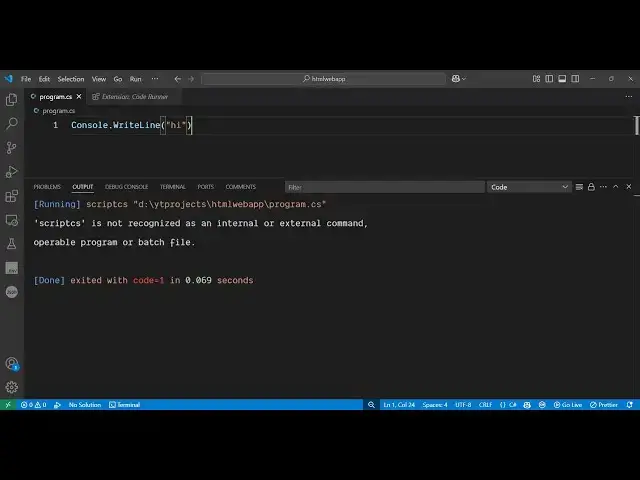
How to Fix scriptcs is not recognized as an internal or external command problem at VSCode
Jun 3, 2025

Get the full source code of application here:
Watch My Visual Studio Code IDE Setup Video For Fonts,Themes & Extensions
https://youtu.be/Bon8Pm1gbX8
Hi Join the official discord server to resolve doubts here:
https://discord.gg/cRnjhk6nzW
Visit my Online Free Media Tool Website
https://freemediatools.com/
Buy Premium Scripts and Apps Here:
https://procodestore.com/
Show More Show Less View Video Transcript
0:00
uh hello guys uh welcome to this video
0:02
so in this video I will show you how to
0:04
fix this error message when it comes uh
0:06
script CS is not recognized as an
0:09
internal or external command whenever
0:11
you try to execute the car program
0:13
inside your VS code using the extension
0:16
coderunner and for this you should have
0:19
uh a extension installed if you haven't
0:22
installed this go to the extension tab
0:24
just search for coderunner so this is
0:27
actually the extension for VS code which
0:30
allows you to run programs in different
0:32
languages all in one extension it is 33
0:35
million downloads developed by this
0:37
person so simply install this and
0:39
activate this and uh then you will
0:42
actually see whenever you there is a
0:45
button right here this run button you
0:48
will see which will run the code it is
0:52
appearing in my system as a drop-down
0:55
but you will see this run button like
0:58
this so whenever you click the run
1:01
button you actually see this error
1:03
script CS is not recognized as an
1:05
internal or external command this is for
1:08
C programs so now to resolve this first
1:11
of all you need to go to the settings of
1:13
this uh
1:15
extension how to go to the settings just
1:17
go to this manage option
1:19
this click on that and right here you
1:22
will see settings go to the settings and
1:24
here you need to tick mark this option
1:27
uh this tick mark this is cordunner run
1:32
in terminal so whether to run the code
1:34
in integrated terminal so by default
1:37
this option will not be ticked you need
1:38
to take take this option so just make
1:41
sure that you take this option and now
1:43
just close it and after that you need to
1:46
open your user setting file so user
1:48
setting file you can actually open it by
1:50
the shortcut key in control shiftp and
1:54
just type here user
1:57
settings you can even go to the menu
2:00
right here and uh right here you will
2:02
find
2:05
out file preferences and here you will
2:09
see this is your app settings and uh
2:13
then you
2:14
will be able to go to the user settings
2:17
file we need to go to the user settings
2:19
so just open the integrated terminal and
2:21
right here just type here user settings
2:25
and just go to this and right here you
2:28
will land this controls all your
2:30
settings inside VS code so here we need
2:32
to search for the setting which is
2:34
coderunner so as you just type here
2:36
coderunner this setting we need to say
2:39
code runner
2:43
execute map this is actually the setting
2:45
here if you see this is a setting so
2:48
just select enter just enter press the
2:51
enter key now selecting that and you
2:54
will see automatically each language is
2:57
having different commands here you will
2:59
see this extension supports multiple
3:01
languages to run so we need to find out
3:03
the C sharp
3:05
language so just write here you will
3:08
find out this language here she C car C
3:09
C car C car C sharp so by default if you
3:12
see it is using this script CS uh which
3:15
is not working so instead of script CS
3:18
we need to use the net command which is
3:22
the official way of running the C
3:25
program so we just need to write this
3:28
command here instead of this delete this
3:30
and just write here cd and then dollar
3:34
sign directory and then and sign and
3:38
then we need to say
3:41
net run the actual file name
3:45
file so just copy everything that I do
3:49
guys let me just zoom in first of all we
3:52
need to cd into the dynamic directory so
3:54
this is the dollar sign directory and
3:57
then we are running this command net run
4:00
this is dollar sign is for dynamic one
4:03
because we need to place here dynamic
4:05
file name so these are all variables
4:08
this is a directory name this is a file
4:09
name so just replace it right here pause
4:13
the video just write this exact spelling
4:16
needs to be same here so after you do
4:18
this simply save it save the file and uh
4:24
then just close it and then come to your
4:26
file right here and simply select run
4:30
code and as soon as you select this you
4:32
will see that now your code is perfectly
4:37
running so let me again run
4:43
this so you can see it is running this
4:46
and hello world is printed out you will
4:48
see that if I make some kind of change
4:50
here let's suppose I write another hello
4:53
world line hello world this time I say
4:56
my name is
4:59
Gotham so again you run the code and
5:02
this time it will print out the second
5:05
line as
5:06
well you can see hello world my name is
5:08
Gotham so in this way you can fix that
5:10
error message guys and run your C#
5:13
program using this extension inside VS
5:15
code so thank you very much for watching
5:17
this video if your problem is solved
5:19
then please comment and like this video
5:21
and also check out my website free media
5:23
tools.com which contains thousands of
5:26
tools regarding audio video
#Jobs & Education