Up next in 10

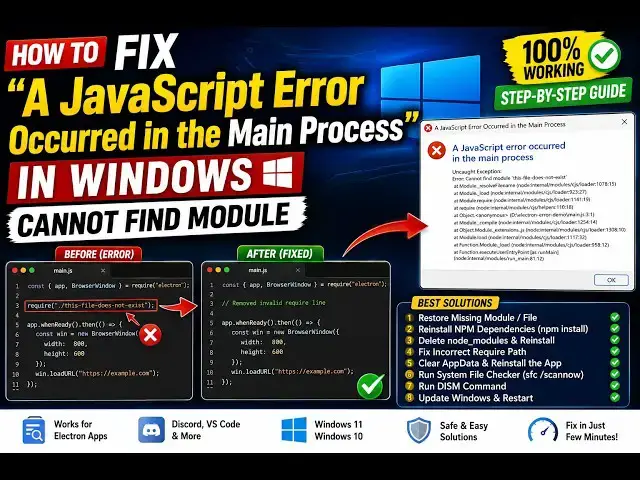
How to Fix “A JavaScript Error Occurred in the Main Process” in Windows – Cannot Find Module
Aug 29, 2026

Buy the full source code of application here:
Watch My Visual Studio Code IDE Setup Video For Fonts,Themes & Extensions
https://youtu.be/Bon8Pm1gbX8
Hi Join the official discord server to resolve doubts here:
https://discord.gg/cRnjhk6nzW
Visit my Online Free Media Tool Website
https://freemediatools.com/
Buy Premium Scripts and Apps Here:
https://procodestore.com/
Show More Show Less View Video Transcript
0:00
Uh, hello guys, in this video I'll show
0:01
you how to fix the problem when you try
0:04
to open your application. You will see
0:06
this error, a JavaScript
0:08
error occurred in the main process. So,
0:10
basically, whenever you are trying to
0:12
build your application, specifically it
0:14
happens in Electron applications,
0:17
you get this error, cannot find module
0:19
script.js.
0:21
So, in my sample app, as you see it
0:23
actually tell you the message, uncaught
0:26
exception cannot find module. So, it can
0:28
be any module that you are loading
0:30
inside your application. Specifically,
0:32
in my case, as you see it, so it is
0:35
saying that script.js is not found. If I
0:37
check my application, go to main.js,
0:40
Electron, as you see we are requiring
0:42
Electron, and it is loading this file,
0:44
script.js, which is not present in my
0:47
directory.
0:49
So, I do need to create this file. So,
0:50
normally, 90% of the time it fixes the
0:53
problem.
0:54
So, make sure you check your main.js
0:56
file, and simply, whichever file you are
0:59
requiring, just make sure that this file
1:01
exist. And just write some sample code,
1:04
let me say console.log message.
1:06
And now it's simply close it, try to run
1:09
the application again.
1:12
And hopefully, the application will
1:15
start. So, now as you see the Electron
1:17
application is perfectly running. So, we
1:20
have successfully fixed that error.
1:22
If this
1:24
doesn't fix your problem, then you might
1:27
need to
1:28
uh, delete this node modules folder, and
1:31
reinstall it. So, just right click,
1:33
click on delete.
1:35
This will delete this node modules
1:37
folder, and try to reinstall the
1:39
modules.
1:41
So, once it is deleted,
1:44
simply type the command npm i.
1:47
So, this will reinstall the modules.
1:50
If this also doesn't fixes the problem,
1:52
you then need to
1:54
execute some commands. So, first of all,
1:58
you need to go to settings
2:01
and go to apps.
2:03
So, there is a specific app which is
2:05
actually affecting this. Go to installed
2:07
apps.
2:10
And just search for C++.
2:16
in the search bar.
2:23
You type the C++ various app will come.
2:30
Just
2:31
see
2:33
plus plus.
2:38
So, we need to look at for this one
2:40
which is Microsoft
2:43
Visual C++ 2013.
2:47
And in the bracket, it will show you
2:49
X64.
2:50
So, just do this.
2:52
Click on modify.
2:54
And
2:56
right here, you need to repair it. So,
2:58
click the repair option.
3:01
And after
3:03
clicking repair, you just need to
3:04
restart your computer. The repairing job
3:07
will be completed. After that, restart
3:09
your computer.
3:10
This will also fix your problem. If this
3:13
also doesn't fix your problem,
3:16
you just need to make sure that if you
3:18
have installed Discord
3:21
application, uninstall that and install
3:24
this Discord application again. In my
3:26
case, Discord is not present. If Discord
3:29
application is installed, you need to
3:31
uninstall this and install it once
3:33
again.
3:35
And also, go to task manager and make
3:38
sure Discord is
3:40
If the process
3:42
of Discord is running, simply
3:46
you can type the name Discord.
3:49
If the process is running of Discord,
3:51
simply end that process and
3:55
and
3:56
just start it again.
3:59
If this If this this also doesn't fix
4:01
your problem, there are some commands.
4:03
I've given these commands in the
4:05
description of the video.
4:08
So, these are some Windows
4:11
repairing commands that you can
4:15
The first command is this one.
4:17
GPU update {slash} force.
4:23
GPU update {slash} force.
4:28
So, execute this command. This will
4:29
actually
4:31
reset the permissions, everything to
4:34
default.
4:36
The second command is
4:38
specifically for
4:40
useful for
4:41
fixing corrupted Windows files.
4:48
I've given both these three all these
4:51
three commands in the description of the
4:52
video. SFC {slash} scan now.
4:56
It will try to scan your entire
4:58
So, just make sure that you launch CMD
5:01
as an administrator.
5:03
Just right-click.
5:05
Run this file as administrator.
5:08
And just execute
5:11
SFC {slash} scan now.
5:14
This will start the scanning part. It
5:16
will begin the system scan. You need to
5:18
wait for some time. So, once it is
5:20
completed, you will get the
5:21
notification.
5:23
Another command that I've given
5:26
is
5:28
this one, which is
5:30
It's actually repairs the Windows image
5:32
component.
5:35
So, if you do this, your error will be
5:37
fixed.
5:38
DISM {slash} online clean up image
5:41
restore health.
5:44
So,
5:44
basically, it will image servicing
5:47
management tool.
5:48
So, just try these three commands.
5:53
And basically, it should fix the
5:55
problem.
5:57
And one more thing you can do to fix
5:59
this problem, go to services.
6:02
And basically, search for a service in
6:04
the
6:07
services, which is quality audio and
6:10
video. Simply s-
6:12
type the Q command.
6:14
And basically, this service, quality
6:16
Windows audio video experience. Simply
6:18
right click on this.
6:21
And go to properties.
6:23
And make sure that it is set to
6:24
automatic.
6:26
And then, after you do this change,
6:33
click on apply.
6:34
First of all, stop this. And then,
6:36
start. And then, click on apply.
6:39
So, these are the fixes, guys, which are
6:43
actually
6:45
there for this problem.
6:47
Please hit that like button, subscribe
6:48
the channel, and also tell me in the
6:50
comment section which solution
6:52
is perfect for you.
6:56
So, these are all the solutions you can
6:58
do for this problem.
7:00
The process that is not defined
7:03
the JavaScript.
7:05
Definitely check this out.
Jobs & Education