Up next in 10

This Gemini Code Assist AI Coding VSCode Extension is INSANE Builds Full Stack Apps From Prompts
Apr 8, 2026

Watch My Visual Studio Code IDE Setup Video For Fonts,Themes & Extensions
https://youtu.be/Bon8Pm1gbX8
Hi Join the official discord server to resolve doubts here:
https://discord.gg/cRnjhk6nzW
Visit my Online Free Media Tool Website
https://freemediatools.com/
Buy Premium Scripts and Apps Here:
https://procodestore.com/
Show More Show Less View Video Transcript
0:01
Uh, hello guys, welcome to this live
0:03
stream. So, in this live stream, I will
0:06
actually show you a VS Code extension,
0:08
which is really popular. It's actually
0:10
developed by Google. So, if you go to
0:12
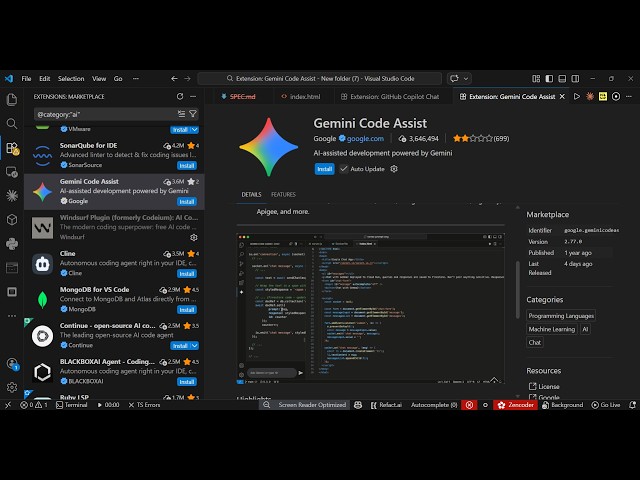
extensions tab, it's called as Gemini
0:14
Code Assist. So, right here in the
0:17
extensions tab, simply search for this
0:19
extension, Gemini Code Assist.
0:22
So, it's totally free.
0:24
So, it's actually a verified extension
0:26
developed by Google. It's almost got
0:29
3.6 billion installs.
0:32
So, click the install button. So, with a
0:35
single prompt, it actually uses the
0:37
Gemini model to create your full-stack
0:39
applications directly inside VS Code.
0:42
So, it's similar to Claude, ChatGPT.
0:47
So, once it get installed,
0:50
I will show you how it's actually built
0:52
out a entire application from scratch.
0:56
So, once it get installed, you will get
0:57
a notification. I personally use this
1:00
extension a lot.
1:04
So, these are some of the You can see
1:06
that inside the prompt, you write the
1:07
message. It overall builds out a
1:09
complete application. It fixes out the
1:12
errors as well.
1:13
So, now it is successfully installed,
1:15
you will get this right here.
1:17
Appear Gemini Code Assist.
1:19
Simply click on that and activate this
1:21
extension. So, once the extension is
1:23
activated, you will see actually
1:26
a chatting prompt, where you will
1:28
exactly tell the AI what sort of
1:30
application you want to generate.
1:33
So,
1:35
for the very first time, it will take
1:37
some time to actually activate. So, now
1:39
it's actually activating it.
1:42
Just wait.
1:46
So, you can now see there is this chat
1:48
prompt. So, here you exactly tell what
1:51
sort of application you want to develop.
1:52
So,
1:55
I will simply say build a
1:58
image to PDF
2:01
web app in browser.
2:05
So, exactly I'm telling that build an
2:06
application to convert image to PDF. So,
2:09
I send out this request.
2:11
So, now it's actually using the Gemini 3
2:13
Pro
2:15
preview model.
2:17
So,
2:18
you can see that now it is successfully
2:20
creating out the application for us.
2:35
So, once it creates, you will see the
2:37
automatically all the files created on
2:39
the right-hand side. It will actually
2:41
code your
2:42
files.
2:50
It's a really good extension, Gemini
2:52
Code Assist.
2:53
It's an all-in powered by Gemini, which
2:56
is a Google-powered
2:58
extension.
2:59
So, it's actually taking some time here
3:02
to actually create this application.
3:17
So, once it completes, you can even ask
3:19
follow-up questions as well. So, you can
3:21
see agent is working
3:23
on creating your files. It's an actually
3:25
having an agent mode.
3:39
So, the process is really simple. You
3:41
come to the extension, simply activate
3:43
it,
3:44
and simply ask a prompt whatever
3:47
application you want to develop, and
3:48
then this Gemini model will start
3:50
preparing that application.
3:55
In comparison to other AI providers like
3:58
like GitHub Copilot, Claude, it's little
4:01
bit slow, but it's totally free to try.
4:05
It actually does the job for you in
4:07
creating out an advanced,
4:09
professional-looking application.
4:11
So, once it completes, you will see the
4:13
code on the right-hand side.
4:16
So, I'm just showing you the overall
4:18
process how it creates the application.
4:22
So, you will be getting to know how much
4:24
time it takes to create a
4:26
single application.
4:33
>> [sighs]
4:38
>> So, in the meantime,
4:40
if you haven't known about this Gemini
4:42
Code Assist, so if you just write this,
4:46
so you can see that it's an AI coding
4:49
assistant
4:50
developed by Google. So,
4:58
so directly it's an AI coding assistant
5:01
powered by Gemini.
5:05
So, [snorts] which is available directly
5:07
as a
5:08
VS Code extension. So,
5:21
I think it's taking too much time. So,
5:24
if it is get stuck,
5:26
you can even stop this as well. So,
5:48
so once it completes, you will get the
5:49
notification, and your code will be
5:51
written out in a file,
5:53
and there you can run the application.
5:55
So, it's an ultimate AI assistant. For
5:57
some reason, at this moment, it's taking
6:00
too much time.
6:02
But, the process is very simple. You
6:04
install the extension, and simply in the
6:06
chat prompt,
6:07
you write whatever thing that you want
6:09
to write.
6:11
So,
6:13
definitely check out this extension.