Up next in 10

Python 3 Tkinter Script to Concatenate Multiple Images Horizontally & Vertically GUI Desktop App
Jun 3, 2025

Get the full source code of application here:
https://codingshiksha.com/python/python-3-tkinter-script-to-concatenate-multiple-images-horizontally-vertically-gui-desktop-app/
Show More Show Less View Video Transcript
0:00
uh hello guys uh welcome to this video
0:02
So in this video I will show you a
0:05
desktop application built inside Python
0:08
uh using the
0:09
Twinter uh GUI framework which is very
0:13
popular framework for building desktop
0:14
applications So in this way in this
0:17
application we'll try to build out a
0:19
image merger kind of an application
0:21
where you can merge multiple images into
0:24
a single
0:25
image both horizontally and vertically
0:27
So this application looks something like
0:30
this We have this interface We have a
0:32
button by which you can select a bunch
0:34
of images So here you can actually
0:38
select any
0:41
image So let me select a bunch of images
0:45
As we select these images six images
0:48
selected we can change the direction
0:49
either hor horizontally or vertically
0:52
Horizontally it will merge like this You
0:55
will
0:56
see it will also display the merged
0:59
image right in the window itself You can
1:02
change the direction from this dropdown
1:04
Let's suppose I want to merge it
1:06
vertically Again I will say you will see
1:09
it will also show you now it has merged
1:13
it vertically So we have this button
1:15
here as well merged and save So as soon
1:19
as you basically you
1:22
can click on save your output file will
1:26
be saved here You'll
1:28
see if I try to open
1:32
this So in this way guys you can
1:34
actually merge multiple image files into
1:38
a single one vertically and horizontally
1:40
So all the source code I've given in the
1:42
description of the video So now let's
1:45
get started by building this So just
1:48
create a simple app py file I will just
1:51
show you how to build
1:54
this
1:56
So for this application you just I think
2:00
you just need to require the pillow
2:03
library the third party libraries that
2:06
you need to install So p i l o w So this
2:12
is only package that you will require
2:15
The command is simple
2:17
And after that you simply first of all
2:19
require the trickter
2:26
package And then from this trickter you
2:29
also need to import file dialogue and
2:31
the message
2:32
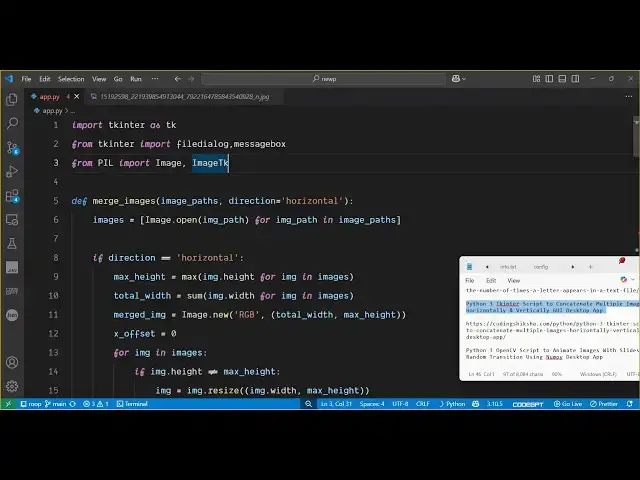
box And then from this pillow library
2:35
you need to import the image and the
2:38
image TK class
2:43
So now we will basically build out the
2:46
interface First of all set some basic
2:49
properties about the twin inter app such
2:52
as the title the geometry image path So
2:56
I will declare an empty array and these
2:59
basically if you want to start your
3:01
application you just need to call the
3:03
root dot main loop This is the main
3:06
function of tokinter And then we need to
3:08
add some widgets on the screen such as a
3:11
simple
3:13
label So this label will be allowing
3:17
to a vertical menu which will have two
3:21
options Either you can merge it
3:22
horizontally or vertically By default
3:25
horizontal will be selected Then we will
3:27
have a simple button to allow the user
3:30
to select the images from the file
3:33
picker window
3:35
And then we just have a simple button to
3:38
merge and save So I have given all the
3:41
source code in the description of the
3:42
video Now we just need to define these
3:44
two functions Select images and merge
3:47
and
3:48
display So both these functions I will
3:51
just def uh define it
4:05
So we actually defined both these
4:07
functions and uh now we just need to
4:11
first of
4:14
all write the function
4:18
for select images So as soon as you hit
4:23
that button we need to show a file
4:25
picker window by which we can the user
4:28
can select multiple image files So this
4:31
is a really uh easy function Here we
4:34
simply displaying the image picker
4:36
window We have predefined the set of
4:40
extensions which will be image files
4:43
only PNG JPG all that So as soon as the
4:47
user clicks that the image picker window
4:49
will open and they can select multiple
4:51
image files that's all And uh if you
4:56
just
5:00
see now we in the merge and display
5:04
function So here we will simply need to
5:08
merge the files image files So we need
5:11
to get the direction first of all So
5:13
whatever is the direction
5:15
value or either horizontal or vertically
5:19
and then we simply merged the files So
5:23
right here we use this
5:28
merge merge underscore
5:37
images So I think yeah so we do need to
5:41
define this function So this is actually
5:44
the function which will be responsible
5:46
for we pass the image pass plus the
5:51
direction So we'll be writing it inside
5:54
uh try
5:59
block So now we just need to define this
6:02
function uh which is merge image So this
6:05
will actually take a bunch of images
6:08
plus the direction So what I will do I
6:10
will simply copy this code You can find
6:12
all this source code in the description
6:14
of the video So essentially what it is
6:16
doing it is actually getting the image
6:19
paths plus the direction default value
6:22
is horizontal It is opening the image
6:24
files one by one and then it is merging
6:28
it in either in
6:30
horizontal It's a logic for horizontal
6:33
and then it's for vertical That's all
6:41
So if
6:44
you launch this application you will see
6:48
this is the interface You simply select
6:51
whichever image
7:01
files and after that I think we
7:05
haven't we need to display the image
7:08
files as well So yeah so after this we
7:12
need to display
7:17
this just after this function right here
7:20
you just need to paste So this is the
7:23
code responsible
7:25
for displaying the merged image in the
7:28
window and then saving it Once the user
7:31
clicks the save button then this file
7:33
dialog this function will execute and
7:37
you will be able to save the output
7:39
image file at a specified location So
7:42
let me once again run this file You will
7:44
see it is saying line number
7:54
47 I think there is some kind of typo
7:58
mistake Let me just copy
8:12
this So you can see that So in this easy
8:16
way you can build out this application
8:19
You will see your file has been saved
8:27
So in this easy way guys you can build
8:29
out this image merger kind of an
8:31
application Uh all the source code is
8:33
given in the description Also check out
8:35
my website freemediattools.com
8:39
uh which contains thousands of tools
#Online Media
#Programming
#Scripting Languages