Up next in 10

Live Image Preview in VSCode IDE Editor Hover + Gutter | Must Have Extension! VSCode IDE Extension
Jul 14, 2025

Get the full source code of application here:
Show More Show Less View Video Transcript
0:00
Uh hello guys, welcome to this video. So
0:02
in this video, I'll show you how to be
0:04
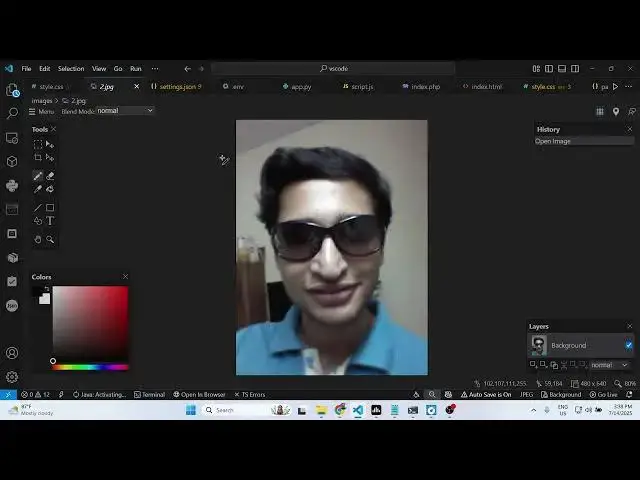
having a live preview of the image that
0:06
you're including inside your CSS file or
0:09
any file. It will show you this nice
0:12
little live preview of the image which
0:14
will actually show you that your syntax
0:16
is correct. So that the path of the
0:19
image is also correct. So as you are
0:21
including your image inside your CSS
0:24
file, let's suppose you're providing a
0:26
path here. So
0:30
as you do this it will show you the live
0:32
preview. So this will make sure that you
0:35
will definitely know that the image is
0:37
included because that image exist that's
0:40
why it is showing the live preview. So
0:42
there is an extension here which you can
0:44
install in VS code. By default this live
0:47
preview is not shown in VS code. So
0:50
there is an third party extension that
0:51
I'm using here.
0:55
So just go to the extension
0:58
and just type this image preview and
1:00
this is the extension that I am using
1:02
here. So it basically shows on hover on
1:06
cutter side by side a live preview will
1:09
be shown of the image which you're
1:10
including. It's got almost 4 million
1:13
installs and definitely install this
1:16
extension. So without having this
1:18
extension if I show you the same code
1:21
now if you see that uh light review is
1:23
not shown. So this basically
1:29
doesn't look good because you don't know
1:31
that image exist or not. So once
1:34
activate this extension
1:36
it will now show that live preview of
1:39
this image side by side. So this will
1:43
make sure that uh that image exist. So
1:47
just update this. It will also underline
1:50
this as well.
1:52
So you can press the control key and
1:55
reference this image directly as well.
1:58
By clicking it will change it to
2:00
underline. Just press the control key on
2:02
the keyboard and this one by this you
2:06
can directly go to the image that you're
2:07
referencing. So this makes it easy. And
2:13
again if you are including some other
2:15
image let's suppose I said three you
2:18
will see a different image
2:22
this is not necessarily only to CSS it
2:25
can be in any file it can be JavaScript
2:27
PHP wherever you're including any sort
2:30
of file let's suppose I show you if I
2:33
reference it inside my HTML I get a
2:36
image tag and I say here image source
2:41
And then I include this. Let's pause
2:46
like this. Then also in the sidebar
2:48
section you will see you will get a live
2:50
preview of the image. So it's a very
2:52
good extension definitely must have
2:54
inside your VS code to show the live
2:57
preview inside your source code. So also
3:00
check out my website freemediattools.com
3:03
uh which contains thousands of tools.
#Programming
#Software