Up next in 10

Imagemagick Command to Convert Images to PDF & PDF Pages to PNG Images in Terminal
Jun 3, 2025

Buy the full source code of application here:
Show More Show Less View Video Transcript
0:00
uh hello guys welcome to this video So
0:02
in this video I will show you how to
0:04
convert all your pages of PDF into
0:06
images or how to convert images to PDF
0:10
So you can directly use it in the
0:12
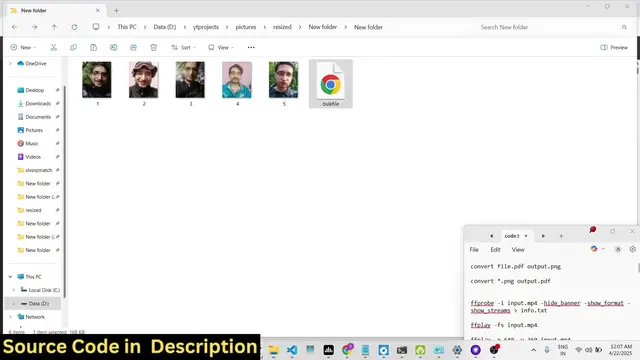
terminal guys You have these five images
0:15
I will show you how to convert these
0:17
images into PDF or how to convert each
0:20
image each page of the PDF into image So
0:24
you can do both these operations with a
0:26
single library which is called as image
0:29
magic So if you simply Google image
0:32
magic the very first link which comes
0:35
simply download this free open-source uh
0:37
library guys I've already download the
0:40
CLI version It's available for Linux Mac
0:43
and Windows So I'm using Windows machine
0:45
right here So once you install this come
0:48
to your terminal where all these images
0:50
are present So as you can see just open
0:55
your terminal right in the folder and uh
0:58
now if you want to basically convert a
1:00
single image you simply write here magic
1:03
followed by the image name which is
1:06
1.jpg after that you simply say output
1:09
PDF So what it does it creates this it
1:13
inserts this image in the PDF document
1:15
and you can see it created this output
1:17
file If I try to open this you will see
1:19
it actually inserted this image in the
1:22
PDF So in this easy way you can do this
1:26
So now let's suppose I want to convert
1:28
all these four images which is
1:32
JPEG into PDF So what I will write here
1:35
I will simply
1:37
say magic star dot jpg So here we are
1:43
simply converting multiple images star
1:46
basically means that all the images
1:48
which are JPEG in this folder just
1:51
convert this
1:52
into a PDF So what it does it actually
1:56
creates a new PDF file which basically
2:00
have all these four
2:01
images So if you see now you have the
2:05
first second third fourth So in this
2:08
easy way guys you can see you can export
2:11
multiple images to PDF So now let's
2:14
suppose we have a PDF document which
2:16
contains 23 pages So I need to convert
2:19
these pages into PNG files So what I can
2:22
do I can again use this library and
2:25
execute this command magic bulk file PDF
2:30
and then I simply say output
2:33
dotpng So now what happens guys if you
2:37
see it is actually processing this PDF
2:41
file and you can see for each page it
2:45
actually can see it creates a output
2:48
file here for each page a image is
2:51
constructed So exactly 23 pages were
2:54
there for each page it actually taken
2:57
the screenshot and simply saved it
2:59
inside your directory So as you can see
3:01
the quality looks great This is actually
3:04
the first page You can see for each page
3:07
it took the screenshot and saved this as
3:10
a PNG file So this is a very handy
3:14
library guys It will save you a lot of
3:16
time Just in uh install and download
3:20
this which is image
3:24
magic I have already downloaded this and
3:27
start using it guys for this operations
3:31
And uh thank you very much for watching
3:33
this video and also check out my website
3:36
freemediattools.com which contains
3:38
thousands of tools
#Computers & Electronics