Up next in 10

How to Integrate Google Translate to Translate Code in Different Languages in VSCode IDE
Jul 5, 2025

Get the full source code of application here:
Show More Show Less View Video Transcript
0:00
Uh hello guys, welcome to this video. So
0:02
in this video, I'll show you how to
0:04
translate your source code into multiple
0:06
languages using Google Translate
0:08
extension inside your VS code directly.
0:11
So you can go to the extensions tab and
0:13
just type here Google translate
0:16
and you just need to install this
0:18
extension. So if you just go to the
0:21
search bar, just type here Google
0:22
translate. There is a quite a number of
0:25
extensions out there. You need to
0:26
install this one which is VS Code Google
0:29
Translate. This is the extension. It's
0:31
de uh developed by this person and uh
0:34
it's almost used 63,000 times. And just
0:38
click the install button. And after
0:40
clicking the install button, the
0:42
extension will be enabled globally. And
0:44
now just open your HTML code or
0:47
whichever file which have some kind of
0:49
text. Right here you just need to select
0:52
whichever text. Let's suppose this is my
0:54
English text that I want to convert to
0:56
any other language. Then I basically
0:58
open command pallet control shiftp and
1:01
right here I write here translate
1:05
selections to your preferred language.
1:07
And now inside the drop-down section you
1:09
can actually select whichever language
1:11
you want to and it will be converted as
1:15
you can see
1:17
very easily. So again you repeat the
1:19
same process. You select your text
1:27
and then it's drop dropdown will happen
1:29
right here and it supports all the
1:31
languages that Google translate supports
1:33
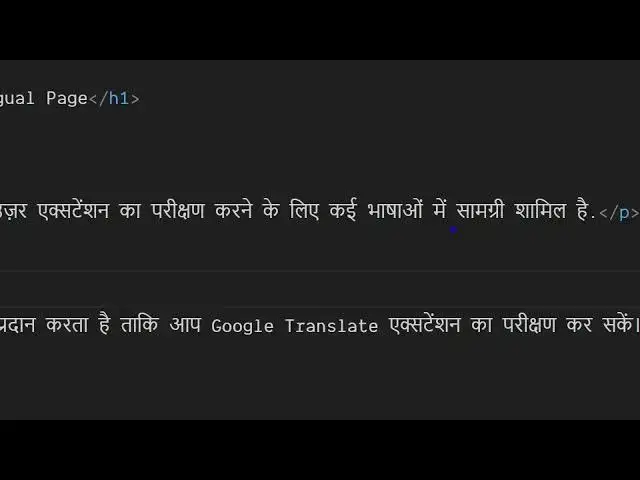
here. If I say I want to translate it to
1:37
Hindi you will see it will now translate
1:39
this English language to Hindi very
1:41
easily without leaving your VS code. So
1:44
it is completely free. You can do it
1:46
unlimited number of time here. You
1:48
basically pick any language right here
1:51
and then select it and translate
1:54
selection and then select any language.
1:57
This is you can see it's English. You
1:58
can select English language and now it
2:01
will convert this Hindi to English very
2:03
easily. So this is your uh VS code
2:06
extension.
2:13
You can see that you can even select a
2:15
whole document
2:17
and basically at a single time it will
2:20
convert your whole document as well. So
2:22
or you can select a P selection just
2:26
select your text and open command p
2:29
translate selection
2:31
select your target language and then it
2:34
will translate the actual sentence into
2:36
that target language. So this is the
2:38
plug-in here. You can simply install it
2:40
and activate this and start using it. VS
2:43
Code, Google Translate and also check
2:46
out my website freemediattools.com
2:49
uh which contains thousands of tools.
#Programming
#Software