Up next in 10

How to Fix and SOLVE Error Claude Code is not supported on Windows Download Claude Code and Install
Jul 11, 2025

Get the full source code of application here:
Show More Show Less View Video Transcript
0:00
Uh hello guys, welcome to this video. So
0:02
in this video, I'll show you how to
0:04
install cloud code inside your Windows
0:07
machine. For this, you should have
0:09
NodeJS already installed. And this
0:12
command that they give you if you
0:14
directly go to the Windows terminal and
0:16
try to execute this command, you will
0:18
get this error message
0:21
that cla code can't be installed on
0:24
Windows.
0:25
So cloud code is not supported on
0:27
Windows. So directly you can cannot
0:30
install claude code directly on Windows.
0:34
So there is a work work around here. You
0:36
need to make sure that you install other
0:39
operating system on Windows. For this
0:41
you just need to turn on
0:43
this feature here which is WSL Windows
0:47
subset for Linux. So just go to Windows
0:50
features and just make sure that you
0:52
enable this feature which is
0:55
Windows subset
0:58
for Linux. This is a feature here. Make
1:00
sure that this feature is ticked and
1:03
just restart your computer. And after
1:05
that now you can download Abuntu or
1:09
Linux system inside your Windows
1:11
machine. So now it will do this thing.
1:16
I have already installed
1:19
WSL. So after installing it, you can run
1:23
this as administrator.
1:28
So now you will get this shell here.
1:31
So after that uh just installs any
1:35
Abuntu or Linux version
1:38
and after that you need to install
1:45
NodeJS. For installing NodeJS first of
1:49
all just make sure that you execute this
1:51
command if you're running it from a
1:52
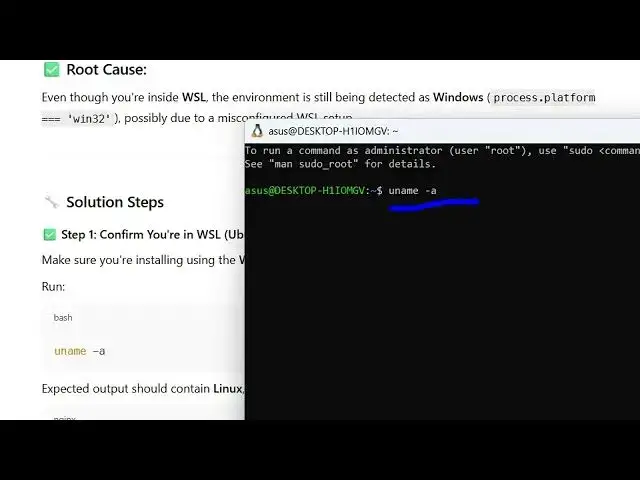
Linux machine. U N A M- A. So just
1:57
execute this command to cross check that
1:59
you are running it from a Linux machine.
2:01
So you can see now we have installed
2:04
Linux. So we are running it from here
2:06
and just install NodeJS. So the command
2:10
is very simple. You simply say pseudoapp
2:14
install
2:16
NodeJS.
2:40
So let me just
2:50
I think here you need to
3:03
You can set your default password.
3:58
So in this easy way you can fix this
4:00
error message. So just enter your
4:02
password and install NodeJS and after
4:04
that you can install cloud code inside
4:07
your Windows machine. Just make sure
4:09
that you enable that feature which is
4:14
tick mark that option Windows subset for
4:16
Linux and just install
4:21
Linux machine and then execute this
4:23
command pseudoapp install NodeJS and
4:25
after that you can execute this command
4:27
which is npm install-gropic
4:31
AI plot
#Programming
#Operating Systems
#Development Tools