Up next in 10


Get the full source code of application here:
Show More Show Less View Video Transcript
0:00
Uh hello guys, welcome to this video. So
0:02
in this video, I'll show you how to
0:03
check your Windows operating system
0:05
version number directly the terminal
0:07
itself. So there are quite a number of
0:09
commands that you can use. Let me show
0:11
you one by one all these commands.
0:14
So just you need to open your command
0:17
prompt here.
0:20
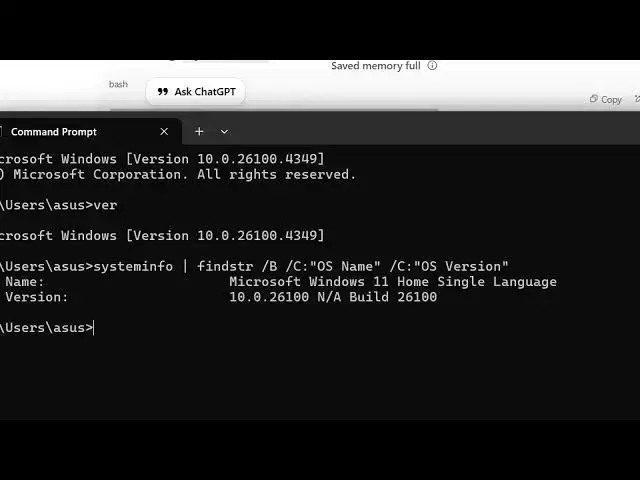
Now the very first command is simple v.
0:24
So if you just type this,
0:27
it will tell you which version you are
0:29
using. Microsoft Windows version this
0:32
full version number. The second command
0:35
is
0:37
system info command.
0:40
It will give you some more details apart
0:43
from the version number.
0:45
It will load this processor information
0:47
everything
0:49
and then it will give you the operating
0:52
system name. This is the version number.
0:57
And then the next command is this one
0:59
which is wmic command.
1:12
So it gives you all this information
1:14
build number this is your
1:18
the what version of you're using this is
1:21
your version number then we also have
1:24
this GUI popup as well which is
1:28
this command which is wer
1:32
this command gives you the version
1:34
number in a pop-up window so as you can
1:37
see now it tells you exactly which
1:39
version you're using Windows 11
1:42
Microsoft Windows this is a version
1:44
number.
1:46
So as you can see so these are all the
1:49
four commands which are there which you
1:51
can check directly in the terminal and
1:54
also check out my website
1:55
freemediatools.com
1:57
uh which contains thousands of tools.
#Computers & Electronics
#Software
#Operating Systems