Up next in 10


Get the full source code of application here:
Show More Show Less View Video Transcript
0:00
Uh hello guys, welcome to this video. So
0:02
in this video I'll show you how to check
0:04
your VS code IDE version directly in
0:07
inside terminal. Which version you are
0:09
using? You can check in the terminal.
0:11
Simply type here uh code
0:14
dash dash version. So code represents VS
0:19
code. So d- version. So it will directly
0:22
open your VS code. And from here you can
0:25
go to the help menu inside the menu
0:28
section.
0:30
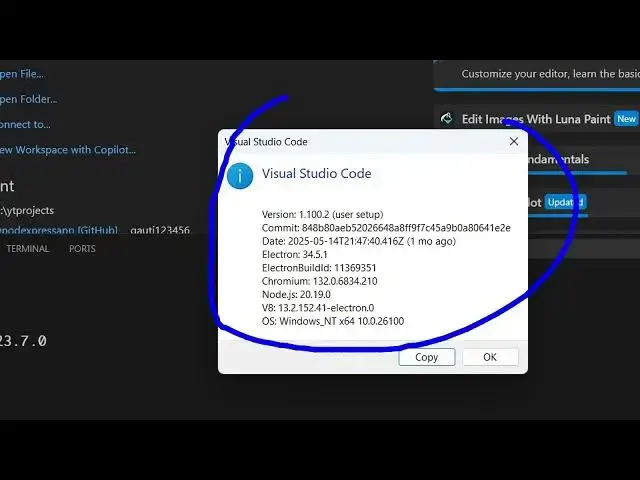
So there will be this option called as
0:32
help and here select this option of
0:36
about and using this option you if you
0:39
select this it will exactly tell you
0:40
which version you are using here so
0:43
which is 1.100.2
0:45
2. So this is the version that you are
0:47
using of VS code. And if you still want
0:50
to locate where VS code is installed on
0:52
your machine, so you can simply execute
0:54
this command where VS code
0:58
sorry you write here where code. So then
1:02
it will tell you the exact location of
1:05
VS code where it is installed on your
1:07
system. This is a command here where
1:09
code. So here you can copy this
1:12
location.
1:16
and simply go to that paste this
1:19
location.
1:21
So this is where VS code is default
1:24
stored inside Windows. It is located in
1:27
the app data folder followed by your
1:29
username then local then programs and
1:32
then we have this folder Microsoft VS
1:34
code.
1:36
As you can see inside this all these
1:38
executables are present. So this is your
1:40
executable of VS code. So if you launch
1:43
it your VS code will open. So and then
1:46
you can go to the menu section of help
1:49
to get and go to about and get the
1:52
version of VS code. So in this easy way
1:54
you can check it and also check out my
1:57
website freemediatools.com
1:59
uh which contains thousands of tools.
#Computers & Electronics
#Software