Up next in 10

Google Apps Script to Upload File to Google Drive Folder in Browser Using HTML & Javascript Web App
Dec 21, 2025

Buy the Full Source code of Application here:
https://procodestore.com/index.php/product/google-apps-script-to-upload-file-to-google-drive-folder-in-browser-using-html-javascript-web-app/
Show More Show Less View Video Transcript
0:00
Uh hello friends today in this tutorial
0:02
I will be showing you that how basically
0:04
you can upload a images inside files to
0:08
your Google drive folder using Google
0:10
appcript inside web application using
0:13
HTML and JavaScript. So we have
0:15
basically a web application guys which
0:17
we constructed using Google app script
0:20
which allows you to directly upload
0:22
files to your Google drive. So if you
0:24
share this URL guys, it is deployed live
0:26
on the internet. Anyone can upload files
0:28
to your Google drive. So let's suppose
0:30
if I open incognito mode here and if I
0:34
paste this link here and there will be a
0:37
simple form right here guys. So if you
0:39
open this now application
0:42
so
0:44
now there will be a choose file button
0:46
and add files. So you can just share
0:49
this link with anyone on the internet
0:51
and they will be able to upload files to
0:53
your folder. So this is my Google drive
0:56
guys. So this is the images folder. It
0:59
is currently empty. No file is present
1:01
right here. So let me just show you real
1:04
time.
1:06
So as I now select a PNG or JPG file
1:09
guys, any sort of file you can upload.
1:11
Let's suppose I upload a
1:17
this file
1:19
and if I select this file guys you will
1:21
see that if I click this file form
1:24
submitted and you will see that guys
1:27
this file is s uploaded here to my drive
1:31
here Google drive you'll see that this
1:34
is the link which is given to me this is
1:36
the publicable accessible link of the
1:39
file where you can find this file
1:41
So similarly guys you can uh upload PNG.
1:46
This is a PNG image file. Click on that
1:50
and once again in real time you will see
1:52
that this image will also get uploaded
1:55
in the left hand side. If I you will see
1:58
that this is the screenshot_2.png
2:02
and this is also get uploaded. So in
2:05
this way guys we will able to upload
2:08
images or any sort of file to your
2:10
Google drive folder. This can be done by
2:13
anyone. You can just need to share your
2:15
link to your uh web uh web app which you
2:18
constructed using Google appcript. So
2:20
anyone can choose files and upload this
2:23
to your Google drive. So this is really
2:25
necessary in those situations. If you
2:27
want some user data to be collected
2:30
you can use this application. So I have
2:32
given all the source code guys in the
2:34
description of the video. So you can
2:36
purchase the full source code if you
2:37
have any sort of doubt. I will write the
2:40
source code in this video from scratch.
2:42
So if you still have some doubt you can
2:44
purchase the full source code. So now
2:46
let's get started guys by building this
2:48
application. So if you know guys Google
2:50
appcript basically it's a automation
2:53
tool which is brought to you by Google
2:55
which allows you to access their APIs
2:57
directly. So it's a scripting platform.
3:00
It's done using HTML, JavaScript and uh
3:03
you can build web application [snorts]
3:05
and the only thing is that you need a
3:08
Google account for this and after this
3:10
you can create a new project here. Click
3:12
on new project and then you can you have
3:16
this file which is GS. GS stands for uh
3:19
Google script. This basically contains
3:22
valid JavaScript code guys. So here we
3:25
can write a function which is do get and
3:29
inside this function guys what we can
3:31
say is that we can say return
3:34
and we can use this HTML service guys
3:36
and this contains a method which is
3:38
create HTML output from file and here we
3:42
can provide the file guys whatever index
3:44
HTML file that we need to load we don't
3:46
need to write the extension here so we
3:48
just need to write index here so what it
3:50
will do guys basically if I save this
3:52
project so Now this function will you
3:55
can select from any function that you
3:57
want to execute. So only one function is
3:59
there. So we basically uh what this
4:02
function will do it will render out this
4:05
template. We need to create this
4:06
template here which we can say HTML here
4:10
and here we can say index. So this will
4:12
create the index HTML file guys. So here
4:15
we can write something on the screen.
4:16
Let's suppose hello world
4:21
and we can close this H1 tag. But now
4:23
bas basically guys this is a web
4:25
application and now if you want to
4:28
deploy this you can simply click this
4:29
button deploy and click on new
4:32
deployment and after this guys we need
4:34
to simply configure as a you can
4:37
configure add API executable add-on
4:40
library we need to executable as web app
4:43
we can say that sample
4:45
drive app
4:47
and this is execute as me
4:51
so this means that only the files that
4:54
gets uploaded with your own Google
4:56
drive. You can also choose user
4:58
accessing the web app. So this means
4:59
that the files that the user will upload
5:02
will be uploaded to their respective
5:04
Google drive. So we will select here me
5:06
and then you can select anyone can
5:09
choose your application. Anyone can
5:10
upload files. So you can say anyone you
5:14
can choose myself only whenever you want
5:16
only yourself to get choose files. So
5:19
this will we will choose anyone and
5:21
click on deploy. So after you click
5:23
deploy guys your app will get deploy uh
5:26
upload it and you will get a URL. So if
5:29
you click this URL guys what will happen
5:32
this uh hello world will be shown to
5:34
you. You will see that hello world is
5:36
shown to me. This is the HTML code that
5:38
we written right here. Hello world. So
5:41
now we will have a simple form guys
5:44
where we will allow the user to
5:48
we will first have a simple div and
5:51
inside this we will give it a class
5:54
of message. So here we will be showing
5:57
the URL of the file that gets uploaded
6:00
inside this div
6:03
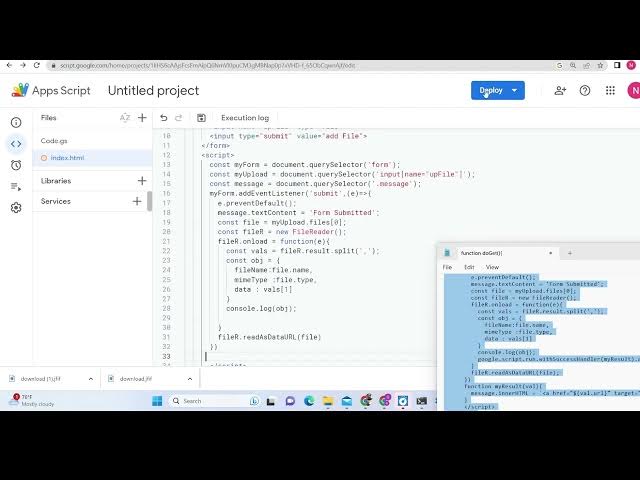
and then we will have the form element
6:08
and inside this guys we will have input
6:10
type file
6:13
and type
6:15
sorry here we need to give it a name
6:17
attribute of file.
6:20
So there is this is just valid HTML code
6:23
guys. If you have studied about uh HTML
6:25
JavaScript you will perfectly know what
6:27
I'm writing right here. So after this
6:29
input element guys we will have a button
6:32
simple input type
6:34
button or we can say submit
6:38
and the value will be simply upload file
6:41
that's all.
6:45
So now if you want to update this guys
6:47
you can simply say manage deployments
6:49
and then you can simply say you can
6:52
simply click this pencil icon and you
6:54
can create a new version let's suppose
6:56
new version and then click deploy. So
6:59
this will update your app and uh
7:01
updating you can see updating the
7:03
deployment once again if you refresh it
7:05
now you will now see a simple form here.
7:09
So now guys we need to simply uh write
7:11
the JavaScript code for this.
7:14
Just after the body is end here we will
7:17
write the JavaScript code.
7:20
So for the JavaScript code guys what we
7:23
need to do we will create some space
7:25
here.
7:28
So first of all guys what we need to do
7:30
here we will simply first of all get the
7:33
reference of the form. We will use here
7:35
document doquery selector.
7:40
And then we also need to get the file.
7:43
We will say document dot query selector.
7:48
And here we will say input of the type.
7:51
We have given a name attribute here.
7:57
So this name attribute was file sorry
8:01
name I think. Let me check. We will see
8:04
the name attribute was file. So we need
8:07
to give the same here. That's all. So we
8:10
will get access to that file that the
8:12
user select guys. After this we can
8:14
invoke a simple event handler to the
8:17
form guys. So we will say form dot
8:20
add event listener.
8:24
So when the form submits guys what
8:26
should happen? E parameter and here we
8:29
will say e.trevent prevent default
8:33
and here we will say that message dot
8:36
text content
8:39
and uh we will simply display this
8:41
message that the form is submitted
8:44
inside this div message it will simply
8:46
say that the form is submitted and now
8:49
after this we just need to transfer the
8:51
file so you will say con file and here
8:54
you will say that file dot file so this
8:58
will access the user has selected the
9:01
file guys. After this what we will say
9:03
we will say we will create a reader
9:05
object here we will use file reader
9:08
class which is available inside
9:10
JavaScript in order to read the file
9:12
which the user has uploaded and then we
9:14
will say that reader dot it contains a
9:17
meth uh event guys onload.
9:20
So inside this event what we will write
9:24
it will have a call back function.
9:26
Inside this guys you will get the value
9:30
and here you will say that uh the actual
9:34
file
9:37
reader dot result
9:40
dotsplit and we need to split it by
9:43
comma
9:45
and then we will need to construct a
9:47
object guys which will have three
9:49
properties. First is the file name. So
9:51
file name will be file name. MIM type
9:56
MIM type is actually the extension of
9:57
the image or file. File dot type and the
10:01
data actual data of the image. So this
10:03
is val
10:06
one that's all.
10:11
So after you do this guys we can simply
10:15
console log this information console log
10:17
object. So if I now simply update this
10:20
now guys, if I manage deployment, if I
10:24
try to create a new version of it.
10:29
So what you will find guys as I uh
10:32
basically select the image file here.
10:35
Refresh it.
10:38
Click on this button. You will now see
10:40
guys it is saying message is not
10:42
defined. Okay. I think it is uh saying
10:46
[snorts] that
10:50
we also need to get
10:54
the reference here which is
10:55
document.query selected
10:58
message
11:00
the class here. Yeah, that's again if
11:05
you deploy this
11:17
So just refresh it now guys again.
11:24
So it is saying cannot access file
11:26
before initialization.
11:33
Uh let me see guys what is the problem
11:35
here.
11:53
Uh just wait guys let me paste this code
11:56
here.
12:00
You can purchase the full source code
12:01
guys. The link is given in the
12:03
description of the video. Sometimes
12:04
errors can take place while you live
12:06
code it. You will see that now we have
12:10
this name attribute up file type file
12:15
and uh we have written on uh this line
12:19
console log object
12:22
and also guys we need to execute this
12:25
one
12:29
this line of code as well which
12:30
basically
12:33
file our uh this basically this is a
12:36
method guys read as data URL. [snorts]
12:39
So this is actually the method which is
12:41
required
12:44
read as
12:46
data URL and here we will pass the
12:50
actual file which the user has selected.
12:52
So this will invoke this onload event
12:55
handler guys which will actually insert
12:57
this information. So
13:01
let me also
13:04
delete this also.
13:12
Click on manage deployment.
13:30
Click on that. And now you will see that
13:32
guys there will be an object here which
13:34
will contains three properties that this
13:36
is the base 64 code of the image here
13:37
which will we will actually upload to
13:40
Google drive. This is actual file name
13:42
and this is a mim type here which is
13:43
PNG. If I change this to let's suppose
13:46
JPG file here you will now see this MIM
13:49
type now will be JPG. This is the name
13:51
of the file. This is the base 64 data of
13:54
the image. So after this guys, now we
13:56
need to simply uh
14:01
uh transfer this to a Google app script.
14:04
Here after we console log this object,
14:07
we will write this code here which guys
14:09
Google.cript. We need to run a script
14:13
with uh a success handler with success
14:16
handler.
14:18
And inside this function, we will pass
14:21
the function that we will execute my
14:23
result. And here we will add this
14:26
function which will get executed adder
14:28
file or you can call this as any file
14:31
any method upload we can pass this
14:33
object right here. So this upload
14:36
function we need to create guys this
14:38
needs to be the same here. So we will
14:39
create this function. So which will be
14:41
function upload. So this will have the
14:44
actual file which needs to be uploaded.
14:47
So we need to create this call back
14:49
function guys here at the bottom. So
14:51
this call back function will execute
14:53
whenever you got the result. So you will
14:57
get the value right here. You can
14:58
console log the value.
15:02
So inside this upload method guys we
15:05
need to actually upload the file.
15:09
So [snorts] we will simply say uh my
15:12
file and here we will use utilities and
15:16
it contains a method new blob and inside
15:19
this we will pass utilities dot base 64
15:22
decode. We need to decode that base 64
15:25
guys. We will say file dot data
15:29
and then we will simply say put a comma
15:32
and data dot name type
15:40
and then lastly we will say data
15:44
sorry this needs to be file dot name
15:46
type
15:49
and file dot name that's all. So these
15:53
are the three things guys we are
15:54
decoding that B 64 code by using this
15:56
method utilities dobb64 decode
16:00
mim type and file name.
16:03
After this we need the folder ID guys uh
16:06
for which we need to upload that. So
16:08
just go to Google drive and create a new
16:10
folder
16:12
and let me call this as sample. So after
16:15
you create this folder guys uh there
16:17
will be this id that you need to copy
16:19
paste folder id simply copy this folder
16:23
id. So inside this paste it
16:26
and then we will get the folder by using
16:30
this method drive app and it contains a
16:34
method get folder by id and we will pass
16:36
the id that's all and then we will get
16:39
the
16:42
uh information which
16:47
which is the URL.
16:51
Before that we need to upload the file.
16:53
So you will say file added.
16:56
This we it contains a method guys folder
16:59
create file and we will simply create
17:01
that file which was my file. After this
17:04
there will be two information which will
17:06
be coming the URL file which will be
17:08
file added. We will get the URL of the
17:10
file get URL and the second thing is the
17:13
name of the file. So we will display the
17:16
name as well. So data dot file name
17:21
that's all. So this is a two information
17:23
we will return guys this object that's
17:26
all. So this will actually upload the
17:29
file and it will return these two
17:30
information the URL of the file and the
17:32
name of the file. Now we need to display
17:34
this information inside this console
17:35
val.
17:37
So we can simply say message inner html.
17:40
We can manipulate the inner html of that
17:44
like this. You can see that
17:49
we are making the clickable link here so
17:51
that the user can click that link. So
17:53
now we can simply guys uh first of all
17:56
we need to save this code and for the
18:00
very first time we need to grant
18:02
permission. So simply click run here and
18:04
uh we need to grant permission. So
18:06
simply click on that and uh click on
18:09
advance and grant the permission for
18:12
your account. Click on allow. [snorts]
18:14
So after you grant the permission guys
18:16
it will execute. Now we can simply
18:19
deploy this and uh click on manage
18:21
deployment and create a new version.
18:24
Click on deploy. [snorts]
18:27
So once you click deploy guys uh now you
18:29
will be able to upload files. So just
18:32
refresh
18:35
if you select this file click form
18:37
submit it and now you will get this
18:40
image right here inside your Google
18:42
folder.
18:48
So it is saying add upload.
18:51
What happened?
19:08
I think some error error has taken place
19:10
guys. Let me see. Check here.
19:22
Uh just wait guys I'm just
19:30
again you need to paste that folder ID
19:32
guys that I talked about folder ID you
19:35
need to paste
19:46
Click on that save project.
19:55
Go to index html file guys and uh
20:01
paste the code right here. Let me paste
20:04
it here. The correct code. You can find
20:07
the full source code guys. Uh you can
20:09
purchase it. Sometimes while writing it
20:12
sometimes uh the error can take place.
20:14
So click on now manage deployment
20:18
and uh click a new version of it.
20:28
So now if we go to the URL guys, what
20:31
will happen here? Choose the file.
20:37
So now you see that guys the file is
20:39
uploaded. You will see that the file is
20:41
uploaded to my folder sample folder
20:44
which is present inside this sample
20:46
folder. You will see that now if I try
20:48
to upload another file here let's
20:51
suppose uh this PNG file. Click on that.
20:56
So you will see that this file will also
20:58
get uploaded. You will see that. So you
21:01
can purchase the full source code guys.
21:03
The link is given in the description. If
21:04
you still have some doubt, you can ask
21:06
in the comment section.
21:09
So this is a really awesome application
21:11
you have seen. So please hit that like
21:13
button, subscribe the channel and uh I
21:15
will be seeing you in the next tutorial.