Up next in 10

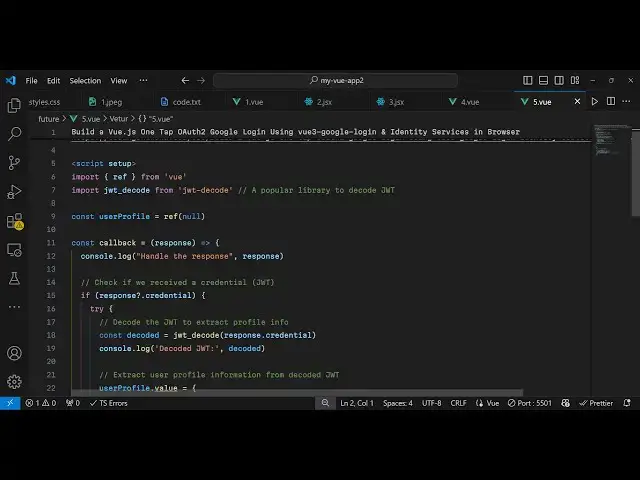
Build a Vue.js One Tap OAuth2 Google Login Using vue3-google-login & Identity Services in Browser
Jan 17, 2025

Get the full source code of application here:
https://codingshiksha.com/vue/build-a-vue-js-one-tap-oauth2-google-login-using-vue3-google-login-identity-services-in-browser/
Hi Join the official discord server to resolve doubts here:
https://discord.gg/cRnjhk6nzW
Visit my Online Free Media Tool Website
https://freemediatools.com/
Buy Premium Scripts and Apps Here:
https://procodestore.com/
Show More Show Less View Video Transcript
0:00
uh hello guys welcome to this video so
0:02
in this video I will show you how to
0:04
implement one tab o to Google login
0:08
system inside vuejs 3 so you can see the
0:11
demo on the screen we have a sign in
0:13
with Google button so one tab Google
0:16
authentication is this as I click this
0:18
button a popup window will open here you
0:20
need to select your Google account and
0:22
then Grant the permission so once you do
0:24
this your email and you can see this
0:28
profile picture will also
0:31
show and after you sub subsequent logins
0:34
will be one tap so as soon as you click
0:36
it it's using Google identity
0:39
services
0:41
so we are decoding the credentials
0:46
using the Json web
0:50
token so now to get uh started using
0:54
this I've given all the source code in
0:55
the description of this video so the
0:59
module is view3 Google login so if you
1:02
go to npmjs.com uh just need to search
1:05
for this module
1:07
view3 Google login so this is actually
1:11
the component here you simply search for
1:14
this and I've already installed
1:17
it so this is actually the command here
1:21
it's almost got 177,000 weekly downloads
1:25
so they have given the documentation on
1:28
this website so so this is you can read
1:32
more about the docs I will show you in
1:35
this video how to get started so first
1:37
of all you need to register this module
1:39
so for doing this you need
1:44
to let me just step bystep tell you and
1:47
all the source code I given in the
1:48
description of this video so you can
1:50
check out the source code by going to
1:51
the description link so first of all you
1:54
need to go to your main.ts file so this
1:57
typescript file you need to register
1:58
your
2:00
modules so for registering it we need to
2:02
first of all import this module so we
2:04
say import
2:07
view3 Google login and it will be coming
2:10
from this package
2:12
view3 Google
2:14
login so we simply import this package
2:17
and write this is
2:19
54 kilobytes and then we use this
2:23
register it component and pass an object
2:27
which actually holds your client ID
2:30
so this client ID will be coming from
2:32
Google Cloud console so you need to
2:34
create account
2:35
here and just go to here create
2:38
credentials or or client
2:42
ID and select from application type is
2:45
web application and in the authorized
2:47
JavaScript Origins you need to add the
2:50
homepage of your application so
2:53
HTTP Local
2:56
Host 5173
3:02
this is actually your homepage and also
3:05
in the redirect URI I forgot to mention
3:08
so here in authorized JavaScript Origins
3:10
you add your homepage and then in the
3:12
authorized redirect
3:14
URI you also add the same
3:17
URL your
3:21
homepage and there here also you do need
3:23
to add the Local Host version as
3:27
well so the Local Host Plus support
3:30
number and then the HTTP local if you're
3:32
developing it on Local Host and then in
3:34
the authorized redirect Ur same URL plus
3:37
the port number so click on Save and
3:40
then it will create your client ID so
3:43
simply copy this and uh paste the client
3:49
ID so that's all that we need to do and
3:52
now just move to app.
3:54
view and one more package we will need
3:57
here for this for it return Json web
4:00
token for decoding that we need this
4:03
package JWT
4:05
decode so just install this package as
4:07
well installing this it's almost got 7
4:10
million weekly downloads so right inside
4:13
your app. view file so you'll be having
4:18
this
4:20
template and also we will be writing the
4:24
typescript code in the script
4:26
tab so we'll rendering this Google login
4:29
button by using using this component and
4:32
we'll bind
4:33
this call back URL so we need to
4:36
configure this function uh variable call
4:39
back URL inside the
4:41
script
4:42
so we go to the types script code here
4:45
we require the necessary
4:51
packages and then we import the
4:55
JWT dcode which will be coming from
5:01
the JW to decode so
5:04
and after this we
5:07
declare the user profile variable by
5:11
default it will be null so here it'll be
5:13
storing the profile information of the
5:15
user once they successfully log in with
5:19
their Google
5:22
account and now we just need to
5:26
display this call back URL that we are
5:29
passed into this Google login
5:32
component so right
5:39
here we Define this function it's
5:42
actually a function not a variable so
5:44
it's a call back function so once you
5:46
are
5:47
authenticated this call back function
5:49
will execute so here it will be holding
5:51
the response here the response coming I
5:55
can just console log it just to check
6:01
so if you
6:02
refresh your
6:06
application so you will see this uh
6:09
automatically it will detect your Google
6:11
account and the profile picture and
6:14
account name will be showing so once you
6:16
just click this with one
6:21
tap the details will be returned here in
6:25
the console
6:27
log response here
6:39
I think you need to paste this
6:40
JavaScript code before this so the
6:43
template will
6:49
come so I think that is the problem here
6:53
that's why it was not a oh sorry we
6:55
haven't added this attribute setup so
6:57
that was a problem so just add this a
7:00
parameter to the
7:02
script so now as I click the
7:14
button so you see this object will be
7:16
returned to us which is the client ID
7:19
and this credential so this is your JWT
7:22
Json web token and we need to decode
7:25
this Json web token with this module so
7:28
what we do in inside this call back
7:30
function so we simply check that if the
7:34
response contains this credential
7:38
property if it is containing that then
7:41
we need to decode
7:43
that so we use this module which is JWT
7:47
decode it contains a function which is
7:51
decode and we decode this
7:56
credential and then it will return the
7:59
profile information so we can simply set
8:01
the profile information like this user
8:04
profile value and this is your object
8:06
the
8:09
name which will be decoded. name and
8:12
then the email will also
8:15
come so we can I can just console log
8:21
this and lastly your profile picture as
8:24
well so
8:33
so if I click this button right
8:44
here so it is saying that JWT decode is
8:48
not a function
8:50
uh
8:52
JWT de code sorry this doesn't you need
8:56
to directly pass
8:58
this we're directly using it
9:03
so so just make that change again run
9:06
this
9:09
so so now you will see the user profile
9:13
information which will be returned to us
9:14
the name this is
9:17
your username this is the email address
9:20
this is your
9:22
picture and in this
9:25
way now we can display this information
9:29
inside the template so we will simply
9:31
add a directive which is if the profile
9:35
information is available to us so we if
9:38
directive if the user profile object is
9:40
available then we need to display the
9:42
profile information which you simply say
9:45
welcome user profile dot the name so it
9:49
will display the username of the person
9:51
and then we will display the email
9:52
address
9:54
which like this so inside double quy
9:57
brackets so we say user file. email and
10:02
then we display the profile
10:12
information you can just make the
10:15
picture Rd to be
10:18
100% so now if you refresh you will see
10:22
automatically it will detect you are
10:23
currently logged in and it will show
10:26
the profile information you'll see that
10:30
the username plus the email address this
10:33
picture is uh belonging to a different
10:36
domain that's why it is not displaying
10:38
due to cross origin resource sharing
10:42
error but you can even display the
10:45
picture as well so in this way you can
10:46
implement the Google authentication with
10:48
one tap and in behind the scenes it is
10:51
using this Google identity
10:53
Services API which is a new way of
10:57
authentication in Google such that in
10:59
mobile devices you just need to press a
11:01
key just a tab and it will automatically
11:04
log you in so this is actually using
11:07
that behind the scenes so if you need
11:10
the full example code of this
11:11
application the link is given in the
11:13
description so you can get go to the
11:16
website and also check out my website as
11:19
well free mediat tools.com uh which
11:21
contains thousands of tools regarding
11:24
audio video and MH and I will be seeing
11:27
you guys in the next video