Up next in 10

Build a Next.js Google OAuth2 Login and Logout System Using NextAuth.js Library in Browser
Jan 9, 2025

Buy the full source code of application here:
https://procodestore.com/index.php/product/build-a-next-js-google-oauth2-login-and-logout-system-using-nextauth-js-library-in-browser/
Show More Show Less View Video Transcript
0:00
uh Hello friends welcome to this video so in this video we will uh actually build out a next chair's Google o 2
0:07
login and log out system and in the browser so let me show you the demo of
0:13
this application so whenever you open the application it will look something like this you will have a login button
0:20
and here whenever as you click the login button it will actually show you your
0:26
account screen of o2 as I click it you will see the sign in with Google button
0:31
it will redirect you to this URL and if you click it you will be redirected to the screen where you can actually select
0:37
your actual Google account that you want to log in here and as I select the
0:42
account here you need to Grant the permissions to this project and simply you need to click on continue so as you
0:49
click on continue it will redirect you to the profile page where you will actually see the details of your account
0:56
here which is name email address and also we have the log out button as well so you can just
1:03
see here so if I just close this window and
1:10
again if I open the same URL again so it will automatically detect that I'm already logged in here and it will
1:17
redirect me to the profile page so we don't need to log in again and again
1:24
so so it basically store this information in the session of the browser
1:30
so that's why it is automatically detecting that you already logged in so
1:36
there is a this log out button here if you click this button you will be redirected to the homepage right here so
1:41
now you are successfully logged out so if I close the window again open the same window once again it will now
1:48
detect that you are logged out and now it will show you the login window right here this is a very simple project and
1:55
we are actually making use of a library in next ch which is specifically made
2:01
for this process which is called as next.js this is their official website
2:07
here next. js. org you can read more about the documentation on your on their
2:14
website so we will look at a very simple Google login example in this video I
2:19
will show you step by step how to implement this inside your next
2:24
years so we will be using the latest version of recording this video at this
2:30
time next year 14 is released so so we will be looking at the latest version
2:35
here and we will be creating this project step by step so you can take any
2:40
Google account for example just you need to go to the homepage again I'm taking a different
2:46
account here you can see that again you do you just need to do it for the very
2:52
first time if you're login here by selecting your account granting permission so this you need to do it for
2:58
the very first time and then it will will actually show you the name email address and a log out button as well so
3:05
this is the actual application and uh if you are interested the link is
3:10
given in the description for the full source code if you are interested to actually
3:16
purchase the full source code you can go to my website Pro Cod store.com where I will actually given all the source code
3:22
which I will be using in this video with full documentation and support so the link is given you can go
3:29
to it and and after you purchase it you will actually get a zip file from Google Drive automatically after you make the
3:34
payment so the link is given in the description so now let's get started by building this
3:40
application so now I will be seeing you in the next section so now to get started guys we
3:48
are there inside my project directory so I will simply open command line here and
3:53
we will simply create a brand new Next CH project by invoking this command which is NP X create next
4:02
app so this is you can see that this is actually if I zoom in npx create next
4:10
app at theate latest so we are actually using the latest version here mentioning
4:16
because we are actually using nextjs 14 which is the latest version followed by the name of the project you can give any
4:22
name let me give here next to Google login
4:28
project so so as you basically execute this command it will ask you some questions right here would you like to
4:34
use typescript because in this specific project we are using typescript so I will simply set to yes you can even
4:41
change it to no as well but we in this tutorial we will be using typescript which is a superscript of JavaScript
4:47
with additional features so simply enter would you like to use eslint so es lint
4:53
is specifically used in testing so we don't need to use it so no we will be using Tailwind CSS for styling purposes
5:00
so simply yes and we will not be using the source directory at the latest
5:05
version we don't need the source directory app router we will be using it so
5:11
yes no so we are sticking to the default options right here and now it will
5:16
actually install the dependencies so once it's installed it will actually finish the
5:24
process so after installing it we just need to open this project in the vs code
5:30
so now it is completed right here we need to navigate to the project directory right here so we can simply
5:35
say CD next to Google login project and open this direct open this project in
5:41
this vs code so this actually will be the directory structure of a nextjs 14
5:47
app here this will be slightly different if you're using a uh older version of nextjs which is 12 or 13 because in next
5:54
CH 14 a lot more additional features is added uh because of the app router and
6:00
this is actually the page. txx file which is for stands for typescript and
6:05
jsx is also mixed here this is actually the homepage that you will see if I run the application and if I just want to run
6:13
this I will simply npm run Dev so this will actually start the development server on Local Host
6:19
3000 so by default in next year's 14 this will be all your routes are named as
6:26
page for followed by TS this is actually the page that you will see whenever you
6:33
open the application if I refresh it so it will automatically reload whenever
6:39
you make changes so it is just compiling it so just wait for the very first time it takes some time 5 to 10
6:46
seconds so it is compiled here you will see that so this is actually that you see right here we can edit this we can
6:52
delete everything from here you can just change here
7:00
write hello world so it will auto reload it will you can see that hello world is there so this is actually the
7:07
application we don't no longer need this image so what we will need to do right here uh so in the next section guys we
7:15
look start coding this project step by step so now in this section guys we will
7:22
actually start building this project so the very first file that you need to create right here in the root directory
7:28
is EnV file so just write in the root directory create this EnV file and here in this
7:34
file we will be storing some information some variables so these variables we will be
7:39
getting through Google Cloud console such as your Google client ID Google uh
7:45
client secret so whenever you are authenticating with Google you need to have these two things and we also need
7:52
next o secret so this can be anything you can have your secret key so you can
7:57
just provide any value right here this is just for the secret key for if
8:03
you're using nextto library and also the base URL of your application next off
8:08
URL so my base URL will be HTTP Local Host
8:14
3000 so if you are developing it for production here you need to put your website full
8:20
URL but we are building it on Local Host so that's why this is our homepage URL
8:26
and now these two values we need to get using the cloud console right here and
8:32
here you should have this uh you can simply type on Google which is Google Cloud console the
8:39
very first link which comes right here simply click it and go to console and
8:45
you should have signed up for this and creen a project I already have one so I
8:51
will simply navigate to the menu section so where I will see this option
8:56
right here apis and services go to credentials and uh here you just need to
9:01
create a client ID click on this button create credentials go to O client ID and
9:08
the application type will be web application so simply select from the drop- down web application and here you
9:15
need to fill out these details which is authorized JavaScript Origins which is actually the homepage of the URL HTTP
9:21
Local Host 3000 so whatever is the URL of your so we are running it on Local Host 3,000 so
9:28
I will simply right here and after that uh this will be the authorized redirect
9:34
URI so next Au if you search right here it has uh redirect URI for Google call
9:42
back if you just type this it will show you that specifically if you're doing Google authentication you need to put
9:48
this uh this is a route here you need to put / API sl/ callback SLG gooogle so it
9:55
has various providers for specific Google provider we need to put this redirect URI so this is constant based
10:02
upon your project this will not change so this will change the local this
10:08
one so this I will simply copy this and uh I will simply authorize
10:16
redirect URI the base URL will remain constant which is HTTP Local Host 3,000 after
10:23
that this will change / API SL / callback /g gooogle so this is
10:32
provided by next o so this will not change so redirect URI simply means that
10:38
whenever you basically allow the permissions so what URL Google will redirect you to so this is authorized
10:45
redirect URI after that click on Create and it will actually give you this information which will be different for
10:51
you so don't copy my information so just copy the client ID paste it here and you
10:58
will also get your client secret as well so just paste it here and in this EnV
11:05
file so simply close this file this is done right here after this you need to go to page. this is our home route and
11:12
right here we will delete everything from here and we will actually be having
11:21
this we will just be creating a base component right here in a a route here
11:28
so every route will have a name folder right here so login inside this we will
11:33
be defining page. TSX so here we will be importing this
11:46
uh we will just be importing it for the time being I can just write a
11:54
heading right here hello just here this will also work if you go to
12:00
Local Host 3000 you will see that hello world is
12:05
there so after this what we need to do we need to create a another file right here in this uh app folder so just
12:12
create a file called as session provider so just write session
12:21
provider dot TSX so in this specific file we need to
12:27
write this code that I'm writing right here it will be a client component in next CH it will run on the client and
12:34
from this we need to import the base react library and also we need to import
12:39
the session provider which is there from this package which is next o
12:49
package if you see that we and from
12:55
react so next to library contain this we can just rename up the file not
13:03
session provider just rename to provider so now if you see there is a
13:10
session provider available from this package that we
13:16
installed right here which is uh I think we haven't installed this package that's why it is creating this
13:22
problem so just go to command line and just install this package which is next-
13:28
npmi next dash off simply install this
13:33
package so once this package is installed you will actually get next to
13:40
slash react so this actually this session
13:47
provider you can see it's a function which is there inside this package so
13:53
what we need to do right here we need to create a function providers we need to W
13:59
our application to this session provider so this will actually take care whenever
14:05
you log in it will actually remember you that you either is logged in or not this
14:11
is really useful for that purpose that's why we are doing
14:16
this so if you don't include this then your information will not be remembered by the application so whether you are
14:23
logged in or not so here we need to wrap everything of our application to this session provider
14:30
inside this the children we will be having this so children here is the actual
14:36
application and here we are wrapping everything inside the session provider tag lastly we just need to export this
14:42
file so that we can include this in other files so export default this is a
14:47
very basic synex this is actually the file right here we are requiring the session
14:52
provider function which is available in next to package and then we are wrapping everything inside session provider of
14:59
the application so it's a client side component now we just need to go
15:04
to uh the layout file that you see right here this is the layout file layout file
15:10
typically actually have your metadata of your application such as the title description
15:16
so you can just uh rename this to Js from typescript so just layout. JS just
15:24
rename this to and after this
15:30
uh this is in typescript so what we need to do right
15:39
here we need to import like this so you will see that so we have changed this code right here you will find out the
15:46
full directory structure full code will be available in the description you will purchase it so we have just required the
15:52
providers file that we written right here in the previous so this we are requiring it by using the import
15:59
statement import providers from the providers file and then we are simply wrapping everything you will see that
16:05
this providers inside it we contain the body which is actually our application so
16:13
this is actually the body tag which is wrapped here in the provider tabs so now we are good to go so the configuration
16:19
is complete so now in the next section we will look at how to write the login
16:26
function so now guys in this section right here we will actually be building
16:32
out the login page that we created in the last section this is actually login
16:38
uh folder and inside this we have defined the page. TSX file and uh right
16:45
here we will actually be using the use client directory to actually tell it's a
16:50
client side component and we have will be a functional component I will change
16:55
the name to login so it will simply say to the user login page now I need to include
17:03
this in the base component in the index page so what I will do inside of instead
17:08
of this H world we simply include the login like this so if I refresh the
17:14
application you will now see login page so it is showing right here so now what
17:21
we need to do we just need to also go to the
17:26
public right here in the
17:32
global if you see everything is good right here no
17:37
error is there so what we need to do here in
17:42
this uh we need to write some jsx so in
17:49
the login uh I think in this yeah in this
17:56
file we just need to declare some variable first one will be for the data which will be of the type
18:03
session the data coming we'll use this use session directive which will be
18:09
coming from the next to package and it's a you may say it's a hook if you have
18:17
studied react you have you may uh just know what are hooks use State use effect
18:23
so one such Hook is use session which is actually provided by next to which will actually show you the session
18:30
information if the user is already logged in it will actually contain their profile picture email and name so we
18:37
have declared this variable for this now inside this jsx we will be having a diff
18:44
we will be giving Tailwind classes right here to it Flex item Center justify
18:51
Center so these are all Tailwind classes if you don't know about Tailwind it's a
18:56
framework where we have pre-made classes available for us so that we don't need
19:02
to write Uh custom CSS so BG gray is stands for
19:07
background changing the background color this is actually the shade which is there so inside this we will actually
19:15
be showing the login button so we will be having BG white background
19:25
white we will be giving a shadow on medium devices it will be rounded on large devices P padding six width will
19:34
be full w- full Max width on medium devices and the text will be on Center
19:41
so these are all Tailwind classes right here if you see so here we will simply have a button for
19:48
now so this button will simply show login right here so if you
19:54
just refresh right here so if you see right here guys we have this login button right here right
20:01
in the center position and the background is changed right here to gray color and the button background is also
20:07
changed to White so I can need to attach some classes to the button as well so
20:14
button BG blue 500 when we hover onto
20:19
this button the color will change to 700 text will be of white phone board
20:30
py2 PX so py is padding in the y direction
20:35
PX padding in the X Direction and it will be rounded
20:40
full so if you just refresh right here the login button is ready you will see that so this is actually the login
20:47
button after you do this so we need to attach a on click listener to it so whenever we click this button what
20:52
should happen so on click so here we will be defining a function which will be sign in
20:59
so this function will be coming from the next Au Library so all these methods are
21:04
pre-made available for us using next to so we just need to import these methods
21:10
which is sign in for signing in using Google and signing out as well this also
21:16
is a variable sign SS small sign out and
21:22
use session that we already imported so
21:30
so this all will be coming from one Library which is next o/
21:38
react so you will see that all these methods are premade available so we will be calling this method sign
21:46
in like this so you can see that uh we are simply calling this
21:56
method so this will be better so if you just click this now you will
22:04
be actually be having this 404 this page cannot be found because we haven't
22:09
defined our server side routes in next years you will see/ API sl/ error this
22:14
error you will take this this is quite normal because we haven't defined the server site code as well in next years
22:21
so server site code is located in the API directory so in the app directory you need to create our API directory /
22:29
API this is actually the convention in next gs14 quite a number of things have been
22:34
changed so these things the server code is located in the/ API if you want to
22:41
make serers side routes and then we will create the Au folder right here this is
22:47
specific specifically done for next o so in the ne o folder we need to create
22:53
another folder which will be a route in the square brackets dot dot dot next do
22:59
so this needs to be the same right here whatever I'm doing right here you need to do the same so next
23:05
do this is actually with the folder name and now inside this folder we need to
23:10
create a file which will be route. TS so we are coding in typescript
23:16
so that's why the name of the file should be route this is actually again if I tell
23:23
you this is actually the naming convention API then O then the square
23:28
brackets dot dot dot three dots followed by next do and then inside this we have
23:33
the route. TX file so if you follow the convention you will not get any error so
23:39
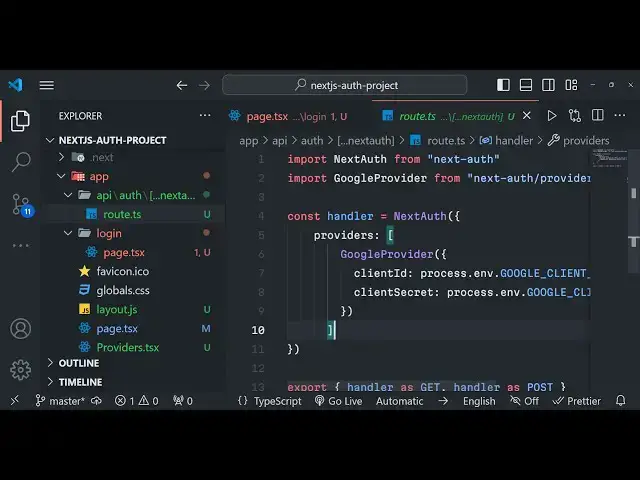
after you do this we now need to Define This Server code this is a server
23:45
component so that's why we will not write here use client because it's a server component so you'll simply first
23:51
of all import the next AU from next Au
23:57
simply and then we need to import the Google
24:04
provider so there are various providers available in next o one such provider is
24:10
Google o Google provider so SL providers slash
24:16
you will see you can do it for various providers are there various social media networks so one searches Google you will
24:23
see that so now we just need to write the Handler function which will actually
24:30
handle this request coming from the client side so this will this is the Handler function that we defining right
24:36
here next to and here we need to provide the provider array right here so this
24:43
array for now we are actually handling it for only Google right here so we'll
24:48
say Google provider and right here we just need to provide an object which will actually
24:54
contain these two details which is client ID and client Secret so both these information we have stored in the
25:01
environment file process dot now to fetch this information which we have defined in the EnV file we can simply
25:07
use the syntax which is process. EnV do followed by the Google unor client
25:16
ID and similarly for this process. env. Google client Secret
25:29
and also if if the information is not available in that case we'll just write this tary
25:38
operator so now we have defined this Handler function we now need to export
25:44
this so that we can use them so just write export this line is really important if
25:50
you don't write this then this function will not works export Handler as get and
25:57
also as post as as well so this function which we have defined right here it will
26:02
handle the all the get request and the post request coming from the client s so in this specific function we just
26:08
provided the client ID and the client secret that we configured in the earlier step that we got information from Google
26:15
Cloud console this will be different for you so these two things also need to be set which is a secret key next do/
26:22
secret and next. /url which is actually the homepage of the application so after you do this we Define this information
26:29
in the routee file so now if you make the changes
26:34
right here again if you open Locos 3,000 so if you click the login button
26:41
right here you will be redirected to this callback URL if you see/ API SL
26:47
signin this is actual call back URL and now if you see you will see the sign when sign in with Google button so if
26:54
you click it you will be redirected to your screen where you can actually select your Google
27:12
account let me restart the application right here
27:52
so once you start your application right here
28:05
just need to write npm runev so it will actually start your development server
28:31
so if you go to Local Host
28:38
3000 so just wait for it is compiling this information so
29:26
let me restart that application here you see it is starting right
29:40
here so basically guys whenever you grant the permission so there will be this login
29:47
button that we are showing right here in this uh login route here so whenever you
29:53
grant the permission uh there will be this session variable that we declared early on
29:58
this will come into the picture so right here we will just write conditional logic inside of a jsx we simply inside
30:06
curly bracket we will simply say if the session is not on then we will have a
30:11
tary operator right here and then we will basically shift all this code that we have written for the login button
30:16
that you see simply shift this code so conditionally we are entering the jsx so
30:23
if the session is on right here then only we need to show the login button if
30:28
the session is not available we have put a not symbol right here so if the session is not available then the user
30:35
is not logged in so in that case we will put a tary operator right here so if the
30:40
session is available in that case we actually need to show the
30:45
information to the user which will be a simple sign out
30:52
button or we can say log out button and we can simply onclick we can actually
30:58
call this function buil-in function which is sign out of next o
31:04
and these are all the Tailwind classes we can just give it to this
31:11
button and uh you can see that so we we you can see that we conditionally
31:16
rendering out if the session is not on then we are showing the login button if the session is on we are showing the log
31:22
out button and also if the session is available then also this this condition
31:28
will be true so in that case we will be showing the user information such as the profile picture email address all that
31:34
stuff so so these are all tailin classes so
31:40
right here it will be coming from the session so curly bracket session question mark
31:48
do user question mark- name so this will be the name of the person and then
31:55
similarly in order to show the
32:00
email address we will have do email so all this information will be
32:06
coming and similarly we will show the image to the user so image here will
32:17
be image like
32:25
this so we will give it the class name which is rounded
32:31
full w24 height is also
32:39
24 MX Auto to be Center on the screen so that's that's all guys for this tutorial
32:45
so you can see if the session is available then we are having this information the name of the person email
32:51
and the image so this will be shown so thank you very much the full source code link is
32:57
given in the descript description you can directly purchase it from my website brod store.com for full documentation and support and thank you very much for
33:04
watching this video please hit that like button subscribe the channel as well
#Programming
#Web Design & Development
#Computer Education