Up next in 10

Angular 13 ngx-material-timepicker Example to Embed Material Timepicker Input Field in TypeScript
Dec 22, 2025

Get the full source code of application here:
https://codingshiksha.com/angular/angular-ngx-material-timepicker-example-to-embed-material-timepicker-input-field-in-typescript/
Show More Show Less View Video Transcript
0:06
Uh hello friends, today in this tutorial
0:08
I'll be showing you that how to embed
0:09
material uh time picker inside your
0:12
angular application. So based upon that
0:15
you can have a input field where you can
0:17
pick time
0:19
inside both formats. Let's suppose 12
0:23
hours or 24 hours. So [snorts] this is a
0:26
simple input field out there. This is a
0:27
demo application we will be building in
0:29
this tutorial. So you will see that if I
0:31
click on this field a nice model window
0:33
pop-up window will appear. So this is
0:35
kind of like Google material design like
0:38
so you can see there is a clock like
0:39
structure and here you can select the
0:41
time whatever time that you want to
0:43
select in A.M. or P.M. So you can see
0:46
this is in uh 12 hours format. So which
0:51
time you want to select you can select
0:53
here A.M. PM. After selecting it, click
0:56
on okay. And your time will be selected.
0:58
If you want to delete the time, you can
1:00
click the cross button to delete it. And
1:02
once again, if you want to select it,
1:04
your time will be selected here. You
1:05
will see that. And now to select the
1:07
seconds, you can also minutes. You can
1:10
also select the minutes out there. Now
1:12
to change the hour, you can also change
1:14
it like this. So this is very handy
1:16
library. So we are making use of a
1:18
special library which is called as NGX
1:21
material time picker library inside our
1:23
angular application to
1:26
pick the time from this awesome pop-up
1:29
window time picker. If you want to
1:32
cancel you can click the cancel button.
1:34
There is also icon. If you click this
1:36
icon also then this window will appear.
1:39
So now let's suppose if I change this to
1:44
24 hours format. So now you will see 24
1:47
hours will be shown to the user instead
1:49
of 12. So if I click onto it.
1:58
So if I refresh the application.
2:03
So now there will be
2:06
24hour format. This is this is a clock
2:09
here which has 24 hours format. So here
2:13
you can select based upon which time you
2:15
want to select
2:17
like this.
2:20
[snorts] So this is a handy library guys
2:22
where you can just embed this uh time
2:24
picker and uh just take the input from
2:27
the user. So as I already told you I'm
2:30
using a special library called as ngx
2:33
time picker. So this is a library ngx
2:37
time material time picker.
2:41
>> [snorts]
2:42
>> So basically if you just write here
2:43
inside Google the very first result
2:46
which comes in this is the library that
2:47
we are using to build this tutorial. So
2:50
you can see it's a very popular library
2:52
almost 45,000 weekly downloads are there
2:55
and it has a very nice documentation.
2:58
All the options are given to you. So I
3:01
have also written a complete blog post
3:03
discussing about this library and also I
3:05
have given all the source code. So if
3:07
you want to implement this inside your
3:09
application, you can refer this blog
3:11
post. The blog post I have written in I
3:14
have given in the video description. So
3:16
if you go to the edit option, you will
3:18
find this blog post. So simply go to it
3:20
and download all the source code. So now
3:23
let's get started guys by building this
3:25
application. So inside my projects
3:27
folder, I will make a new folder which
3:30
will be time picker.
3:33
go into this folder and uh
3:38
make a new angular project which will be
3:40
time picker. So this will make a new
3:43
angular project inside this folder. So
3:46
basically it will ask some questions.
3:47
You don't need to have right routing. So
3:50
and CSS will be the stylesheet. So now
3:54
it will install these packages. So just
3:56
wait 15 to 20 seconds. So it is just
3:59
creating the project.
4:01
So after creating that project we will
4:04
be installing this dependency which is
4:06
ngx material time ticker.
4:10
So [snorts]
4:11
just wait here.
4:46
So now you can see the packages are
4:48
installed here. Now we can move into the
4:49
directory and we can open this inside
4:52
Visual Studio Codeex editor.
4:54
So now we can install this dependency
4:57
which is ngx material time picker.
5:03
So this is a command npmi ngx material
5:06
time picker.
5:10
So this is a brand new angular project.
5:12
So right here inside app domodule.ts
5:14
file you need to import the module. So
5:17
you need to write this line which is
5:20
but before that you also need some more
5:22
modules which is the forms module which
5:25
is a built-in module in angular. So we
5:28
are importing this from add the rate
5:30
angular/forms
5:32
and also we need to
5:36
also get the browser animation module
5:44
animations module.
5:47
So [snorts] this is present inside uh
5:50
angular platform browser animations.
5:57
So you also need this module as well.
6:00
And now we will be importing the module
6:02
that we have installed which is ngx
6:07
material
6:11
time picker.
6:13
So [snorts] if you see here it is just
6:16
installing it. So,
6:19
so now it has installed it. So, now it
6:22
will give you this ngx
6:27
material, time picker
6:31
module. So from ngx material time
6:35
picker. So we need to add this three
6:37
dependency which is forms module,
6:40
browser animations module and ngx time
6:45
maker module. So now just you can close
6:47
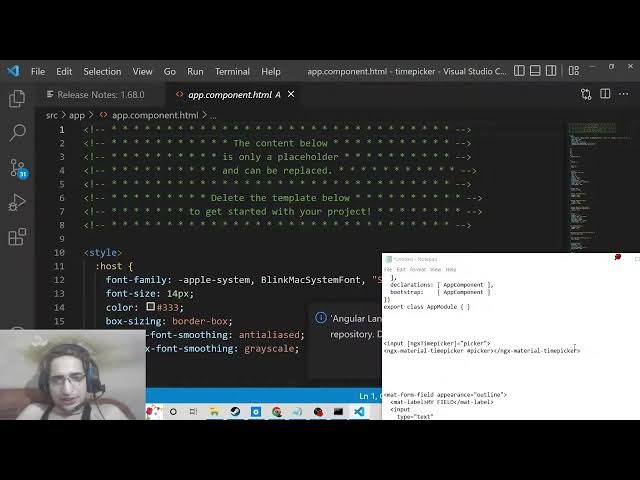
this file and uh now we can simply go to
6:50
app do.component html file and right
6:53
here we can simply have a input field
6:56
where we can attach this uh time picker.
7:00
So there is a simple option here which
7:02
is in square [snorts] brackets we can
7:05
simply write here ngx
7:08
time picker.
7:09
So the value will be equal to uh you can
7:13
attach any value which is picker and
7:16
then you need to use this value inside
7:18
this directive which is ngs ngx material
7:23
time picker.
7:25
So you need to attach this hash symbol
7:28
like this. So picker that's it.
7:31
So now if you reload the application
7:33
just start this application and gsurf
7:37
you will see a time picker on the screen
7:40
where we can select the time.
7:58
So now it has started this application.
8:00
So if I see here
8:07
so we have a input field right here guys
8:10
you can see that so this is a material
8:12
like time picker and uh here you can
8:15
select the time in AM and PM depending
8:18
upon which time you're selecting.
8:21
So you can see that very simple and
8:24
there are some options that you can
8:25
attach inside this. So these options are
8:29
very much if you want a 24hour clock
8:33
[snorts] time picker you can attach this
8:35
format option which is comes here. So by
8:39
default it is 12 you can change this to
8:42
24. [snorts] So if you refresh it,
8:54
uh let me see here.
9:33
ngx time picker. I think the value was
9:40
NGX time picker.
9:50
So here you cannot change the format
9:52
[snorts] in the first example. By
9:55
default the format comes as 12. You can
9:57
see that you can select the time here
9:59
accordingly.
10:02
So in the second example if I show you
10:06
there is a second example which is
10:08
there.
10:16
So this is the full HTML which is there
10:19
for it. Let me paste it. And right here
10:22
inside your this one.
10:59
So we are taking this example which you
11:01
see.
11:30
So for this you will need all these
11:32
dependencies. So this needs to be
11:34
installed for this. So I will not
11:37
install it. You can manually look at
11:39
this example by going to this link. So
11:42
this has some extra functionality such
11:44
as these icons. So
11:47
the functionality remains the same. You
11:49
can just pick the time of uh so it's a
11:52
material time picker. So that is the
11:55
library guys I wanted to discuss with
11:56
you. It's a very simple library which
11:58
you can integrate inside your angular
12:00
application to pick time
12:04
to allow the user to pick time. So
12:07
thanks very much for watching this
12:08
video. I will be seeing you in the next
12:10
video.