Up next in 10


Spark Overview
Show More Show Less View Video Transcript
0:00
in this video we are discussing spark
0:02
overview spark is actually required for
0:05
any memory cluster computing and as it
0:08
is in memory cluster computing so it is
0:10
lightning first and we know that memory
0:13
access time would be quite less compared
0:15
to the disk accessing time so in case of
0:18
in memory cluster computing we have
0:20
tried our level best to reduce the
0:22
number of disk read and write operations
0:24
and also the intermediate results will
0:27
be stored in the memory so that's why we
0:29
are going to enjoy hundred times faster
0:32
in memory cluster computing SPARC is
0:35
also having inbuilt API for Scala for
0:38
Java and also for Python so SPARC
0:41
applications can be developed in
0:43
multiple different languages so let us
0:46
go for more detailing about this spark
0:49
overview so what is SPARC Apache spark
0:54
is a lightning-fast cluster computing
0:56
technology designed for fast competition
0:59
and it is based on Hadoop MapReduce and
1:03
the main feature of SPARC is in memory
1:05
cluster computing that increases the
1:08
processing speed of an application so if
1:11
we do the processing doing the read read
1:14
operations from the disk obviously that
1:16
will be a slower one but here we are
1:18
going for in memory cluster computing so
1:20
SPARC is one of the Hadoop's sub-project
1:23
developed in the year 2009 in UC
1:26
berkeley's mplab by metal Johari a--
1:31
so here we are discussing the history of
1:33
this spark so it was open source in the
1:36
year 2010 under the bsd license and it
1:40
was donated to a purchase after
1:42
foundation in 2013 that's why we call it
1:46
as apache spark and now apache spark has
1:50
become a top-level Apache project from
1:53
the Year February 2014 so there is a
1:56
history of apache spark now features of
2:01
spark now why the spark has become so
2:04
popular let us discuss about its
2:06
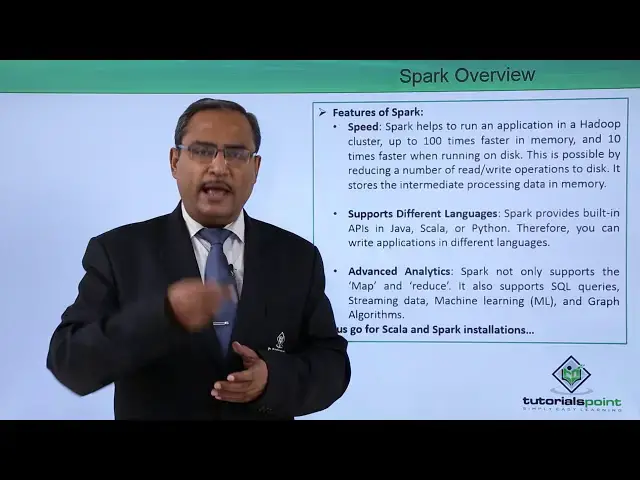
features first one is the speed spark
2:09
helps us to run an application in a
2:11
Hadoop cluster
2:13
in the or up to 100 times faster in
2:17
memory and ten times faster when running
2:20
on the disk this is possible by reducing
2:23
a number of read/write operations on the
2:25
disk because we know that if we reduce
2:27
if you can reduce the read/write
2:29
operations on the disk the process will
2:32
be executing faster that's why we have
2:33
done this one in memory and it's towards
2:36
the intermediate process to result also
2:38
in the memory so when the intermediate
2:41
processing will be done the result thus
2:43
produced will be also kept in the memory
2:45
so supports different languages there is
2:48
a next feature so spart provides
2:50
building api is in java scala and python
2:53
and therefore you can write applications
2:55
in different languages as you as well
2:58
we're going for the advanced analytics
3:01
there is an another very important
3:02
feature SPARC not only supports the map
3:05
and reduce it also supports SQL queries
3:08
and streaming data machine learning and
3:11
graph algorithms so that's why we can
3:14
develop differing kinds of data analysis
3:17
and we can go for advanced analytics
3:20
also on this park so let us go for the
3:23
installation process how to install
3:27
SPARC and Scala on our system we'll be
3:29
discussing with one demonstration video
3:32
we shall maintain step by step so that
3:34
also we can configure your system at
3:36
your end so here is the demonstration
3:38
for you in this video we are going to
3:41
discuss how to install Scala on our
3:44
system so here we are having the
3:47
download link so that is the HTTP colon
3:50
slash slash download slash like been
3:52
calm and this way the download link is
3:54
there
3:55
so we shall copy this download link and
3:57
we shall paste it on to our browser so
4:01
here we are opening one new tab and then
4:03
we have gone for the paste and directly
4:05
it will ask for the save the file and
4:08
the file will get downloaded onto the
4:11
download folder so now the file has got
4:13
downloaded automatically so we have
4:15
opened the respective zip file so we are
4:18
creating one new folder under home so
4:21
name of the folder were given a scala so
4:24
the folder has got created log into the
4:26
folder going for double-click control a
4:30
say drag solve the file support copy
4:33
download folder has been closed so here
4:36
we are having this Scala folder here
4:38
we're having this color folder with all
4:41
the files extracted now we shall go for
4:44
this particular part has to be put in
4:47
this / e TC slash profile file so after
4:51
downloading the file from the respective
4:54
URL so we have extracted the file we
4:57
have copied all the contents of the file
4:59
and we have pasted it on to a folder
5:01
naming the folder as Scala creating a
5:04
new folder discolour under the home path
5:06
and then we are going for this copy of
5:08
this export path is equal to so this
5:11
line has to be copied and that has to be
5:13
pasted paste it onto this EDC slash
5:16
profile file so now we have done the
5:17
copy then opening the file so sudo G
5:21
edit / EDC slash profile we shall come
5:27
at the end of the file and the path has
5:30
to be pasted here in for the save and
5:33
close now let me execute the profile
5:35
file at first so that the path will get
5:37
effective now to check whether the Scala
5:43
has got loaded or not I'm just going to
5:44
execute this color and that is very code
5:47
versions I'm going for this so in this
5:49
way you have shown you that how to load
5:51
scholar onto our system so we're going
5:53
for this execution at the Scala prompt
5:55
has come in this demonstration we are
5:58
going to show you that how to install
6:00
spark on our system so at first we are
6:04
going to download the spark here from
6:07
the link as it has been shown here and
6:09
as we are dealing with the Hadoop 2.4 so
6:13
the respective 2.4 version of the spark
6:16
will be required for our installation
6:18
for the compatibility issues so here the
6:21
download link for the spark is also
6:23
mentioned for the Hadoop 2.4 but also we
6:28
can search it from the list of all the
6:30
other versions of the spark available so
6:33
at first we are going for the copy of
6:34
this download link the URL is getting
6:37
copied and pasting it here
6:43
now he can find that respective version
6:46
that is Hadoop 2.4 the spark has to be
6:50
downloaded for the Hadoop 2.4 here so
6:53
going for the search so these are
6:58
download link also mentioned so now we
7:01
are going for the two-point full version
7:02
of the Hadoop so we have got it clicking
7:08
here save the file and then okay so the
7:12
file is getting downloaded onto our
7:14
download folder so progress has been
7:17
observed so the download has been
7:23
completed successfully so here we're
7:28
having the G file has got extracted
7:30
well under the home folder we are going
7:31
to create one folder with the name spark
7:34
and then log into that folder we're
7:39
going for con control a that is a select
7:41
all and then we drag all the files onto
7:44
the spark folder closing the download
7:46
folder here now we are going to set the
7:53
respective path here so we are going for
7:55
sudo G edit / e TC slash profile so this
8:01
particular file has to be updated with
8:03
the path giving the password so coming
8:07
at the end making a space here so this
8:17
the path to be copied so that his export
8:19
path is equal to dollar path colon slash
8:22
home big data slash spark slash bin so
8:25
this respective path has to be put to
8:28
that slash ATC slash profile file in the
8:32
copy and pasting it at the end saving it
8:36
closing it now coming to the terminal we
8:41
are going to execute the profile so that
8:43
the path will get reflect will get
8:46
effective and now we are going for this
8:48
spark execution so how to execute this
8:52
one spark - shell without having any
8:56
blank space in between you can find that
8:58
the spark is getting executed and in
9:02
this we have shown you that how to
9:03
install spark on our system so you can
9:08
find the scholar of has come here so
9:10
there is a scholar prompt so in this way
9:13
you have shown you that how to install
9:15
spark in our system and what are the
9:18
different steps we require to do so
#Programming
#Programming
#Business & Productivity Software