Up next in 10


Linux - Vim editors
Show More Show Less View Video Transcript
0:00
so basically into our previous video we
0:02
have discussed about our nano editors
0:04
and we have seen how we can edit the
0:07
file by using the Nano editor now let us
0:09
begin with your VI liters so VI editors
0:12
are improving eaters and that's the
0:14
reason they are also called as VI m
0:16
quite as we are deterred which is in
0:19
improved mode so generally is this
0:21
improved module of your VI liters so
0:24
this VI readers also we have since we
0:26
are using the Linux operating system but
0:28
they are again improved with some
0:30
certain features into the next letter
0:32
operating systems
0:33
now here this VI reader is again we have
0:36
in different flavors of your UNIX as
0:38
well as in Linux operating systems this
0:41
VR Deiters has a same concept what we
0:44
have into the Nano as well as into other
0:46
editors but using this particular we are
0:49
readers is bit different because we are
0:51
going to move into the file and using
0:53
certain tools and the commands which we
0:56
will see how we are going to do it the
0:59
next we have the speciality of VR eater
1:02
it uses very few resources to edit a
1:04
file so the consumption of resources
1:06
into it are very less the tools are
1:09
completely and built into the VI editor
1:11
itself so we do not have to call any of
1:13
your source files or any of the
1:15
resources to process those particular
1:17
source files or the methods the next we
1:20
have that is very friendly editors like
1:22
you have into the Linux operating system
1:24
they were called as IDI or e.x editors
1:27
into the older versions of your units so
1:30
this particular we are eaters is more
1:32
friendly than this to editors so again
1:35
if I'm talking the VR details the
1:37
editors can be used in two different
1:38
ways this can be used for different
1:41
works like file editing of file in a
1:44
different modes now here if I'm talking
1:46
about VI file name if you define a via
1:49
file name it will open a file into a
1:53
video editor or if suppose I haven't
1:56
created a new firm so automatically if
1:58
you give a VI space filename
2:00
automatically it will also create a new
2:02
file for you and you can edit a file and
2:05
save it the next we have that is VI
2:07
space - capital R and the new file name
2:10
now what it will do it will start your
2:12
file
2:13
read only more now if you do not want to
2:15
edit anything into a file or you do not
2:18
want to use a particular file for any of
2:21
your editing purpose you can just read
2:24
the file by using VI space hyphen r
2:26
because in VR dieter's it might happen
2:29
for the beginners like if they are going
2:31
to use a file or open a file and they
2:33
might use some keys or my mistake and
2:36
what it will do it will affect your
2:38
further because you are going to add
2:39
those characters in to defer so if I do
2:42
not want to modify it or if I do not
2:44
want to take any risk to open my edit
2:46
particular file which I have created and
2:48
we will tend to read only we can go for
2:50
VI space - ah the last one we have that
2:54
this V of following again if I am going
2:57
to see what are the files and really we
2:58
have created or which are the first we
3:00
have so we can use view and the file
3:03
name so it will show me all the existing
3:05
files into my command mode into the via
3:08
Deiters now what is this command mode
3:11
what I'm talking about the command mode
3:13
is as we are going to open a file into
3:15
the V inators we have two different
3:17
modes called as a command mode and the
3:20
insertion mode what they means now if I
3:22
am using the V inator if I directly open
3:24
a file by default that we are deterred
3:27
will be in a mode called as a command
3:29
mode means it is going to accept only
3:31
the commands not your text not your data
3:34
now if I want to add the data or
3:36
detection to differ I need to move into
3:39
the insertion mode for moving into the
3:41
insertion mode we have to press I or
3:44
insert key once you press the insert key
3:48
below the line of your file you will be
3:50
able to see the insert tab that means
3:52
you are in true insertion mode and you
3:55
can create your file you can add the
3:57
data into the file and for that you have
3:59
to again move into the command mode for
4:01
saving the file by pressing the Escape
4:04
key once you press the Escape key you
4:06
will be out into the command mode and
4:08
then you can save the file by using some
4:10
certain commands so what are the
4:12
commands generally which we are going to
4:14
use that we are going to see into our
4:16
video so let us move into the terminal
4:18
and use the via dator for editing the
4:20
file so into our layer station we have
4:24
edited the file by using the Nano
4:27
so I'll be using VI goat for the same
4:30
vowel so for opening a file are using
4:34
Livia agate or either you can use VI or
4:36
VI m the same as we used in animal
4:39
eaters then we need to define the file
4:40
name now my file name is fruit once you
4:45
move into the fruits you will show you
4:47
the number of line you have number of
4:50
character you have your cursor is on
4:53
which line and which column and showing
4:55
you all the features as of now so here
4:58
this is the you know V editor page and
5:01
you can find there is nothing written
5:02
over here just it is showing you the
5:03
number of line when you have started
5:05
with the file now I just want to you
5:10
know insert something if I press any key
5:12
it won't insert because this is into the
5:15
command line more so when you start a VI
5:17
Deeter by default it will be no command
5:19
line mode if I want to insert anything
5:21
into this file I need to press it or I
5:24
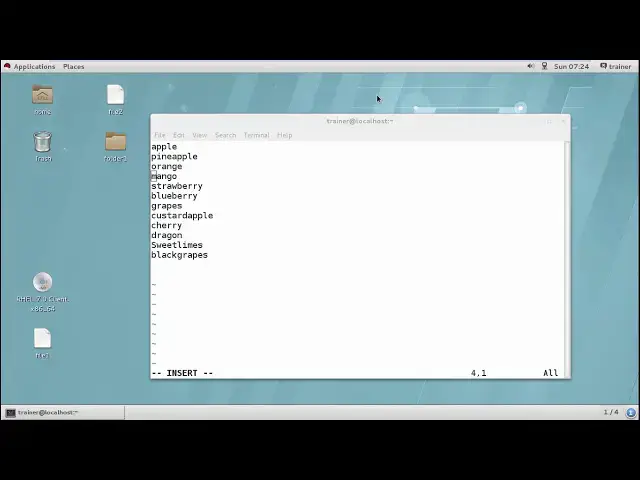
or insert key so once I press that you
5:27
can see it shows you insert over here
5:30
that means now you're in insertion more
5:32
and you can add whatever you want I'll
5:34
just fill up this blank space I want to
5:37
add the cherry and a dragon fruit right
5:43
so I have added two lines into it so
5:45
this is how generally we add the lines
5:48
now if suppose I want to copy a line now
5:52
for example I want to copy this mango so
5:57
for coughing this mango I'll just take
5:59
my course around the mango and then I'll
6:01
copy this now for copying a particular
6:03
file what you will be doing is I'll just
6:06
add our open a particular file here so
6:09
either we can go into the it is really
6:15
we have
6:19
you get it or generally what we can do
6:22
is we can even start with the different
6:24
terminals and the different terminal we
6:26
can go for G at it and hits it and I'll
6:31
just keep it aside but I can show you
6:34
the you know the keys which I'll be
6:37
using for performing tasks on my VI
6:40
heaters so ready force what I'm going to
6:42
do is I'm going to copy a line so for
6:44
copying a line you just have you know
6:46
key letters you need to press double
6:49
time that's twice why why instruments
6:53
yanked yang Mis you will be keeping this
6:55
fuzz hanging till you are going to pace
6:57
it so this is for copy a single line so
7:03
when you are going to copy keep your
7:06
cursor on the initial word of the line
7:08
or and then just press Y Y and that
7:12
should be in a command line mode you
7:14
should not write into the insertion mode
7:16
otherwise it will be typed into the file
7:19
itself then where I want to paste it
7:21
just we need to press P so it will paste
7:24
your line wherever you want to then if I
7:28
want to copy multiple lines so for
7:30
example I want to copy four lines I'll
7:33
use for YY so it will copy four lines
7:38
starting from two the initial line right
7:41
from where your cursor is the cursor
7:46
position right
7:51
and for pasting it again we will be
7:54
having B so let us check how we can do
7:56
this so here I'm on the world of mango
7:59
and I just want to copy this line okay
8:05
so for that I'll press escape to come
8:08
out of the installation more so you can
8:09
find now here
8:11
no insertion is written now I want to
8:13
copy this so I'll press white blue white
8:15
and then escape I that is for insertion
8:19
more or directly you can press the
8:21
insert key and come wherever you require
8:24
no and wherever you want to paste it so
8:27
just paste it by moving again into the
8:29
command line more and press P so you can
8:32
see this is pasted here same way if I
8:35
want to copy three lines or four lines
8:37
writing from the Apple so I will move
8:43
into the insertion more and more the
8:46
first line again I'll copy four lines
8:49
for example for y what so force that
8:54
again I'll come into the insertion mode
8:56
I'll come on the last line and hit enter
9:05
and I am going to paste it so you can
9:07
see at a time I have wasted four more
9:10
lines so this is how we can see how we
9:12
paste the lines same thing if I want to
9:16
delete a line so for deleting online
9:19
again we have D D or deleting a single
9:22
line
9:28
same way for deleting three or four
9:32
lines for the have to add those numbers
9:34
in front of your daily
9:40
all right so let us delete these four
9:43
lines which we have added so for that
9:44
escape DD if I do that build early only
9:47
one if I use skate 3 in DD so it will
9:52
delete three of the lines at a time so k
9:57
DD we can use for deleting line so this
10:00
is we have seen how we can delete your
10:02
lines right same way if I want to cut a
10:08
line and paste it somewhere so if I want
10:10
to more cut we can say so for that we
10:13
have C C so forth but a single line same
10:22
way for multiple line will have to CC
10:26
for two lines right cut two lines from
10:32
the person to person position and for
10:35
pasting it again we have the same we can
10:38
use P to paste
10:41
right so here I am going to come and
10:44
again moving into the insertion mode so
10:48
sudden for navigating I have to move
10:50
into the insertion mode so if I want to
10:52
cut just this sweet lamb so what I can
10:55
do is gain L come into the come on mode
10:58
and I'll press CC and now it you can see
11:02
it has been cut and now if I want to
11:04
insert it again I will come into the
11:08
last line and I'll paste by using P
11:12
Electra right so it has pin paste it's
11:16
same way if I want to cut multiple lines
11:18
like you know I want to cut this line
11:20
starting from blueberry till dragon so
11:26
this is one two three four and five
11:28
lines so I will use insertion more come
11:32
out of insertion more comments 5-cc so
11:36
it has cut these fly lines and now I
11:39
want to paste it here itself escape so
11:43
you can see the spin paste food is how
11:45
we can copy and peace now there are many
11:47
more things you have now if I want to
11:49
charge a particular word wherever it is
11:52
written so for that
11:54
just add one more here it is up okay so
11:58
twice I have used Apple now whenever you
12:01
want to find something into your via
12:03
teachers what you will be using you will
12:07
just use front slash and the word you
12:14
want to find so for example I want to
12:16
find Apple so I'll just use front slash
12:19
and Apple that - it should be in a
12:21
command line just search for Apple
12:24
search train me the number of times that
12:27
means is present in this particular file
12:31
right so my cursor will move to the you
12:34
know next file when I press n so n for
12:38
searching the next word right so go on
12:41
continue pressing n of 0 have given the
12:45
search command automatically it will
12:47
take you to the top of the page and will
12:49
search into the whole document so for
12:51
multiple search search will go on
12:59
pressing and so that is next search the
13:04
next word right now same thing if I want
13:08
to check for the you know number of line
13:10
I have like you know I have added
13:11
multiple lines now if I want to check
13:13
number of lines I have used so I can
13:16
also set the line numbers here by giving
13:18
the command : set and um B number so it
13:23
will show me in to thee the number of
13:25
lines I have used look this particular
13:27
file so these are some of the commands
13:30
now again if I want to save the contents
13:32
what exactly I have added into it so I
13:35
will be using : WQ : WQ means right and
13:38
quit again if I want to add like you
13:42
know I do not want to save or make any
13:44
changes to this file I will be using : q
13:47
and exclamation sign so whatever the
13:49
changes I have made into this file will
13:51
be flushed out so right now I want to
13:54
save it so I'll be using control that is
13:56
: W Q and hit enter
13:59
so now I can check by using the cat
14:02
command as well so this file will show
14:05
you whatever the changes I have done
14:07
here
14:07
right so chilly and dragon ah how about
14:09
it just now so this is how generally you
14:12
use DV editor there are many things into
14:14
the V editor you can use you know the
14:17
minor features there are many parameters
14:19
we use with the manner into this order
14:22
some of it correct so we have seen like
14:24
there are many things what we can do in
14:26
to thee we are little like we can find a
14:28
different number no words by using n we
14:31
can cut and paste multiple lines over
14:33
here that the facilities you know the
14:35
advanced features we have into thee V
14:37
editors so this is about the editing of
14:42
well so into the next videos or coming
14:44
videos I am going to explore more your
14:46
Linux operating system so keep watching
#Programming
#Programming
#Science
#Computer Science