Up next in 10



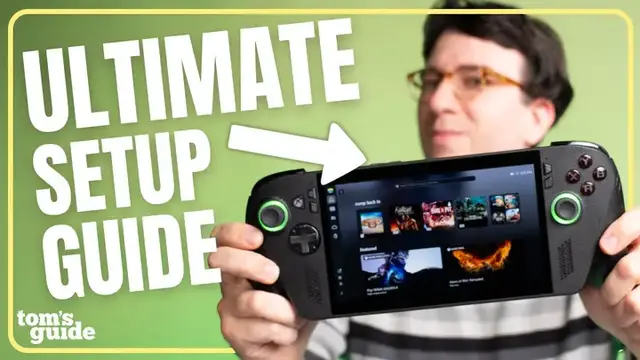
Just picked up anROG Xbox Ally or Ally X? In this episode of Setup Essentials, @Paul shares must know settings, apps, and gaming stores to get the best performance and value of this gaming handheld. No… the ROG Xbox Ally does not play Xbox games, but there are many Xbox games also available on PC, and many ways to play them including from Xbox Play Anywhere, Cloud Gaming, and other 3rd party stores like Epic Games, Steam, and more.
So if you want to know how to what games you can play, the best performance settings, and other must know setup for the ROG Xbox Ally, this tutorial has you covered!
Show More Show Less View Video Transcript
0:00
The Xbox ROG Ally X is one of the hottest gaming handhelds that you can buy right now
0:05
So if you're considering picking one up or you just got one in this episode of Setup Essentials
0:09
I'm taking you through all the new hardware and software upgrades and some really, really important gaming features and settings that you'll want to know
0:16
to get the most out of your new device. By the way, in this video, I'm using the ROG Xbox Ally X, the more powerful version
0:23
but this guide still applies to the base ROG Xbox Ally. Either way, if you're still trying to decide between the two and you haven't seen our full review yet
0:31
we strongly recommend the more powerful Xbox Ally X for its higher performance, better battery life, as well as higher storage
0:39
Whichever one you own, you should know that both of these devices are still Windows handhelds at the end of the day
0:46
But they still open the new Xbox full screen experience out of the box, which lets you access your games and game settings much more easily
0:54
Think of this as a gaming focus hub that helps you avoid many of the annoyances with Windows 11
1:00
especially poor touch controls that aren't optimized for smaller screens like the 7-inch display
1:05
It also turns off many of the usual Windows bloat processes that are happening in the background
1:10
that are known for eating up precious system resources when all you really want to do is play your dang game
1:16
Some of our tests have shown that the Xbox full screen experience can actually help the ROG Ally X
1:21
sometimes get about two to five extra frames per second in certain games. Is that life-changing
1:26
Maybe not, but who's going to say no to free performance? All right, so once you finish the
1:31
initial setup process, you'll be loaded into the new Xbox full-screen experience, and then by
1:35
default now, the ROG Xbox Ally and Ally X will boot into this mode, so let's get a little bit
1:41
more familiar with it. Now, if you're coming from an Xbox console or you've used the Xbox app on PC
1:46
recently, the layout here should look pretty similar. You can navigate using the physical
1:50
controls, but I find touch to be a lot easier. The homepage will show you the most recently played
1:56
games at the top. Below it, you'll see a list of featured games, a list like handheld optimized
2:01
titles. There's a search bar at the top that when opened up will also show you what games are
2:05
trending if you need a little inspiration. On the left column, you'll find shortcuts for Game Pass
2:11
Microsoft's Netflix-like subscription for over 400 plus games, which you can download and stream
2:16
for one monthly fee, but more on that in a little bit. Below that, you'll find the library shortcut
2:21
which shows you a list of games that you already have locally installed, are available to install
2:27
or that you can stream from the cloud. From the screen, if you click on the My Apps tab
2:31
you'll find other game stores like Epic and Steam, and I'll walk you through how to use those as well
2:36
But back on the left, the cloud shortcut shows you 100 plus console games
2:41
that you can also stream over the internet with no download required
2:44
and this is included with all Xbox Game Pass subscriptions. The bag shortcut is the Xbox Store page
2:51
where you can buy new games or browse the catalog of free ones. If you're subscribed to Xbox Game Pass like I am
2:57
you'll notice that many of these games are already included with your membership or are on sale
3:02
Then we find three small icons at the bottom. The bell shows you your notifications, such as updates and new game announcements
3:09
The people won are for your Xbox friends and chats. and the last one believe it or not this is supposed to look like an xbox here you can access your real
3:19
xbox if you own one and you want to stream games directly from your home console and then finally
3:24
at the very bottom you'll see your install and update queue there's a lot to like with the new
3:29
xbox full screen experience and while this is debuting on the xbox rog ally it is not an
3:35
exclusive feature microsoft has already announced that they'll officially be rolling out this feature
3:40
to more handhelds with future Windows 11 updates, which I think is great news
3:44
But if one of the main reasons that you wanted to buy or upgrade to the ROG Xbox Ally
3:49
is that you might not necessarily need to. And speaking of great news
3:53
we have lots of other awesome gaming content and setup essential guides taking you through all the new features and settings
3:59
on the tech that you love. So be sure to stay subscribed for Windows Drop. Sticking with the full screen experience
4:05
it also has its own built-in multitasking with a quick game and app switcher
4:10
that you can access by swiping from the bottom of your screen or long pressing on the Xbox app from the left
4:15
which will open the app switcher view. You can now cycle between your open apps and games
4:20
and use a touchscreen to click on the one that you want. Or you can select or close them using the A or X buttons At the bottom you also notice a shortcut to enter the Windows desktop You see a notification recommending that you use a mouse or keyboard here
4:35
because the experience is not optimized for touchscreens. Believe me, remember, this is still a Windows device
4:40
and you can use this like a computer if you ever need, but it is a good idea to use your peripherals
4:46
if you respect your sanity. And here you'll get the usual Windows 11 experience
4:50
which you might already be familiar with, which has your icons on your desktop, the start menu, and access to all your other Windows 11 apps and folders, which aren't available
4:58
through the Xbox full screen experience. Once you're done, you have a couple ways to get back
5:04
into the Xbox full screen experience. From the taskbar at the bottom, which you may need to swipe
5:09
up to show if it's disappeared, you should see the Xbox icon. You can click this to open it up
5:16
You can also press the Xbox button and select it from the quick shortcuts there
5:20
Now that we're in the Xbox app, you'll probably notice, however, that there's a new icon on the top right of your screen for Xbox full screen
5:29
When you click on it, you'll be asked how you want to open it. Select start now to quickly go to the full screen experience
5:35
But because we just accessed that Windows 11 desktop, all those extra processes and bloat are now running in the background of our device
5:44
And it could take a hit to performance and battery efficiency over time
5:48
So if we want to take advantage of the more streamlined Xbox full screen experience that we began the video with
5:53
we now have to completely restart the device so that it moves straight into the experience without the additional desktop running in the background
5:59
Honestly, it's kind of lame that you have to completely restart the device each time
6:03
But to be fair, most people probably won't be jumping back and forth as much
6:08
And I bet good money. We might even see a software update in the future, which makes this process a little easier
6:14
All right, before getting into your games, which I know you're excited for, let me quickly share a few other really important functions and settings that you'll need to know on the ROG Xbox Ally
6:25
Pressing the Xbox button once opens the game bar. This is a quick menu widget interface to access some important features
6:32
The homepage that you start in shows your most recently played games and opened apps
6:37
Using the right and left buttons or using touch controls, you can navigate to the other pages
6:42
The one on the right has quick settings including volume, brightness, Wi-Fi, and battery
6:48
as well as more advanced settings available at the bottom. The next page has your Xbox friends and your chats
6:56
Next is the audio mixer if you want to control volume for individual apps or switch your output device
7:03
Capture is where you can take screenshots or screen recordings. then there's the performance widget to see your system resources
7:13
there are also a few other tabs that you'll find to the right but they're mostly for
7:21
customizing things a little bit more so you don't need to worry about them as much now you may have noticed that i skipped over the very first tab
7:27
actually if we press the rog armory crate button here this opens what they call the command center
7:34
Here we find some really important settings. Operating mode changes the power of the device
7:41
with silent drawing the least amount of power, giving you longer battery endurance
7:46
This is fine if you're playing less demanding games and you want the best battery life
7:51
When you're on battery, the max power mode that you can get is 25 watts
7:55
But actually, if you plug this into a charger, you can unlock its full 35 watt mode for even more performance
8:01
Just make sure you're using a 65 watt or faster charger to support this
8:06
I also found it's useful to add a couple other quick access control modes for customizing and calibrating the lighting effects and brightness of your joysticks
8:15
as well as a pop-up keyboard for the times when it doesn't want to automatically open
8:21
Now, even though most things are going to be a bit more touch optimized in this experience
8:25
there's still a good chance that you'll run into apps or games where you'll need to access
8:29
the on-screen keyboard on the ROG Xbox Ally. In addition to using the command center method that
8:35
I just showed, you can also press the right back paddle and the D up in order to open it
8:41
Now you can type in whatever you need and then close up the keyboard when you're done. This is the number one setting that you need to change on the ROG Xbox Ally By default that power button at the top will fully turn off the device Why would they do that I can tell you the amount of times that I accidentally shut this off mid when all I
9:02
really wanted to do was put this to sleep. So if you're like me, you probably would prefer if this
9:07
was set to a sleep mode. So here's how to change that. Open game bar, settings, window settings
9:13
power and battery power button controls and set both the plugged in and on battery settings to
9:23
sleep or hibernate now you can quickly suspend the device and resume your games from the power
9:28
button it's absolutely crazy that this is not the default setting but now you know but speaking of
9:34
bugs the rog xbox ally is still a pretty new device and it's consistently getting better but
9:39
It does still occasionally have some issues. And you want to definitely make sure that you've got the latest software running
9:45
So here's how to update the ROG Xbox Ally. For your Windows 11 updates, open Game Bar, Settings, More Settings
9:57
Open Windows Settings, Windows Update. Install all the updates and restart the device when prompted
10:06
In addition to this, though, there are also driver and component updates
10:10
which you might only find in the Armory Crate app. And even though this device is only a few weeks old
10:17
a number of updates have fixed annoying bugs and made this feel even quicker and more responsive
10:21
So don't forget to check on these periodically. But now that I've gone over all these important settings, let's get into the games
10:28
There is a lot of controversy over whether or not this is a true Xbox
10:33
So what games can you play on the ROG Xbox Ally? For starters, this does not play Xbox games
10:39
This is a PC and it plays PC games. The good news is that many Xbox games, especially newer ones, are also on PC, but not all of them
10:48
So make sure you check compatibility first, which you can do by opening any game in the Xbox Store
10:54
scrolling down to the playable on section, which shows you what devices it's compatible on
10:59
You'll find a lot of the big-name games like Grand Theft Auto, Call of Duty, and Forza
11:04
Keep in mind that most of the Xbox games you won't be playing on the Xbox Ally X
11:09
are usually older Xbox titles, including some Gears of War sequels, the Fable Trilogy, and also Halo 5
11:16
But let me know what games you're playing most, and if they're compatible on the ROG Xbox Ally
11:21
or if you feel like something's missing out. Tied in with that, there's Xbox Play Anywhere
11:26
Xbox Play Anywhere is both a godsend and a curse. Here's why
11:30
There are over a thousand games in this catalog, which you only have to buy once digitally from the Xbox store
11:35
and that lets you play on all Xbox consoles, PCs, and handhelds at no additional cost
11:42
The progress goes with you, so you can pick up where you left off on one device and continue it on another
11:47
If you ask me, this is pretty great, but there are some important caveats. No, Xbox Play Anywhere does not apply to physically purchased games
11:55
It is only for digital copies that you buy from the Xbox Store
12:00
There are also a number of games that, while available on both the Xbox and PC version of the Xbox Store
12:07
are not part of the Xbox Play Anywhere catalog, and that includes big titles like Final Fantasy XV
12:12
You can scroll to the details of any game in the Xbox Store to see if it is an Xbox Play Anywhere title
12:19
Don't get me wrong, Xbox Play Anywhere is still an awesome deal, and it keeps adding new titles all the time
12:25
but you should always double check before you buy your next game to make sure it's compatible with your device
12:31
But the ROG Xbox Ally X isn't just limited to games from the Xbox Store
12:37
You can find the supported stores in Library, My Apps. The new Xbox full screen experience makes things even easier
12:44
as you'll be able to download and launch most popular game storefronts
12:48
including Battle.net, Epic Games, GOG, Steam, and Ubisoft right from the Library page
12:53
without needing to switch to the Windows 11 desktop. For the first time opening them
12:58
you will need to download, install, and log in, but afterwards, you should be able to quickly access
13:03
your library of games or even purchase new ones from those stores. You can install PC games just like you would
13:08
on any other Windows device. Sometimes these stores have better sales, free game promos
13:13
or for example, like Batman Arkham Knight, some games that you can't even buy from the Xbox store
13:19
So if a game not available in one store be sure to check the others because you might find it or even a better deal And here what really cool Once you install those games from those stores you be able to find them along with your other games in the Xbox game library They import with their game icons
13:33
and show you what store you downloaded them from. Granted, the game cards from other stores don't
13:38
look quite as pretty as the Xbox ones, but you can launch into these games directly and start
13:43
playing right away. But let me know what you think of the new game library. Even though the Xbox
13:50
Ally X is a PC and can't natively play every Xbox game. Xbox Game Pass subscribers can still
13:56
access console exclusives like UFC 5 and Skate 3 through Xbox Cloud Gaming. And even for games
14:02
that are also available on PC too, this is a great way to quickly try out new games without waiting
14:07
for large downloads, playing more demanding games that may not run as well on handhelds
14:12
and even saving battery as you're just streaming these games. So long as you have a good internet
14:17
connection, the experience here can be pretty solid. All Game Pass subscribers have access to
14:22
unlimited cloud gaming, but only those in the Ultimate tier, which yes, I am a part of, get
14:27
access to the highest resolution of 1440p streaming and the ability to stream other supported games
14:33
that they already own, which aren't included in Game Pass like Baldur's Gate 3 or even Cyberpunk
14:38
2077. So if you want that extra performance on the go, this can help a lot. Something to think
14:45
about as you debate spending either $999, $1499, or a whopping $29.99 a month, respectively
14:52
at the time of this video. Now, if you've already watched my iPhone 17 Pro gaming experience video
14:57
you'll know that I am obsessed with another cloud gaming service called NVIDIA GeForce Now
15:03
It's similar to Xbox Cloud Gaming, but has two major advantages. First, it has much better
15:08
performance, especially when you're connected to a fast LAN internet cable. Compared to Xbox Cloud
15:13
gaming, the visuals and latency are way better. And yes, I often forget I'm streaming these games
15:17
even when playing fast paced titles like Call of Duty Black Ops 6 and Overwatch 2
15:21
This is because GeForce now uses more powerful hardware to stream the games that you own from
15:27
other storefronts using up to RTX 5090 performance with near zero latency to a bunch of supported
15:33
devices, including Windows, Mac OS, Android, iOS, and even TVs. Yes, this is another subscription
15:39
that you'll need to pay for, but there is actually a free tier that you can try
15:43
that plays your games at lower settings with one hour game limits. But if there's one thing that this has showed me
15:50
this is probably the future of all gaming, so long as you have a great internet connection
15:54
And like I've already shown a lot throughout this video, the ROG Xbox Ally X isn't just great for playing on the go
16:00
It also doubles as a really awesome mini desktop gaming PC. If you wanna play your games on a bigger monitor or TV
16:06
you're gonna need a few accessories. Most important is a USB-C dock
16:10
so that you can connect to another display with HDMI or other accessories like peripherals
16:15
or external storage using USB. I'm using my Razer handheld dock Chroma here
16:20
because I'm a sucker for RGB lighting and it syncs with my other Razer peripherals
16:25
Speaking of which, for competitive shooters and other games, you're probably gonna want a solid mouse and keyboard setup
16:31
Personally, I've been using the Razer Basilisk V3 Pro and Deathstalker V2 Pro because again, RGB
16:37
but chances are you may already have a really solid combo at home that you can pair with Bluetooth
16:42
or connect with USB on the dock. And let's be honest, just because this is a handheld with Xbox
16:47
like controllers, it doesn't mean that you shouldn't also pair this with a real Xbox controller
16:52
especially when you're playing with an external display. The standard Xbox controller that you
16:56
probably already own works great, but for shooters, I really love my Scuf Instinct Pro
17:01
which has a better grip, programmable back buttons, and an instant trigger switch
17:05
So those are my must-have accessories for the ROG Xbox Ally, but what are yours
17:13
All right, so I know I have gone over a lot, but by now you should be very, very familiar with the ROG Xbox Ally and Ally X
17:22
If you found this video helpful, be sure to like and subscribe for more setup essentials
17:26
And let me know in the comments if you already owned or are planning to get the new Ally or Ally X
17:31
or if you have any other tricks or must-change settings. I'd love to hear those too
17:35
You can find us everywhere at Tom's Guide, and you can also follow me to see what other cool tech that I'm reviewing
17:40
And until the next one, I'll catch you later
#Computers & Electronics
#Gaming Reference & Reviews