Up next in 10



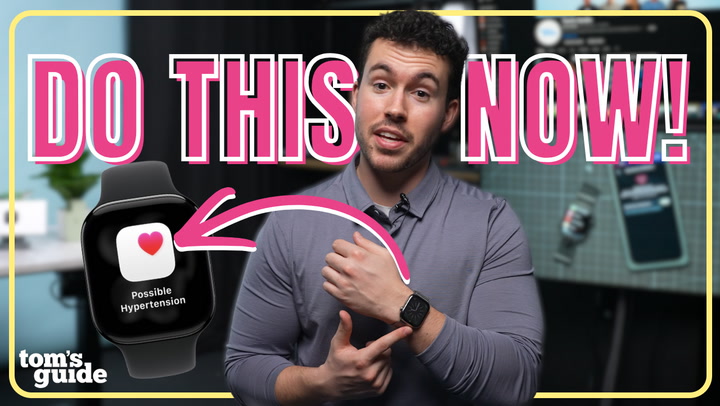
The Apple Watch is packed with powerful health and wellness features, and this one could genuinely save your life. Hypertension Notifications can notify you if your Apple Watch detects consistently high blood pressure trends, helping you catch potential issues early. Although it debuted with Apple Watch Series 11 and Apple Watch Ultra 3, this feature is available on Apple Watch Series 9 and later and Apple Watch Ultra 2 and later.
In this episode of Setup Essentials, Phil walks you through: how to turn on hypertension notifications on Apple Watch, what to do if you get a hypertension notification on Apple Watch, how Apple Health tracks blood pressure readings (and what it can’t do), important limitations, accuracy notes, and medical disclaimers to keep in mind.
Whether you’re setting up a new Apple Watch or want to get more out of its health tracking, heart monitoring, and wellness tools, this step-by-step guide makes it easy.
Show More Show Less View Video Transcript
0:00
Blood pressure tracking is one of the most requested Apple Watch features possibly ever
0:05
And while the Apple Watch can't measure blood pressure directly yet, Apple introduced hypertension notifications with WatchOS 26 alongside the Apple Watch Series 11
0:15
In this episode of Setup Essentials, I'll explain how Apple Watch hypertension notifications for high blood pressure work
0:22
how to set them up, and how to make sure you're using this health feature correctly
0:26
So make sure you watch until the end. I think it's important to start with the definition of what hypertension notifications are and what they aren't
0:38
so you guys have the right understanding of this Apple Watch feature
0:42
Directly from Apple, quote, hypertension is an ongoing condition that can cause damage to your heart, blood vessels, and other organs
0:50
Your Apple Watch can yze data collected by the optical heart sensor and notify you if it detects a pattern of hypertension, end quote
0:57
And hypertension is basically the medical term for high blood pressure. So the Apple Watch is not a blood pressure monitor, and it is not intended to diagnose or treat high blood pressure
1:09
Same goes for any related conditions like blood clots or strokes. Rather, based on patterns in the data the Apple Watch does collect, it can make educated guesses on whether you might have possible hypertension
1:22
The language here is really important, possible hypertension. So again, the Apple Watch is not a blood pressure monitor
1:29
Sorry to repeat myself, I just think it's important to make this super clear
1:33
And more than that this kind of blood pressure feature isn like heart rate monitor where you can just get on readings In fact you can actually get any readings For that you need an actual blood pressure monitor I link one in the description of this video that you can use at
1:49
home. But guys, it's really important that you speak to your healthcare professional about any
1:54
symptoms or guidance related to blood pressure monitoring. Now that I've gotten most of the
2:00
disclaimers out of the way, let's get into actually using the hypertension notification
2:04
feature on your Apple Watch. First, you'll need to check that you have an Apple Watch that supports
2:10
this feature, because unfortunately, it doesn't work with every model. It was released alongside
2:15
the Apple Watch Series 11 and Apple Watch Ultra 3, but with the watchOS 26 update, the Apple Watch
2:21
Series 10, Series 9, and Ultra 2 also got hypertension alerts. That's because Apple last updated the
2:29
watch's health sensor with the Series 9, so anything newer uses the same health tracking
2:34
hardware. If you're not sure what Apple Watch you have, you can actually check just on the
2:39
underside of the watch. It's labeled, but you can also check in your watch app under About in
2:44
General Settings. And if you're realizing your watch is not compatible, we got you covered to
2:49
upgrade with links to the best Apple Watch deals right now in the description. Now that you know
2:55
hypertension notifications are available for your Apple Watch, here's how to set up hypertension
2:59
notifications for high blood pressure on your Apple Watch. On your iPhone, open up the Health
3:06
app, tap your profile icon on the upper right corner, go to Health Checklist under the Features
3:13
section tap Hypertension Notifications Confirm your age and if you ever been diagnosed with hypertension then go ahead and tap continue Tap next to follow the on prompts to learn how the notifications work
3:26
And finally, tap done. Your Apple Watch will now, over the next 30 days, watch for patterns in your
3:32
health data consistent with symptoms of hypertension. Let's talk about what happens if your Apple Watch
3:38
sends you a hypertension notification and more importantly, what you should do next. According
3:43
to Apple, if you receive the alert of possible hypertension, it means your Apple Watch has
3:47
identified a pattern over the 30-day period that may be consistent with hypertension. This is not
3:53
an emergency alert, and it's not telling you that something is immediately wrong. Apple recommends
3:59
that you take note of how you're feeling and review the notification details in the Health App
4:04
From there, the best thing you can do is talk to a healthcare professional. You can share your
4:09
health data directly with them from the Health app, though you should be prepared to discuss
4:14
lifestyle factors like stress, sleep, exercise, alcohol intake, and diet, since all of these can
4:20
influence blood pressure over time. Apple is very clear that this tool is meant to support
4:25
conversations with your doctor, not replace them. So always rely on medical advice if you have
4:30
concerns or symptoms. So that's really all there is to the hypertension notification feature on
4:35
Apple Watch. By using Apple Health, you can track your blood pressure with an at-home blood pressure
4:40
cuff should you want to or be asked to by a healthcare provider
4:45
Open the Health app. Tap Search. Then tap Heart. Under Blood Pressure Log tap Get Started Follow the on prompts to indicate you have access to a blood pressure cuff Select your reason for logging your blood pressure then tap Next
5:06
You can even schedule a reminder notification to take your blood pressure if you'd like
5:11
Over time, these entries create a detailed log you can review directly in the Health app or share with your health care provider
5:19
Within the same health app, tap search, then tap heart, tap blood pressure, then tap add a measurement
5:28
Enter the date, time, systolic and diastolic, then tap add. Searching blood pressure also will bring up your log if you want to review it at any time or use it to share information with your doctor
5:40
And just like the hypertension notification, Apple is clear that the health app's blood pressure log
5:46
is meant to support conversations with your doctor, not replace professional medical care
5:52
Hypertension notifications are a great addition to the Apple Watch's collection of health features
5:57
It gives some peace of mind to know that your watch is paying attention in the background
6:01
to what's going on with your body. It's one of those features that never hurts to have enabled
6:07
but could have a major impact if it catches something you didn't know about
6:11
I hope you all found this video helpful, and I encourage you to check out our other Setup Essentials
6:16
in the playlist while you're here. As always, leave a like and subscribe to keep up
6:21
to make sure you don't miss the next episode. And until next time, I'm Phil Rodriguez
6:26
this is Tom's Guide, and I will see you in the next video. Thank you
Computers & Electronics
Health Conditions
Heart & Hypertension