Up next in 10

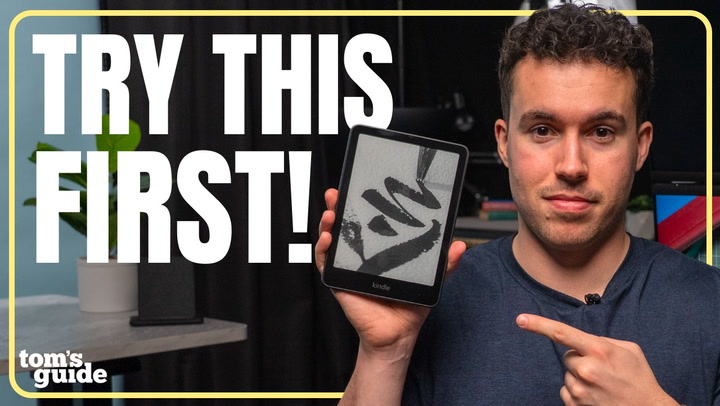
Amazon Kindle Setup Guide! Hidden Features + How To Get Books | Setup Essentials
Mar 2, 2026

In this video, Phil breaks down all the settings, tips, and tricks for Amazon’s Kindle lineup. He shows you how to get free books for Kindle, how to pair bluetooth headphones to Kindle, how to improve Kindle battery life, and even how to remove ads from Kindle. He also walks through which Kindle you should buy and how to get it set up so you can start reading!
Show More Show Less View Video Transcript
0:00
Hey guys, whether you just picked up a new Kindle or want to get the most out of the one you already
0:06
own, I'm here to show you the essential settings, features to try, and hidden tricks that make
0:11
reading on your Kindle e-reader smoother, cleaner, and more enjoyable. Welcome back to Setup Essentials
0:17
Let's get into the video. Amazon's current Kindle lineup has a couple of different options
0:22
but the features I'm going to be talking about today should work for pretty much every Kindle
0:26
model. That said, if you're wondering which Kindle you should get, I'll break it down real quick
0:31
The most affordable option is the standard Amazon Kindle. It's lightweight, super portable
0:37
and perfect for casual reading with its 6-inch, 300 PPI display. PPI means pixels per inch
0:44
so a higher PPI means more pixels are packed into each inch of the screen, which results in a sharper
0:50
clearer text. Then there's the Kindle Paperwhite, probably the most popular option with a larger
0:56
seven-inch display, adjustable warm light, faster page turns, and better battery life up to 12 weeks
1:03
This is pretty much the sweet spot for most people and my personal favorite. If you want color
1:09
Amazon released the Kindle Color Soft last year, which takes all the great experiences you get with
1:14
Kindle, but adds a beautiful color e-ink display. It's great for comics, graphic novels, magazines
1:21
kids books, and really anything where color matters. And at the top of the Kindle ladder
1:26
is the Kindle Scribe, which has a much larger 10.2 inch screen and supports note taking with a
1:32
stylus. It's ideal for PDFs, textbooks, journaling, and anyone who wants an all-in-one reading and
1:38
writing device. If you ask me, it's a different kind of device compared to the other Kindles
1:43
so let me know in the comments if you'd like to see a dedicated Kindle Scribe video. Some Kindles
1:48
like this paperwhite and the ColorSoft have a signature edition. This gives you a few benefits
1:54
that I think are worth it if you want the best experience from your Kindle. The storage bump
1:59
from 16 to 32 gigabytes is welcome, but the highlight features are the auto-adjusting light
2:04
and wireless charging support. The auto-adjusting light is great when you're moving from a bright to
2:09
a darker environment, and the wireless charging support is also really convenient if you want a
2:14
simple way to charge your Kindle while also making it act like a cool display piece. It's important to
2:20
note that the wireless charger does not come with the Signature Edition and you'll have to buy it
2:24
separately. It's about $45 and was made in partnership with Anker. It's a really nice
2:29
quality wireless charger and it even works with Kindle cases. Either way, I'll drop links to all
2:34
these Kindles in the description if you want to check them out. There are usually some good deals
2:39
running on Amazon too. On most of the listing pages to buy a Kindle, you might see Kindle Unlimited
2:44
included or without lock screen ads. Sometimes it can be cheaper to get one that has ads on the screen
2:51
but don't worry. You won't have ads while you read. They only appear when you power off the Kindle device If you bought a Kindle with ads and want to get rid of them it might actually be possible I got this tip from a Reddit post so success rate may vary but I personally had
3:06
success with this. When you buy a Kindle, choose the cheaper ad-supported version, and after it is
3:11
received, you can contact Amazon support to have them remove the ads. It's a neat trick that lets
3:16
you get the best of both worlds, savings and zero ads. Let's talk about how to set up your Kindle
3:23
To turn on your Kindle, press the power button on the bottom and choose your language
3:29
Connect to Wi-Fi, and of course you'll need your Wi-Fi password. Sign in with your Amazon account or create a new one
3:38
Choose whether you want to sync your existing Kindle library. That's if someone on your Amazon account already has or had a Kindle with some books downloaded
3:46
Now it's pretty much ready for you to use. Super simple. There are a few settings I would recommend checking out first to get the best experience with your Kindle
3:55
Go to Settings. You can find it by swiping down from the top of the screen to open the quick settings bar, then tap the gear icon
4:04
In Settings, select Account. There are various settings for Amazon Family and Parental Controls that are worth looking into if you share an Amazon household or want to set this Kindle up for your child
4:16
Back in the settings menu, select Wi-Fi and Bluetooth to make sure you connect any headphones you'd like to connect for things like audiobooks
4:25
Turn on Bluetooth, select Bluetooth devices, and then put your headphones in pairing modes they appear in the list
4:32
Tap your headphones name on the Kindle screen to connect, and now you're set up to listen to audiobooks
4:38
Next, we will go back to the settings menu and select device options
4:42
This will be a good place to do things like manage your storage and check for software updates
4:50
Software updates should automatically download and install on your Kindle when connected wirelessly
4:55
but you could still manually run a check if you're not sure whether you're up to date
5:00
There's also some really cool hidden features that you can enable for your Kindle
5:05
You can find these within device options. The double tap feature allows you to tap the side or back of your device to turn pages in books
5:14
or scroll down in home and library. It's actually a pretty handy way to navigate your Kindle
5:20
but keep in mind that when you use this feature you can only move the page forward, not backwards
5:26
There are also some features here that I would suggest adjusting if you want the absolute best
5:31
battery out of your Kindle device. Although the Kindle battery is designed to last for weeks
5:37
so it's already a powerhouse in that regard. Keep this in mind when you tweak certain quality
5:42
of life features, as it may be worth just keeping those on. The sleep timer is a great place to
5:48
start. This is where you can set how long your Kindle should wait before it turns off the screen
5:53
automatically Power saver is a feature you can turn on if you like to have the sleep mode also be a low power mode This could make your kindle boot up slower though when you turn it back on so don be worried if you notice that happens
6:08
back to settings go to screen and brightness here you can choose things like auto brightness
6:15
and reduce brightness at night to allow the device to choose how bright the screen can get
6:20
The brighter the screen, the more power it drains. Pretty standard. The Kindle has a few different gestures and swipe movements you'll want to be aware of
6:30
Within the main menu, swipe up, down, left, and right to navigate various pages and settings similar to a smartphone
6:39
You can access some quick settings by tapping or swiping down on the arrow icon at the top
6:45
Here, you can make quick changes to brightness, Bluetooth, or just go to settings
6:52
While you're reading a book, you can turn a page by either swiping across the screen
6:57
as if you were turning a book page, or tapping on the side of the page
7:02
If you turned on the tap features from earlier in the video, you can also double tap the Kindle to move the page forward
7:10
Swiping down from the top of the screen brings up the quick menu, whereas tapping the top of the screen allows you to bring up a reading menu
7:18
where you can change things like font, add bookmarks, view annotations, or just back out to the main menu
7:25
If you want your Kindle home screen to look a little less chaotic
7:29
there are a couple settings you can change right now. Tap the settings icon on the left and you can actually choose what shows up
7:37
like downloaded items only or sorting by read versus unread. Super helpful if your library is starting to look like a digital junk drawer
7:46
Then, up in the top right, hit the little double arrow icon
7:50
That switches you between grid or list view and lets you sort by most recent, title, author, or whatever makes your brain happiest
8:00
Basically, two taps and your Kindle suddenly feels way more put together
8:05
So, how do you actually download books onto your Kindle? Well, good news. The Kindle store is built in, so it makes it really easy
8:14
First, go to the home screen. Then, tap the shopping cart icon on the top right
8:21
You have various categories to choose from and can purchase books right from the store
8:27
If you have an Amazon Prime membership, the Prime Reading category provides books free of charge
8:34
Just tap Prime Reading to see the various options and tap Download on the book that you'd like to read
8:41
Bought books download instantly over Wi-Fi. Kindle Unlimited is a monthly paid subscription that gives you access to books, audiobooks, and magazine subscriptions
8:54
It currently a month but if you recently bought a Kindle you may have been sent to a free trial so be sure to check if you do You can sign up from Amazon or just sign up directly from the Kindle store
9:08
There are a couple of different ways to get free books on Kindle, but I'll tell you about the best
9:13
and most popular one. It's called Libby. All you need is a library card. So plug it into the Libby
9:21
app and suddenly you've got your whole library's digital catalog at your fingertips
9:27
From the app on your phone, you borrow a book, press send to your Kindle, and done
9:32
The only downside is you've got a loan window, so you might have to wait on some of the popular titles
9:37
but for free, it's totally worth it. When you're reading on your Kindle, you can do much more than just look at the text
9:45
For example, you can highlight parts of a book and take notes. Press and hold on a word or a sentence, then tap highlight or note
9:55
In some books, you'll even see lines that are more commonly highlighted by other Kindle users
10:01
If you're reading and are wondering what a word means, you can quickly find out
10:06
Press and hold on a word. Dictionary, Wikipedia, and translations appear instantly. How cool
10:14
If you want to bookmark on your Kindle, simply tap the top of your screen when you are on a page and tap Bookmark
10:21
A mini submenu will appear where you can select the plus icon to confirm your bookmark
10:26
To view any bookmarks you've made, you can tap the bookmark icon on the top right of your bookmarked page
10:33
and navigate the submenu to select the page you want to view. It even gives you a little preview of the page so you don't have to go back and forth if you choose the wrong page
10:43
Or, if you're not on a bookmarked page, tap the top of the screen to open the reading menu
10:48
and select the bookmark icon to view your bookmarks. If you notice your Kindle feeling slow or it's acting up a bit
10:56
you can try restarting it by first pressing and holding the power button for 10 seconds
11:01
Then tap Restart. If you want to sell or wipe your Kindle, you can go to Settings
11:09
then tap Device Options, and then tap Reset. This will wipe everything and return the Kindle to its original setup
11:20
That's all for this episode of Setup Essentials. Hopefully this guide helps you get the most out of your Kindle device, but do let me know
11:27
in the comments if you have any other questions about Kindle devices
11:31
Be sure to subscribe and hit that like button, and until next time, my name is Phil Rodriguez
11:36
This is Tom's Guide and I'll see you in the next video
#E-Books
#Computers & Electronics
#Book Retailers