Up next in 10



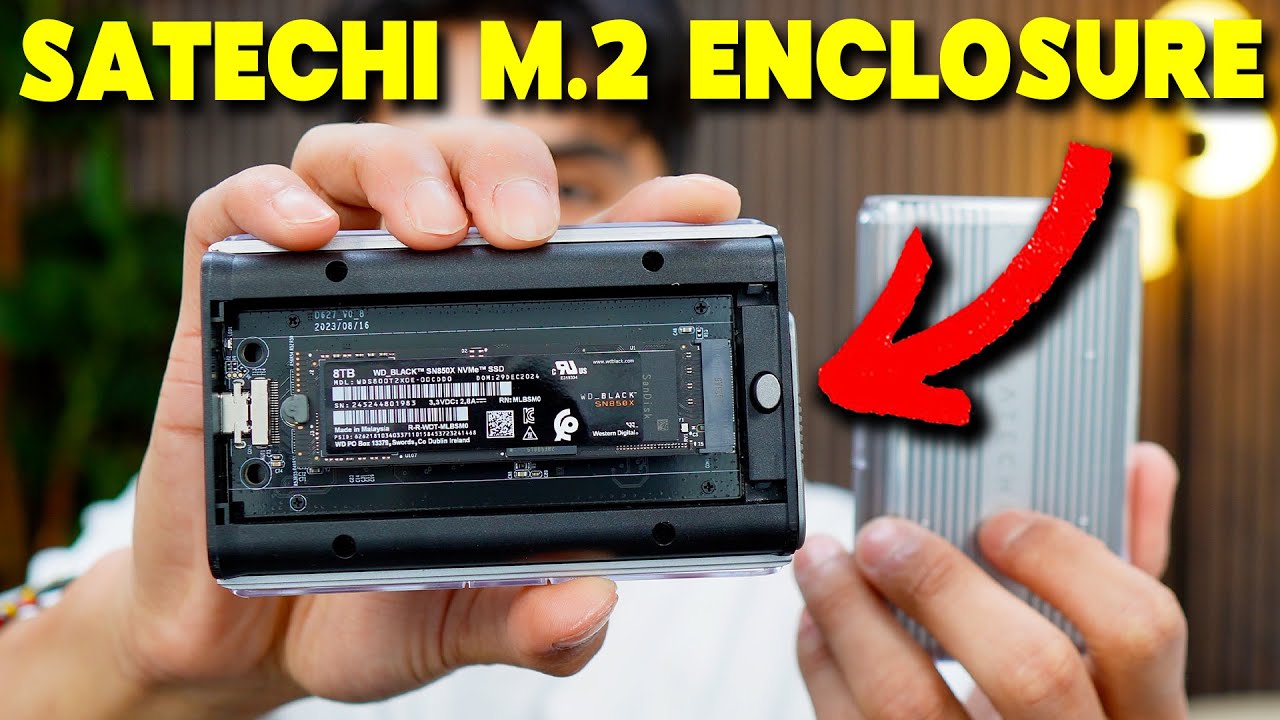
In this video, I unbox and do a quick test of the Satechi Pro SSD Enclosure & WD_Black SSD. Check it out here Satechi M.2 Enclosure - https://amzn.to/3QQTxYf WD_BLACK SSD - https://amzn.to/3QVpWgi Want FREE Shipping With Amazon Prime? Get a 30-DAY FREE TRIAL by signing up here http://www.amazon.com/tryprimefree?tag=chrisbarros-20 DISCLAIMER: This video and description contains affiliate links, which means that if you click on one of the product links, I’ll receive a small commission. This helps support the channel and allows us to continue to make videos like this. Thank you for the support!
Show More Show Less View Video Transcript
0:00
So I've been using the Samsung T7 Shields for a few years now and although they have
0:04
pretty good capacity I want even more capacity and that can get pricey so I invested in this
0:10
SSD and SSD enclosure. This way I can upgrade it if I ever need more storage and this is going to be 8 terabytes
0:17
by WD and this is the Satechi SSD enclosure. So I just want to do a quick unboxing and give my first impressions of it
0:29
So here's the Satechi SSD enclosure and here's the USB-C cable it comes with
0:34
And right off the bat, I'm noticing that it does have this plastic enclosure all around it
0:38
followed by like the metal frame on the inside. And to open this up, it looks like I just have to push this in like this
0:44
And it reveals the inside. And this is where I can put my SSD. And then inside, actually, there's already something in here
0:50
And that's the soft pad, which I'm not sure what this is for
0:54
But now let's move on to the actual SSD so I can put it in here. And here it is, you got the manual and eight terabytes of storage right in this little thing
1:06
And to install this in the enclosure and to do so, simply grab the enclosure and then put it like at a 45 degree angle, just like so
1:15
and then give this a push down and then there. Now you can see that the pins are fully inside here
1:26
and then this can push just like so and now there's this rubber piece and then I can rotate this
1:32
just to lock it in place just like so And before closing this up it time to grab that other piece that turns out this is thermal tape and this can be attached on the back like so So this is going to be the sticky side
1:50
It comes right off and give it a good push. And there now it's ready to close up
1:54
So right here you can see it's a techie and with this little thing here that's where the slider should go
1:59
So I'm first going to start by closing it from the backside like so
2:03
inserting the hooks in the back like that and then giving it a push and there it'll lock into place
2:11
now this is ready to start using so i have my macbook row and i want to attach it here to see
2:15
how fast the files transfer so there's like a little glue blowing indicator right here i'm not
2:23
sure if you can see that and then right here allow accessory to connect allow and let's see if
2:30
if something shows up. The disk you attached was not readable by this. All right, let me eject it
2:35
All right, so for some reason, it's not readable. So let me just try restarting my MacBook to see
2:39
if that helps. All right, so I'm not sure what's going on. But this might have to do with the
2:43
formatting. So I opened disk utility up. And here's what I currently see. We can see that the
2:48
capacity is currently eight terabytes. So it is a reading it, I'm just not able to use it. So
2:53
I want to go to first state up top here. Run first state and then run it
3:00
And then basically see what happens there. All right, so that's done
3:07
Now let me show the details. All right, so it says operation successful
3:12
It still doesn't show up over here, though. So let me go back and let me try something again
3:18
So let see if I press erase format All right so apparently with formatting if I go apfs this is only going to be for apple but if i want mac os and windows then exfat
3:33
and i want to be able to do both so i'll keep it as that format and i'll just label it as chris
3:40
8t for now and i also have the scheme so guid partition map master boot record and apple
3:46
partition map and it says GID partition map is best for Apple so I'll leave it as is and for most
3:53
optimal I should probably click APFS but because I also do want cross-platform compatibility I'll
4:02
leave it as ex fat so hopefully that won't slow things down too much and then click erase
4:06
all right done and let's see if this finally shows up yeah there it is so there it is chris 8t then we can double click this and then get info
4:22
and yep eight terabytes eight terabytes that's all good so now i want to see how long it takes
4:29
just to uh transfer over a file so my biggest file on my desktop would be this here
4:35
it's going to be 63.91 gigabytes again that's because most of my files is are already transferred
4:42
to some of these. And let's see how long it takes to transfer 63 gigabytes. Hold it, drag
4:48
it right here and ready set, let go. Alright, it took 51.82 seconds. And now what I want to try doing is actually reformatting
5:01
this again and seeing if I choose the other option if it going to be any faster than this So again let me go back to this utility Let me go to erase
5:12
All right, let me click Chris AT, then click erase. And then I'm going to format this to APFS
5:21
Erase. all right that's done and then going back over here you can see chris at is there
5:35
on get info and then i have the full eight terabytes again so now let me go to desktop
5:43
and then let me move over the file again and see how long it takes this time so again as a reminder it took 51.82 seconds last time
5:51
all right and it took 21.2 seconds this time so it's definitely a lot more faster a lot more
6:03
efficient again because that's made for mac uh so honestly i'll just keep it as this one i like
6:10
the fast and odds are i'm probably not going to be using this on a on windows because i just have
6:15
mac os so uh yeah i'll keep it as that and one more thing about the sateki enclosure is that the
6:19
plastic part can come out pretty easily if i just put my nail right here and then pull it up
6:24
there it is so we get the full metal frame but i guess this provides a little bit more of a layer
6:30
of protection so i'll honestly just keep that there i'll know just know because this is plastic
6:35
it definitely will scratch up uh i mean that really doesn't matter as long as everything inside
6:40
is safe. But again, yeah, that's a quick look at the Satechi SSD Pro and the WD8TB SSD
Computers & Electronics