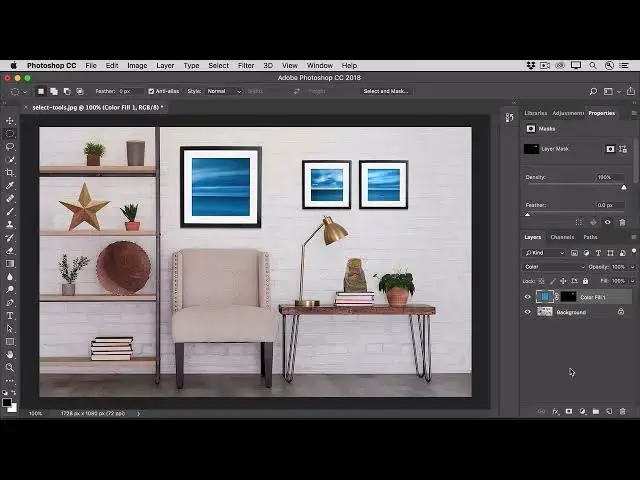

How to Make Geometric, Freeform, and Straight Edged Selections Rectangular and Square Selections in
Aug 31, 2024

In this video we will learn how to Make Geometric, Freeform, and Straight-Edged Selections Rectangular and Square Selections in Photoshop - www.easy-tutorials.com
What you learned: Make geometric, free-form, and straight-edged selections
Rectangular and square selections
The Rectangular Marquee tool is used to make rectangular and square selections.
Select the Rectangular Marquee tool in the Tools panel. Click and drag to make a rectangular selection.
If you want a square selection, press the Shift key as you’re dragging.
Oval and circular selections
The Elliptical Marquee tool is for making oval and circular selections.
Select the Elliptical Marquee tool in the Tools panel. Click and drag to start a selection. With your finger still down on the mouse/trackpad, press the Space bar on the keyboard too; then push the selection back to the edge of the object you want to select. With your finger still down on the mouse/trackpad, release your finger from the Space bar only, and continue to drag out an oval selection.
If you want a circular selection, press the Shift key too, as you’re dragging. Release your finger from the mouse/trackpad and then from the Shift key.
Show More Show Less #Design
#Photographic & Digital Arts
#Multimedia Software