Up next in 10

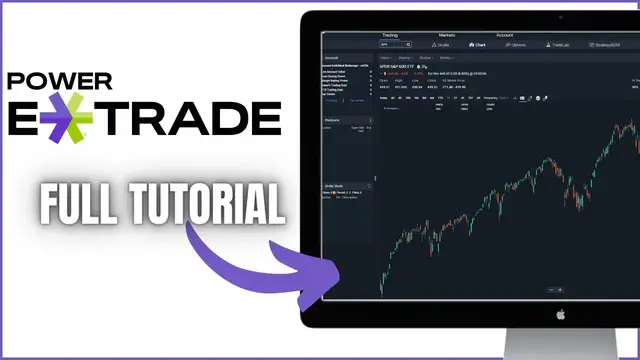
Power Etrade Tutorial for Beginners | Etrade Web Trading Platform Beginners Guide 2022
Dec 17, 2022


In today’s video we’ll be doing a full tutorial of the Power Etrade Platform.
This is the web based version of Etrade and not to be confused with the Etrade Pro Trading Platform. It doesn’t have all the featured and customization as Etrade Pro, but it’s still a great platform overall. Throughout the video we’ll discuss how to buy and sell stock, customize charts, buy and sell options, and the overall navigation of the Power Etrade platform.
Show More Show Less View Video Transcript
0:00
Welcome back to the channel everyone. In today's video we're going to be doing a full tutorial of
0:04
the Power E-Trade platform. This is actually the web-based version of E-Trade and is not to be
0:10
confused with the E-Trade Pro Trading Platform, although I will make a video on that one later
0:14
down the line. This one doesn't have all of the features or customization options like the
0:18
downloadable version, but I am actually a pretty big fan of it so far. Now there is a lot to cover
0:23
and this is probably going to end up being a long video, so feel free to check out those timestamps
0:27
down below if you guys do need to jump ahead to a specific topic. But jumping right into it
0:32
let's first go over how you can even access this platform and get it pulled up. To do that
0:36
we do need to head over to the E-Trade.com website and get logged into our account
0:39
As soon as we get logged in, we should see a page that looks a whole lot like this
0:43
but if not, all you have to do is come up here to the Complete View tab and go ahead and click on
0:47
that. Once you do, you just need to look on the right-hand side and find the Launchpad icon
0:51
Right below Launchpad, you're going to see the Power E-Trade platform, which is actually the
0:55
real version of our account where we could place real trades in Power E-Trade. And then right below
1:00
that is the paper trading version, which is actually the one we're going to access today
1:03
to get some practice in without risking our own money or putting our own money on the line
1:07
So to do that, let's just come over here to the launch button next to paper trading and go ahead
1:11
and click on that. As soon as we do and we open up Power E-Trade, you should see a screen that
1:15
looks a whole lot like this. And I know it's a lot to look at. There's a lot of flashing numbers on
1:19
the screen, but don't worry. I'm going to break this down as simply as I possibly can. Starting
1:23
off with, this page is kind of broken out into three separate sections, starting with the side
1:28
panel on the left-hand side. Now, that side panel is customizable. You can change the information
1:33
that's being displayed on there, but starting off with, you can see an account info section at the
1:37
very top. That account info box is simply going to tell us what is our account worth right now
1:42
how much buying power do we have, and how much margin do we have available to us. Right below that is a positions widget telling us what current positions we have in the account
1:50
what we bought those positions for, and how they're currently doing. The last thing in that side panel is going to be an order book telling us all of our recent trading activity in this account right now
1:58
Moving off of that side panel and looking to the right a little bit is going to be our main screen
2:02
the screen that we're going to be looking at most often in this platform. Right now, if you look up at the very top of your screen, you can see I've got the trading tab selected
2:10
and right now I'm on the quotes page. Now, at the moment, I do have Apple in this little search box on the left-hand side
2:16
so at the moment, it's showing me exactly how Apple is doing today. Was it up? Was it down? I can see a little chart of Apple
2:22
and I can see some basic fundamental data on the right-hand side. If I wanted to change that, I could always come over here to a charts page
2:28
and get a much more expanded view of the chart for Apple. If I instead wanted to look at an option chain for Apple
2:33
or buy and sell some options contracts on Apple, I could always come over here to the options tab
2:38
and then you can see it flips over to the option chain down below. I also have the ability to yze hypothetical trades using the trade lab button
2:45
although we probably won't stick on that one too much today. But other than the trading tabs up at the top
2:50
you also have the markets tab and the accounts tab. But these are going to be your navigational
2:54
tabs, how you're going to get around the platform using the trading buttons, the market buttons
2:58
or the account buttons. Moving on from that, you also see a panel on the right-hand side
3:03
which just like the left-hand side panel is customizable. You can change the information
3:07
that's seeing displayed over there on the right-hand side. Now at the moment, you do see I've
3:12
got some quick trade buttons so I could very quickly go in and out of a current position
3:16
Right below that, I've got a watch list of stocks I want to keep track of. And then finally
3:20
at the very bottom is news articles that have come out recently. So now you guys have a basic
3:24
understanding of how to actually navigate around this platform, let's jump into some of the
3:28
important stuff, things I actually think you need to know how to do in here. The first thing we're
3:32
going to go over is how we can actually create and customize our watch lists in this platform
3:36
To do that, we're going to come over here to the markets tab and we're going to make sure we've
3:40
got the watch list tab highlighted. Once we've got that selected, you can look down just below that
3:44
and see what watch lists we're currently looking at. At the moment, it's a watch list called default
3:48
watch list. And right below that, we can see all of the symbols in that watch list. At the moment
3:53
we're keeping track of companies like Apple, AIG, Citigroup, GM. To the right, we can see what the
3:59
current bid and ask is, what its current mark price is, its mark change for the day, percent change
4:04
and volume. If we wanted to change the watch list that we're looking at, we would simply click on
4:08
the name up here, default watch list, and select one of our other ones. In my case, I only have one
4:13
other watch list. It's called test watch list. And if I were to click on that, you can see I've got
4:17
only four companies in here, Facebook, Netflix, Microsoft, and Apple. If I wanted to add additional
4:22
companies to this watch list, I could simply come down here in the lower left-hand corner
4:26
click in this little search box, and type in the symbol that I want to add. For this one
4:30
let's say I also wanted to add Square. We'll go ahead and type in SQ and hit Enter. And let's say
4:34
I also wanted to add, let's say Palantir, Rocket, and let's just say Coin for Coinbase. And there we
4:40
go. I've just added four additional companies to this watch list, and now I can see all of the
4:44
current information about those companies. But let's say I actually wanted to create a brand new
4:48
watch list. I wanted to create a, I don't know, tech companies watch list. So what I'm going to do
4:53
is come over here to the three little lines or three little dots in the upper right hand corner
4:57
of our watch list. From there, as soon as you click on it, you are going to see a little drop
5:00
down menu that says edit watch list, select columns and add a new watch list, which is actually the
5:05
one we're going to click on in this example. From there, as soon as you click on it, you can see a
5:10
little box pops up here in the upper left hand corner, which is where we're going to type in the
5:14
name of this watch list. For this example, I told you I wanted to make a tech companies watch list
5:18
We're going to go ahead and name it tech companies here and we're going to go ahead and hit save
5:22
because we're happy with that name. From there, you can see my tech companies watch list has been
5:26
made, but I don't actually have any symbols in here yet. So let's come down here and start adding
5:30
a feel. We're going to go ahead and add Apple. Let's also do Microsoft and I don't know, Netflix
5:35
let's say. And there we go. I now have three companies in this brand new watch list. And also
5:40
now that I've actually created a watch list here, I could always access it over here on my side panel
5:45
now. And currently it says default watch list. But if I clicked on that, you can see those other two
5:50
watch lists that I've made. Test watch list and tech companies. Once I go ahead and click on tech
5:54
companies, you can now see Apple, Microsoft, and Netflix. And I can also add symbols down here below
6:00
as well if I wanted to add, let's say, Facebook to this list as well. Now, once you're happy with
6:04
the symbols that you have in here, you might also want to change the column headers up here, basically
6:08
the information that's being displayed about these companies. At the moment, you do have a lot
6:12
of good info up here by default, but let's say you wanted to add some stuff. To do that, all we have
6:17
to do is come back up here to the three little dots in the upper right-hand corner. From there
6:21
this time, we're going to find the Select Columns tab, and we're going to go ahead and click on that
6:25
As soon as we do, the column selection window pops up, and we can see all of our current columns on
6:30
the right-hand side, and all the columns we could add on the left-hand side. Now, let's say you are
6:35
an options trader and you also wanted to see let's say IV rank let me try and find it here there we
6:40
go all we're going to do is go ahead and hit the plus sign and we're adding it to our right hand
6:44
side here let's also say you wanted to see its performance over the past 12 months and right here
6:50
performance 12 months we'll go ahead and add that one as well and now that we're happy with those
6:54
two additional comms we just added let's just go ahead and hit save and there we go we can now see
6:58
all of the comms we already had before but we also have IV rank and the performance for the trailing
7:03
12 months up here as well. Now later down the line, let's say you decide you wanted to get rid
7:07
of those columns. All you have to do is come back up here to the dots, go to select columns
7:11
and click on the X button next to it to get rid of those if you don't want to see them
7:16
And there we go. They've just been deleted. Now I do want to mention you also have the ability to
7:20
put the columns that you find important down here on the side panel as well. This time you just need
7:24
to click on the three little dots next to this watch list and then say select columns. From there
7:29
you can see all of my current columns, mark, mark change, mark percent change, 52 week high
7:33
and 52 week low, but you can add whatever columns you find important over here on the left. Now once
7:38
we do save it, you'll notice that I actually can't see all of those columns I added right here
7:42
so I do have the ability just to drag it over and see those other ones, or I could widen out the side
7:47
panel, make a little bit of room to actually see that piece of information over here. But you can
7:51
see creating a watch list in here is actually pretty easy. It's pretty easy to customize it as
7:55
well and that's how you do it. But I think you guys get the idea it's actually pretty easy to
7:59
create and customize a watch list in here. So let's move on from that. Let's move on to placing
8:03
trades next. Now to start off with I will say there are many different ways to place a trade
8:08
in this platform and you can pretty much do it on every single screen that you're looking at
8:12
One way to always do it is simply find the trade button up here in the upper right hand corner
8:16
In the case of a paper trading account it does say paper trade here but all we would have to do
8:20
is click on that. As soon as we click on it an order ticket will automatically come up and in
8:24
In this case since we do have Apple pulled up it is an Apple order ticket If we wanted to change it to a different ticker we would simply highlight it here and type in the stock that we want to trade But in our case let just leave it as Apple And right below that we can see the action that we about to do In this case it does default to a buy ticket
8:40
But if instead we wanted to short shares of Apple, in this case, we could always flip that over to
8:44
sell instead of buy. Or we could flip it back to buy. Since in this first example, let's just say
8:48
we want to buy some stock. Just to the right of that, we can see the quantity of shares that we're
8:52
about to buy. In this case, it says 10. But if we wanted to change that, we would just highlight it
8:56
and type in the amount of shares we wanted to buy. In this case, you can see I flipped it over to 50 shares
9:00
but you can put in whatever quantity you want in there. Right below that, you can see the order type
9:04
that we currently have selected. In this case, it is a limit order, which just means we are specifying a price
9:09
If we wanted to change that, all we have to do is click on the word limit and we can see all of the different order types
9:14
right down below. Now, there are quite a few, but we're just gonna go over the ones
9:18
I think you're gonna use most actively in this platform. And we'll start with a market order
9:22
Now, a market order simply means we want this trade to fill immediately and we'll take whatever the current price is
9:26
Just get me those shares. So if Apple's current ask is $164.80, you're probably gonna fill right at $164.80
9:32
when you're buying. If you were selling shares, you're gonna fill instantly and you're probably gonna sell it right here at the bid
9:37
$164.77. You're basically saying, I'll take whatever the current price is, just give me those shares
9:42
Now in the next example, let's say you didn't want the shares immediately. You actually wanted to specify a price
9:47
That would be a limit order. So let's go ahead and flip that over to limit. Just to the right of the word limit now
9:51
you have a price box, which is where you can specify the price you want to buy these shares at. Let's say we only wanted to buy some shares of Apple if it dropped
9:58
down to 160 even. So we're going to go ahead and highlight that and type in 160. And there we go
10:04
Now keep in mind with a limit order, there is no guarantee that you will ever get filled because
10:08
there's no guarantee that Apple will ever drop down to 160. But that's what you're telling the
10:12
system right now. Only buy these shares of Apple if we can get it for 160 or lower. The last one
10:18
we'll talk about in today's video is going to be a stop order. So we're going to go ahead and click on the word limit here and switch it over to stop on quote or stop market. Now a stop order will
10:26
typically be used when you already hold the position and you want to get out of it before you lose too much money. So let's say in this example, we already have 50 shares of Apple and
10:34
we want to sell it if Apple ever drops below, I don't know, 150. So what we would do is flip this
10:38
over from a buy order to a sell order because we want to get out of it if it drops below 150. So
10:44
we're going to change that activation price to 150 here. And there we go. Now moving on from that
10:49
Let's actually flip it back over to a limit order so we can talk about the time and force box next
10:54
And we'll flip it back over to a buy ticket. Now, the last thing we'll look at in this order ticket right here is the duration or time and force
11:01
which currently says a day order. That's simply how long and when you want that order good for
11:05
At the moment, you're saying, I only want this order ticket good from 8.30 a.m. to 3 p.m. Central Time
11:11
If this order ticket does not fill by 3 p.m., just go ahead and cancel it. So if you wanted to extend that, let's say you wanted this order good until canceled
11:17
you wanted to try every single day to buy some shares of Apple at 160
11:22
We could go ahead and click on the word day here. And right below that, you can see a GTC order or good until canceled
11:28
That would simply mean you want to try and buy these shares of Apple every single day until it fills
11:32
So if it doesn't buy it today at 160, try again tomorrow. Doesn't happen tomorrow, try again the next day and the next day
11:37
And so on until it actually fills or until you cancel it. Now in E-Trade, you can see it's not truly a good until cancel order
11:44
You can see right here, it says 60 days max. So you would have to come back in here after 60 days and replace it
11:49
but that's what a good until cancel order is for. Right below that, you can also see a GTD order or good until date
11:55
That's basically the same as GTC, except you're going to specify an end date for it
11:59
Now for this example, we'll just leave it as a day order. Let's say we're happy with everything
12:03
We're about to buy 50 shares of Apple at a limit price of $160 or better
12:07
and it's just good for the day. If we wanted to submit this, we'll just come down here and hit the preview button
12:12
in the lower right hand corner. From there, it's just going to give you a little confirmation screen
12:15
just making sure everything looks right, telling us we're about to spend $8,000 on this trade
12:19
plus a $6.95 commission. So this would be the total cost of this transaction
12:24
If we actually wanted to place this, we were happy with the order, we would just come down here and
12:27
hit send. And there you go. The order ticket has been placed. We can see the confirmation right here
12:32
and we can see it over here on our order book on the left-hand side. Now in our case, since the
12:36
market is closed, you can't see it as a queued order, so it's not going to do anything until the
12:40
market opens back up tomorrow morning at 8 30 a.m central time but as soon as it does this order
12:45
ticket will go out there to buy 50 shares of apple at 160 or lower now like i said there are many
12:50
other ways to trade stock in this platform so let me go over one more example here let's go ahead
12:55
and access out of here looking at my watch list here we can see four different stock tickers but
12:59
we can also see the current bid and ask for those stocks as well in this platform anytime you click
13:04
on a bid or an asking price it will generate an order ticket if you click on the ask it'll generate
13:08
a buy ticket. If you click on the bid, it'll generate a sell ticket or a short ticket. So let's
13:13
say in this next example, we did want to buy a hundred shares of Facebook. We'll come over here
13:17
to the current asking price for Facebook, and we'll click on that number 202.69. As soon as I do
13:22
you can see it brings up an order ticket to buy 10 shares of Facebook at a limit price of 202.95
13:28
Just like before, if we wanted to change that, we would simply type in the number of shares we
13:32
wanted to trade. In our case, we're going to type in a hundred. We only wanted to buy it if it dropped
13:36
down to 200 let's say so we'll go ahead and type in 200 here and now that we're happy with it we'll
13:40
come down here to review it we'll make sure everything looks right once it finally opens up
13:45
and in my case it looks good so we're going to go ahead and send that order out there and there we
13:49
go we can see the order ticket has been submitted but just like in the previous case it has been
13:53
queued so it's not going to do anything until 8 30 tomorrow morning once the market opens back up
13:58
now the last example of trading stock in here that i'll go over is these little trading buttons
14:02
over here on the right hand side. Now in this case you do have to be mindful of the stock that is
14:07
currently in here. So right now I've got spy and spy at the moment. So let's say I wanted to change
14:11
that to I don't know let's say I trade Apple frequently as well as Microsoft. So I'm going to
14:16
go ahead and throw in Apple and Microsoft in these boxes here. And now what it's saying is anytime I
14:20
click on these buttons I can buy or sell shares of Microsoft or Apple anytime I want. Now at the
14:26
moment it will still give me order confirmations because I don't have this auto send button check
14:30
marked, but if I did, anytime I clicked on buy market or sell market, those order tickets would
14:35
be instantly submitted. So this one's much more straightforward. Here I can see I've got Apple
14:39
I've got 10 shares of it, and if I were to hit buy market, an order ticket would be submitted to buy
14:43
10 shares of Apple at the market price. Since I don't have auto send selected, it did give me this
14:49
little order confirmation screen, but if I wanted to get rid of that, I would just come up here and
14:52
check mark auto send. So you can see there are many different ways to trade stock in this platform
14:57
but really it's just whatever makes the most sense for you, whatever way you want to do it
15:01
Moving on from that, let's say you actually decided to cancel those working orders or to
15:05
edit them in some way. Well, there are a few different ways you could do that as well. Starting with the order book over here on the left-hand side, we could simply click on the
15:12
thing that we want to change. So in the case of Facebook right here, let's just go ahead and click on that. From there, you can see a little window pops up over here on the right asking us
15:19
what we want to do. From here, we could either choose to outright just cancel the order, we could
15:23
modify it, or we could copy it in some way. In my case, let's say I just want to cancel this order
15:27
So all I'm going to do is come down here and click on the cancel button. It's as simple as that. We
15:31
can now see that that order ticket has been canceled to buy 100 shares of Facebook. But let's
15:36
say next, I actually wanted to edit this order on Apple. I no longer wanted to buy 50 shares at 160
15:40
I wanted to drop it down to only 25 shares. So to do that, I'm just going to go ahead and click on
15:45
it just like before. This time in this little pop-up window here, I'm instead going to click
15:49
on the modify button. From there brings up an order ticket just like before. And in this example
15:53
all I have to do is change it from 50 shares to 25 shares because I wanted to bump down the
15:58
quantity a little bit. I'm still happy with it being a limit order at 160. And you know what
16:03
I'm also going to change it from a day order to good until canceled. So we'll flip that. And now
16:08
that I'm happy with all of the changes, we'll go ahead and hit preview. And I'll hit send because
16:12
I'm happy with this confirmation screen. And there we go. We can see my previous trade to buy 50
16:17
shares has been canceled and replaced with an order to buy 25 shares and it's also been adjusted
16:21
to a good until cancel order. Now I could have also done this exact same thing by coming up here
16:26
to the accounts tab at the very top here and I could do it from my order screen right here just
16:31
by clicking on it just like before. However instead of getting a little pop-up window I would instead
16:35
come over here to the far right hand side and either cancel it, modify it, or copy it. But again
16:40
I could do that from account and the orders tab. But I think you guys get the overall idea of how to
16:45
place equity trades in here and how to cancel or edit them in some way. So let's move on to trading
16:50
options next. So to do that, we do need to come back up here to the trading tab. And this time
16:54
we need to come over here to the option chain. So now that I've got this opened up, let's actually
16:58
get rid of this little order ticket here And now we can see an option chain for Apple down below And just as a reminder if you ever want to change the symbol that we looking at here you simply need to come up here to the upper left corner and then type in the symbol that you wanna flip it to
17:12
In our case, we'll just go ahead and leave it as Apple and let's go ahead and dive into how to actually read this option chain
17:17
and place trades in here. To start off with, at the very top here, you can see some basic stock information
17:22
So in our case, we can see Apple last traded for 164.32. It was down $2.98 today and down 1.78% overall
17:30
looking over towards the right hand side we can see some relevant options information like the
17:35
current iv rank current iv and current iv change for the day and then finally right below that we
17:40
can actually see the option chain itself and up at the top here we can actually see the dates of
17:45
expiration so right here 25 february 4 march march 11th and so on and you should have noticed as i
17:51
clicked on it it did open up the option chain down below here so you'll see if i uncheck them those
17:56
option chains disappear. And as I select them, they open back up. You may also notice that some
18:01
of these options expirations are in purple, some of them are in white, and that's just denoting the
18:05
weekly options versus the standard monthly contracts. So the ones that you see in white
18:09
here are going to be the standard monthlies, the ones that are third Friday of every single month
18:13
and then the weeklies are going to be in purple. For those of you not super familiar with options
18:17
the really only difference between the weekly options and the monthly options is how long they
18:21
have existed. So the monthly options expirations, for example, like April of 2022, that contract
18:26
could have existed for years in time. Whereas the April 1st of 2022, that's probably only existed
18:32
for a week or so. And really the only practical difference between the two is going to be
18:36
liquidity. So more people are probably trading the April contracts than the April 1st contracts
18:41
but otherwise they're still going to expire at the same time. They still trade like one another. There's really no difference except for how liquid those contracts are going to be
18:48
moving on from that we can actually see the strike prices listed down here below so 152 and a half
18:53
155 157 and a half and you can see the calls on the left hand side and the puts on the right hand
18:59
side now the in the money options versus the out of the money options are kind of denoted by the
19:03
shading background so the in the money options have this like kind of light purple background
19:08
whereas the out of the money options have a darker background here you also have the ability to change
19:13
how many strikes you're viewing up here in the upper left hand corner so at the moment i'm only
19:17
looking at 10 available strikes. So 1, 2, 3, 4, 5, 6, 7, 8, 9, 10 right here. If I wanted to expand
19:23
that out further, I would just come up here to the upper left and click on the strikes quantity of 10
19:27
and we could make that whatever we wanted. In our case, let's just flip it over to 20 and now I'm
19:32
seeing 20 available strikes right down here in the middle. You'll also notice the column headers
19:36
that I have up here at the top. Right now I've got probability in the money, volume, delta, gamma
19:42
theta, vega, and the current bid and ask for those contracts. If you want to change those column
19:46
headers, put some information that you actually find useful there. All you have to do is come up
19:50
here to the three little dots in the upper right hand corner. Go ahead and click on that. From there
19:54
you're going to come down here to select columns. As soon as you do, you can see all of the current
19:58
columns you have on the right hand side and all of the columns you could add on the left hand side
20:03
In my case, I'm happy with the columns I currently have. So I'm just going to go ahead and hit save
20:06
here. And you can see I've got the same columns on the call side as well as the put side. And for me
20:12
I do have the ability to kind of drag and drop those where I see fit. If you want to be able to
20:17
drag and drop them where you want them, you can always come back up here to the three little dots
20:20
and make sure you have the unfixed mode selected. If you have mirror mode selected, it's going to be
20:26
a mirror image of one side or the other. I'm not a huge fan of that. Or for the left and right mode
20:30
again, not a fan of that. I just use unfixed and kind of drag and drop them where I want them
20:36
Now, in terms of actually placing option trades in this platform, it's actually very easy. Whenever
20:40
you want to buy an option, you click on the ask. Whenever you want to sell an option, you click on the bid. So let's say in this first example, we wanted to buy a 165 call on Apple that expires on
20:50
let's say, March of 2022. And that's 24 days out, by the way. If we wanted to do that, we're simply
20:55
going to find the strike price right here in the middle, the 165 strike. Since we want to buy a call
20:59
option, we're going to look on the left-hand side and see it's trading for 470 by 480. Since we want
21:04
to buy this option, we're going to go ahead and click on the asking price of 480. As soon as we
21:08
do that you should see an order ticket pop up just like before except this time it's going to
21:12
show us a lot more info right here than it did for the stock transaction right here we can see we're
21:17
about to buy one contract of the March 2022 expiration on the 165 strike it is a call option
21:24
and we're using a limit order at a 475 limit price just like before if you wanted to change anything
21:30
you would do it right from here if you wanted to buy two contracts instead of one just going to go
21:34
ahead and highlight that and type in two if you only wanted to buy this contract if it dropped down
21:38
to four bucks, we would simply highlight the limit price and type in four. Whenever you're happy with
21:43
it, you actually want to submit this order to buy this call option. You would simply hit preview
21:47
make sure everything looks right in this confirmation screen. And let's say it does, you'd then just hit send. And just like with the stock, you can see that open order over here on
21:55
the left-hand side in the order book. In my case, I don't want to place this. So let's go ahead and
21:59
cancel. Let's not go through with that. Now, moving on from that, if we want to do the exact same
22:04
thing on the put side. It's the exact same process. So let's say we instead of doing the March 2022
22:09
options, we wanted to do the April 2022. From there, we can see April of 2022 is 51 days out
22:16
And let's say we wanted to buy the 140 puts and we thought Apple was going down. Looking here at
22:21
the 140 strike and looking to the right at the puts, we can see those puts are trading for 159
22:25
by 169. Since we think Apple's going down and we want to buy it, we're going to go ahead and click
22:29
on the current ask, $1.69. From there, you can see the order ticket once again to buy one of the
22:35
April 2022 140 strike puts for $1.64 or better. So I think you guys get the idea. Buying and selling
22:42
single leg options in here, pretty, pretty easy. So let's go ahead and cancel out of this and let's
22:46
quickly go over how to do a spread. To do that, it's the exact same process. We simply need to
22:50
click on the ask of the option we want to buy, the bid of the option we want to sell. So just doing a
22:55
very simple option spread. Let's say we wanted to sell a vertical put spread on Apple. So we're
23:00
kind of neutral to bullish on it. And we want to sell the 140 put. So we're going to click on the
23:04
bid of the 140. We're then going to buy a further out of the money put, creating the vertical put
23:09
spread. So in our case, we're going to do it 10 points wide and click on the ask of the 130 put
23:14
You can now see looking down below, we're actually doing two separate transactions
23:18
but they're going to happen at the exact same time. We're going to be buying one of the April
23:22
22 130 strikes while simultaneously selling one of the 140 strikes. If we look in the upper right
23:27
hand corner it does tell me exactly what this transaction is. It is a put vertical and I'm
23:32
going to be doing it for a total credit of 77 cents. Just like in the previous examples if I
23:37
wanted to adjust that I would simply highlight what I wanted to change and let's say I only
23:41
wanted to do it if I could get I don't know a dollar for it. I'm going to delete that out of
23:45
there and type in a dollar and now that I'm happy with it we're happy with the credit that we're
23:49
receiving, we could always come down here and click on preview. And now we can see the order
23:53
confirmation just like before. You can again confirm we're about to sell one put vertical spread
23:58
We're going to be doing it for a $99.96 credit after including the commissions. And if everything
24:04
looks right, we would simply hit send. And the order ticket has been submitted. Just like before
24:09
since I don't actually want to place this, we're going to come over here to the order ticket where it says a queued order here to sell a vertical put spread. We'll go ahead and click on that
24:16
and we're going to say cancel here. Now I know I went through that pretty quick and obviously
24:20
options can be a little bit confusing and learning a new platform for trading options can be confusing
24:24
but don't worry I am going to make a separate much more in-depth video on how to trade options
24:29
in Power E-Trade but I think for right now that covers the basics. So let's go ahead and exit out
24:33
of this and the next thing we're going to go over is the charts page. So come on up here and click
24:38
on the charts tab at the very top here and now we're looking at a nice expanded view of Apple
24:43
At the moment, if we look at the time frame buttons up here at the top, you can see the time frame that I'm looking at
24:48
So at the moment, I'm looking at a one-year chart, and it is a daily aggregation
24:52
Meaning at the moment, this chart is looking back an entire year of time, and each one of these green or red candles down here on the screen
24:58
represent one entire day of trading. If I wanted to change that, or change the time period or aggregation period that I'm looking at
25:05
I simply need to come up here to the time frame buttons and select the one that I want to go to
25:09
So let's say I only wanted to look at a daily chart for Apple. Let's say I'm a day trader. I want to get a much closer up picture. So what we would do is come
25:16
over here to the today button. Go ahead and click on that. You can then see that it automatically
25:20
changed the frequency box or the aggregation box automatically to just one minute. Meaning now each
25:25
one of these green and red candles represent only one minute of trading. If I wanted to change that
25:30
let say I wanted it to be five minute aggregations I could come up here to the one minute box click on that and then select five minutes So now my chart is not as cluttered as it was before and if you didn notice I was zooming in and zooming out of this chart just by using the
25:43
little scroll wheel on my mouse. If I want to zoom in, I scroll in with my mouse. If I want to zoom
25:48
out, I scroll out with that little dial in the center. Now from here, you also have the ability
25:53
to add additional studies to your chart. At the moment, all I have is the volume bars down at the
25:57
bottom telling me how many shares were traded during each one of those periods. But if I wanted
26:01
to add additional studies, I could always come up here to the upper left-hand corner and click on
26:05
the studies button right here. Once I do that, you can see all of my current studies. And at the
26:09
moment, like I said, I've only got a volume study showing me how many shares were traded. But right
26:14
below that, you can see my top studies and there should be 10 in here. And if I wanted to see one
26:18
I would simply click on it. So if I wanted to see MACD down below, I just go ahead and click on MACD
26:23
It then shows me by default time periods that MACD is using and the color scheme it's going to use
26:28
but if I'm happy with that, we'll just hit save. And now you can see MACD down here below
26:33
If I instead wanted to use one that wasn't in that list, I could just come back up here to the studies button
26:37
and come down here to manage my studies. From there, you can then see all of the other studies
26:42
that are available to us. And it is in alphabetical order here, but you can see my top studies right up here at the top
26:48
And by default, it's probably gonna be the most popular ones, the ones you're probably gonna use most often
26:53
but you can tweak these if you want to. Like let's say you don't like to use stochastics
26:57
so we could just go ahead and click on that to get rid of it and instead you did like to use
27:02
I don't know a true range we come over here to the t's and click on true range and now you can
27:07
see it's been added to my top studies and now it shows up on the left hand side here as well
27:11
from now on if I wanted to add one of these studies I would simply click on it like if I
27:15
wanted to add the moving average line I'm just going to go ahead and click on moving average from there to ask me what time period the moving average is referencing in this case it's the 50
27:23
period moving average. It's then asking me what type of moving average. So simple versus exponential
27:28
time series. Really the only two you're probably going to be using are simple or exponential
27:32
but we'll go ahead and leave it on simple. And we can change the color of the line as well. So let's
27:36
say we wanted this instead of being red, we want it to be more of like a tealish color so we could
27:40
see it. And if we're happy with that, we'll just go ahead and hit save. And now we can see the 50
27:44
period moving average on our chart now. Now there's obviously a lot more we could go over in the charts
27:49
themselves, but really I think you should just play around with it a little bit, try and get a feel
27:53
for it. And I think you'll get the hang of it pretty quick. Now, moving on from that for a
27:57
second, let's come back up here to the main tabs at the top. We've pretty much gone in depth on the
28:01
trading buttons. We talked about the quotes page. It's kind of just like an overall view of the stock
28:06
that we're looking at. We talked about the charts page where you can see a much closer up look of
28:10
what that stock has been doing over the time period that we select. We also talked about the
28:14
option chain, how you can kind of customize a little bit, how you can both buy and sell options
28:18
in here. But let's also talk about the markets tab for a second. We mainly only focus on the
28:23
watch list button right here where we can keep track of the companies that we want to keep track
28:26
of. But you also have access to market view, which gives us a nice little peek at what the overall
28:31
market is doing. In this case, we can see what the S&P 500 is doing, the Russell 2000, the Nasdaq
28:37
and the Dow Jones. In my case, I can see that the market had a horrible day today. Dow Jones was down
28:42
one and a half percent, S&P down a percent. So not the greatest of days. And I could also see the
28:48
news tab up here at the top if I wanted to see some recent news articles and maybe see what's
28:52
going on out there. Actually read this article if I wanted to. And then finally, I also have access
28:56
to a calendar if I wanted to see some upcoming events. Right here, you can see all of the earnings
29:01
announcements that are coming up. In this case, it's for the week. But if I wanted to, I could go
29:05
to a monthly view and I can now see all of the earnings announcements that are coming up. Let's
29:10
Say I wanted to see earnings on the 24th after the market closes
29:14
We'll go ahead and click on that. And you can see there are a ton of companies announcing earnings on February 24th
29:19
right after the market closes. And we can have an idea of maybe some of those stocks
29:23
that are going to have big moves in the after hours due to these earnings announcements
29:27
The last main tab up here that we didn't talk about was the accounts tab. I did mention that from here
29:32
you can kind of see what's going on in your account right now. The first one being the orders tab
29:36
So these are all of the orders that I've placed today or canceled today. The positions page is all of the current positions in our account
29:42
In my case, you can see I've got Apple. I have 10 shares of it. And looking further to the right, you can see I paid $163.27 for it
29:50
And you can see how much I made or lost on these shares so far today. And this is where we can also close the position if we wanted to
29:56
So if I decided to sell out of this Apple position, I could always come down here and hold my mouse over these little icons here
30:03
The one I'm looking at is the close button. Looks like a little circle with an X through it
30:07
If I were to click on that, it will bring up a closing transaction to get me out of this Apple position
30:12
Here you can see I'm about to sell 10 shares of Apple with a limit price of $164.63
30:17
This is where I would put in the price that I want to sell it, how many shares I wanted to sell
30:21
But again, this is just a nice little overview of our current positions. You can also see other tabs like Market View, Portfolio Totals, Portfolio ysis
30:30
If you notice, that just changes the information up here so we can keep track of what's going on in our account right now
30:35
Maybe what the index is doing. You also have the ability to access the balances page to see kind of what is going on in your account
30:41
how much is allocated to stocks, how much buying power am I using, that kind of stuff
30:46
And then finally, you've got the performance tab where we can actually see how our positions are doing
30:50
more laid out in a maybe easier to read format. In our case, you can see my total gain today was down 50 cents
30:57
So overall, I lost 50 cents. I lost 11 bucks on Micron today, but I also made $10.50 on Apple
31:05
Now, besides that, some big things I do want to mention is how to change some basic settings on
31:09
this platform. So to change some of the settings, all you have to do is come up here to the little
31:13
gear icon in the upper right hand corner. From there, it's going to automatically take you to
31:17
the user configuration pop-up window. And by default, it's your trading quantities. So how
31:21
many shares do you want to automatically pop in your order quantity box? In my case, you can see
31:26
my default trade quantities are 10 shares for stock and then one options contract for options
31:31
or spreads. Same thing for futures, futures options, but this is where you could change it
31:36
if you wanted to. You also have the ability to change the overall theme of your platform. So if
31:40
you came over here to style settings, you can see my theme is currently dark, but if you wanted to
31:45
flip that to light, you could always click on that, come down here to light and change the overall
31:49
appearance of your platform. Me personally, I'm not a big fan of the white background, so you could
31:54
always come back up here and flip it back over to the dark settings and then go ahead and hit save
32:00
But again, that's where you can change the overall settings of the platform. There's not a crazy amount of stuff in here that you could change, but this is where you do it
32:07
Now, the last thing we'll talk about, and it's something I forgot to mention earlier in the video
32:10
is how you can adjust the little widgets that are being displayed here. The information that shows up on each one of these side panels
32:17
Now, to do that, you're going to come back up here to the upper right-hand corner, and you're going to look just to the right of the settings menu
32:22
From there, you're going to click on the little widgets tab. It's then going to allow you to either add additional widgets or delete some of the widgets you currently have here
32:30
So let's say I actually wanted to get rid of this quick trade widget on the right hand side
32:34
I don't find it useful. So let's go ahead and click on the trash can icon to get rid of it
32:38
We now have a big open space here that we could add something else. So what I'm going to do is click on the little plus sign here
32:43
And from there, you can see all of the different tabs that I could add. Either a watch list, positions, news, market view, basically whatever it is that you like to see
32:52
In my case, let's say I just wanted to look at multiple different watch lists at the same time
32:56
Maybe I wanted to look at my tech company's watch list while also looking at my test watch list
33:00
So what I'm gonna do is click on watch list here. And now that I'm happy with this, I'm just gonna click anywhere outside of those
33:05
to get rid of it. And now you can see I no longer have those big trade buttons
33:09
on the right-hand side, but I do have an additional watch list. But you should have noticed
33:13
that you could have done the exact same thing on the left-hand side panel as well. If we click on widgets
33:17
you'll see I've got that same customization over here. I can kind of move things, drag and drop them
33:22
I could always delete things, or I can add new widgets up here as well. But I know that was a lot and I didn't get to everything
33:29
I really just wanted to cover the things I think you guys would actually be using on a daily basis
33:33
But that really wraps up everything you guys need to know to get started on the Power E-Trade web platform
33:39
I really hope that helped to answer all of the big questions you guys might've had. But if you guys do have additional questions for me
33:44
or wanna make a more, I don't know, hyper-focused video on something, just let me know down below
33:49
Also, be sure to check back with the channel. I will be making more tutorial videos on different E-Trade features on here
33:55
whether it be for Power E-Trade or E-Trade Pro. I'm gonna try and get more and more familiar with it
33:59
and make videos as I go. So make sure to subscribe if you wanna stay up to date with those
34:03
But we'll go ahead and wrap things up here. I hope you guys all have an amazing rest of your week
34:07
and I'll catch you on the next video
#E-Books
#Finance
#Investing
#Investing
#Stocks & Bonds
#Stocks & Bonds
#Brokerages & Day Trading