Up next in 10



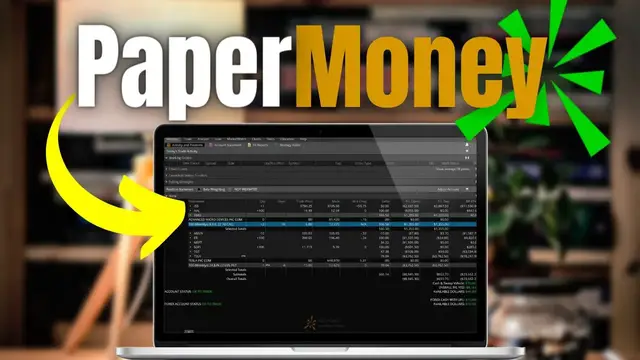
If you’re brand new to investing, Learning to trade, or learning how to trade more complex products like futures and options this can be incredibly confusing when first getting started. Personally, as someone that learns by doing, thinkorswim has made this much easier by offering Paper Trading.
This allows us to use the platform and place trades in realtime and see how they’ll play out without having to put any real money on the line. They actually have both a realtime version of this, so just like if you were trading in a real account. But they also have something called OnDemand which allows you to go back in time and practice as if it was a different day or different time of day.
Show More Show Less View Video Transcript
0:00
If you're brand new to investing, learning to trade, or just learning how to trade more complex products like futures or options
0:07
this can be incredibly confusing when you're first getting started. Personally, as somebody that actually learns by doing, Thinkorsome has made this so much easier by offering paper trading
0:16
This can actually allow us to use the platform and place trades in real time and actually see how those trades would play out without having to put any real money on the line
0:25
What's cool about this is, is they actually have a real-time version of this, so just like if you
0:29
were trading in a real account, but they also have something called On Demand, which allows us to go
0:34
back in time and practice as if it was a different day or a different time of day. Now, in order to
0:39
actually access it, if you guys already have an account with TD Ameritrade, you will automatically
0:44
have a pay-per-money account attached to it, and to access it, you will use the same user ID and
0:49
password that you normally use. You will need to have the actual Thinkorson platform downloaded to
0:54
either your computer or your phone. But if you guys haven't done that yet, you will simply head
0:59
over to the regular TD Ameritrade.com website and get logged in. From there, you'll simply need to
1:04
head up to the tabs at the top and select the trade tab, then come over here to trading platforms
1:09
and then select thinkorswim. On this page, we would simply scroll down just a little bit and
1:14
find the big green button mark download and go ahead and click on that. It would then download
1:19
something called the thinkorswim installer or thinkorswim installation wizard and we would just
1:23
run through all of the install steps and once done we're going to have a thinkorswim icon somewhere
1:28
on our desktop. Hopefully it's pretty obvious but in order to access thinkorswim we would simply
1:33
click on that. It would then open up a little login window and we would just type in the exact
1:38
same user id and password that we normally use. We would then just come down here and flip it over
1:44
from live trading over to paper money. Once we come down here and actually select login it would
1:51
Then open up our paper money platform and it's going to look exactly the same as a real Thinkorson
1:56
account. In order to quickly tell the difference to make sure we are in fact in a paper money
2:00
account we can see up here in the upper left hand corner it does say simulated trading Right below here in our account info section we can see And for you guys it say right off the bat
2:13
But that's probably not what you have in your real account. And it also says right here, this is simulated
2:17
For me, the easiest way to tell the difference is the fact that the entire border of the platform
2:22
is highlighted in orange, which it's not like that in a real account. We could also quickly tell whenever we go to place a trade
2:28
So if I came over here to the charts tab and you can actually see I've got a trade on Tesla built out
2:34
And if I came down here and hit confirm and send, we can actually see right here in the order ticket as well that this is a simulation
2:41
It is not a real trade. But if we were to actually place the trade, it's going to be just like if we were to do it in a real account
2:47
So here we can hit send. We can see the working order right here on my chart
2:51
And if I came over here to the monitor page, you can see all my working orders, my filled orders, and all of my current open positions
2:59
And some of these guys have had open for years. But again, they do try to make it as obvious as possible that this is in fact a paper money account, not your real account
3:07
But just be extra careful of it. I don't want you guys placing any trades accidentally in your real account
3:13
Now, in terms of the differences between the live and paper version of Thinkorswim
3:17
there are going to be certain things that you just don't have access to within PaperMoney
3:21
The one that's probably going to come up most often is actually up here under the scan tab
3:26
Looking here on the stock hacker, if you come over here and add a, let's say, study filter
3:31
you'll notice a little pop-up comes up saying this is not allowed in PaperMoney
3:35
There are also certain order types that are not going to be available within the PaperMoney version
3:39
but other than that, it's almost identical. Unlike other platforms, you also have the ability to trade everything through paper money
3:46
So that could be stock, options, futures, forex, whatever it is you want to practice, you can do it within here
3:51
And besides those few things that you just can't do in paper money, the platform is nearly identical to the live version
3:57
So it's a really good way to learn how to use Thinkorswim. Now, for those of you out there who do not have a TD Ameritrade account and you're not even sure if you do want one and you just want to try it out
4:07
you do have the ability to download a trial version of paper money In order to do that we will need to open up a browser window once again We then head up to the search box and we actually gonna open up a website
4:18
called papermoney.thinkorswim.com. You'll then open up a page that looks identical to this
4:27
and this is how you guys can register for a trial version of PaperMoney. And I believe it works for about 90 days as of right now
4:34
But that'll let you try it out and see if you actually like it before you end up opening up a TD Ameritrade account or soon to be Schwab account
4:41
Now, the other option available within Thinkorswim is a tool called On Demand
4:45
and we can only access it by closing out of our paper version and then logging back into the live account
4:50
So now you can see here that I did flip back over to my live account, and I can tell that quickly by the fact that first off, I don't have that orange border going across my screen
4:59
And in the upper left, it says real time data. It no longer says simulated trading
5:04
Now, in order to actually pull up that tool I was talking about, On Demand, we are simply going to look in the upper right-hand corner of the platform
5:10
and click on the word On Demand. You'll then notice that it immediately changes my platform
5:15
and it actually takes me back in time. It's like I hopped in a time machine and now I'm looking at the stock market on January 26th at 8.30 in the morning
5:23
So looking down here, looking at Palantir, it looks like that's what I currently have pulled up
5:27
You can see here Palantir was trading for $35.49 on January 26th
5:32
So this would have actually been a great time to sell Palantir since now it's trading all the way down to nine
5:37
But this is how we could practice and trade when the stock market's closed or go back in time and practice on a different day or different time of day
5:45
You can also see if I were to come up to my charts page, we can actually see all of the activity for that stock as if it were that day
5:52
So right here, if I were to zoom in a little bit, this chart is going to move just like it would have on January 26th at 8.31 in the morning
5:59
So an amazing way to practice. What's also cool about this is, is we can change it to whatever day and whatever time of day we want, simply by coming up here to the calendar icon and going ahead and clicking on that
6:10
Then coming down here below and actually specifying what exact day we wanted to go to So in my case let say I wanted to go back to October 2020 on the 13th and I want to change it to 9 in the morning So now if I were to come down here and select go
6:27
you'll then see that my platform goes back even further in time, and it's mimicking exactly what the stock market did on that day and that time of day
6:35
So now if I were to actually flip this over to, let's say, a different stock, we'll pull up Disney stock here
6:40
Coming over here, and if I were to zoom in a little bit, we can again see exactly what Disney was doing on the 13th of October at 9.32 in the morning
6:49
I could also come up here and actually place a trade on it. So I'm going to place a trade to
6:53
buy the stock. Go ahead and hit confirm and send here and send the order out there. What's really
6:58
cool about this is, is now that I actually placed the trade, I could fast forward in time and see
7:03
how this trade would have played out. I'm going to fast forward a couple months to January 7th
7:07
And now if I were to actually come up here to the monitor page, I can actually see how much I'd be
7:12
up or down on this trade. In this case, I'd be up $480 on that Disney position. I could also do this
7:19
with options if I wanted to by coming over here to the trade page. And let's say I was looking at
7:24
buying a far out of the money put option on Disney. So right here, I'm going to say buying the $160
7:29
put for $835. Go ahead and hit confirm and send and send the order. Now, if I were to actually
7:35
fast forward to let's say May of 2021 and hit go here. Coming back over to the monitor page
7:47
we can now see that our Disney position on the shares would still be up 385 bucks
7:52
but for the puts, I'm down 604 bucks. So again, a really cool way to kind of back test your
7:57
strategies or just learn how to use the platform as a whole. But hopefully that helps to introduce
8:02
you to what can and can't be done within paper money and within on demand and how it can be used
8:07
to speed up that learning curve just a little bit. Now, if you do still have questions or
8:11
recommendations for other video topics, please let me know down below. And also, if you were
8:16
looking to learn more, YouTube seems to think you'll find this next video helpful as well
8:20
So go ahead and check that one out. But that's it for now. Have a great rest of your week
8:24
everyone, and I'll catch you on the next video
#Finance
#Investing
#Investing
#Stocks & Bonds
#Brokerages & Day Trading