live_tv
Livestream Starting Soon
00
Hours
:
00
Minutes
:
00
Seconds
Up next in 10



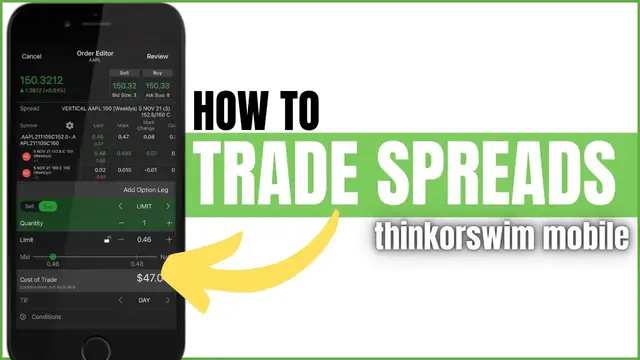
In today’s video we’ll learn how to trade spreads on the ThinkorSwim Mobile App. We’ll go step-by-step on how to place some of the most popular spreads like Verticals, Iron Condors, and Butterfly Spreads.
Show More Show Less View Video Transcript
0:00
Hey everyone, welcome back to the Thinkorsim tutorial series. In today's video, we'll learn
0:04
how to trade spreads on the Thinkorsim mobile app. We're going to be going through step-by-step
0:08
on how to place some of the most popular spreads like verticals, iron condors, and butterfly spreads
0:14
Jumping right into it, we'll go ahead and create a vertical spread first, and let's just go ahead
0:18
and use AMD as an example. You can see it's already in my watch list right up there at the
0:22
very top, so we'll just go ahead and click on that. From there, it's going to take us to the
0:25
stock profile page for AMD. And you can see I'm already right where I want to be. I've got the
0:30
option chain pulled up. But if you guys are not in this spot, you would simply click on options
0:35
And then you can see the option chain down below. Now, if we scroll down, we can see a few of the
0:39
available strikes for the five November expiration. Now, in this example, I'm going to be buying a
0:44
long vertical call spread against AMD because I think it's going to go up. But I want to go further
0:49
out of the money than what I can see here right now. So what I need to do is come up here to where
0:53
it says strikes eight and click on that. From there, I'm going to open up 25 available strikes
0:58
so I can see the further out of the money strikes that are available on AMD. Now, one other thing I
1:03
need to make sure you guys do is come up here back to the top and where you see spread, make sure that
1:08
says custom right there. Now, the default when you first log into the app is going to be single
1:12
which just means you want to place one single trade. I want to buy a call. I want to buy a put
1:17
sell a call, sell a put. I just want to put on a single options trade. Now, you can see down below
1:22
that most option spreads are listed out down below and we could click on them calendar diagonal
1:26
straddle but i want you to go to custom because that means we can create any of these spreads
1:31
ourselves we just have to manually do it ourselves so making sure we have custom selected we'll go
1:35
ahead and hit done now we'll go ahead and scroll down and look at the amd options and in our example
1:40
i want to buy the 130 call and simultaneously sell the 135 call which would create a long
1:46
vertical call spread so what we're going to do is find the asking price for the 130 call which right
1:51
now you can see is $1.03. All we need to do is go ahead and simply click on that $1.03. And if you
1:57
look up at the top, you can see it gets added to our order ticket. You can see the 5 November 2021
2:02
130 calls up there at the top and it says plus one because we're buying it. The next thing we need
2:07
to do is sell the 135 call. So we're going to find the bid price of the 135 call and go ahead
2:12
and click on the bid, 24 cents. You can then see that that 135 call gets added up to the top, but
2:18
now it says negative one because we're selling it. All we need to do next is go ahead and hit the
2:22
next button in the top right hand corner. You can then see at the top it says we're about to put on
2:26
a vertical spread against AMD. We're buying one of the 130s while simultaneously selling one of the
2:31
135s. We're using a limit order to buy one of them and right now the current price for that spread is
2:36
77 cents and that's our limit order currently. Right below that it says if this order were to
2:41
fill at 77 cents it would cost us a total of 78 dollars and four cents Now we could change any of this if we wanted to let say we only wanted to buy this spread if it went down to We could go ahead and throw in here hit done We could also
2:54
make this order good until canceled. If we wanted to go out again tomorrow, if it didn't fill today
2:58
if it didn't fill tomorrow to go out the next day, and so on until it filled or until 5 November
3:03
passes and then the trade is done. Now if we're happy with this, we would then just hit review in
3:08
the upper right hand corner. From there, it's going to give us the order confirmation. Again
3:11
just double checking that we do want to do this. We want to buy one vertical on the AMD
3:15
130 by 135 call spread for 60 cents or better. If we did want to place this, we would just hit
3:21
send in the upper right hand corner. Now let's say you changed your mind on something. You no
3:25
longer wanted to do the 130 by 135. You wanted to switch it to the 130 by 140, 10 points wide
3:31
There's a couple of ways we could do this. We could simply go back to edit in the upper left
3:35
hand corner. We could then click on the negative one, 135 call from there. It opens up the leg
3:41
setup window and we could just scroll down on the right until we see 140 and hit done in the
3:46
upper right hand corner. It's now telling us we're about to buy one of the 130 by 140 call spreads
3:51
and if we unlink this button right here it says this trade would currently cost us 95 cents
3:57
Now the other way we could have done this is simply canceling it in the upper left hand corner
4:00
and if you look at the top it still says we want to buy one of the 130 and sell one of the 135
4:06
So what we could do is just exit out of that negative one, 135 call, scroll down on the option
4:12
chain, find the 140 call and go ahead and click on the bid price. Now, when we hit next, it's saying
4:17
we want to buy that 130 call and sell the 140 for the long vertical call spread against AMD
4:23
So there are a few ways to do this. Now, just to get an idea of how to do this on the short side
4:27
if you wanted to sell a vertical call spread or sell a vertical put spread, let's go ahead and
4:31
cancel this out. And let's even switch to a different symbol. We'll go ahead and back up here
4:35
and we'll go to Facebook. Now let's say we wanted to sell a put spread and we wanted to do it on the
4:41
19th of November, 17 days from now. And we wanted to sell the 310 by 305 put spread. We're going to
4:48
do it the exact same way. We're going to find the bid of the 310. We're going to sell that one
4:52
We're then going to find the ask of the 305 because we want to buy that one and go ahead and click on
4:56
the ask. At the top, just like before, you can see it saying, I want to sell one of the 310s
5:00
while simultaneously buying one of the 305s. When we hit next, you can then see we're about to put on a vertical put spread
5:07
selling one of the 310s, buying one of the 305s, and this time we're getting a credit of 85 cents
5:13
So for this one, because it's a red line, we can see that 85 cents is coming to us
5:17
It's going right into our accounts. But in order to keep that credit, we need Facebook to be above 310 in 17 days from now
5:24
Now that was how to do a vertical credit spread, a long vertical call spread
5:28
If we wanted to do an iron condor, we just have to switch things up just a little bit So let go ahead and cancel this out And we also back up Let use a different sock entirely We go to Love Southwest and remember an iron condor is simply a short vertical call spread and a short vertical put
5:44
spread all combined into one. So it's just a neutral trade. We really don't want the stock
5:48
to go anywhere in the case of an iron condor. Now remember, since we have spread custom selected up
5:53
here at the top, that means we can create any spread we want, whether it be iron condor, vertical
5:57
butterfly, doesn't matter, which means we don't have to change anything right there. We're going
6:01
to leave it as spread custom. We're going to scroll down to the at the money options for love
6:07
And let's go ahead and start with the put side. So we're going to sell a, let's do a 45 by 40 put
6:13
spread. And then switching to the call side, we're going to sell a 50 by 55 call spread up at the top
6:21
Just like before, you can see it spells out exactly what we're doing. We're selling one of the 45s
6:26
buying one of the 40s, selling one of the 50s, buying one of the 55s. And when we hit next
6:32
at the very top of the page, it tells you exactly what we're doing. We're selling an iron condor
6:36
and we're doing it for total credit of 95 cents currently. So you can see, we just have to manually
6:41
do this ourselves. If you know how to create a spread, all we have to do is click on the ask of
6:46
the options we need to buy, bid of the options we need to sell, and it builds it out for us
6:50
If we actually wanted to submit this iron condor, we'd simply hit review in the upper right hand
6:54
corner. Make sure everything looks right. It says we're about to sell one iron condor for the 19th
6:59
of November. We're selling the 50 by 55 by 45 by 40 iron condor. And just like I said before
7:06
we're pulling in 95 cents to do this. If we scroll down a little bit, it's also going to tell us our
7:11
max profit, max loss on this trade. You can see my max profit is the 95 cents because that's what
7:16
we pulled in. It's the most we could ever make on this trade. And the max loss is $405 because the
7:22
most we can lose is the width of the spread. In the case of this iron condor, remember the spread
7:26
was $5 wide, which means we could lose 500 bucks minus the 95 we received. So we could lose 405
7:33
bucks on this trade. Now remember, it's only tying up one side of it. And that's about it for iron
7:38
condors. It's nothing too crazy. We just do it the exact same way as the verticals. It's just
7:42
composed of two more legs. Now let's go ahead and edit out of this and cancel out of the trade here
7:47
And the next thing we're going to do is go over how to create a butterfly spread on the Thinkers
7:51
mobile app. Now to do this, let's go ahead and use Square. We haven't used that yet. And let's say we
7:55
wanted to put on a butterfly. In this case, we'll even use the put side. And in this example, let's
8:00
say we thought Square was going to be exactly at $235 or roughly $235 in 17 days from now. Now
8:07
butterflies are a lot like lottery tickets. We want it to hit exactly that price on exactly that day
8:12
and hopefully right at the end of the day. Now to do this, we're going to go ahead and click on the
8:16
bid of the $235 because we want to sell that one. And in the case of a butterfly, to do one single
8:21
butterfly we have to sell two contracts on the strike that we think it going Now for this butterfly spread we just said we think it going to be at exactly 235 in 17 days from now So we going to go ahead and sell that contract We then going to be buying the wings on either side of it So we going to be buying
8:35
the 230s and also buying the 240s. Now up at the top, you can see we're selling one of the 235s
8:41
buying the 230, buying the 240, but we're not done yet. Because to create the butterfly spread
8:46
we have to sell two of the contracts where we think it's going to be on that date. So in this
8:50
case, we're only selling one of the 235. So what we need to do is hit the next button. We're going
8:54
to come here where it says 235 up at the top. We're going to click on that and we're going to
8:58
change it from negative one contracts to negative two contracts and go ahead and hit done. Now you
9:03
can see it identifies it as a butterfly spread against square and it's going to cost us a total
9:08
of 40 cents for this trade. Now keep in mind, it's not costing us very much because it's not
9:12
very likely that we'll be successful in this trade. Now if we are right, it hits exactly 235
9:17
on the date of expiration, right when the market closes, we could hypothetically make a total of
9:22
$460, I believe. If we hit review, we can see if my math checks out. And you can see it right there
9:28
max profit of $460, max loss is $40. Now, generally speaking with a butterfly spread
9:34
you're not actually hoping it hits exactly $235. I mean, we are, but that's not a very likely
9:39
situation to happen. What we're really hoping for is it's as close to $235 as possible. Now
9:44
if it's beyond 240 or beyond 230, we're going to lose everything. But in this case, it was only 40
9:49
cents. So it's a lot like a lottery ticket. Now, if we actually wanted to submit this, we would
9:53
simply hit send in the upper right hand corner. Since we don't want to, we'll just go ahead and
9:56
edit out of this and cancel the trade. Now, the last thing I'll show you is how to close out of
10:01
spreads on here. And that's simply done from the positions page. From here, you can see all of the
10:05
positions in your account. And you're going to see the options listed out with like a little arrow to
10:09
the left of the symbol. Now, in the case of my account, I don't actually have any spreads in here
10:13
at the moment, but if you were to click on the arrow to the left of Chewy right here, you can see I'm short three of the $70 puts in this case. Let's pretend I had a spread on
10:22
and I was short three of the 70s and long three of the 65s. All I'd have to do is simply click on
10:27
those little boxes to the left-hand side, and I'd make sure to click on both of them. So if I had a
10:31
$65 put as well, I'd go ahead and checkmark that. And then all I would need to do is go ahead and
10:36
hit close selected here. It's then going to build out the order ticket for us, buying back that
10:40
vertical put spread or closing out whatever the spread is that you had. All you would have to do
10:44
in this case is make sure you got the right number of contracts in there and put in the price that
10:48
you wanted to buy it back for or sell it at, and then you're good to go. You would just hit review
10:52
and then send. But that pretty much wraps things up for today's video. I hope that answered all of
10:57
your questions about how to create spreads within the Thinkorson mobile app. This was done on an
11:01
iPhone, but it's going to be done practically the exact same way on an Android, so you shouldn't
11:05
have any issues with that. If I miss anything or you guys have any additional questions at all
11:09
please leave them down below in the comments. Also, don't forget to hit that like button on
11:13
your way out and I hope to see you all in the next video
#Business & Industrial
#Finance
#Finance
#Investing
#Stocks & Bonds
#Mobile Apps & Add-Ons