Up next in 10



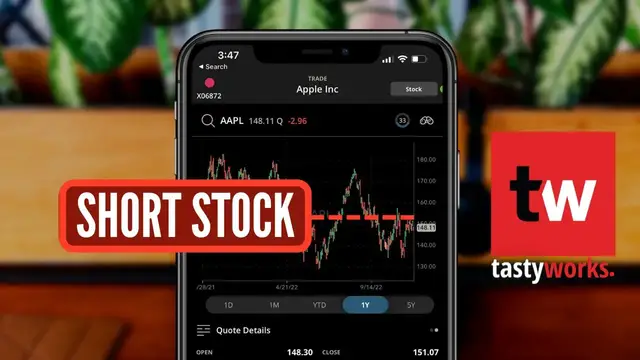
Today we'll learn how to short stock on the Tastyworks Mobile App. We'll go through the entire process of opening and closing a short position every step of the way.
Shorting stock is a risky, but potentially profitable way to make money from a stock going down in value. It is essentially borrowing stock from your broker, then selling those shares in the market. At a later date, you’re then hoping to buy those shares back at a lower price and profit the difference.
Just be careful if you’re just getting started and stay small so you don’t get yourself in too much trouble. There is literally unlimited risk potential to the upside, so be sure learn everything possible before incorporating this in your own trading.
Show More Show Less View Video Transcript
0:00
Shorting a stock is a risky but potentially profitable way to make money from a stock going down in value
0:06
It's essentially just borrowing stock from your broker, then selling those shares in the marketplace immediately
0:11
and then at a later date, you're then hoping to be able to buy those same shares back at a much lower price
0:17
and then essentially just profit the difference. Now in today's video, we'll be diving into the Tastyworks mobile app
0:23
and going through the entire process of opening and closing a short position every step of the way
0:29
Now, beginning first with opening up a brand new short position, we'll first need to head up here to the search box in the upper right-hand corner
0:38
From there, we'll then be able to search for the exact stock that we wanted to short
0:42
which in this case, let's say we wanted to short SoFi because we thought the stock was going to
0:47
go down even further in value. So here, we'll just go ahead and type in SoFi and then down below in
0:53
the list here, we will simply click on the stock. So right here, we're going to click on SoFi
0:58
We'll then be able to specify if we wanted to trade the options or the stock
1:03
And for this one, since we're shorting the stock, we obviously want to click on stock here
1:08
That'll then immediately take us to an order ticket where we can then specify exactly what we wanted to do
1:14
So starting here at the very top of the page, the very first thing we have to do is flip this over from a buy order to a sell order
1:22
Which, remember, that's all we're doing when we want to short the stock. We're essentially just selling shares of stock that we don't own
1:29
After selecting that we want to sell the stock, we can then select the exact order type that
1:33
we want to use, which at the moment is currently set to a limit order, meaning we're going
1:38
to be specifying a price at which we would want to sell at, and we're only willing to
1:42
sell if we can get it for that price or higher. However, if we were to click on that, if we were to click on the word limit, we're actually
1:49
going to see quite a few different options below that, like market, stop market, and
1:54
stop limit. Now the very first one there, the market order, that simply means that we want this order to fill immediately and we'll essentially take whatever we can get for it right now
2:03
The other two there the stop and the stop limit those are generally going to be used to get you out of the position if things go against you not generally to get you into a brand new position So for example if we did actually short this stock we might want to put in a stop later on to get us out if the stock starts to go up
2:21
And we want to buy back this short position if it ever crosses above a certain level
2:25
so we don't lose too much money. That would be one example of a time where it could make sense to use a stop order
2:32
But you can dig into both of those stop orders a little bit later on if you did want to learn more
2:36
and for right now we're just going to go ahead and stick with a limit order. So I'm going to come
2:40
back up here and click on limit which now that it's selected means I can now specify the exact
2:47
price at which I would want to short this stock. So skipping over a couple of these buttons for
2:51
right now let's go ahead and head over to the price box and right here I'm currently specifying
2:56
a price of $4.42. However let's say I only wanted to short the stock if it were to go up to let's
3:03
save $5 a share. So I'm simply clicking on that and then hitting in five in here and now hitting
3:08
save. So now I'm saying I only want to short so far if it were to go up to $5 a share. The thinking
3:14
being that at that price the stock is overvalued and I think it's going to go down from there
3:20
But now that that's set and we've got the order type and the price all selected, we can now specify
3:25
exactly how many shares we wanted to short. Which in this case currently says one right here or
3:30
negative one. And actually, I'm going to leave that be because I only want to short one share
3:35
of stock right now. And now the only thing left is to actually specify how long I want this order
3:40
good for. So at the moment, with the day order selected, this order is only going to work until
3:46
4 p.m. Eastern time today. And if it doesn't fill by 4 p.m., the order is just going to cancel
3:51
itself. However, if we were to click on that, so click on the word day here, you'll then see a few
3:56
different options down below, and that'll include GTC, meaning good until canceled, or essentially
4:02
just saying I want this order to go out every single day until it fills. We've also got GTD
4:07
or good till date, which is essentially the same thing as a GTC order, except we're specifying an
4:12
exact day we want it to cancel itself. Now the last one here, EXT, or extended session, means I
4:19
want this order to be good for today but I also want it to work in the pre and post market as well Now on Tastyworks the hours are actually pretty limited for after hours trading The pre is going to open up at 8 a Eastern time and it going to close at 5 p Eastern
4:34
time. But that's going to be the EXT session. And in my case, I'm actually just going to leave it
4:39
set to, let's say, a GTC order. And now that I've got everything set, I can now come down here below
4:45
and hit the review and send button to actually submit this trade. You'll then see it takes us to
4:50
a little confirmation screen to just confirm I filled everything out correctly. And if it does
4:55
look correct and I'm happy with it, I can then come down here below and hit submit to actually
5:00
place the order. Once the actual order has been placed, if we wanted to keep track of it, we could
5:07
do so either from the positions page. So come down here below and click on positions. Here we'll now
5:13
be able to see all of our current positions. So right up there at the top, I've got a current
5:17
position on Palantir, but then also my working order right below that, the SoFi trade. And I
5:23
could also see it by coming down here to the activity tab. So again, right up here at the top
5:28
we can see my working order to short that share of SoFi if it ever goes up to $5 a share. And since
5:34
it hasn't yet, it hasn't gone up to five, this is still a working order. Now later down the line
5:39
if you ever change your mind and you either want to edit that order or cancel it, we could also
5:44
just come here and simply click on the order ticket. Then down below it's going to give us
5:49
the option to either replace the order which is synonymous for edit the order or just outright
5:54
cancel it by hitting the cancel button. Now in my case I actually want to get a fill on this short
5:59
so I'm going to come down here and hit replace. I'm then going to adjust this from being a limit
6:04
order to a market order so I guarantee I'm going to get filled on this thing and now that I'm happy
6:09
with that change I'm just going to come down here and hit review and replace then come down here and
6:14
hit submit since everything looks good on this confirmation screen. And now that I've replaced
6:19
it with a market order, that trade should have filled instantaneously. And if I come down here
6:24
to the positions tab, right up here at the top, you can now see I've got a SoFi position. And
6:29
because it says here that I've got negative one share of stock, it means I did short the stock
6:34
But that how you going to enter a short position within the Tastyworks app And at some point you might want to close out that short position And to do that all we have to do is buy back that share So remember when we short a stock we are simply selling a
6:48
share that we don't own. And then to close it out, we simply need to buy it back. So in this case
6:53
let's say the time has come and I actually want to buy back this short position, I want to close
6:57
it out. And to do that, I simply have to click on it here. I'll then see a little button down below
7:02
that gives me a few different options. But in this case, all I want to do is close out this short
7:07
So I'm going to hit the button mark close position. You'll then see it immediately builds out an order ticket to close out this short position
7:15
And up at the top, it does specify it's going to be a buy order. I'm currently using a limit order
7:21
It's marked for the day. I'm only buying back one share of stock because I only shorted one share of stock to begin with
7:27
And then down below, I could actually specify, do I want to buy it back at the current price
7:32
$4.43, or do I want to try and buy it back if it were to go down in value
7:36
because remember that's how I make money off this short position. I want SoFi to go down
7:41
and hopefully I can buy it back for less than what I sold it for. So let's say I thought SoFi
7:46
was going to go down to $4.30 a share and that's when I wanted to close it out so I could come
7:52
down here and adjust this from $4.43 down to let's say $4.30 even. Now I'll come down here and hit
8:01
save and I'll actually flip this over from a day order to a GTC order and now in order to submit it
8:07
I am just going to come down here and hit review and send then hit submit. So now if we were to come
8:13
back over to the positions page not only can I see that open position on SoFi that open short position
8:19
but I also have a working order right here to buy back that SoFi share if it were to go down to $4.30
8:26
cents. And again, we could also see that by coming over here to the activity tab and right there is
8:32
the order to buy back the short. But hopefully that clarifies a few things you now feel at least
8:37
a little bit more comfortable with how to short stock within the Tastyworks app. Just be extremely
8:42
careful if you're just getting started and be sure to stay small so you don't get yourself in too much
8:47
trouble. Now, if you are in the mood to learn more, I think you'll find this next video helpful as well
8:52
So go ahead and check it out. Otherwise, have a great rest of your week and I'll see you on the
8:55
next one
#Finance
#Finance
#Investing
#Stocks & Bonds