Up next in 10



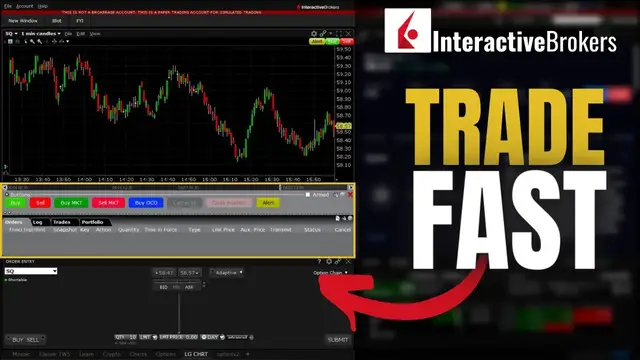
Today we’ll be adding several different trading tools to your Interactive Brokers Platform to make the buying and selling process as fast as possible.
These trading buttons will allow you to day trade stock with a single click. We'll create buttons for market orders, limit orders, and bracket orders. The buttons will make it far easier for you day traders out there to get in and out of the stock without filling out the order entry every time.
➤ Open a tastyworks account: https://start.tastyworks.com/#/login?referralCode=PKSKCFVD2J
➤ Start Investing with M1 Finance: https://m1finance.8bxp97.net/151KXm
Disclaimer: Some of these links go to one of my websites and some are affiliate links where I'll earn a small commission if you make a purchase at no additional cost to you.
Show More Show Less View Video Transcript
0:00
Today we'll be adding several different trading tools to our Interactive Brokers platform to make
0:04
the buying and selling process as fast as possible. And I am aware of how confusing the Interactive
0:10
Brokers platform can be, so I'll be sure to break this down step by step to make sure you guys leave
0:15
here feeling comfortable with the entire process. Now beginning with adding the actual tools
0:20
themselves to our charts, in order for us to actually see what we'll be discussing in today's
0:25
video, we'll need to come up here to the button marked view at the very top of our chart. From
0:29
there once we get it opened up we're actually going to come down below in this drop down menu
0:34
and first select the chart trader tab. So let's go ahead and click on that. We'll then come back up
0:39
to the views tab and also add the buttons panel. So we'll go ahead and select that. Once we actually
0:44
have both of those selected we'll then be able to see these new tabs down here at the very bottom
0:49
of our chart. Starting with the bottom section here you'll notice that this actually adds a
0:53
section at the very bottom to display all of our open orders currently on this stock. So looking
0:58
here at the moment we can see we don't actually have any open or working orders on Netflix but if
1:04
we came over here to the trades tab we would then be able to see all of the filled orders for today
1:09
and then if we hit the portfolio tab we could also see what I currently hold in this account
1:13
as of right now. So at the moment I hold 100 shares of Netflix. Generally speaking we'll want
1:19
to keep it on the orders tab so we can actually keep track of all of our open and working orders
1:23
on the stock that we're trading here. So we'll go back to that. Then looking right above that we can
1:28
see a set of buttons right above and this is where we're actually going to spend most of our time in
1:33
today's video. Looking here you'll see the default buttons include a buy button, a sell button, cancel
1:38
all, close position, alerts, and snapshot. Those buttons are simply the default layout. We're
1:44
actually going to go through here and customize them to set them up exactly the way we like to do
1:48
exactly what we want them to do. Now in order for us to do that we're simply going to come up here
1:52
to the settings menu in the upper right hand corner of our chart. So go ahead and select that
1:57
We'll then go ahead and click on the settings menu to actually bring up the window here
2:01
We'll then need to come over here to the menu on the left hand side and then specifically open up
2:05
the chart trader tab. Once we have that selected we simply need to come over here to the buttons
2:10
panel on the right hand side. So just go ahead and select that and then we can see all of the
2:15
buttons currently available to us. So right here we can see those same exact buttons buy sell
2:20
cancel all close position etc down here but we can also edit these or actually add brand new
2:26
buttons. Now beginning with just editing these current buttons that we have, let's go ahead and
2:30
do that first. So right here we can actually see a brief description of what exactly this button
2:35
will do when we click on it. Looking here at both of these buy and sell buttons, we can actually see
2:40
that these are limit orders, meaning when we click on this button we actually still need to specify
2:44
the price. For me, I actually do want to have both a buy and sell limit button on my chart, so I'm
2:49
going to leave these, but I'm going to go ahead and tweak them just a little bit. Beginning with
2:53
the buy button, let me go ahead and click on that, and then come over here on the right and hit the
2:57
edit button so I can actually get the configuration button window pop up. This window is where we can
3:02
then change all of the default settings for this button, and we can even change the color of the
3:07
button as well. So just beginning from top to bottom, we can see the action that we have set
3:12
here is to buy some stock, which we're going to go ahead and leave it set as that. Looking right
3:16
below that, we can actually see the text of the button just says buy, and we're also going to leave
3:20
it as that. We can then come down here to where it says background color and I'm actually going to
3:24
go ahead and click on that and change it to a greenish color because for me that just makes
3:29
more sense. Looking down here below you can then see I could actually change all of the settings
3:34
for this button. So right here it says the action to buy some shares. Right here it says I'm going
3:39
to use my default quantity of shares which at the moment is actually 10 shares right now. If I instead
3:44
wanted to change that, like let's say I typically want to trade let's say 20 shares at a time, I'm
3:50
to go ahead and change that to absolute and then type 20 over here on the right hand side
3:54
Looking down below that you can then see I could actually change the type of order that I'm using and then over here on the right I could even set profit taking and stop orders
4:03
along with this opening trade Now don worry I am going to touch on this a little bit later we going to get to the more advanced stuff a little bit later in the video But the last thing I going to be changing in this one for right now is just coming down here and selecting transmit the order instantaneously
4:18
That's simply going to make it so I don't get an order confirmation window pop up so I can place
4:22
this trade as fast as possible. Looking here, you can see it does warn you what we're about to do
4:27
So I'm just going to go ahead and hit yes because I am comfortable with that. And then I'm going to
4:31
come down here and hit OK. So now looking here in the list, you can see that that button has been
4:36
changed and the most noticeable change being the color of the label itself. If I wanted to do the
4:41
exact same thing to the cell button, I'll come down here and select cell, then hit edit. Then from here
4:48
I can change the size of the order. I think that was one of the only things I changed in here, so
4:53
I'll change that to 20. And I'll also come down here and set the transmit order instantaneously
4:58
button so I don't get those pesky little order confirmations pop up. So now just going through
5:03
these buttons before we get to the more advanced buttons and the ones that we might want to add to
5:07
this, let's just come down here and hit okay and just play with these for just a second. Now before
5:12
actually placing a trade, let me go ahead and flip over to a different stock ticker. We'll go ahead
5:16
and flip over to Square SQ here. Now looking at Square, we can see it last traded for $59.21. And
5:24
let's say we just wanted to quickly place a buy limit order. So what I'm going to do is come down
5:28
here to the buy button and go ahead and click on that green button. Now remember since this was not
5:33
a market order, remember this was a limit order, we actually still need to come up here to the chart
5:37
and actually specify the price at which we want to place this limit order. You guys might have
5:42
noticed that blue dashed line going across the screen and that is actually where we're going to
5:46
place our limit order. So as of right now if I were to click down I'm going to be placing a limit
5:51
order at $54.02. If I wanted to adjust that slightly, like let's say I actually wanted to pay
5:57
and go up a little bit to, I don't know, $55.83. And now if I were to click there
6:03
you're going to see a little order ticket pop up down here below in our order screen
6:07
Looking here from left to right, it says we're trying to buy 20 shares of Square with a day
6:12
order and it's using a limit price of $55.83. Now of course this order ticket will not fill
6:18
unless Square drops quite a bit. Remember currently it's trading for $59.20 so it would need to drop
6:23
about $4 for this trade to fill. So let's say later down the line you actually wanted to adjust this
6:29
order ticket. We could actually come up here right up to the top and actually just drag up that blue
6:33
line up or down to adjust the price. So looking here you can see I've adjusted it quite a bit
6:38
higher. Let me go ahead and drag it down and let's say I wanted to bump it up to $58.85. So looking
6:44
here now that I've moved the blue line up, if I were to let go with my mouse you can now see that
6:48
that limit order has been adjusted up to $58.85 a share. Now I also have the ability to adjust that
6:55
price right here in the limit price box. I could of course go ahead and highlight that and let's say
6:59
I wanted to bump it up to $59 even. So go ahead and type in 59 then hit enter on the keyboard
7:05
It's then going to want you to confirm that the price has been adjusted correctly so we'll come
7:09
over here and hit update under the transmit button. If I just wanted to outright cancel the order I
7:15
no longer want to try and buy these 20 shares of Square, I could either come over here and select
7:19
the cancel button or I could come up here and hit cancel right up on the chart. Now the exact same
7:25
thing would apply with the sell button. So if I instead wanted to short a position of Square, I
7:29
could come down here and hit the sell button, then come up here and actually specify the price I
7:34
wanted to short that stock at. So looking here, you can see I've currently got it set at $90.22
7:39
cents. But if I were to come down just a little bit, I'm now at, let's just say 6488. And if I
7:46
were to click here, that limit order has been set to sell those 20 shares at 6488. Then if I were to
7:52
change my mind, I would just come over here and hit cancel to cancel the order outright. But again
7:57
those buttons are pretty straightforward. I would generally keep a limit order so you can actually
8:01
specify the price you want to buy or sell the particular stock for. But besides that, we might
8:06
also want to add some buy market and sell market buttons as well
8:10
So now in order to do that, we'll do the exact same thing as before. We come up here to the settings menu We then come down to settings We come over here to chart trader on the left then open up the buttons panel once again Now in order for us to add brand new buttons we simply come over here to the word new on the far right hand side and go ahead and select
8:27
that. We then need to specify what it is we actually want to create. In my case, we'll go
8:32
ahead and start by creating a buy market order. So let's come over here and select the action
8:37
I'm going to flip it over to a buy ticket. So let's scroll down here and select buy
8:41
Once we actually select buy, we can see the full menu pops up with all of the different
8:45
things that we can change. Now, the very first thing I need to change is actually the verbiage used here
8:50
So I can actually differentiate between my buy limit button and my buy market button
8:55
So what I'm going to do actually is come over here and unselect generate label. And I'm actually going to type in here where it says buy and I'm going to add market just
9:02
the right of that. I'm also going to change the background color and I'm going to make it more of a darker
9:09
green color, but it's still green. it just might be a little bit more differentiated from the buy limit order. And now that I'm happy
9:15
with that, I simply need to come down here to the actual action menu and I'm going to make sure
9:20
everything is correct. So right here it says buy. I'm going to change the quantity to 20 as well
9:25
Let's just say I typically trade 20 shares at a time. Then I'm going to come down here to the
9:30
default order type and change this over to a market order. I'm then going to come down here
9:35
to where it says transmit the order instantaneously because I want to get rid of any order confirmations
9:40
just make this as fast as possible. So I'm going to go ahead and hit yes here and hit okay. Next up
9:45
we need to create the sell market order. So we're going to do the exact same thing. Come over here to
9:50
new. I'm going to go ahead and change this from add auto stop order to a sell ticket. So let's scroll
9:55
down this list. Go ahead and find sell and click on it. We'll then come over here and unselect
10:01
generate label so we can actually type in here and we're going to change it to sell market. I'm going
10:06
to come over here to the background color and change it to a red color as well. And then finally
10:11
the only thing I need to do next is actually customize the action. So right here, it is a
10:15
sell ticket, so that's good. We'll go ahead and change the quantity again to 20 shares. Just keep
10:20
it as the same amount. I'm then going to come down here and change the order type to a market order
10:25
then select transmit the order instantaneously and hit OK. Now finally, the very last thing I'm
10:31
going to do before I actually select OK and we can actually practice with these is I'm actually
10:35
going to move these buttons up a little bit. So just go ahead and select it, then hit move up so
10:40
we can put it in the correct position we like it. And now that I'm happy with that, I will come down
10:47
here and select OK. Now if we were to come up here to the buttons, we can see those brand new buttons
10:52
that we just added. We've got both a buy limit and sell limit button, as well as a buy market and
10:57
sell market button. To get a little practice with this, if we come over here and select buy market
11:02
you're going to see that the order has been instantly submitted. We actually just bought
11:06
those shares, those 20 shares of Square at $59.05. Now for you guys, it might've been hard to see
11:12
what price I just filled at, but I could see it a few different places. First off, I could come
11:16
down here to the lower right-hand corner where I actually have my portfolio tab. Right there
11:21
you can see my current position on Square. I've got 20 shares and my average price is $59.05
11:27
I could also come up here to my portfolio tab here and go ahead and select that
11:31
And then right here, we can see my current position. Again, 20 shares and my average price of $59.05
11:38
But again, few different places that we could see that information. It's just personal preference
11:43
Now, later down the line, when we decide to sell the stock, we could do a few different things
11:47
We could either hit sell market, which is going to sell those 20 shares at the market price
11:52
And I just did. I actually just sold those 20 shares. The other thing I could do, let's go ahead and buy those shares once again
11:58
is I could actually come over here to the close position button. For me personally, this is the button I'm generally going to use to close my positions
12:05
just to stop me from making any dumb mistakes. So now in this example, I do have 20 shares a square
12:10
If I were to hit close position, it's just going to confirm down here below
12:14
that I did want to sell those 20 shares with a limit price of 5920
12:19
So looking here, we can see the default parameters for the close position button
12:23
is still to use a limit order and it actually does not have that override button selected So I still need to confirm that I do want to place the trade But looking here all I would have to do to actually submit this order is come over here to the right and select transmit Now we can see the order has filled I no longer
12:39
have that position. First off because it doesn't show any working order down here and if I come
12:43
over here to the portfolio tab it says I have zero shares of square. Now besides those very basic
12:49
buttons some other tools that you guys might want to add is conditional orders. Basically orders that
12:53
trigger other orders to go out there. You guys might also know this is more of like an OCO bracket
12:58
order or a profit-taking stop-loss order. There are a few different names for it, but for us to
13:03
add those types of buttons, let's come back up here to the settings menu. We'll then come back
13:08
over here to the chart trader and we'll come over here to the buttons menu. Now let's say for this
13:13
example, we actually wanted to create a button to buy us 10 shares of stock and then whatever we buy
13:18
those shares for, we want a profit-taking order to go out $1 above that and a stop to go out $50
13:23
below that. So in order for us to do that, we're going to come over here to the new button over
13:28
here on the far right hand side, just like before. We'll then come over here and select what we want
13:32
to do. And in this case, we're going to select a buy button. So come down here and select buy
13:37
I'm going to come up here and change the label. I'm just going to name this one by OCO and I'll
13:42
change the background color as well. This one I'll make quite a bit different. So it stands out. I'll
13:47
make it blue. I'm then going to come down here and make it a buy. Let's say again, I think I said 10
13:52
shares for this one. So we'll make it an absolute of 10. I'll then come down here and for this one
13:57
let's just make it a market order. So make the opening trade a market order. I'm then going to
14:02
come over here to the far right hand side. And this is where I can set both the profit taking
14:06
order and the stop order if I wanted to. So in my example today, I actually wanted both a profit
14:11
taking and a stop order. So what we'll do is we'll start with the profit taking order first
14:16
And right here, I'm going to flip it from none to the word limit. I'm going to go ahead and leave
14:20
the limit price based off of the asking price and I'm going to make it a $1 offset. So I'll just
14:25
type in 1.00 right here. Now that I'm happy with the profit taking order, I'm going to come down
14:31
below and then change the stop order. So we'll go ahead and flip it over to a stop order. I'm going
14:36
to leave it based off of the asking price of the stock and this time I'm going to change it from a
14:40
$1 offset to a 50 cent offset. So we'll type in 50 cents here. Now going over this just one more
14:47
time, remember what I'm saying is if I were to hit this button, I want to buy 10 shares of the stock
14:52
with a market order. Then immediately after that order fills, I then want to try and sell it for a
14:57
$1 profit or get stopped out if it goes down 50 cents. Since everything looks right, I'm happy with
15:02
the way I set it up. We'll come down here and select transmit order instantaneously because I
15:06
want to get rid of those order confirmations and I'll now hit okay. We can again see the buy OCO
15:12
right here. So let me go ahead and move it up just a little bit next to the other buttons here. And
15:16
now that I'm happy with that, I'll go ahead and hit okay. So now just to get a little bit of practice
15:21
with it, let's come up here and actually select buy OCO. So I'm going to go ahead and click on that
15:26
As soon as I did that, you can actually see I immediately bought those 10 shares a square and
15:30
I just filled at $59.25. Now looking down below, we can actually see that $1 offset to the upside
15:37
and then the $1 offset to the downside. So right now it's saying I'm either going to try and sell
15:41
it for 60.24 or I'm going to get stopped out if it drops down to 58.74. Whichever one of those two
15:47
sell orders fills first the other order is going to be automatically canceled. Now this might be a
15:53
little bit easier to see on the chart if we actually flip this chart type over from a daily
15:57
chart to let's say a minute chart and now we can see those limit prices and stop prices on the chart
16:02
a lot easier. I also have the ability to adjust the prices just like a normal order ticket. I can
16:08
come up here and just drag it up or down if I wanted to and then let go to replace the order
16:13
Or I could come down here and actually type in the new price that I want to set. But after all of
16:18
that, I think you guys see how useful these trading buttons can be. And hopefully after today, you all
16:22
feel a lot more comfortable trading within Interactive Brokers. I have made a bunch of other
16:27
tutorials on this platform, so be sure to check those out and drop me a recommendation if there's
16:31
something else you guys would like me to touch on. But that really wraps up today's video on
16:35
interactive brokers. Have an amazing rest of your week guys, and I'll catch you on the next one
#Business & Industrial
#Computers & Electronics
#Finance
#Investing