0:00
Have you ever been in a situation where your phone line or internet has gone down and it
0:05
stops you from connecting with the outside world? Well, I have been. It was at my previous job. The
0:11
internet and phones went completely out and it caused us a load of problems. Some malicious
0:17
person had cut the lines overnight and when we got in the next day, we couldn't make or receive
0:21
any calls and we couldn't deal with customer inquiries and it cost the business a lot of
0:26
money. So I was very interested when AVM asked me to test out their LTE version of their router
0:32
the 6890. This follows the same design as previous routers, but this one is LTE enabled. So you can
0:40
pop a SIM card in, but it's also useful for a general router modem and it can be used as a
0:47
telephone system. So in the box, you get the getting started guide. These things are very easy to get
0:52
set up and running and then you get the main little router. Now this is a nice
0:58
design I quite like it it's still sticking with the red and white. Note
1:03
that this particular model comes with an EU plug rather than a UK plug that may
1:07
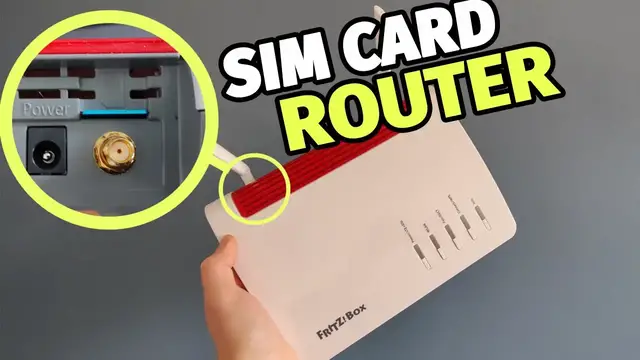
change in the future and then you get various cables and the antennae for both Wi and mobile Around the back of the router you got a range of ports including LAN ports the power port the WAN port phone port DSL port and the two antenna ports On one
1:26
side is a phone port but it's not one that I'm familiar with. Fortunately they have included
1:31
an adapter that then allows you to use this with more of a standard phone cable. On the other side
1:36
is a USB port and the SIM card slots in around the back. Note that it only takes standard SIM card
1:43
sizes. If you've a nano SIM you may need to use an adapter. So to make use of the SIM card you can
1:49
either pop one in and have it there all the time or if there was an emergency you could take a SIM
1:54
card out of your phone or go and buy a SIM card and pop it straight in and run through the
1:59
configuration wizard. Now I did have a bit of a problem at first. I popped in my EE SIM card and
2:05
it seems to be going fine. I unlocked it. I was following the wizard. You have to type in your
2:10
SIM unlock code if you have one on there, and you should have one on there, and when it got to the
2:14
settings, I entered the EE network settings, but it just wouldn't connect. I contacted the support
2:19
team, and this was fixed very quickly. I headed over to the labs section and downloaded the current
2:25
in development firmware and that solved the problem In case you have the same problem I will put a link to the labs firmware below but I always recommend opening a support ticket with them They were very quick to get back to me and once I explained the problem they had very quickly already solved it it turned out
2:40
But they asked for a few extra details, and then they can incorporate that in future releases
2:44
When you log into a Fritz box, you get the brilliant Fritz OS, which gives you an overview of all the features and functions
2:52
Interesting that they've got a little bit of a UI problem at the moment with the mobile section
2:58
it's a little bit too big so it doesn't matter if i resize this bigger or smaller you can see the
3:01
text is overlapping but effectively this green light is letting us know that there is a mobile
3:07
connection and here we've got the internet connections wi-fi and i've got a decked enabled
3:13
nothing plugged into usb there's absolutely tons of features on this so i'm not going to go through
3:18
them all but you can see that this is a full telephone system it also gives you access to
3:24
a load of settings around your home network and you can set up a mesh network We've got lots of Wi-Fi settings, you can schedule it, you can create guest access
3:33
and if you have some of their other devices you can do smart management
3:37
Top here you can see this is where I've installed the beta version from the lab
3:41
So during setup I made sure that this uses the wired network as its primary network and has this you can see it but that says ah there we go ready as fallback so that is ready to go as a fallback should the main wired network gets disconnected
3:58
so let's see what happens when I do just that so I've just disconnected the wired network
4:04
and you can see that this has now changed to not connected and this is updated so that it is now connected
4:10
and it is using data so it's downloading and uploading data This means that I'm still connected and online and can still browse the internet and it's just
4:19
running through my mobile connection rather than my fixed connection. You can see that
4:24
with EE at least I'm getting a pretty decent connection, it's pretty fast. When the wired
4:29
connection is re-established it automatically turns off the mobile communication and that goes
4:33
back to fallback mode. You can either use a mobile sim as the primary or a fallback network. If you're
4:40
an area of the UK that has very low speed but your mobile network is much faster you could use this
4:46
as a complete standalone router and you wouldn't even need a fixed line internet connection. So
4:51
another great all-round router if you're looking for a handset to go with it I recommend the Fritz
4:56
Phone C6 and you can click here to watch my review of this. This has been recently updated since my
5:02
review and now includes a UK plug adapter. Go check out the video I'll see you over there